
Add Service Qualifications
Schedule Xpress allows administrators to assign qualifications to services that require specific skills, certifications, or credentials. These qualifications can then be used during scheduling to help ensure employees meet service requirements.
Note: The Qualifications section is always available within the Service Form and cannot be removed.
Apply Qualifications to a Service
To apply a qualification to a service:
- Open the service you want to update.
- Navigate to the Qualifications section.
- Click Edit Service.
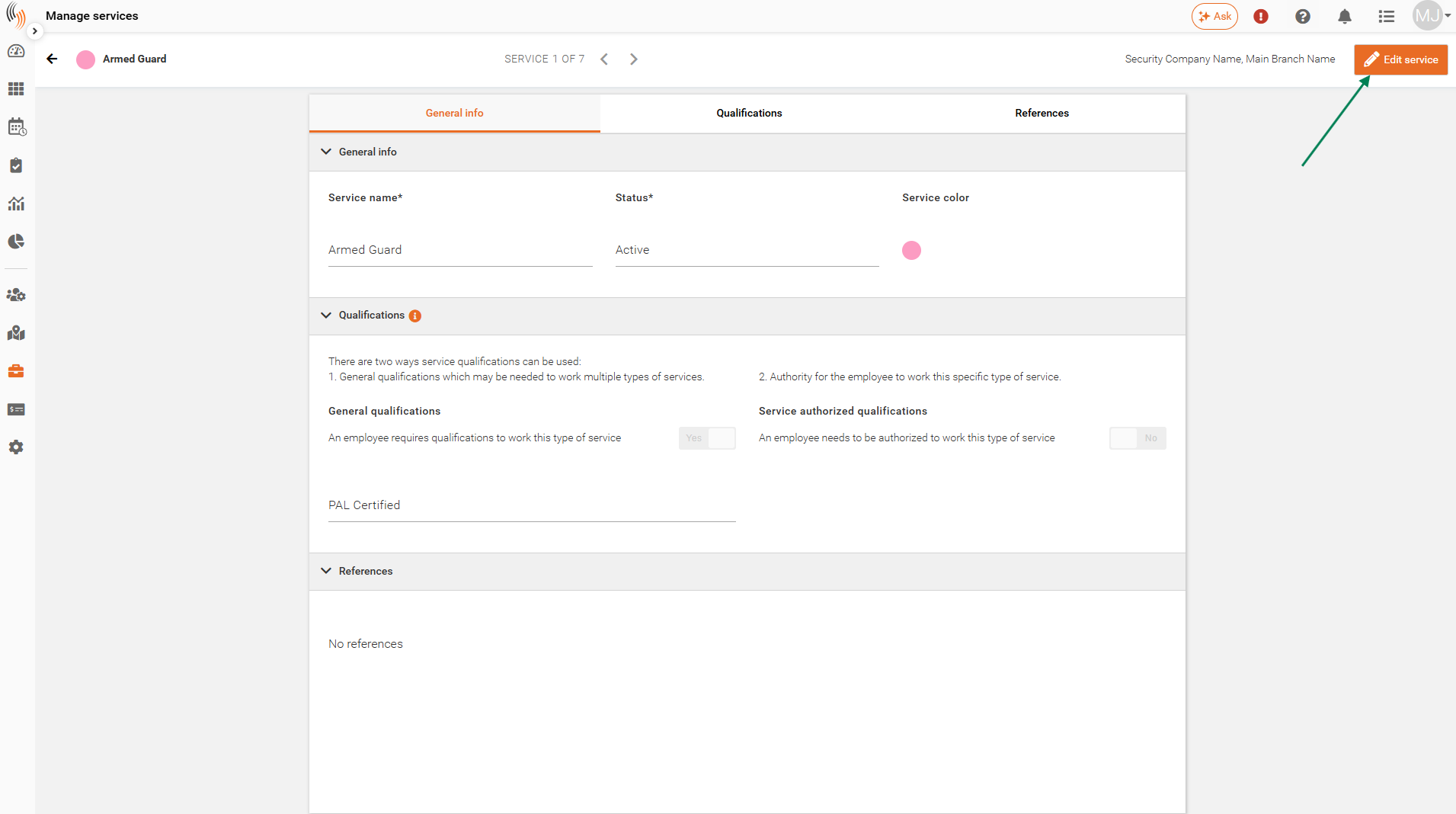
Next:
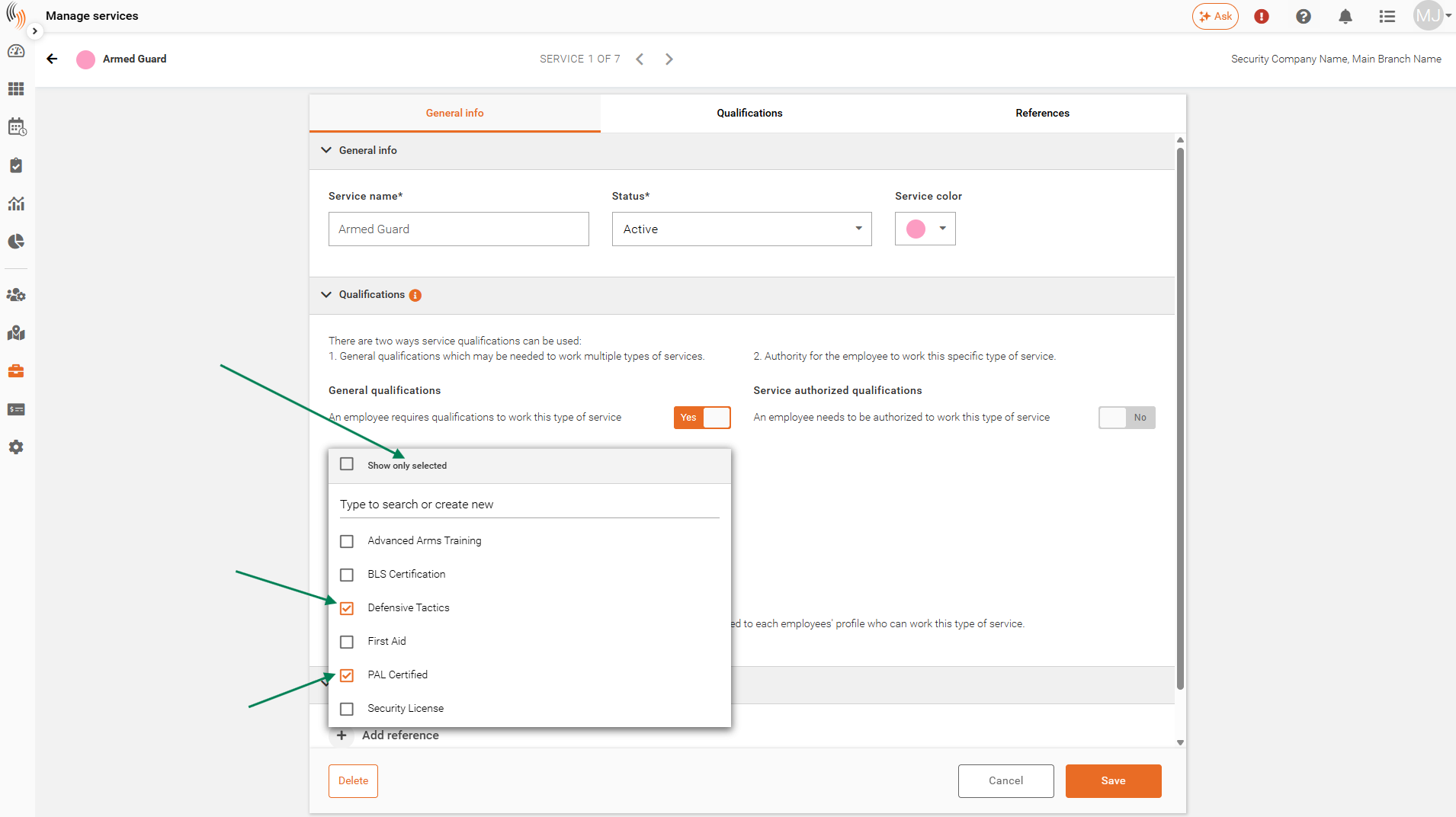
- Open the General Qualifications dropdown.
- Select the qualification(s) you want to assign.
- Click Save.
The selected qualifications will now be associated with the service.
Add a New Qualification
If the qualification you need does not already exist, you can create it directly from the service profile.
To add a new qualification:
- Open the service profile.
- Navigate to the Qualifications section.

Next:
- Click Edit Service.
- Ensure General Qualifications is set to Yes.

Then:
- Open the General Qualifications dropdown.
From here, you can:
- Select an existing qualification.
- Create a new qualification by typing directly into the field.

To create a new qualification:
- Enter the qualification name.
- Select Create New Qualification.
- Click Save.

The new qualification will automatically be assigned to the service.
Note: Qualifications created from a service profile can also be assigned to employee profiles and used throughout Schedule Xpress.
