Enable Shift Drop
Shift Drops allow employees to request removal from assigned shifts while giving admins control over how those shifts are managed and reassigned. Configure this feature to maintain schedule coverage while providing flexibility to employees.
Enable Shift Drops
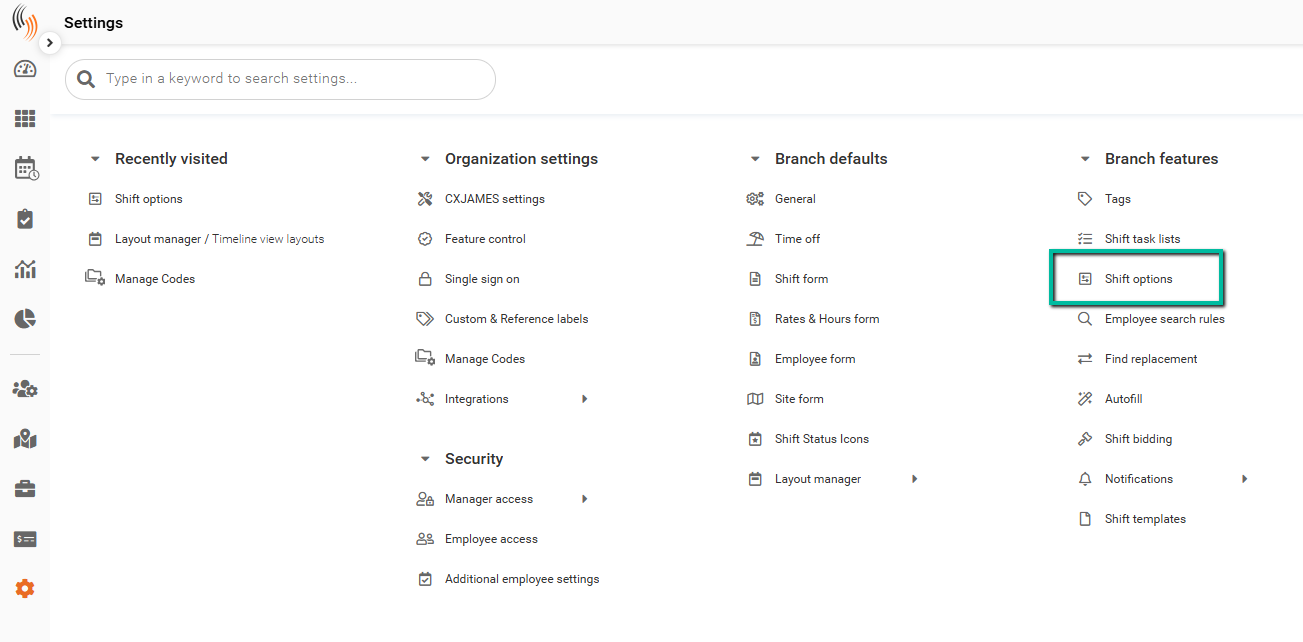
To enable Shift Drops, go to:
Settings → Branch Features → Shift Options
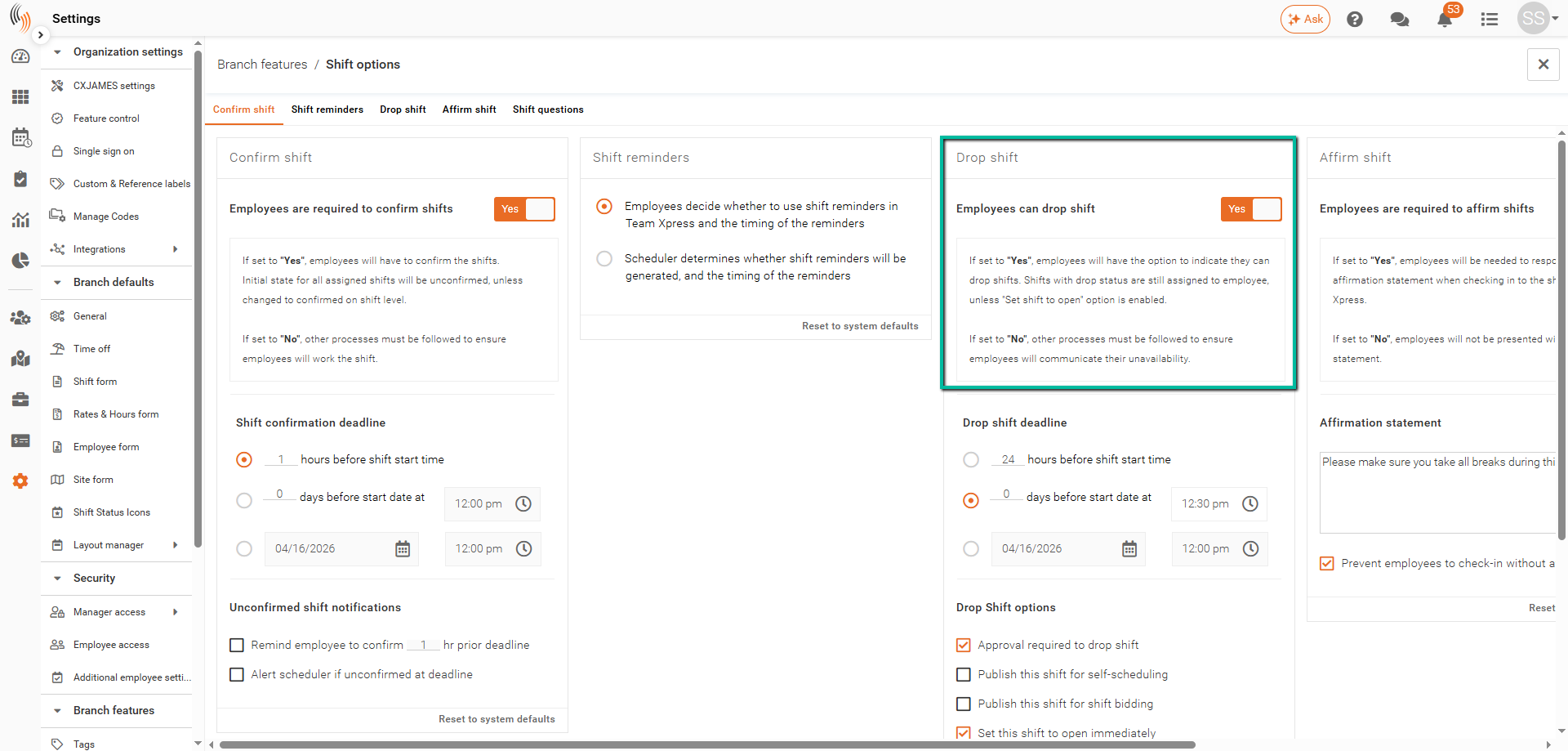
The first step is to enable Employees can drop shift to begin the setup process.
The remaining configuration steps are outlined below.
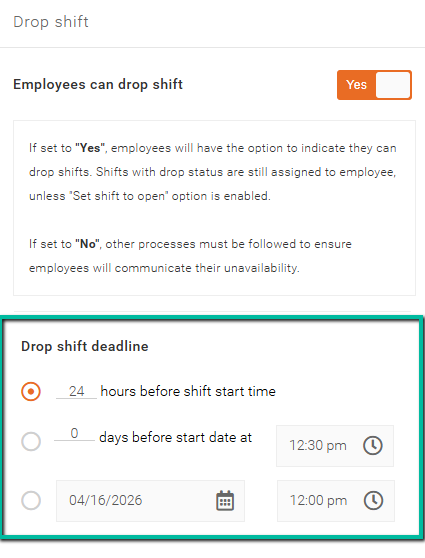
Set Drop Shift Deadline
Define when employees can no longer drop a shift to prevent last-minute changes.
Available options include:
- X hours before shift start time
- X days before start date at X time
- Specific date and time
After the deadline passes, employees will no longer be able to submit drop requests.
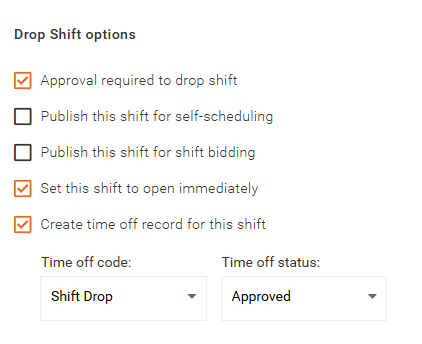
Configure Drop Shift Options
Choose how the system handles a dropped shift:
- Approval required to drop shift
Requires admin approval before the shift is removed. - Publish this shift for self-scheduling
Makes the shift available for employees to claim through Self-Scheduling if successfully dropped. To enable this option, Set this shift to open immediately must be selected. - Publish this shift for shift bidding
Makes the shift available for Shift Bidding if successfully dropped. An administrator must still set and publish the Shift Bidding deadline for it to be available for bidding. To enable this option, Set this shift to open immediately must be selected. - Set this shift to open immediately
Marks the shift as open for manual assignment. This option must be selected in order to enable Publish this shift for self-scheduling or Publish this shift for shift bidding. - Create time off record for this shift
Automatically creates a time off record when the drop is approved. You can select the Time off code (type) and Time off status it will be categorized as.
Configure Notifications
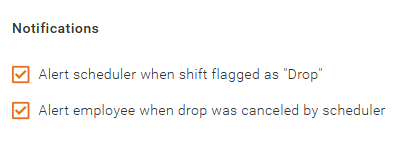
Set up notifications for shift drop activity:
- Alert scheduler when shift is flagged as “Drop”
Sends a notification to the email address configured under Scheduler email in Global Defaults. - Alert employee when drop is cancelled by scheduler
Sends a notification to the employee when their shift drop request is cancelled.
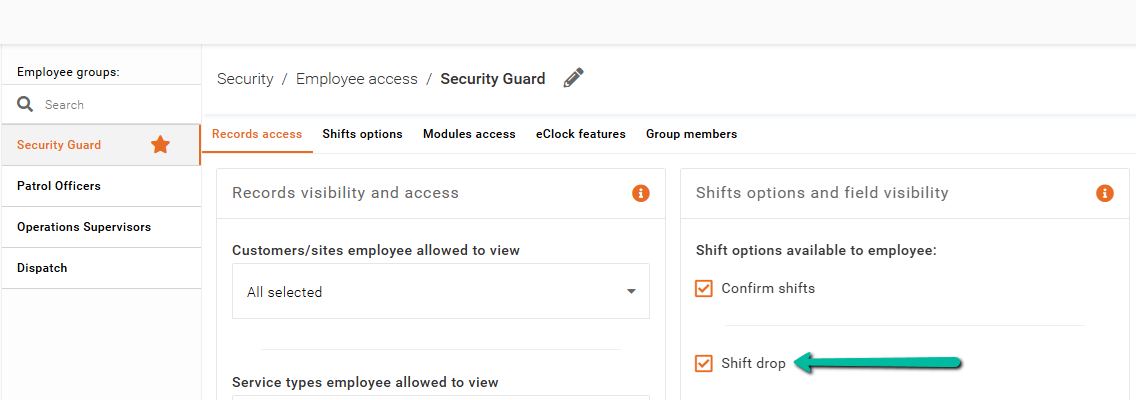
Enable Shift Drops for Employees
To allow employees to use this feature in Team Xpress, go to:
Settings → Security → Employee Access
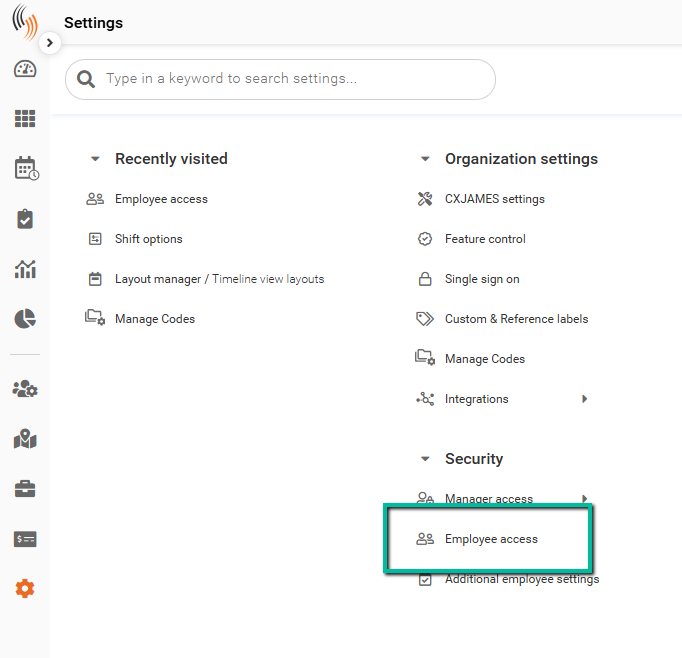
Enable Shift drop under Shift options and field visibility. This will allow the employee to drop the shift from within the Team Xpress app.