Add Pay Rates
Maintaining accurate pay rates is essential for payroll and workforce management. The Manage Rates module in Schedule Xpress allows you to centralize and organize all pay rates in one place, making it easy to add, update, and reference them as needed.
Access Manage Rates
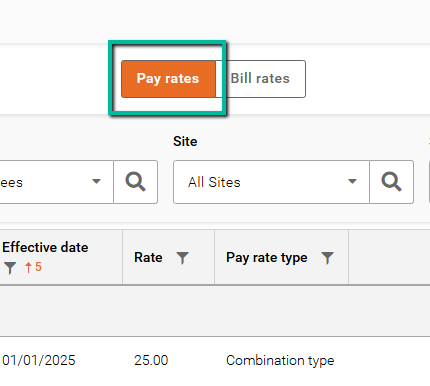
To begin, navigate to Manage Rates using the dollar icon on the left-hand menu. Once there, ensure you are in the Pay Rates tab.
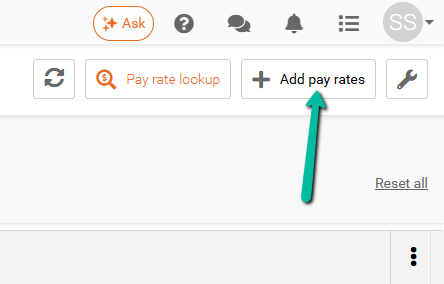
You can add a new pay rate by clicking Add pay rates in the top-right corner or by selecting it from the wrench icon menu.
Pay Rate Types
Schedule Xpress supports several types of pay rates depending on your configuration:
- Employee pay rates – Assigned to specific employees
- Site pay rates – Applied to specific work locations
- Branch default pay rates – Standard rates set at the branch level
- Combination pay rates – Rates based on employee, site and service
Your available options might differ depending on your system setup. If you're uncertain about your setup, please contact support for assistance.
Add a Pay Rate
Start by selecting the type of pay rate you want to create.
Here's what you'll need to define for the types of pay rates:
- Employee pay rates – Assigned to specific employees. You will need to select the employee(s), service(s), effective date, and rate.
- Site pay rates – Applied to specific work locations. You will need to select the site(s), service(s), effective date, and rate.
- Branch default pay rates – Standard rates set at the branch level. You will need to define the service(s), effective date, and rate.
- Combination pay rates – Rates based on employee, site, and service. You will need to select the employee(s), site(s), service(s), along with the effective date and rate.
The example below shows an employee pay rate.
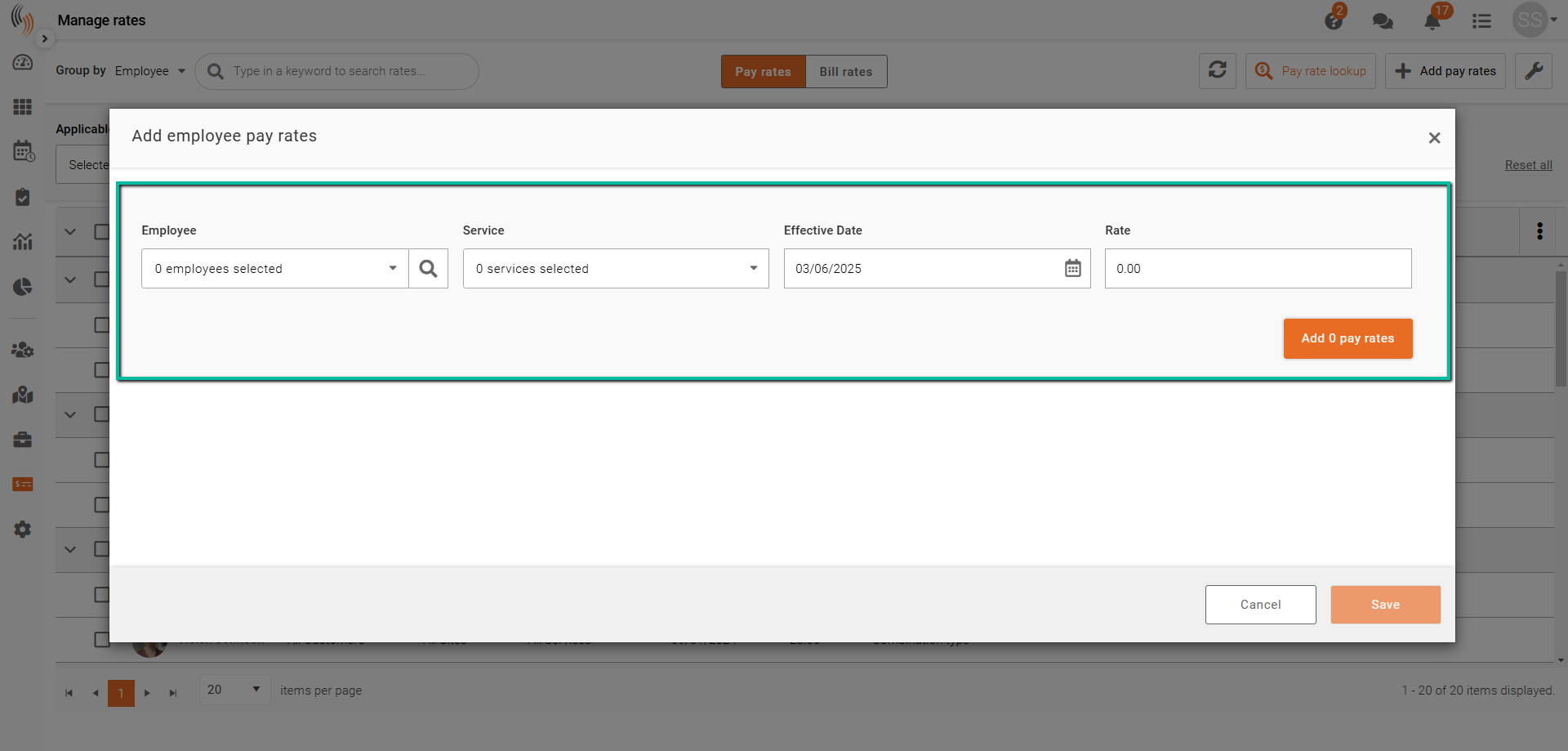
Click Add pay rates to move on to the next step.
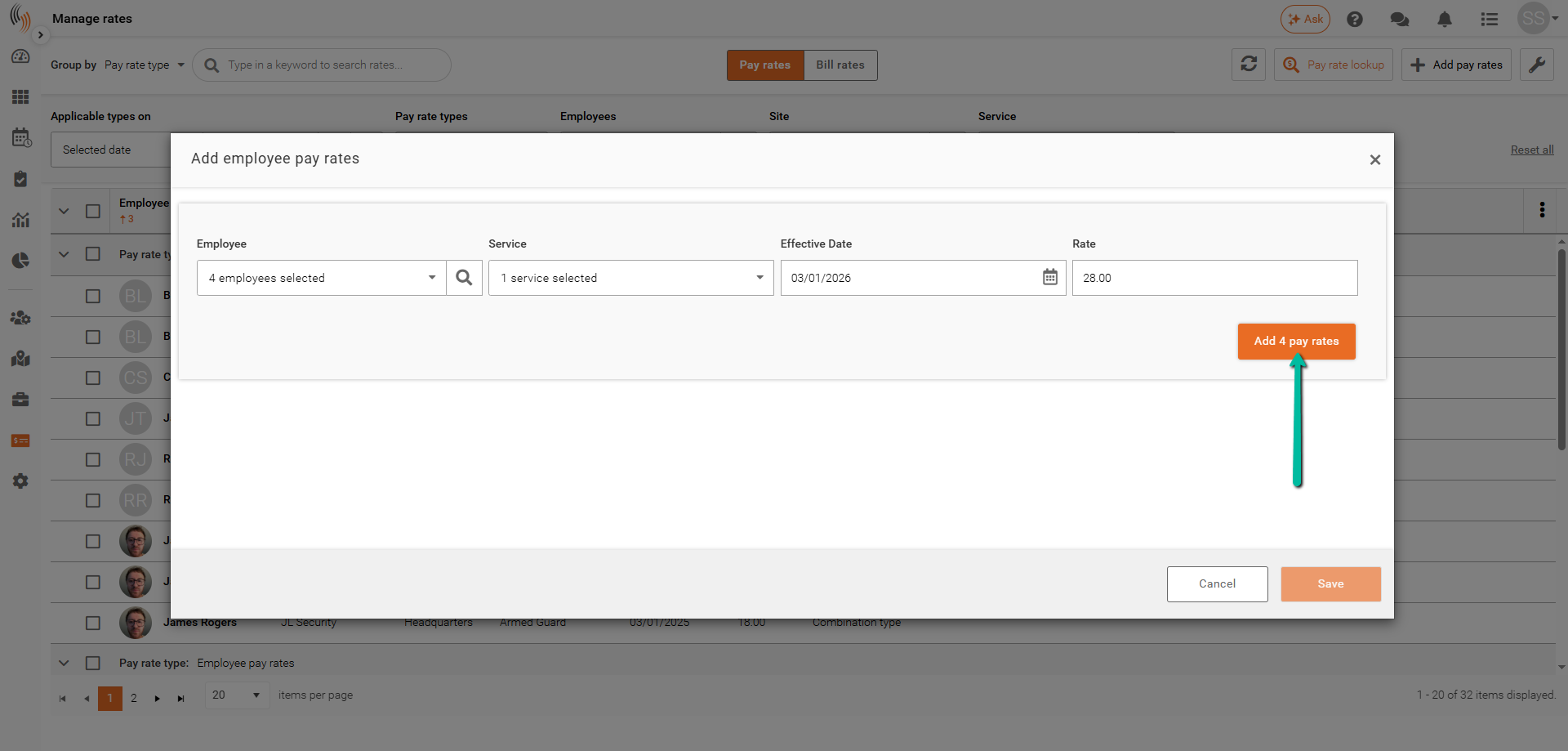
When you select more than one employee, site, or service, a separate line will be created for each.
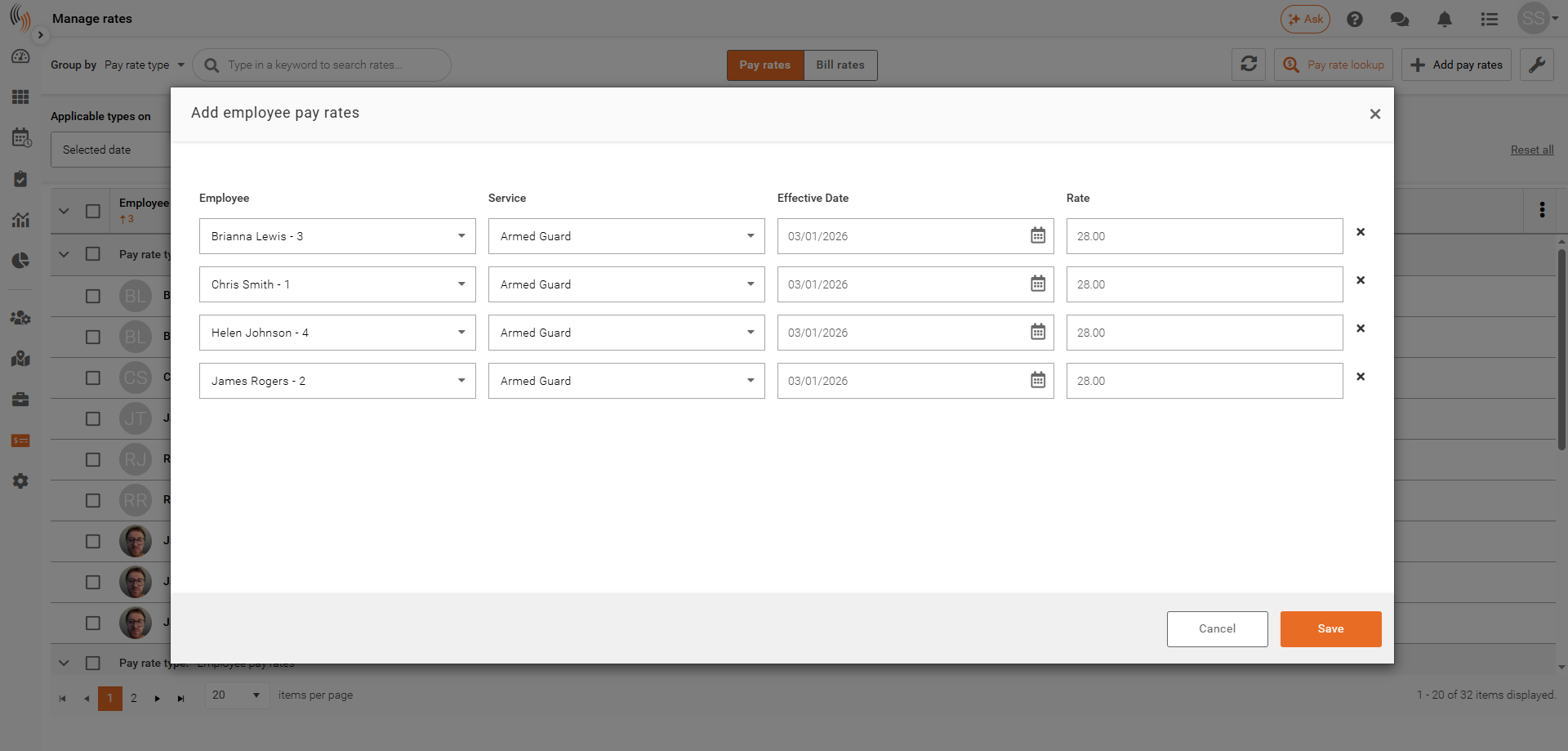
Save Pay Rates
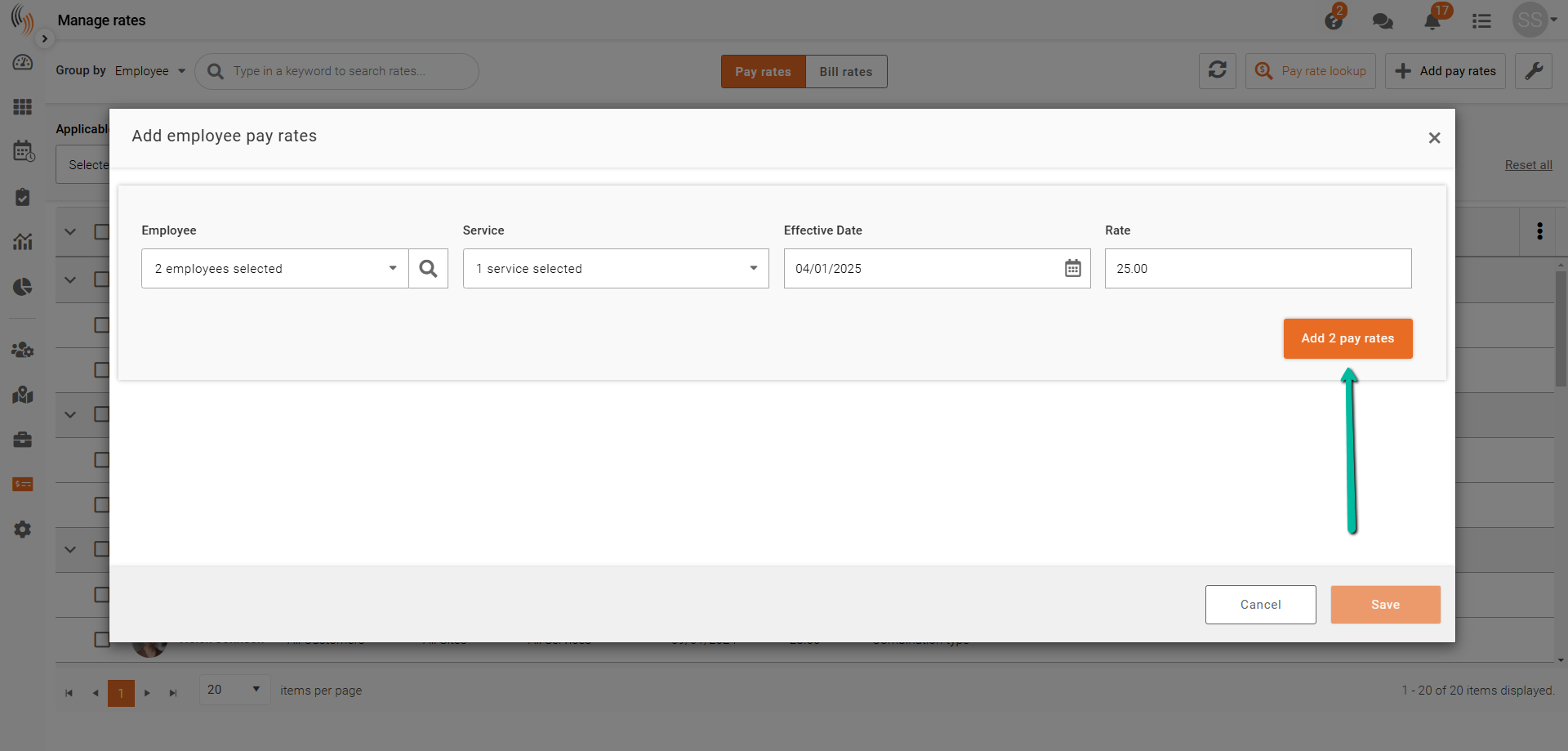
Once you have entered all required details, click Add # pay rates to confirm the entries. Then click Save to complete the process.
Apply Rate Changes
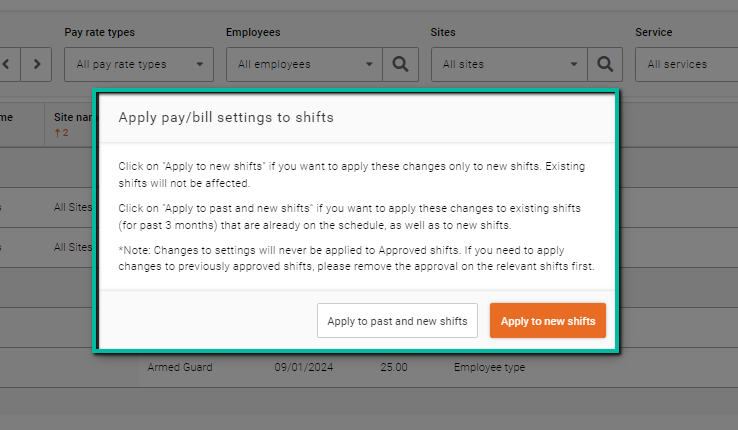
After saving, you will be prompted to choose how the new rate should be applied:
- Apply to past and new shifts – Recalculates pay rates starting from the effective date, updating both historical and future shifts.
- Apply to new shifts – Applies the new rate only to future shifts, leaving past shift data unchanged.
Once you make your selection, the rate(s) will be added.