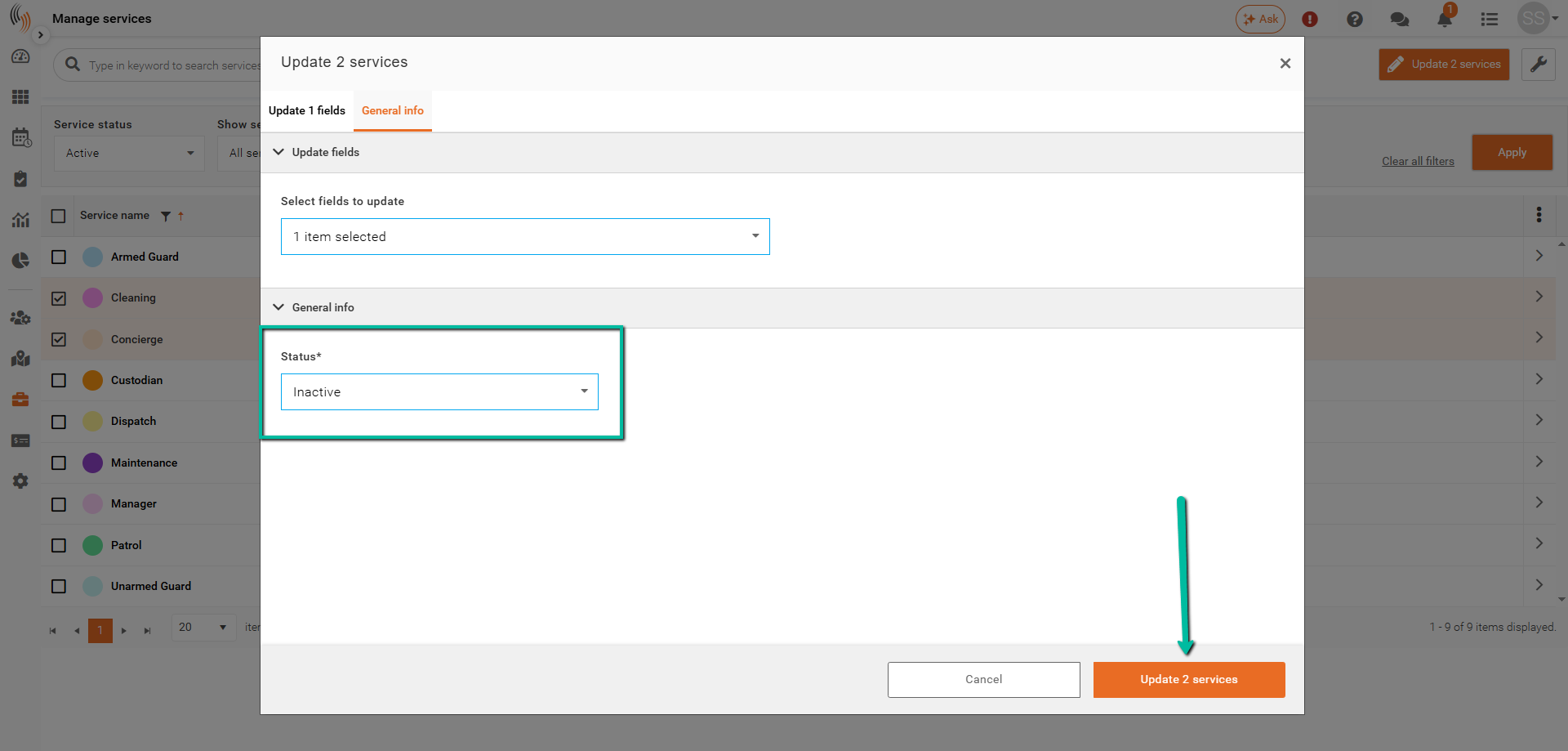
Change Service Status to Inactive
Learn how to deactivate services without losing historical data.
Instead of deleting a service, you can mark it as Inactive. This removes the service from your schedule and prevents it from being assigned to new shifts, while preserving all historical data for reporting and records.
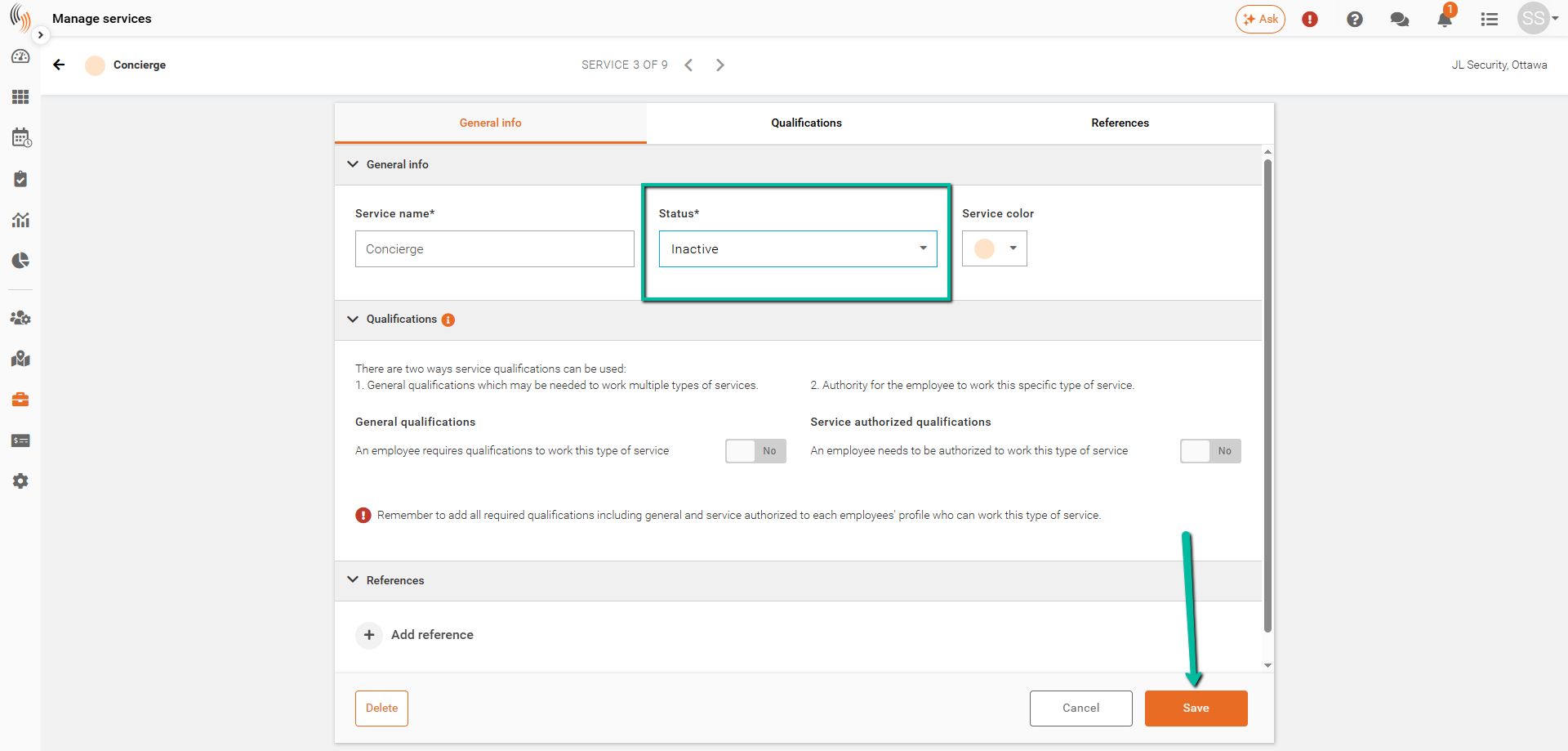
Make a Single Service Inactive
To set a service to Inactive:
- Open the service you want to update
- Click Edit Service
- In the General Info section, change the Status to Inactive
- Click Save
Make Multiple Services Inactive
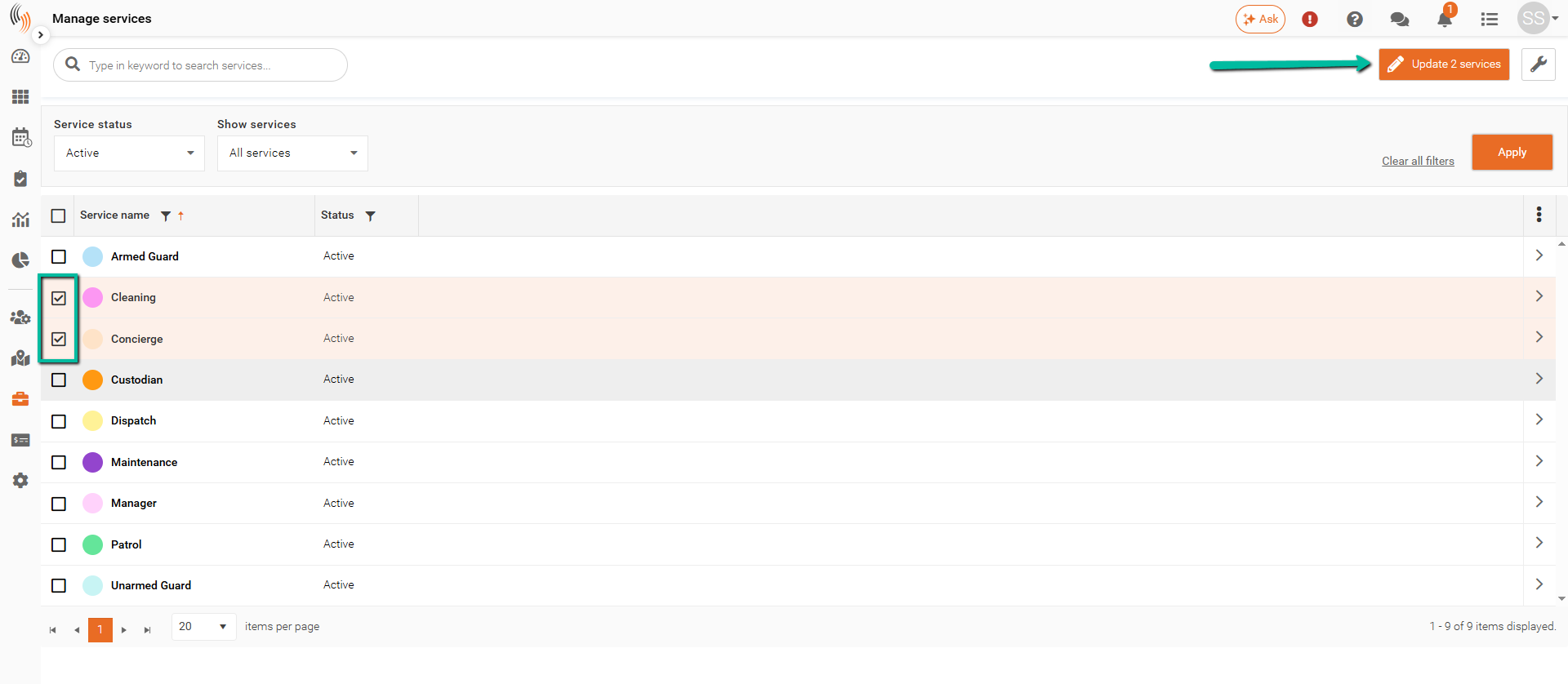
To update multiple services at once:
- Select the services from your services list
- Click Update Services in the top-right corner
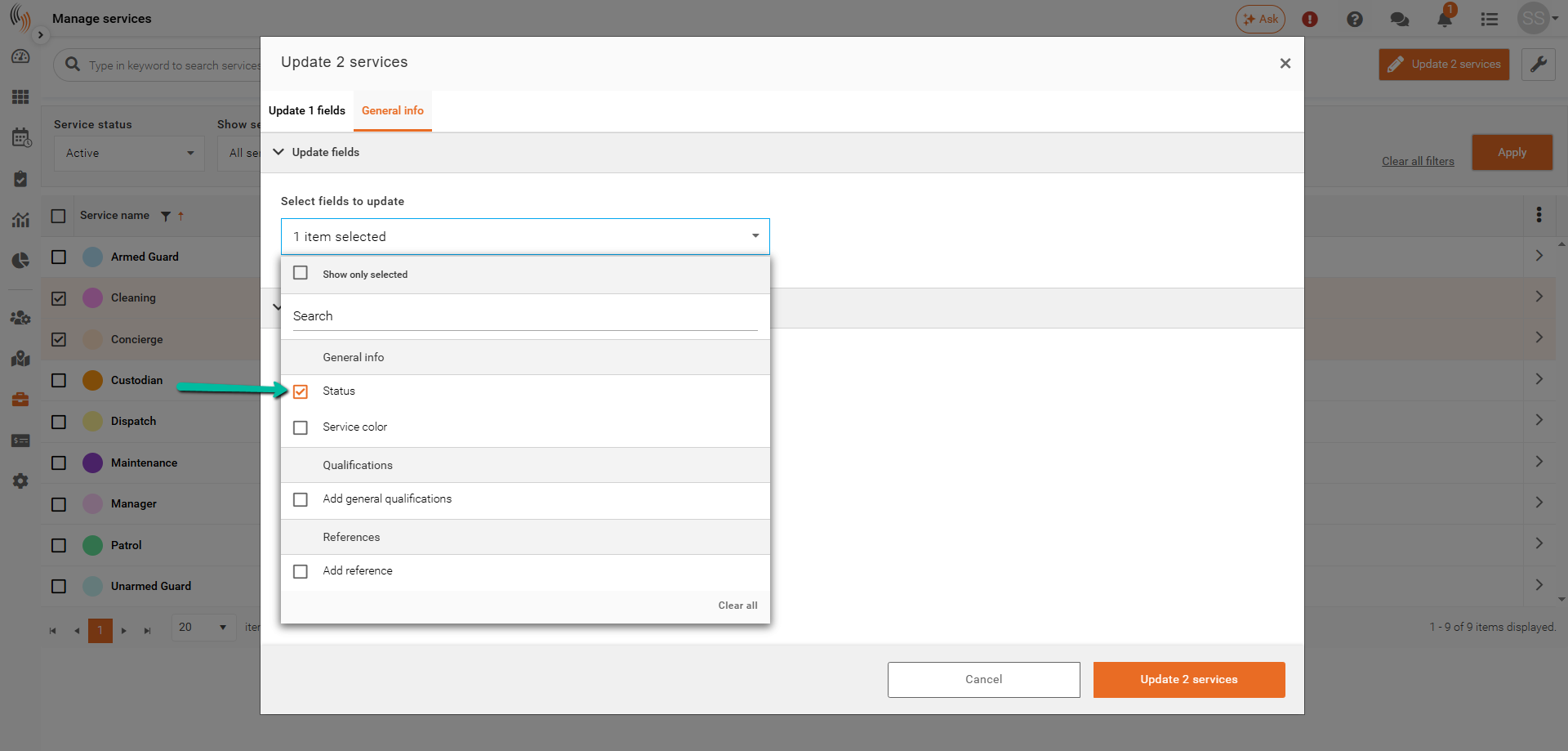
Once the update window opens:
- Select Status from the Select Fields to Update dropdown and click into the space outside of the dropdown to close it
- Choose Inactive as the status
- Click Update Services to apply the changes