
Enable Self-Scheduling for Employees
Enable Self-Scheduling to allow employees to view and request available shifts based on their eligibility. This reduces manual scheduling and gives employees more flexibility in managing their work schedules.
Enable Self-Scheduling
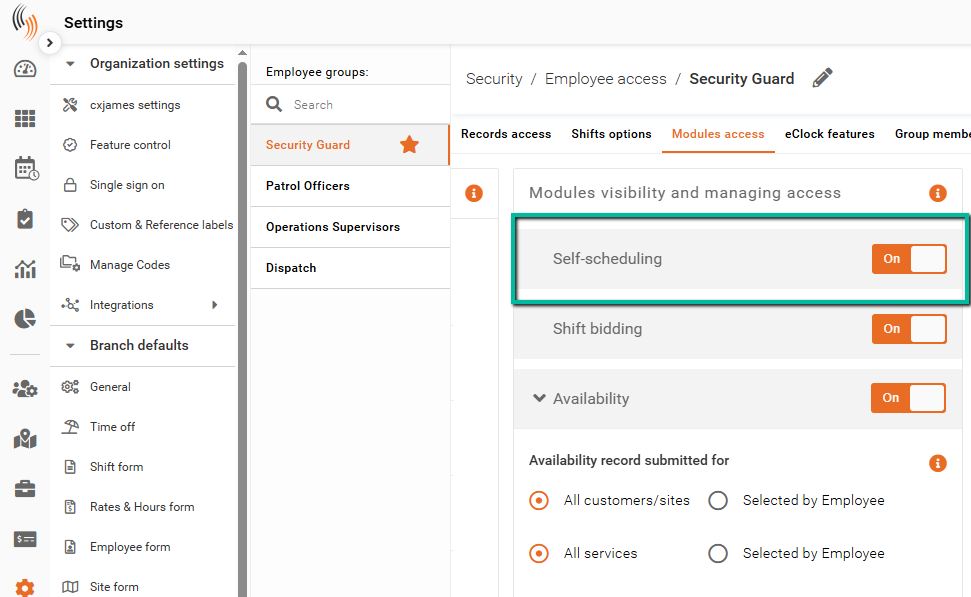
To enable Self-Scheduling, go to:
Settings → Security → Employee Access
Under Module Visibility and Managing Access, set Self-Scheduling to Yes.
This activates the feature for employees in this access group.
Employee View
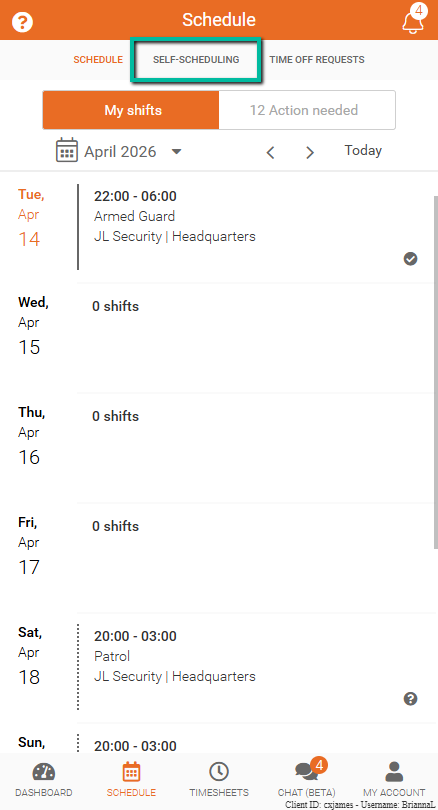
Once enabled, the Self-Scheduling section becomes available in the Team Xpress app, allowing employees to view and request available shifts.
Post Shifts for Self-Scheduling
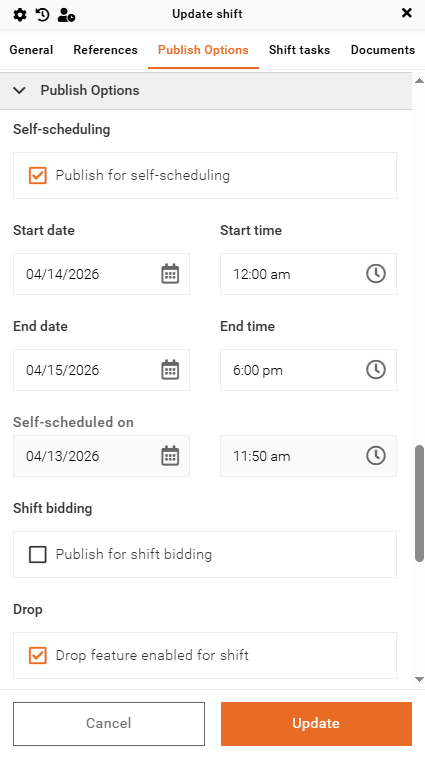
To make shifts available for Self-Scheduling, configure them when creating or editing a shift:
- Go to the Publish Options section
- Select Publish for Self-Scheduling
- Set the Start Date and Time
- Set the End Date and Time
After these settings are applied, the shift will be available for employees to request.
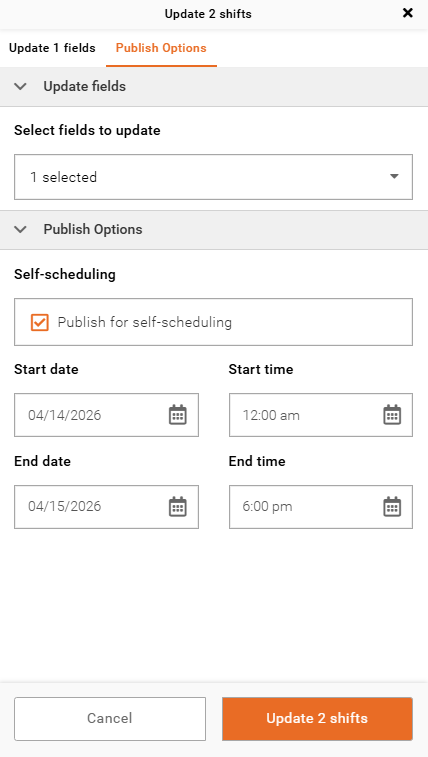
This can be done in bulk if you update multiple shifts simultaneously.
Important
The Publish for Self-Scheduling option is always visible in the shift panel, when adding or updating a shift.
If Self-Scheduling is disabled in Employee Access, employees will not be able to request shifts, even if they are published for self-scheduling.