Delete Bill Rates
Delete one or more bill rates quickly from the Manage rates page.
Deleting bill rates allows administrators to remove outdated or incorrect rates and keep billing records accurate and up to date. Multiple bill rates can be deleted at the same time.
Delete Bill Rates
To delete one or more bill rates:
- Select the bill rate(s) by checking the corresponding boxes.
- Click the Wrench Icon in the top-right corner.
- Select Delete Rate.
Tip: Multiple bill rates can be deleted at the same time by selecting more than one bill rate before clicking Delete Rate.

Confirm Deletion and Apply Changes
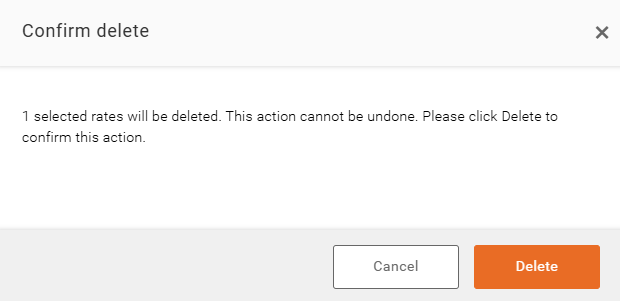
After selecting Delete Rate, you will be prompted to confirm the deletion.
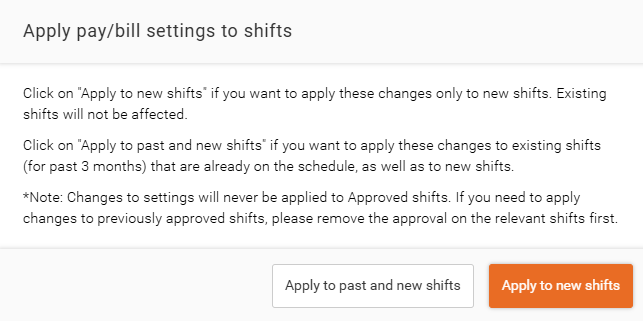
Once confirmed, choose how the deletion should be applied:
- Apply to Past and New Shifts – Removes the bill rate from the selected effective date and updates both historical and future shifts.
- Apply to New Shifts – Removes the bill rate from future shifts only and preserves historical shift data.
After selecting the desired option, click Delete to complete the process.
Important Note: Deleting a bill rate will also remove its associated history. This action cannot be undone.