
Set Maximum Hours for Employees
The Maximum Hours feature allows organizations to define the maximum number of hours an employee can work within a specific time period. These limits help prevent employees from being scheduled beyond configured workforce rules.
Find Maximum Hours
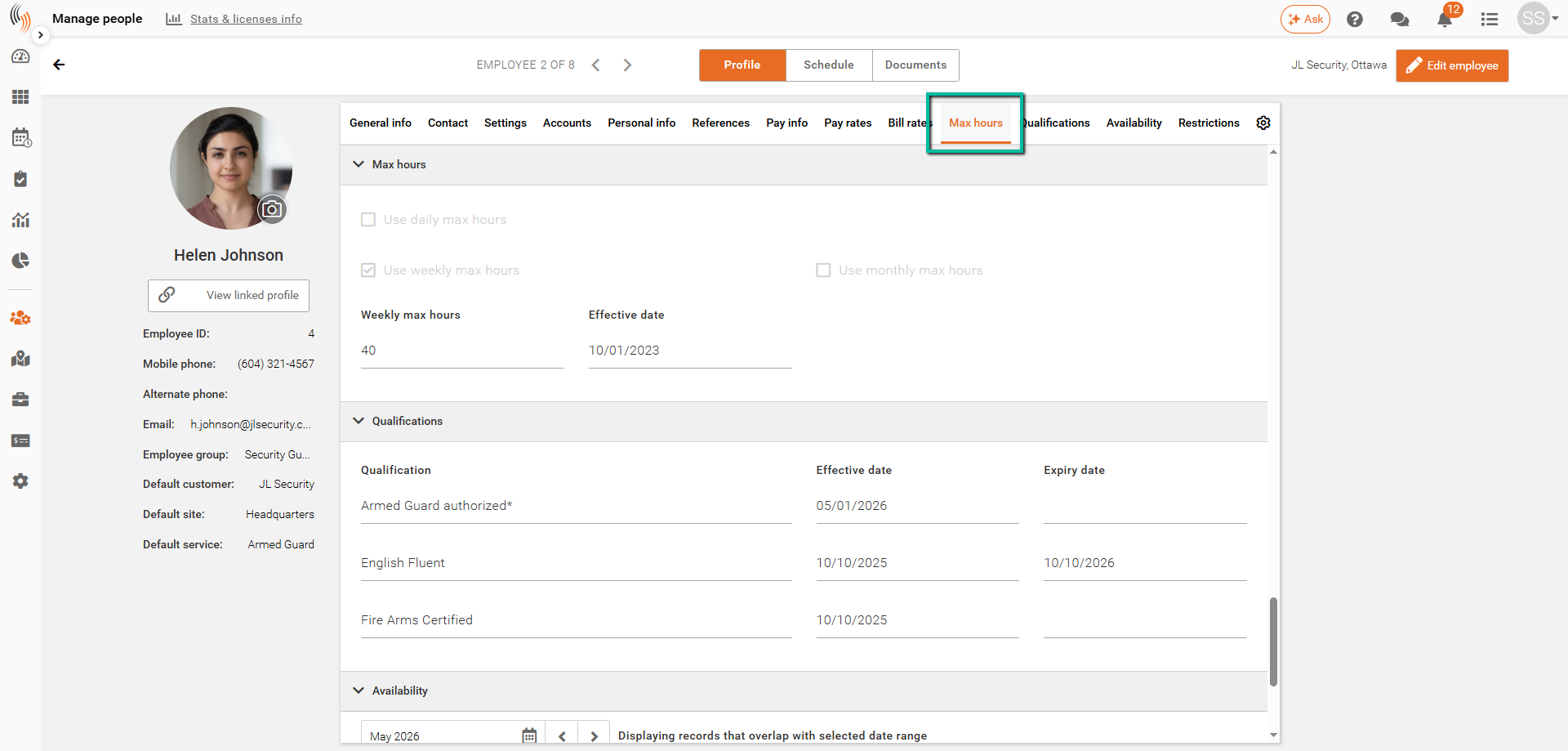
Maximum Hours can be configured within the employee profile under:
Manage People → Select Employee → Max Hours
Use Maximum Hours
The Max Hours section allows Users to configure scheduling limits for employees based on organizational requirements.
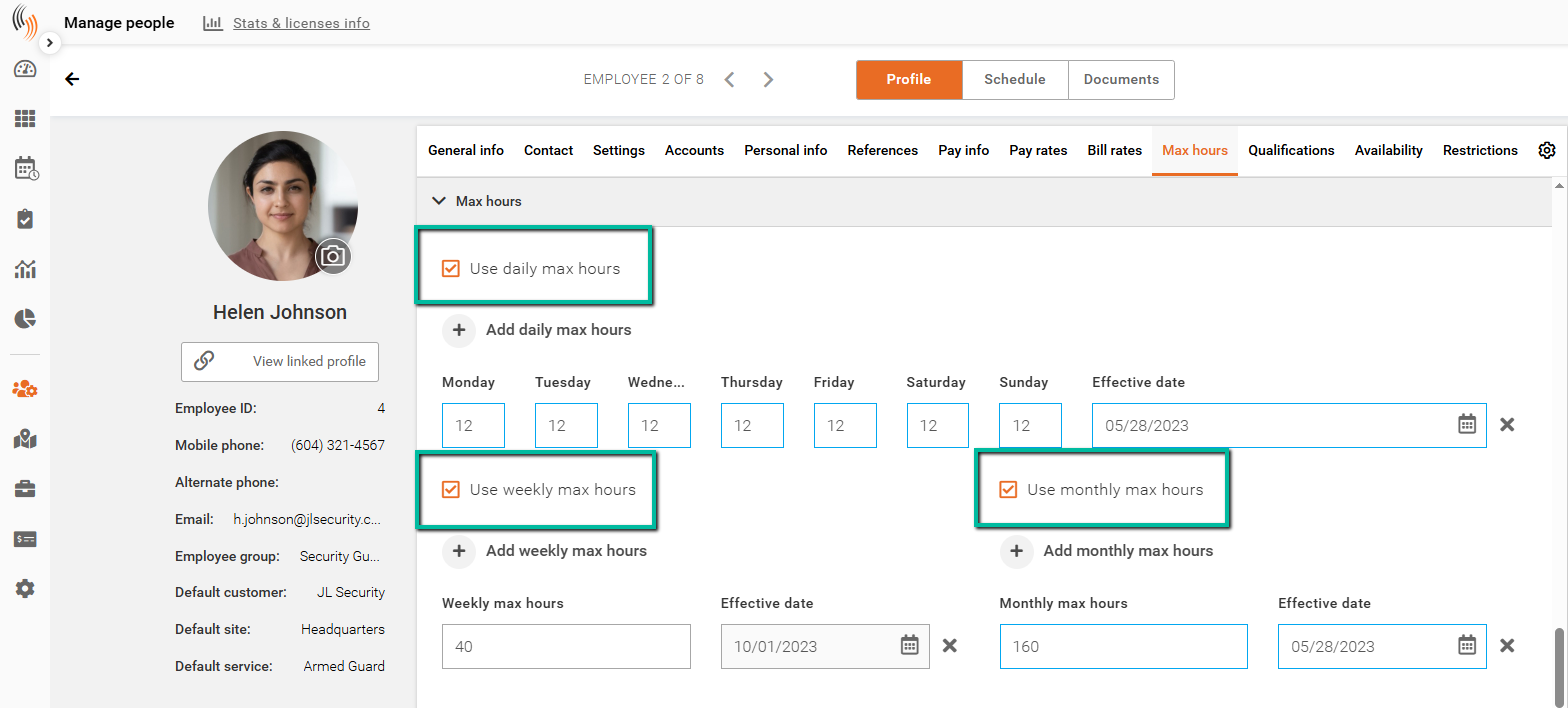
Maximum Hours can be configured for:
- Daily hours
- Weekly hours
- Monthly hours
These limits are used by the scheduling system to monitor employee workloads during schedule creation.
Configure Maximum Hours
To configure Maximum Hours for an employee:
- Open the employee profile
- Navigate to the Max Hours section
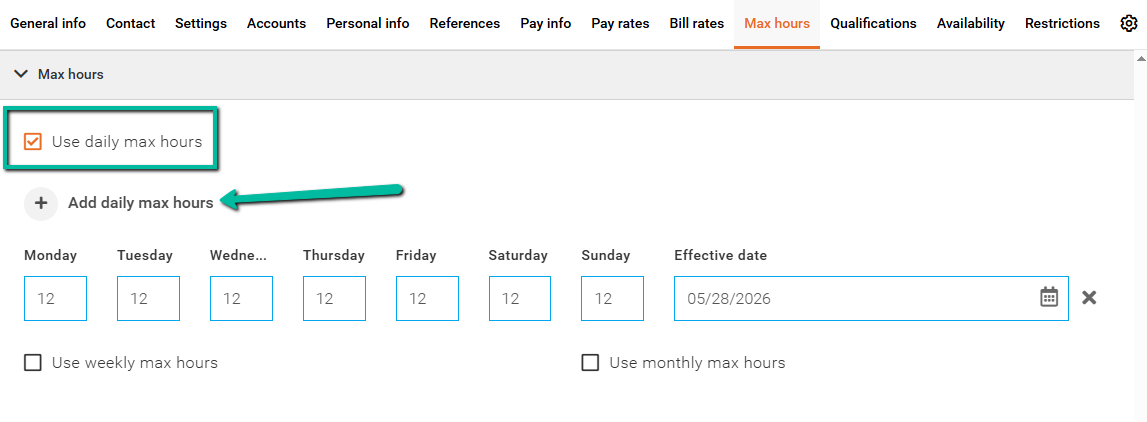
- Choose Daily, Weekly or Monthly Max Hours
- Enter the required hour limits
- Add the Effective Date
- Click Save
Once configured, the limits will apply during scheduling workflows.
Validations for Maximum Hours
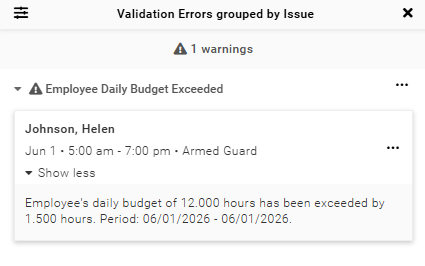
When an employee is scheduled beyond their configured Maximum Hours, Schedule Xpress will generate a validation as either a warning or an error, depending on system configuration.
These validations help organizations control employee working hours, reduce overtime scheduling, and maintain workforce scheduling rules.
Why Use Maximum Hours
Organizations use Maximum Hours to:
- Reduce employee over-scheduling
- Support workforce compliance
- Improve scheduling oversight
- Monitor employee workloads
- Maintain operational scheduling rules
Using Maximum Hours helps organizations create more accurate and compliant employee schedules within Schedule Xpress.