Enable Shift Affirmations
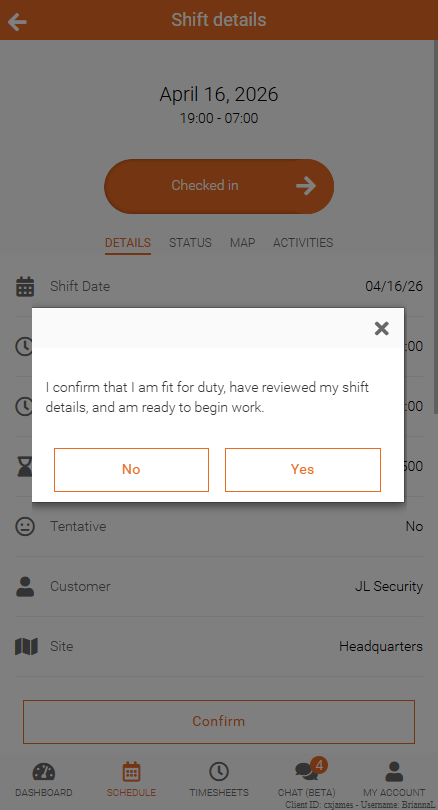
The Shift Affirmation feature allows you to display important information that employees must acknowledge before clocking in. This statement appears before employees Slide to Check In to their shifts.
Access Shift Affirmation Settings
To access your Affirm Shift setup:
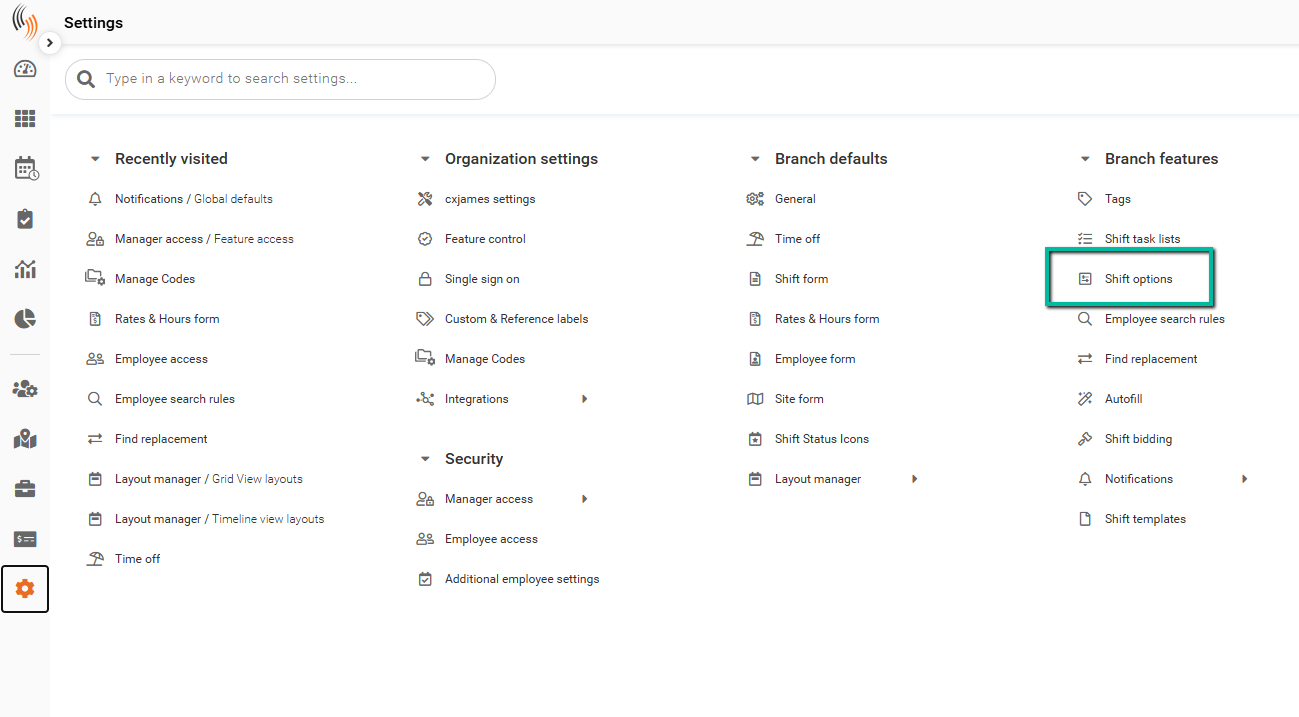
Settings → Branch features → Shift options
Enable Shift Affirmations
You can enable Shift Affirmations by setting the toggle to Yes under Shift options.
Choose How Shift Affirmations Are Controlled
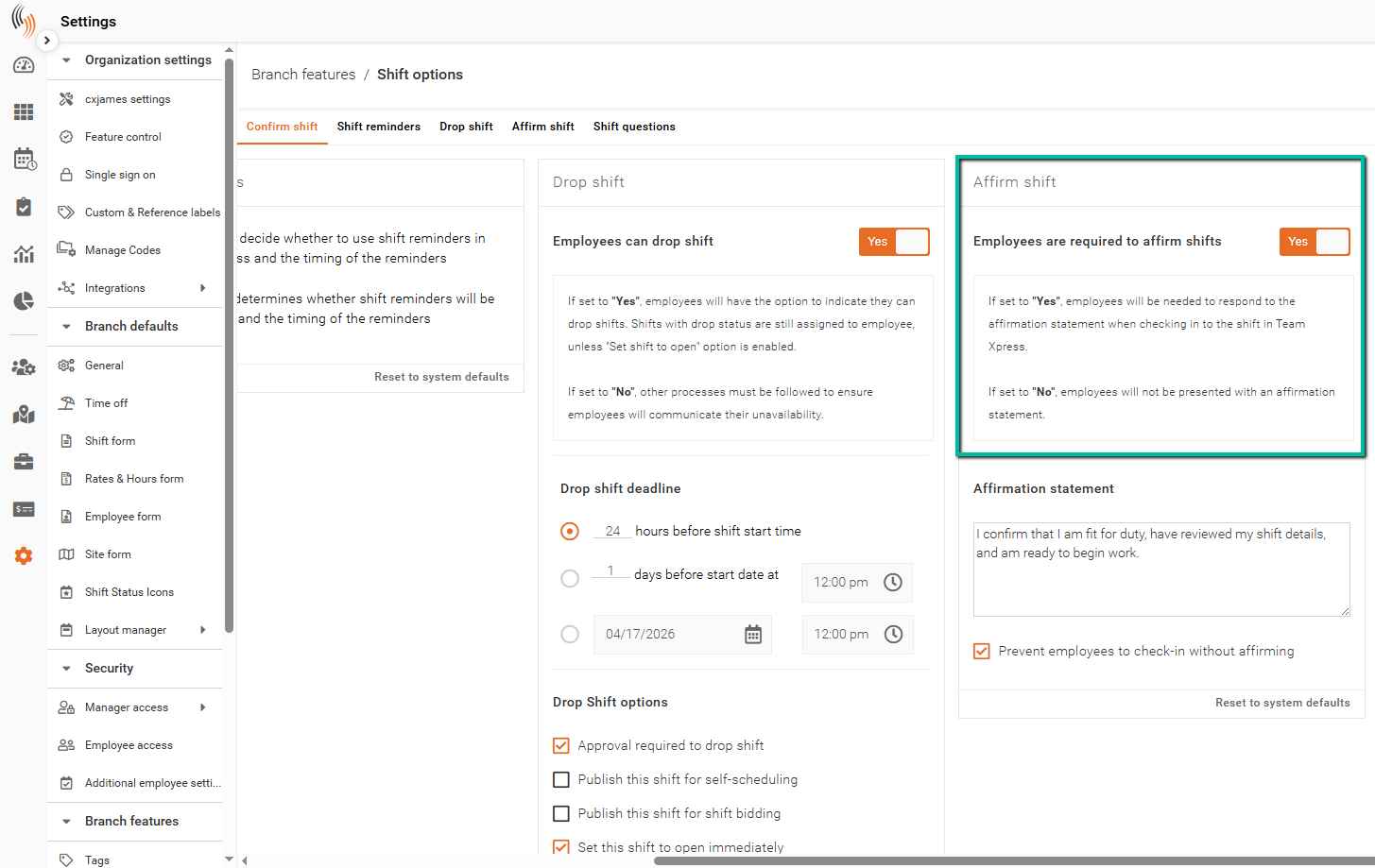
Choose whether employees are prompted to complete Shift Affirmations based on their Employee Access Group or the Site where they’re working. This setting applies to all Shift Affirmations and Shift Questions in the branch.
- Go to Settings > Branch Defaults > General.
- Select the Other Shift Requirements and Rules tab.
- Expand Shift Affirmations and Questions.
- Under Control Method, choose Employee or Site.
- Employee uses Employee Access Group settings to determine which groups are prompted to complete Shift Affirmations.
- Site uses Site settings to determine where Shift Affirmations are required.
- Select Save.
See the next section for details on how to manage access to Shift Affirmations.
Manage Access to Shift Affirmations
Follow the steps below for the Control Method you selected.
Manage Access by Employee Access Group
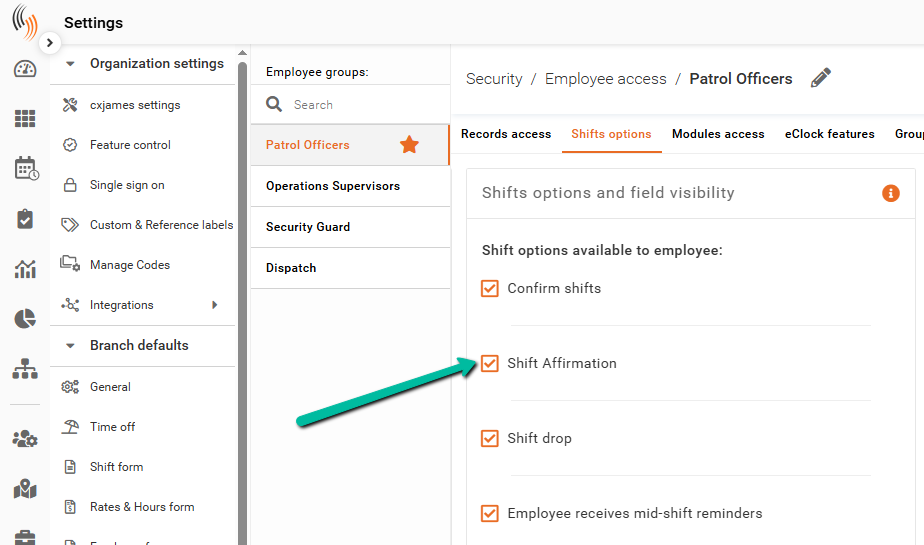
If you selected Employee, use the Shift Affirmation checkbox to enable or disable Shift Affirmations for each Employee Access Group.
- Go to Settings > Security > Employee Access.
- Open the Employee Access Group you want to update.
- Select the Shifts Options tab.
- Under Shifts Options and Field Visibility, select or clear Shift Affirmation as needed.
- Select Save.
Require Shift Affirmations by Site
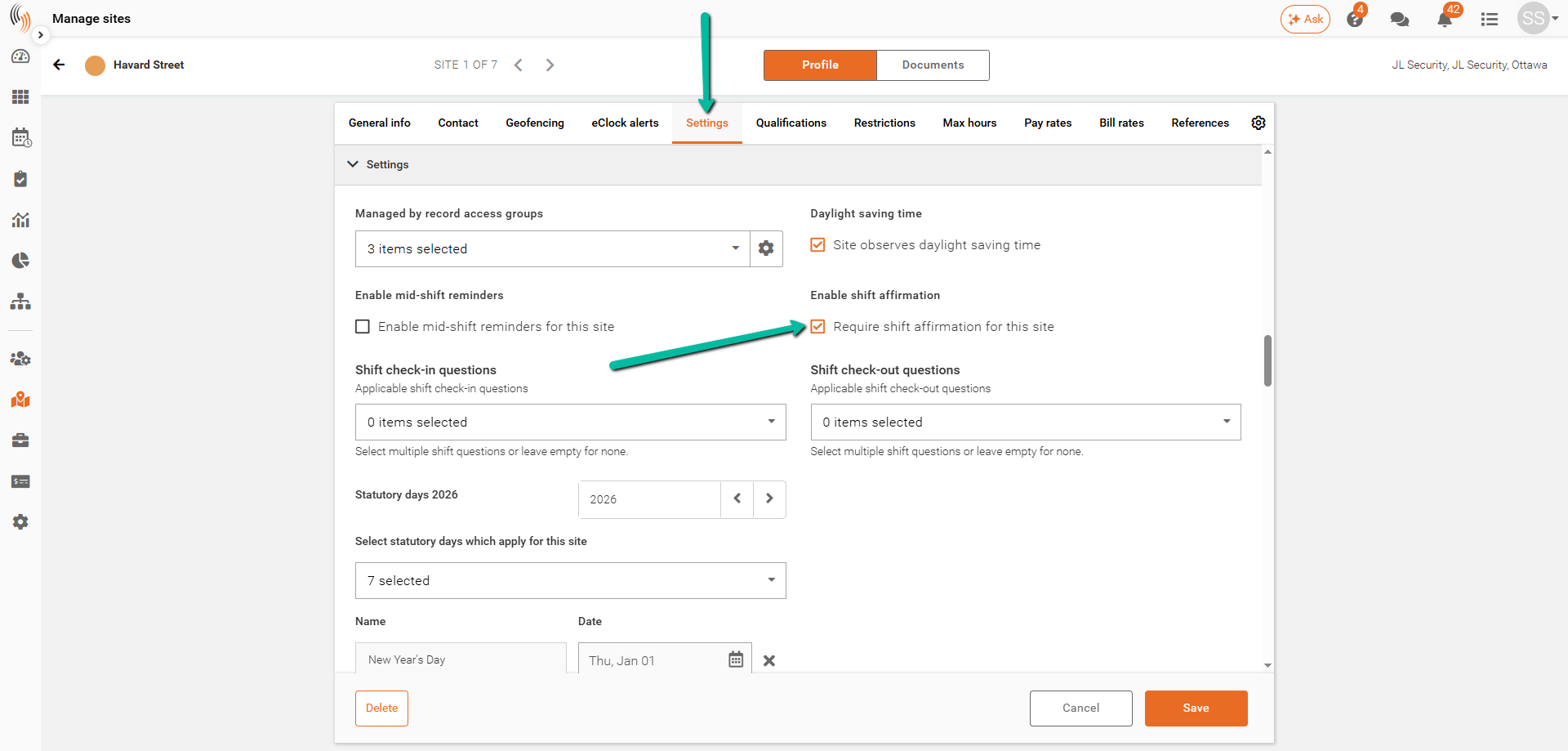
If you selected Site, choose which Sites require employees to complete a Shift Affirmation.
- Go to Manage Sites and open the Site you want to update.
- In the Site’s Profile, select the Settings tab.
- Under Enable Shift Affirmation, select Require Shift Affirmation for This Site. Clear the checkbox to remove the requirement.
- Select Save.
Affirmation Statement
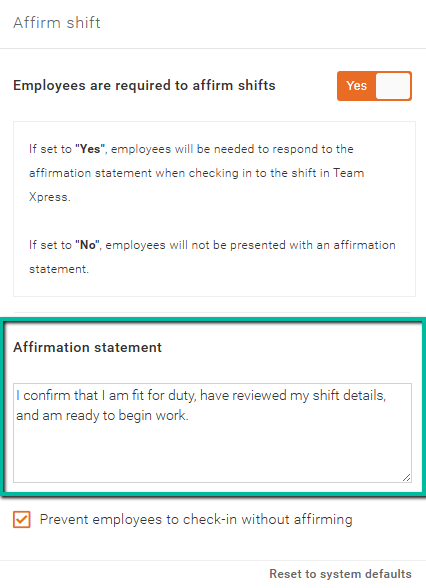
Customize the Affirmation Statement to communicate important information to employees before they check in to their shift.
Require Affirmation Before Check-In
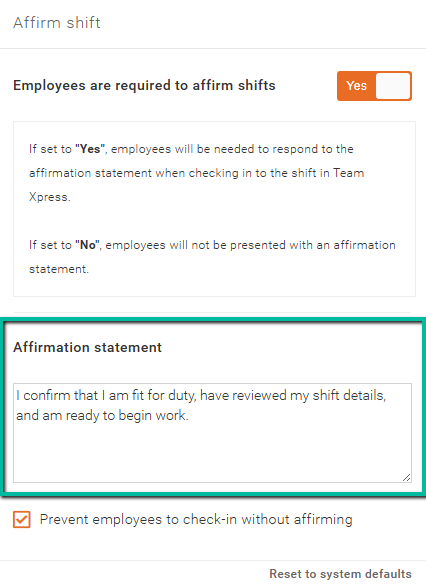
Enable this option to require employees to agree to the affirmation statement before checking in.
If an employee selects No, they will not be able to check in and will see an error message.
How Employees See Shift Affirmations in Team Xpress
When Shift Affirmations are enabled, employees will see the affirmation statement before they can Slide to Check In to their shift in Team Xpress, as shown below.