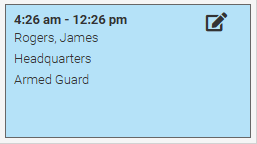
Shift Status Icons
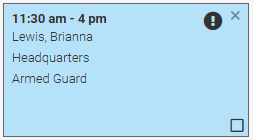
Shift Status Icons provide a quick way to identify the status of shifts directly from the Schedule view. These visual indicators help admins monitor shift activity and take action as needed.
Find Shift Status Icons Setup
To locate Shift Status Icons settings, go to Settings → Branch Defaults → Shift Status Icons.

Select Shift Status Icons
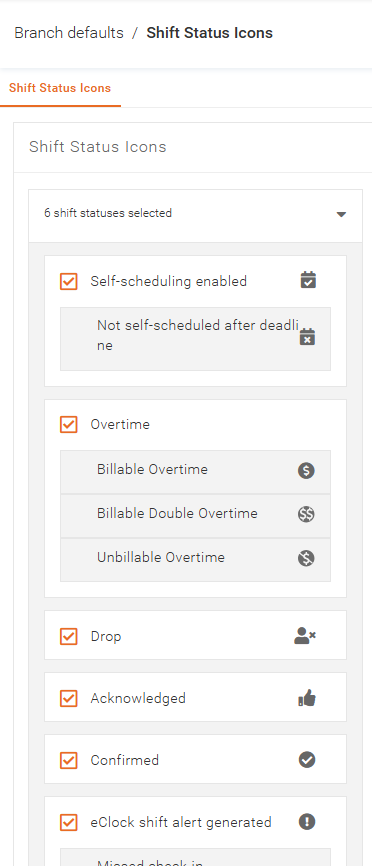
Within this section, you can control which icons appear on shift blocks in the Schedule.
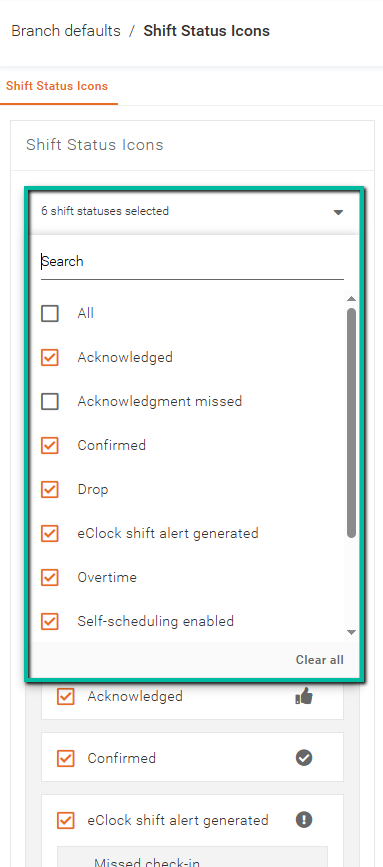
Select or deselect icons using the dropdown menu. Check the box next to each icon to enable it, or uncheck it to remove it from view.
Select items by clicking the dropdown menu and checking the box beside each desired option. Uncheck any box to deselect that item.
Shift Status Icon Definitions
Below is a description of each available Shift Status Icon:
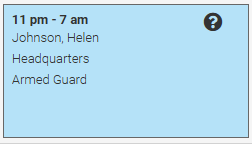
Tentative
Indicates the shift is provisional and not yet confirmed.
Self-Scheduling Enabled
Shows when a shift is available for Self-Scheduling and the deadline has not passed.
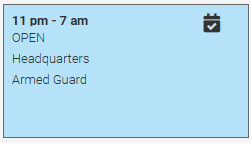
Not Self-Scheduled after Deadline
Indicates the shift was not picked up before the Self-Scheduling deadline.
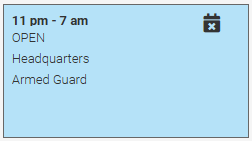
Shift Bidding Enabled
Displays when a shift is open for Shift Bidding.
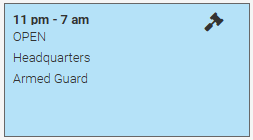
No Shift Bids by Deadline
Indicates no bids were received before the deadline.
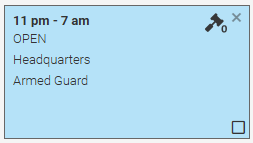
Shift Bids Received
Shows that one or more bids have been submitted for the shift.
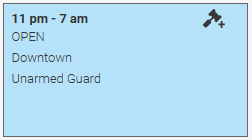
Overtime
Indicates the shift has entered Overtime.
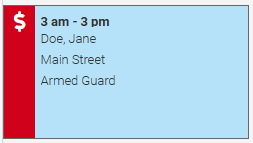
Billable Overtime / Billable Double Overtime
Shows billable overtime (one dollar sign) or double overtime (two dollar signs).
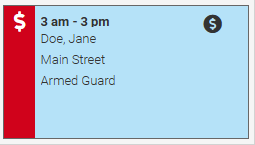
Unbillable Overtime
Indicates overtime that is not billable.
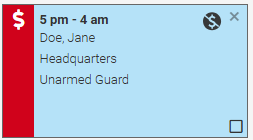
Drop
Shows that the shift was dropped by the employee.
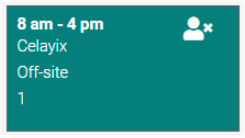
Acknowledgement Missed
Indicates the employee did not acknowledge the shift.
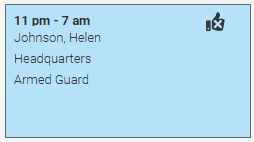
Acknowledged
Shows the employee has acknowledged the shift.
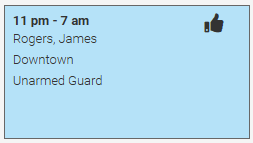
Confirmed
Indicates the employee has confirmed the shift.
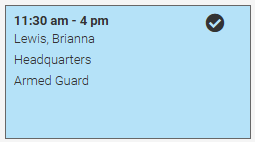
eClock Shift Alert Generated
Displays when an eClock alert has been triggered.
Unscheduled Shift
Indicates a shift was created outside of the schedule by an employee.