Edit Shifts in Schedule Xpress Mobile
This guide explains how to edit an existing shift using the Schedule Xpress Mobile app.
Managing schedules on the go is simple with Schedule Xpress Mobile. If you need to update shift details—such as time, employee, or location—you can quickly make changes directly from your mobile device. This guide walks you through how to edit a shift in just a few taps.
Step 1: Open the Shift
From the Shifts screen:
- Tap on the shift you want to edit
Step 2: Access the Edit Option
You can edit a shift using either of the following methods:
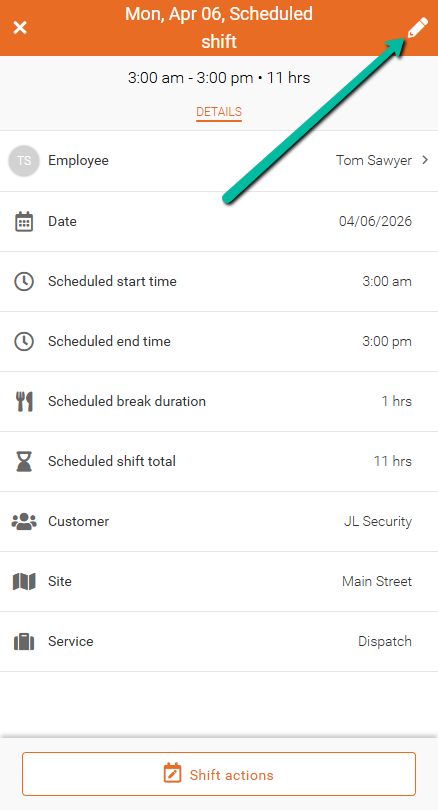
Method 1: Use the Pencil Icon
- Tap the pencil icon in the top-right corner of the shift details screen
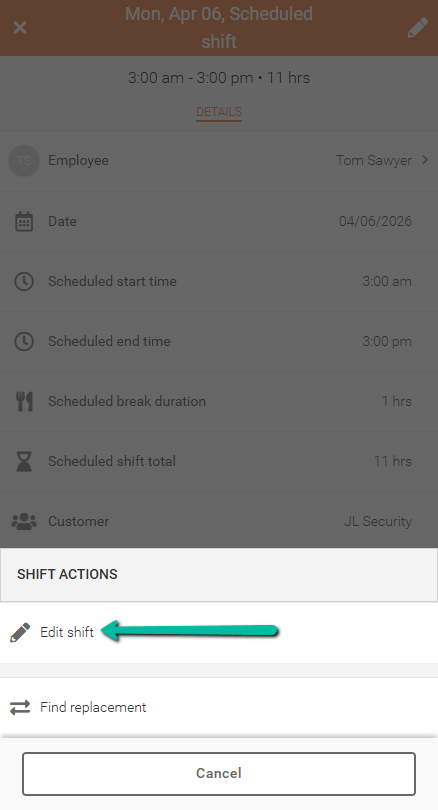
Method 2: Use Shift Actions
- Tap Shift actions at the bottom of the screen
- Select Edit shift
Step 2: Update Shift Details
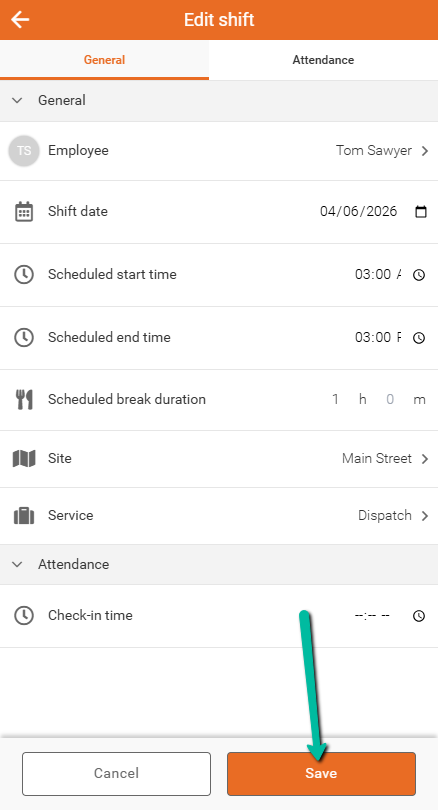
You can now edit the shift by adjusting the necessary fields:
General Section
- Employee – Update the assigned employee if needed
- Shift date – Change the date
- Scheduled start time – Adjust the start time
- Scheduled end time – Adjust the end time
- Scheduled break duration – Modify break time if needed
- Site – Update the work location
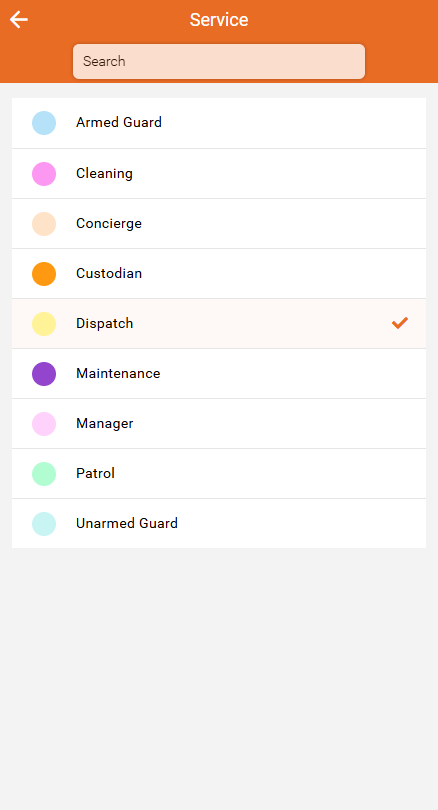
- Service – Change the service or job type
Attendance Section (Optional)
- Check-in time – Update if applicable
Here is an example of how to adjust the Service.
Step 3: Save Changes
- Tap Save to apply your updates
- Tap Cancel to discard any changes