Additional Employee Settings
The Additional Employee Settings section in Schedule Xpress allows admins to configure employee-facing scheduling rules and permissions. These settings help balance operational requirements with employee flexibility by controlling how far in advance employees can:
- View their schedules
- Submit availability preferences
- Request or cancel time off
These configurable parameters support a transparent and efficient scheduling process while ensuring appropriate administrative oversight.
Access Additional Employee Settings
To access Additional Employee Settings:
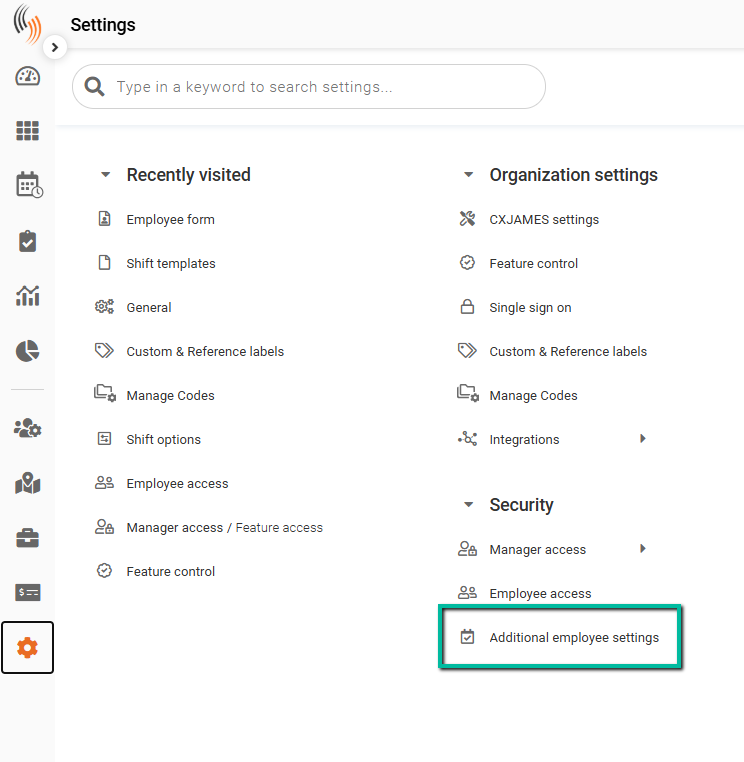
Settings → Security → Additional employee settings
Access to these settings is controlled through Feature access groups. Only users with Full access or View only access permissions can access this section.
Additional Employee Settings Overview
Within Additional Employee Settings, configuration options are organized into the following sections:
- Employee Schedule Settings
- Employee Availability Settings
- Employee Time Off Settings
- Time Off Request Blocking
Access Permissions
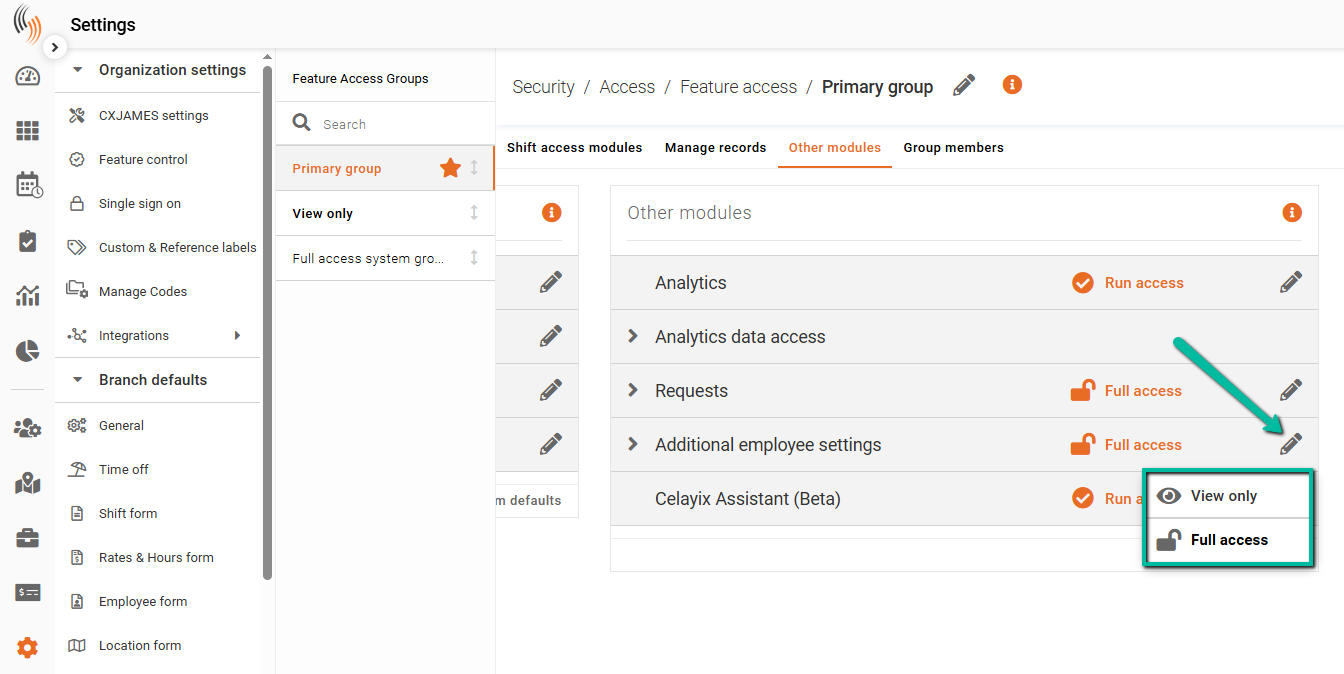
Within each admin’s Feature access group, you can configure permissions for Additional Employee Settings by selecting either:
- Full access
- View only access
To modify an existing access level:
- Navigate to the Feature access group
- Click the pencil icon beside the appropriate row
- Update the access level as required
Note: If the admin belongs to a shared group, any changes made will apply to all members within that group.
Employee Schedule Settings
The Employee Schedule Settings section controls how far in advance employees can view their scheduled shifts in the Team Xpress app.
These settings function similarly to the previous Publish Schedule feature.
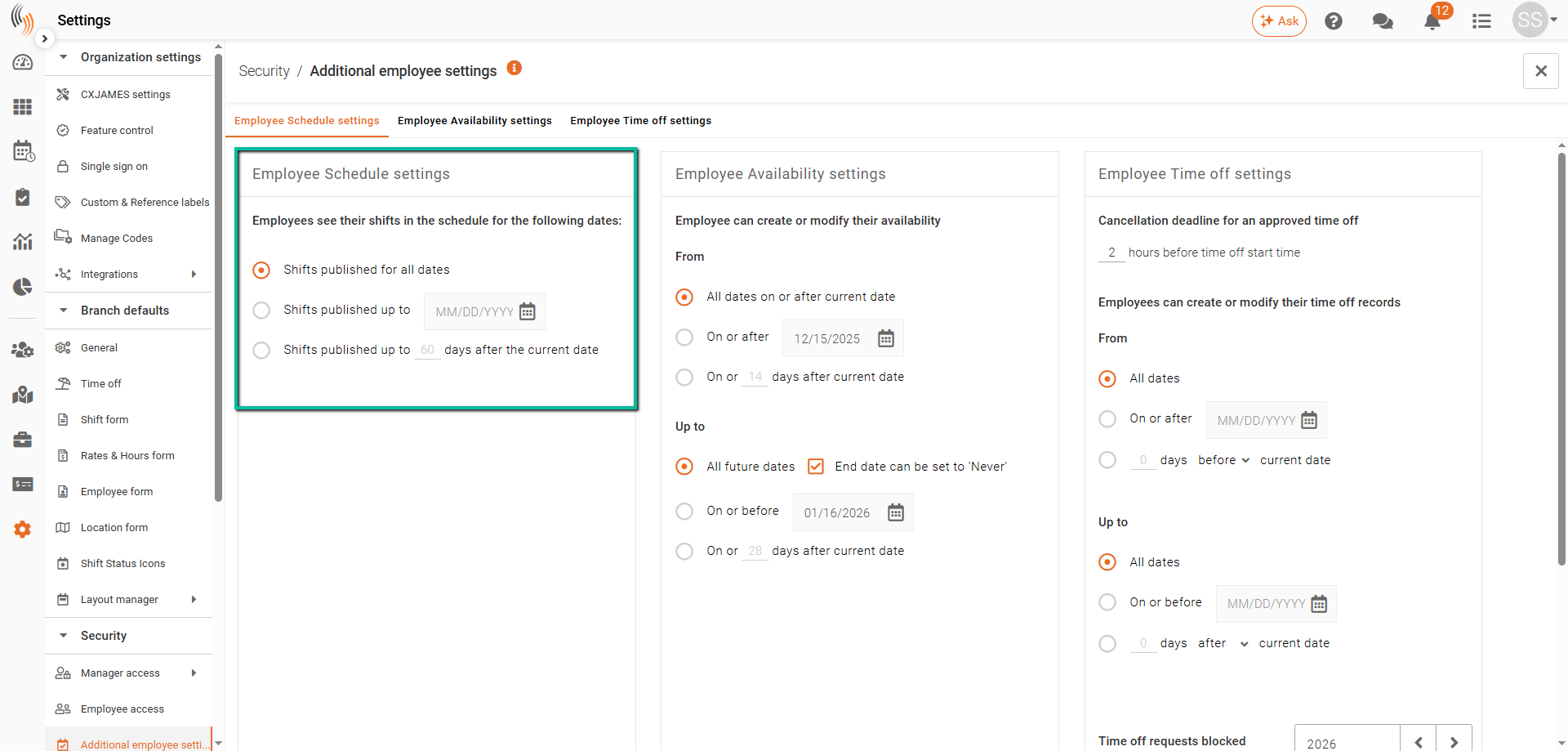
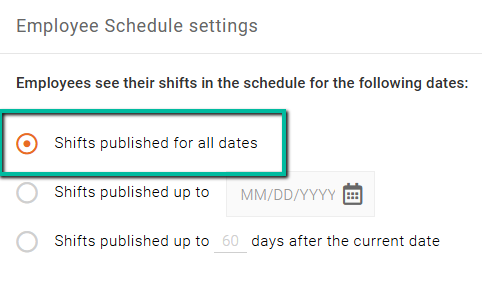
Shifts Published for All Dates
Selecting this option allows employees to immediately view all scheduled shifts for all dates within the Team Xpress app.
This provides unrestricted visibility into future schedules.
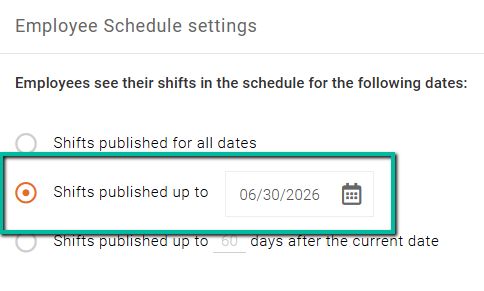
Shifts Published up to ‘X’ Date
This setting controls the future date range visible to employees.
Employees can only view shifts scheduled up to and including the selected date. Any shifts scheduled beyond this date remain hidden until the visibility date is extended.
Example: If the selected date is June 30, employees will only see shifts scheduled up to June 30.
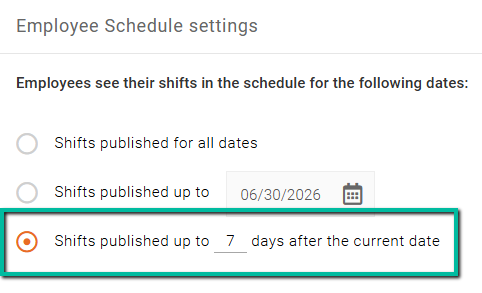
Shifts Published up to ‘X’ Days After the Current Date
This setting limits schedule visibility based on a rolling number of future days.
Example:
- If configured for 7 days
- Employees will only see shifts scheduled within the next 7 days
- Any shifts beyond that range remain hidden
This option is commonly used when schedules are finalized incrementally.
Employee Availability Settings
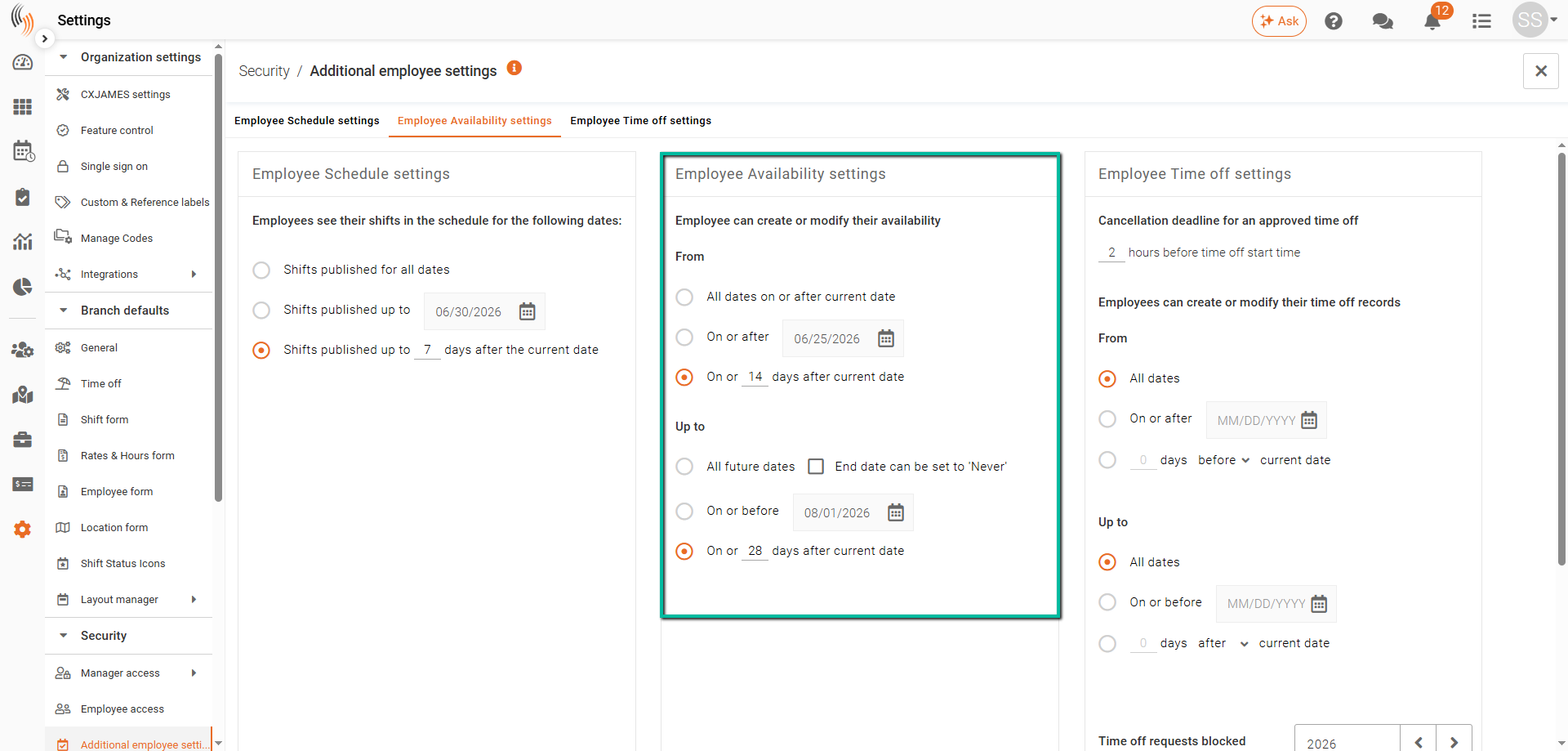
The Employee Availability Settings section allows admins to control the timeframe within which employees can create and modify their availability preferences.
Availability permissions are configured using:
- From dates
- Up to dates
These settings define the allowable date range employees may select.
From Dates
The From date determines the earliest date employees can select when creating or updating availability.
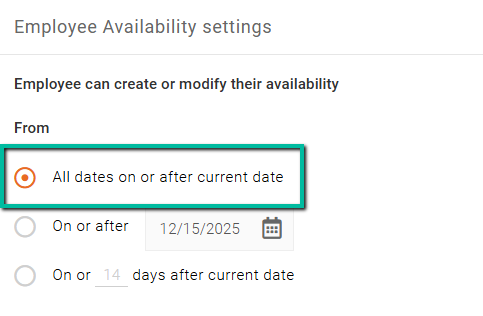
All Dates on or After Current Date
This option allows employees to select:
- The current date
- Any future date
Past dates cannot be selected.
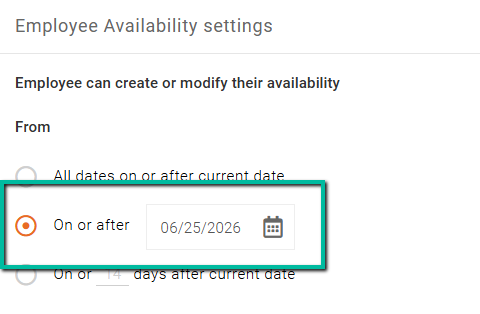
On or After ‘X’ Date
When configured, employees may only select dates on or after the specified date.
Example: If set to 06/25/2026, any earlier dates will be unavailable.
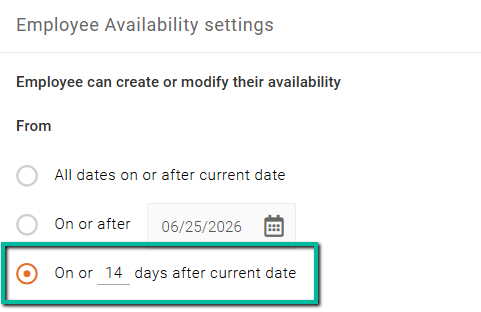
On or ‘X’ Days After Current Date
This option allows employees to select a From date within a specified future window.
Example:
- If configured for 14 days
- Employees can select dates from today up to 14 days in the future
- Dates beyond that range cannot be selected
Up to Dates
The Up to date determines the latest date employees can select when creating or updating availability.
You'll want to make sure that these align with the From options already selected.
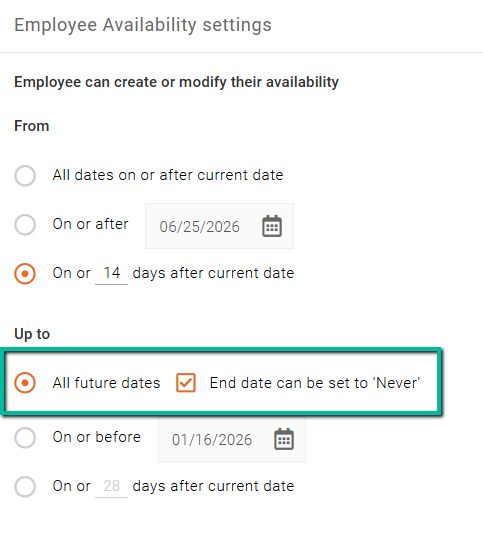
All Future Dates ✔ End Date Can Be Set to Never
Selecting All future dates allows employees to choose any future date.
Enabling End date can be set to Never allows employees to create:
- Ongoing availability patterns
- Recurring availability schedules
- Availability records without a specified end date
Best Practice: Use this option when employees maintain consistent long-term availability.
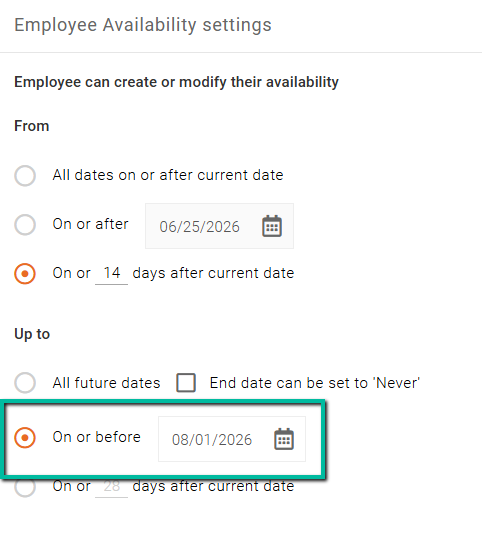
On or Before ‘X’ Date
Employees may select dates up to and including the configured date.
Dates beyond the selected threshold cannot be chosen.
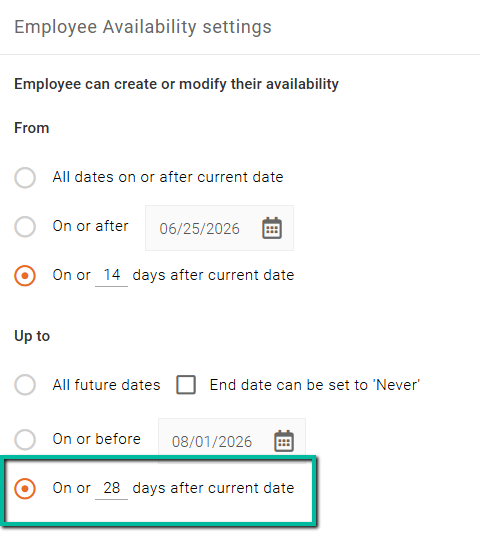
On or ‘X’ Days After Current Date
This option restricts employees to selecting dates within a specified number of future days.
Example:
- If configured for 28 days
- Employees may select dates from today up to 28 days in the future
- Dates beyond the allowed range cannot be selected
Employee Time Off Settings
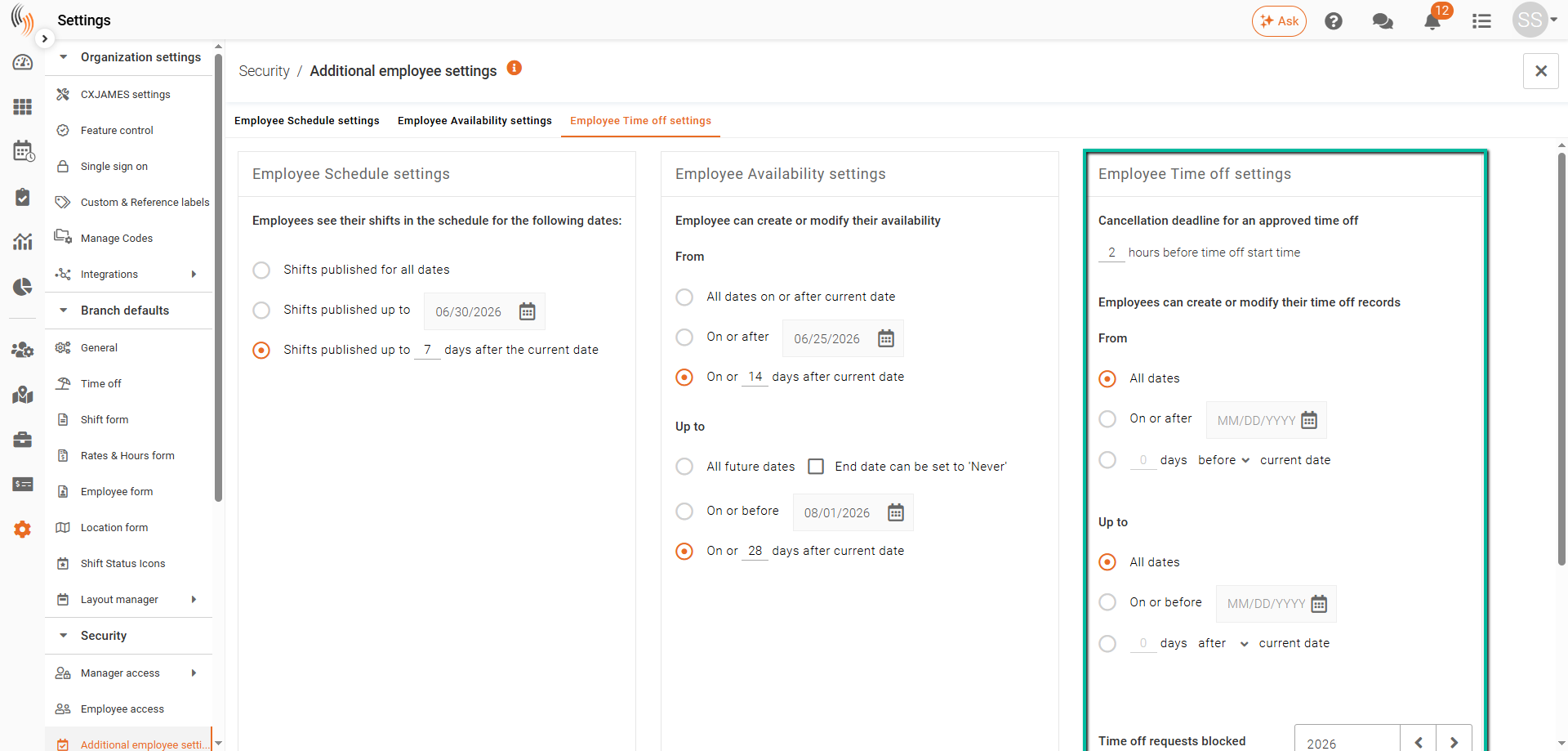
The Employee Time Off Settings section controls how employees create, modify, and cancel time off requests.
Admins can configure:
- Cancellation deadlines
- Request windows
- Allowed start and end dates for time off requests
- Blocked time off dates
Cancellation Deadline for Approved Time Off
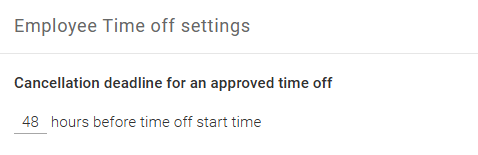
This setting defines how far in advance employees must cancel approved time off requests.
Example:
- If configured for 48 hours
- Employees may cancel approved requests up to 48 hours before the scheduled start date
- Requests cannot be canceled within the final 48-hour window
Best Practice: Configure cancellation deadlines to align with scheduling and staffing requirements.
Employees Can Create or Modify Their Time Off Records
Employees can create and modify time off requests by selecting permitted From and Up to dates.
From Dates
The From date determines the earliest date employees can request time off.
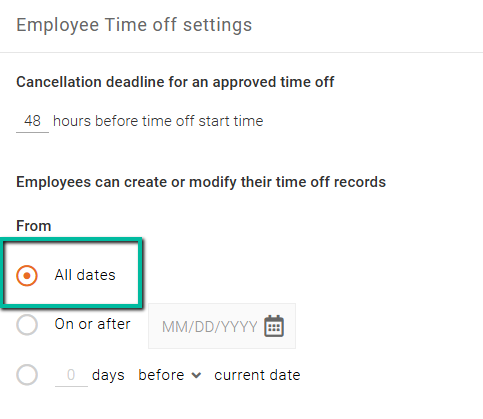
All Dates
Selecting All dates allows employees to select any future date when creating or modifying time off requests.
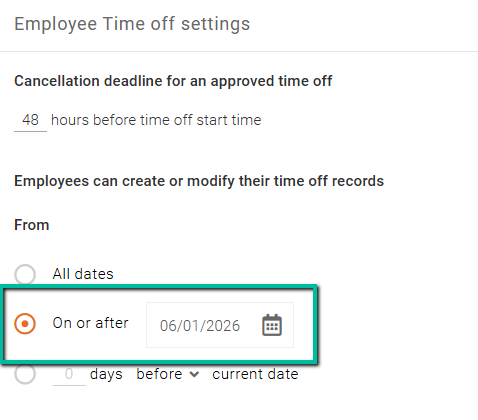
On or After ‘X’ Date
This setting establishes the earliest allowable start date for time off requests.
Example: If configured for 06/30/2023, employees cannot select dates before that threshold.
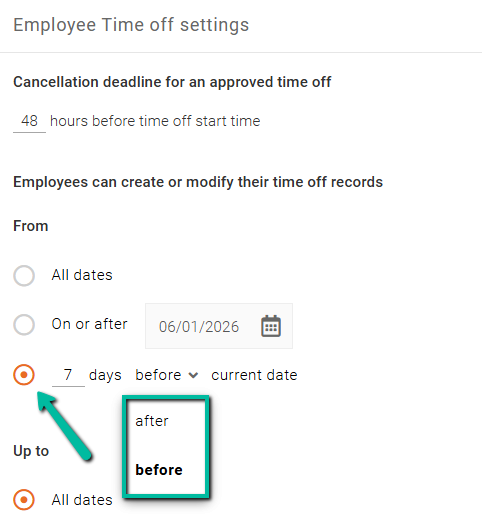
‘X’ Days Before/After Current Date
This setting creates a rolling request window relative to the current date.
Admins can define whether employees may request time off:
- Before the current date
- After the current date
Example:
- Setting 7 days after current date allows employees to submit requests starting from a date that is 7 days in the future
Up to Dates
The Up to date determines the latest allowable end date for time off requests.
You'll want to make sure that these align with the From options already selected.
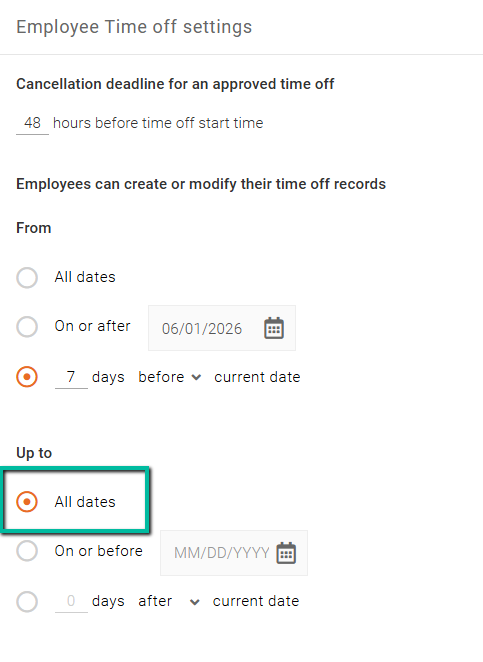
All Dates
Selecting All dates allows employees to choose any future end date.
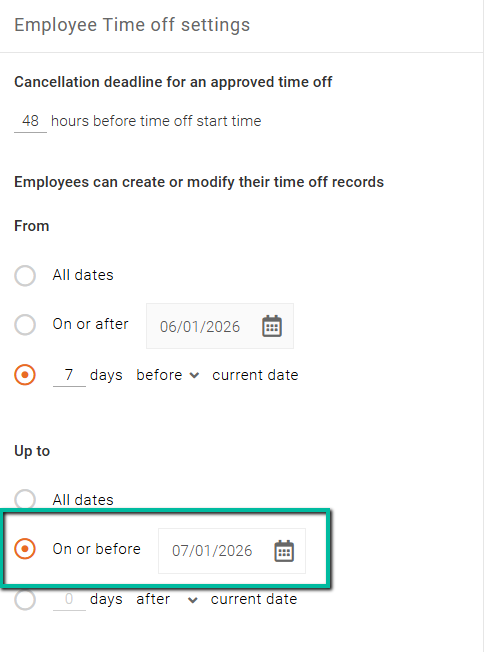
On or Before ‘X’ Date
Employees may select dates up to and including the configured date.
Dates beyond that threshold cannot be selected or modified.
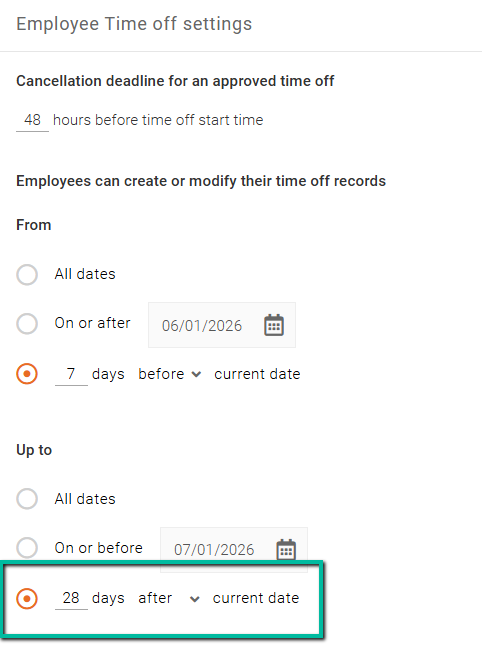
‘X’ Days Before/After Current Date
This option limits how far before or after the current date employees can create or modify time off requests.
Example:
- Selecting 28 days after current date allows employees to manage requests up to 28 days into the future
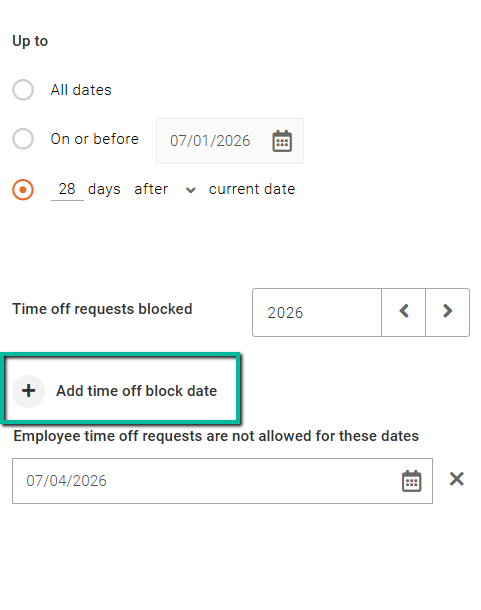
Time Off Requests Blocked
The Time Off Requests Blocked section allows admins to establish blackout dates during which employees cannot request time off.
This feature is commonly used during:
- Peak operational periods
- Holidays
- High-demand scheduling periods
- Critical staffing windows
Configure Blocked Dates
To configure blocked dates:
- Open the Time off requests blocked section
- Click Add time off block date
- Select the desired blocked dates or date ranges
- Save your changes
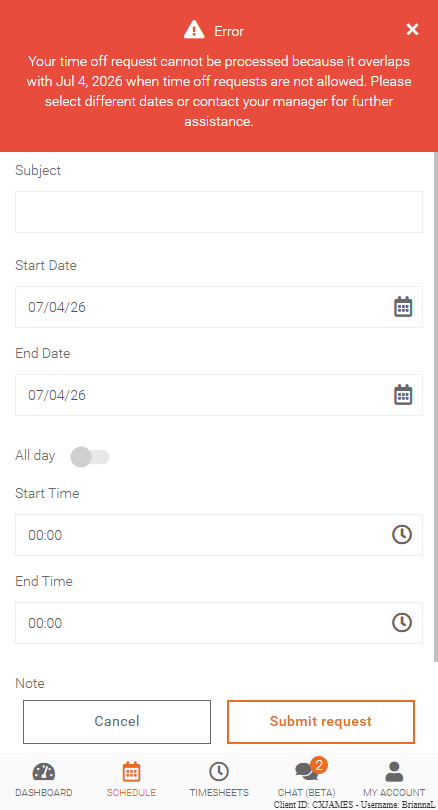
Employees attempting to request time off during blocked periods will receive an error message within the Team Xpress app.
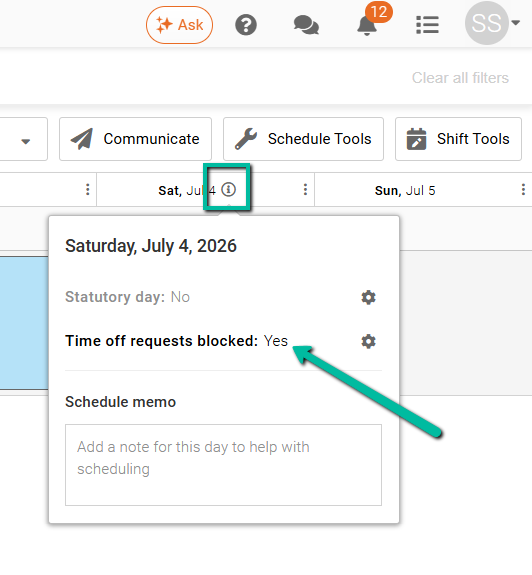
Schedule Info Widget
Blocked time off dates also appear within the Schedule info widget to provide schedulers with additional visibility.
Employee Error Message
When employees attempt to submit time off requests on blocked dates, the Team Xpress app displays an error message indicating the request is not permitted.