Add Shifts in Schedule Xpress (Desktop)
Using Schedule Xpress to add shifts enables you to create and manage work schedules efficiently and accurately. Whether you're setting up a new schedule or managing an exisiting one, this guide will walk you through the process of adding shifts to ensure your team is fully covered.
Add a Shift in Schedule Xpress (Desktop)
There are two ways to add a shift in Schedule Xpress.
Option 1: Using Shift Tools
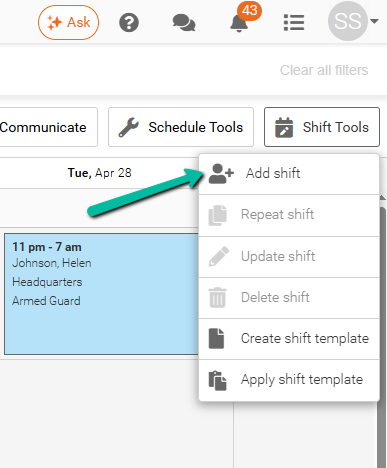
- Click Shift Tools in the top-right corner
- Select Add Shift
- The shift panel will open, where you can enter the required details
Option 2: Right-Click on the Schedule
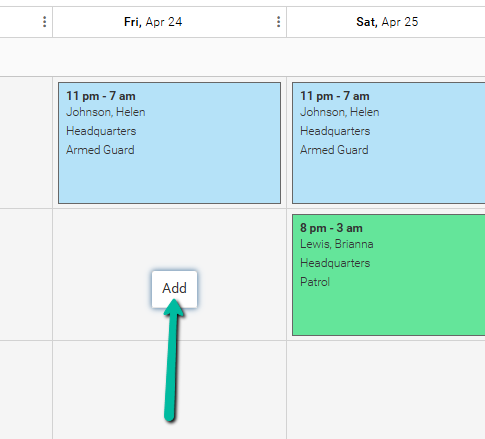
- Right-click on an empty area in the schedule
- Select Add
- The shift panel will open, where you can enter the required details
Add Shift Details
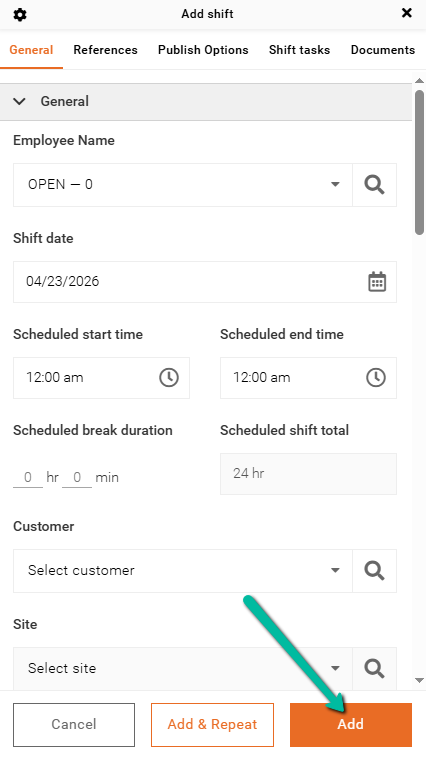
Once you click Add shift to open the shift panel, you'll need to fill in the following fields to create a shift:
- Employee name
- Scheduled start
- Scheduled end
- Customer
- Site
- Service
Here are additional fields that can be added if needed:
- Scheduled break duration
- Scheduled shift total
- Note
- References
- Shift tags
- Location
- Bill OT
- Tentative
In the General section of the Shift Form, you can customize the fields to suit your needs by removing any unnecessary ones.
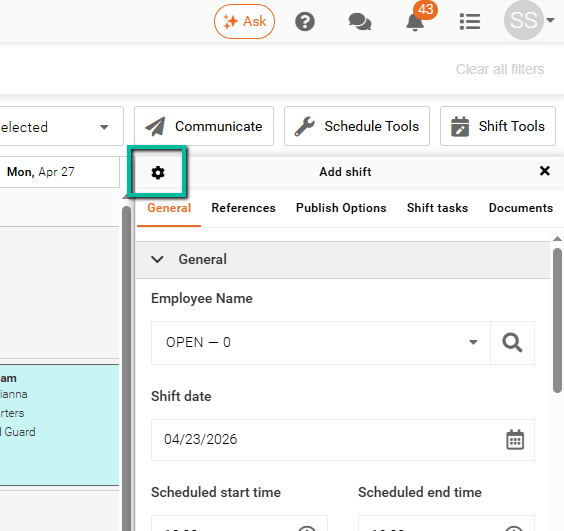
You can find the Shift Form by going to Settings, then selecting Branch Defaults, and finally clicking on Shift Form. Alternatively, click the Settings gear icon located in the top left corner of the shift panel.
Learn how to configure your Shift Form.
After entering all the necessary information in your shift panel, simply click Add.
Scheduled Break Duration
You can set a scheduled break duration for a shift if a break needs to be automatically deducted.
- The break time is always deducted, regardless of when the employee actually takes their break
- This means the deduction is fixed and not based on actual break activity
If you want break time to be based on actual break usage, contact support.
Scheduled Break Duration Aligned with Break Thresholds
This option adjusts scheduled break durations based on your configured break threshold rules.
- If the shift length changes, the system will automatically recalculate the break duration
- Ensures compliance with your break policies
This setting requires configuration by support.
Break Duration Based on Actual Shift Length
With this setup, break duration is calculated using the employee’s actual clock-in and clock-out times.
- Breaks are determined dynamically based on real shift length
- Follows your defined break threshold rules
- Requires employees to check in and out using Team Xpress
This will only work if time tracking is completed in Team Xpress. Contact support to enable this setup.
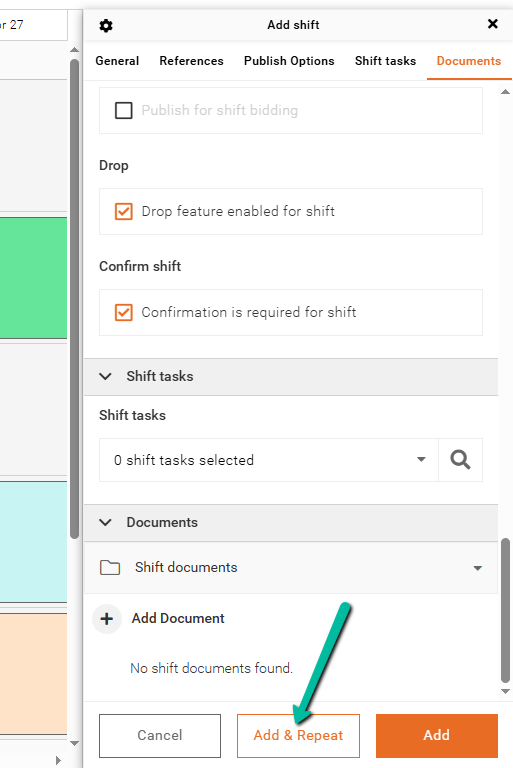
Add & Repeat
If you're looking to duplicate this shift, simply use the Add & Repeat option if the assigned employee will be working the same shift multiple times this week.
For more information, please read our article on repeating shifts.
Save Shifts
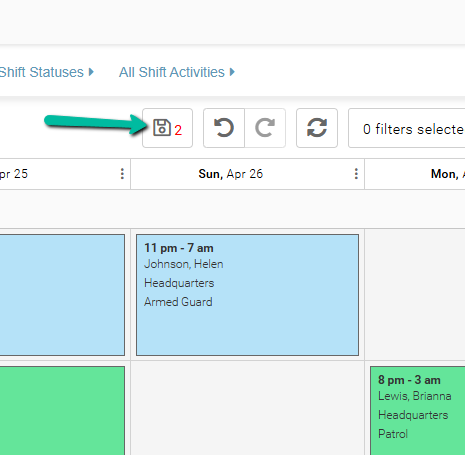
After adding your shift, be sure to click the Save icon to publish it. If you don't save, you risk losing your work.
The save disk is located just above the schedule grid, slightly to the right, and shows the number of changes waiting to be saved.