Add Employees
As an employee scheduling platform, Schedule Xpress requires you to add employees before you can fully utilize its capabilities. While admins have access to various system functions, the software's core scheduling features depend on having employee profiles in place.
Adding employees to Schedule Xpress is straightforward and can be completed in just a few simple steps. The Manage People section serves as your central hub for adding and managing all employee profiles within the system.
Methods to Add Employees
You can add employees using either of the following methods:
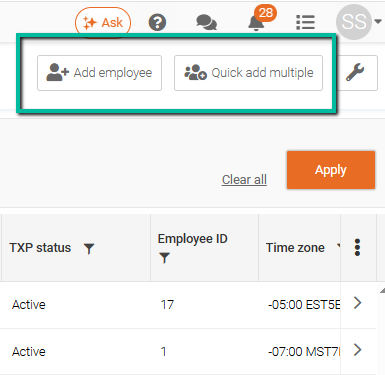
- Add Employee: Add one employee at a time with the ability to enter all employee details during account creation.
- Quick Add Multiple: Add several employees at once using only the basic information required to create accounts.
The Add Employee Function
The Add Employee function allows you to capture all necessary employee information in one place.
Required Information to Create an Employee Account
Before exploring the configurable employee details, note the minimum information needed to create an employee account:
- First Name
- Last Name
Important: To invite the employee to create an account, you must provide either an email address or a phone number.
Phone numbers can only be used if you have purchased an SMS package.
Here is a list of the configurable employee details:
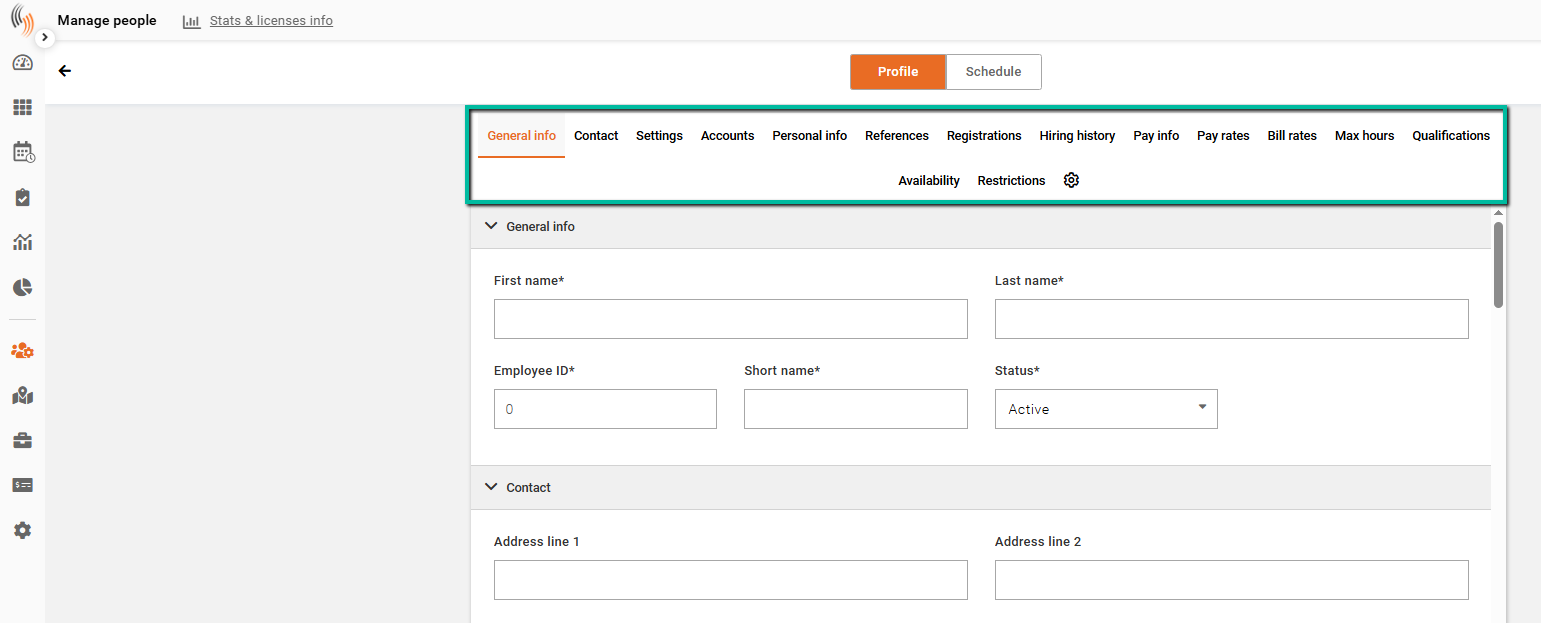
- General Info - Core details such as first name, last name, employee ID, and status
- Contact - Home address, email address, and mobile phone number(s)
- Settings - Employee group assignment, default customer, site and service preferences, time zone, and standard workdays
- Accounts - Username setup and Team Xpress account management for password updates and invitation distribution
- Personal Info - Additional personal details as required
- References - Custom fields for supplementary information not covered by standard data fields
- Registrations - Vehicle and equipment registration details
- Hiring History - Employment start date, end date, and termination reason (if applicable)
- Pay Info - Department assignment, position title, employee type classification, pay cycle, and seniority level
- Pay Rates - Add employee pay rates.
- Bill Rates - Add employee bill rates.
- Max Hours - Daily, weekly, or monthly hour caps to regulate employee work limits. The scheduling system will alert you when a proposed shift exceeds these limits
- Qualifications - Employee certifications and qualifications, including effective and expiration dates
- Availability - Employee availability records, which may be self-submitted or created by an admin
The sections will be displayed at the top of the employee profile and can be clicked to view.
The Quick Add Multiple Function
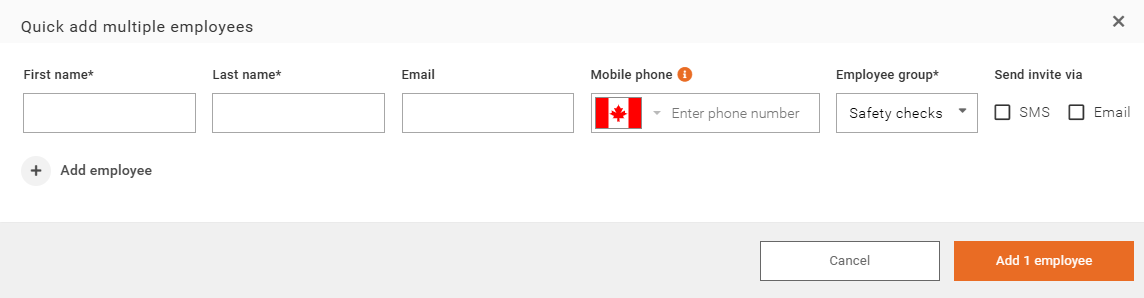
Quick Add Multiple allows administrators to create multiple employee accounts at the same time.
Quick Add Multiple is the fastest way to create employee accounts. It allows you to add up to 10 employees at once using only basic account information, making it ideal for quickly onboarding large groups of employees. Additional employee details can be added later as needed.
Required Fields
The following information is required to create an employee account:
- First Name
- Last Name
Depending on your system configuration, you may also need to provide:
- Employee ID – Required unless auto-numbering is enabled.
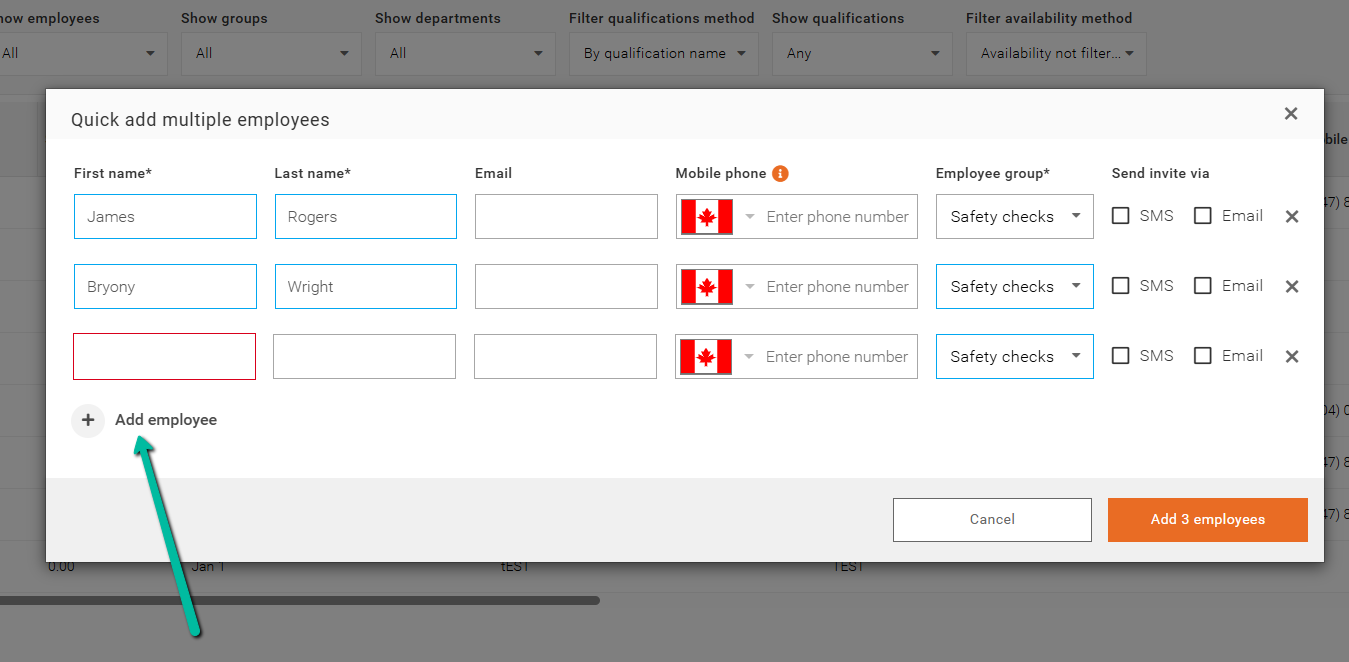
- Email – Optional if a mobile phone number is provided. Required for email invitations.
- Mobile Phone – Optional if an email address is provided.
- Employee Group – Assigns the employee to a specific group for permissions and roles.
- Send Invite Via – Select whether the account invitation should be sent by Email or SMS.
Note: At least one contact method (Email or Mobile Phone) is required to send an account invitation.
Adding Multiple Employees at Once with Quick Add Multiple
To add several employees at once, click + Add Employee in the Quick Add Multiple section. This feature allows you to add up to 10 employees at the same time.