Mark Shift Tasks Complete
Learn how to mark Shift Tasks as complete in Team Xpress.
Shift Tasks allow employees to track and complete tasks assigned to a shift. Once a task has been completed, employees can update its status directly within Team Xpress.
Find Shift Tasks
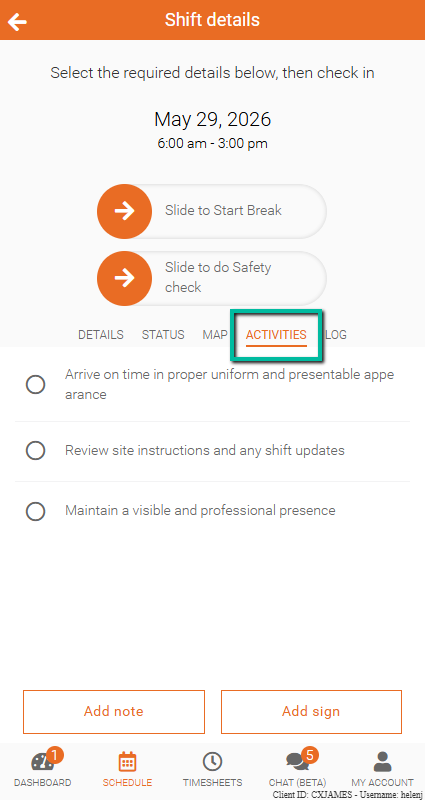
To view Shift Tasks, open the Activities section within your shift in Team Xpress.
If tasks have been assigned to the shift, they will appear within the shift details.
Mark Shift Tasks Complete
To mark a Shift Task as complete:
- Open the assigned shift.
- Locate the Activities section.
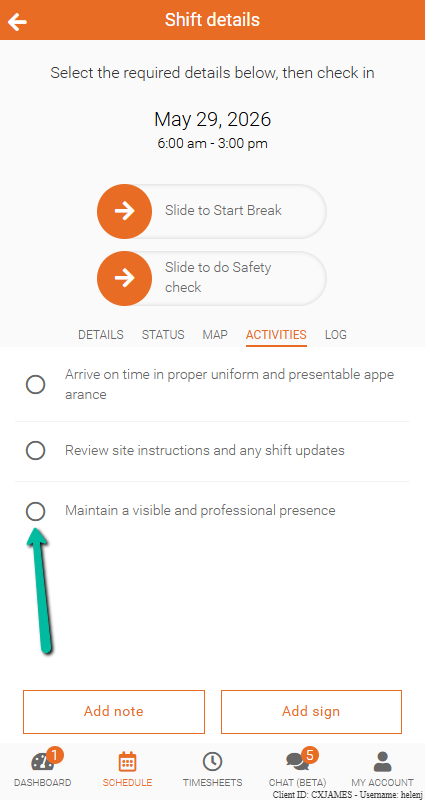
- Select the task you have completed.
- Mark the task as Complete.
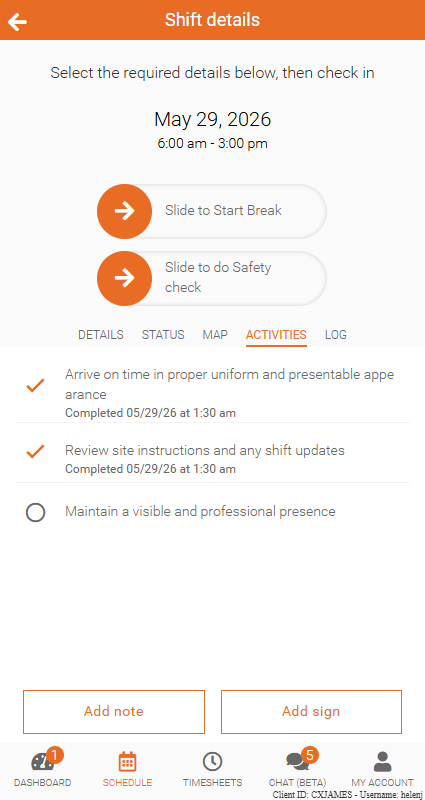
The task status will update immediately and be visible to Managers and schedulers.
Add Shift Tasks
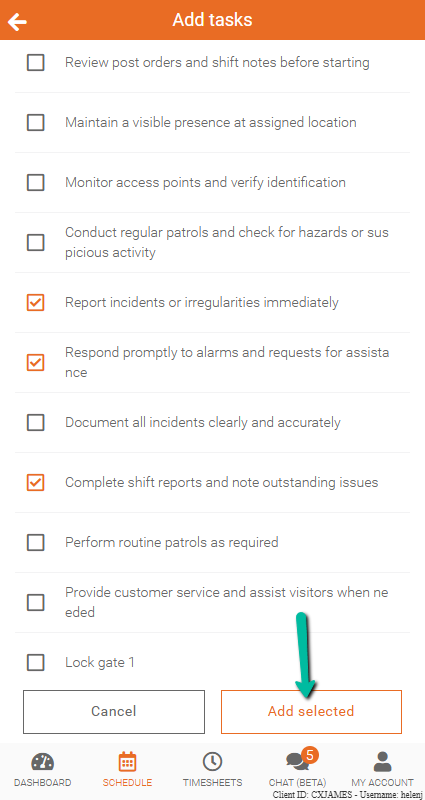
If you have been granted permission, you can add additional Shift Tasks to a shift.
To add a task:
- Open the assigned shift.
- Navigate to the Activities section.
- Click Add Tasks.
- Select the tasks you want to add.
- Click Add Selected.
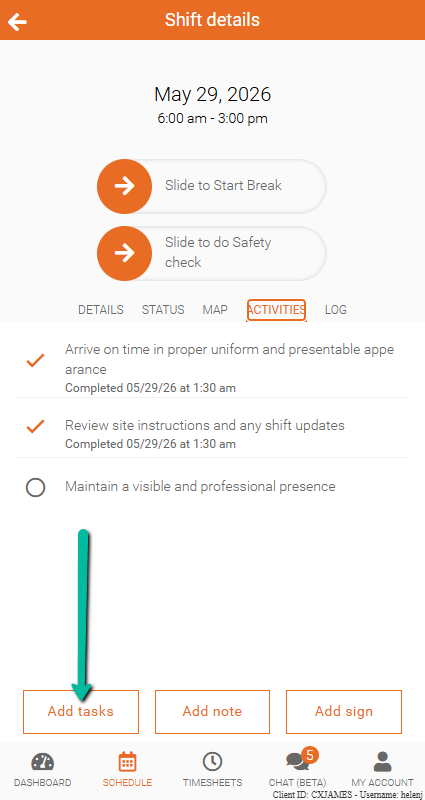
The selected tasks will be added to the shift and can be marked as complete as work is performed.