
Manage eClock Alerts
eClock alerts send real-time notifications from Schedule Xpress to keep users and employees informed about shift activity and issues.
How eClock Alerts Work
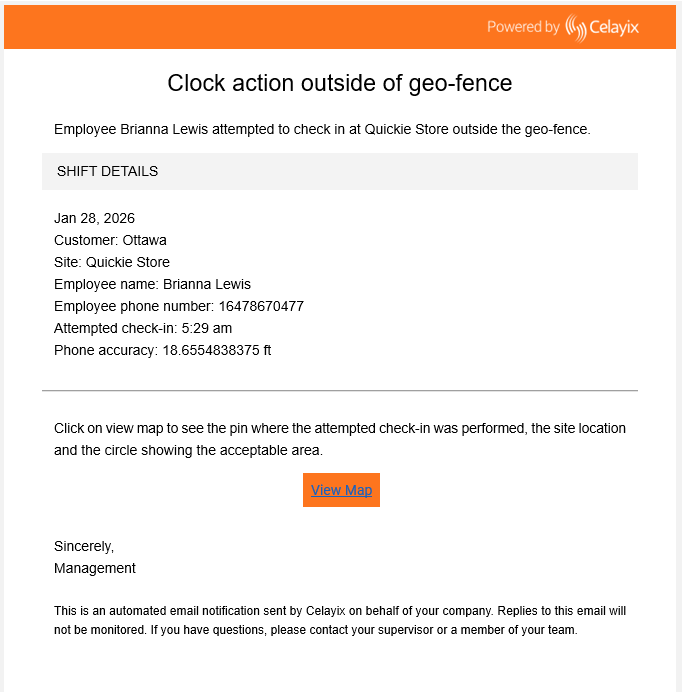
eClock alerts track key shift events and notify you when issues occur, such as missed check-ins or geofence breaches. Notifications are delivered via Email, SMS, and the Notifications Panel in Schedule Xpress, ensuring visibility across your team.
Find eClock Alerts
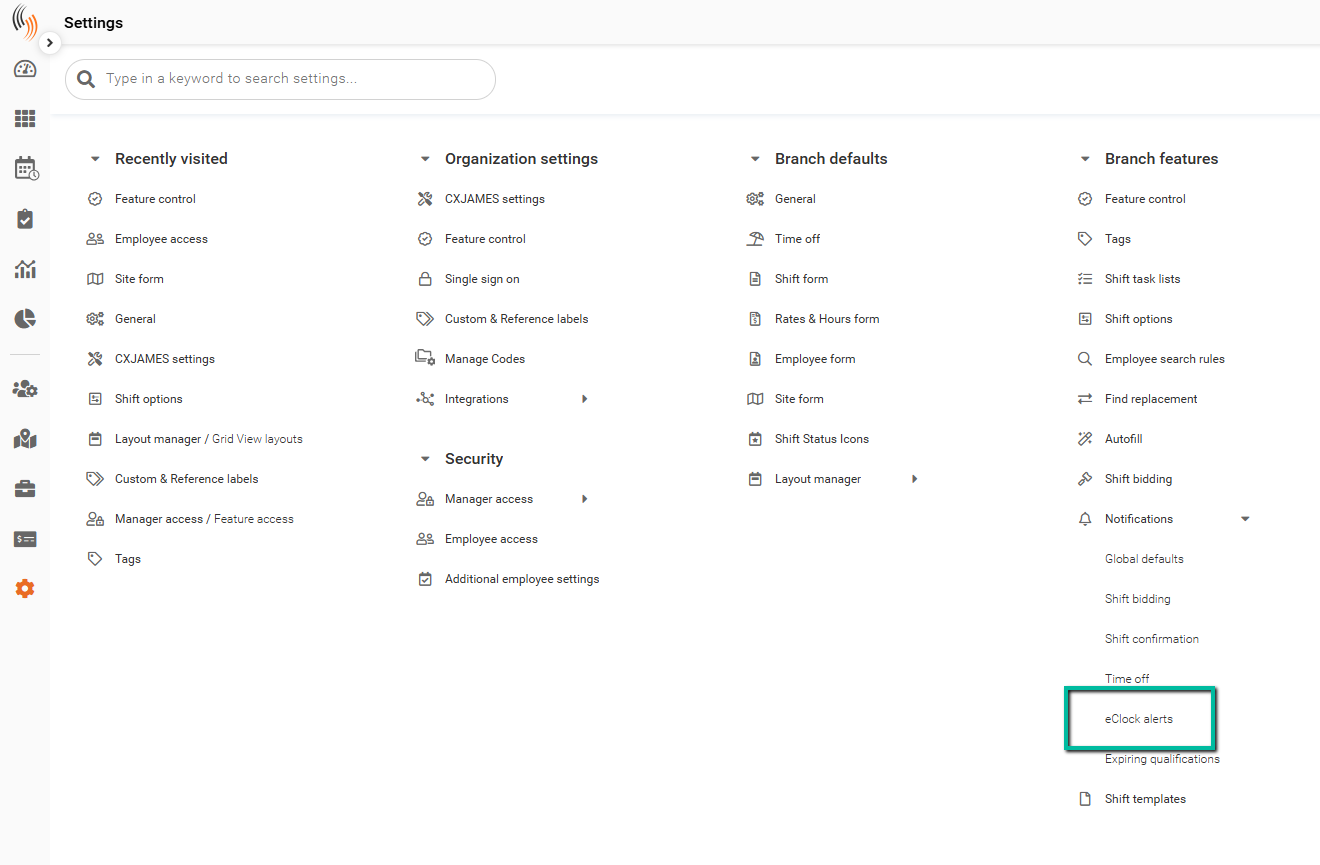
You can access eClock Alerts in Schedule Xpress by navigating to:
Settings → Branch Features → Notifications → eClock Alerts
Alert Types
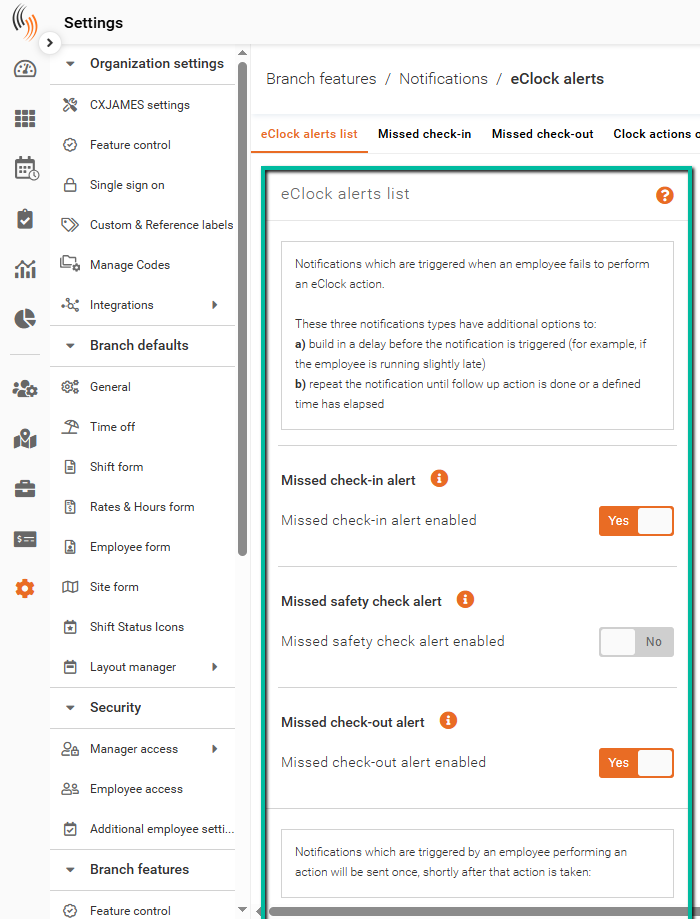
There are 10 eClock Alert Types available, covering common check-in, check-out, and shift monitoring scenarios:
- Missed Check-In – Triggered when an employee does not check in for a scheduled shift.
- Missed Safety Check – Triggered when an employee fails to complete a required safety check within the configured interval.
- Missed Check-Out – Triggered when an employee does not check out at the end of a shift.
- Early Check-In – Triggered when an employee checks in before the permitted check-in window.
- Late Check-In – Triggered when an employee checks in after the scheduled shift start time.
- Early Check-Out – Triggered when an employee checks out before the scheduled shift end time.
- Late Check-Out – Triggered when an employee checks out after the scheduled shift end time.
- Clock Actions Outside a Geofence – Triggered when an employee performs a check-in or check-out outside the configured geofence area.
- Unscheduled Shift Created – Triggered when an employee creates an unscheduled shift through Team Xpress.
- Shift Check-Out Completed – Triggered when an employee successfully checks out of a shift.
Enabling Alerts
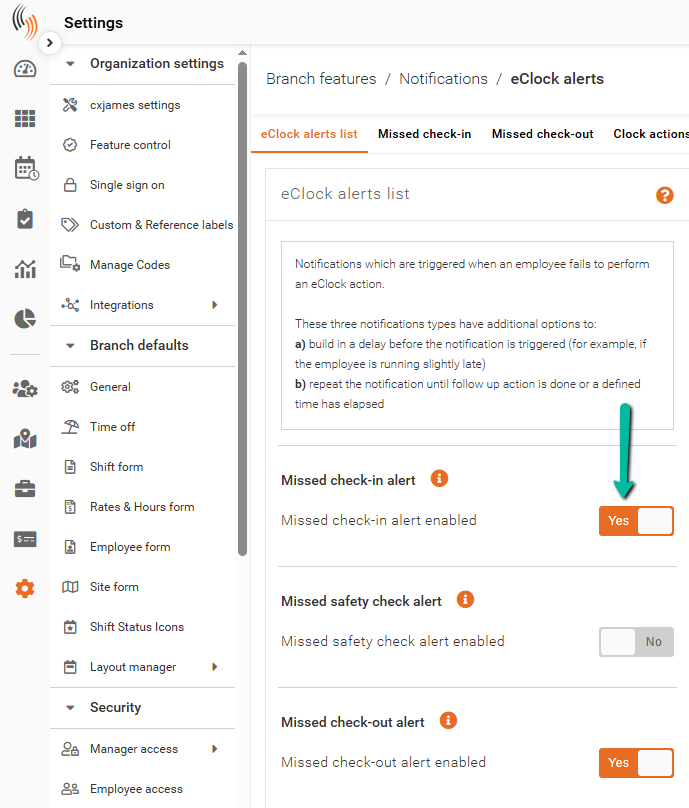
To activate an alert, toggle it to Yes. This will display a configuration panel where you can define how and when notifications are sent.
Alert Criteria
There are two alert configuration options available:
Apply Settings to All Sites Within the Branch
All alert settings are managed at the branch level and applied consistently across every site. Individual sites cannot modify these settings and will automatically inherit the branch configuration.
Allow These Settings to Be Overridden for Specific Sites
The branch-level settings act as the default configuration, while individual sites can create their own alert settings using Custom Site Settings.
Note: Geofence-related alerts are configured separately within the Geofencing section of the site profile.
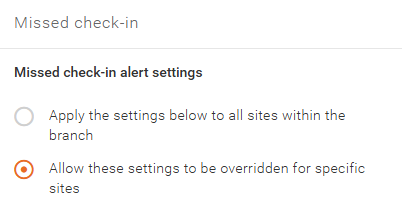
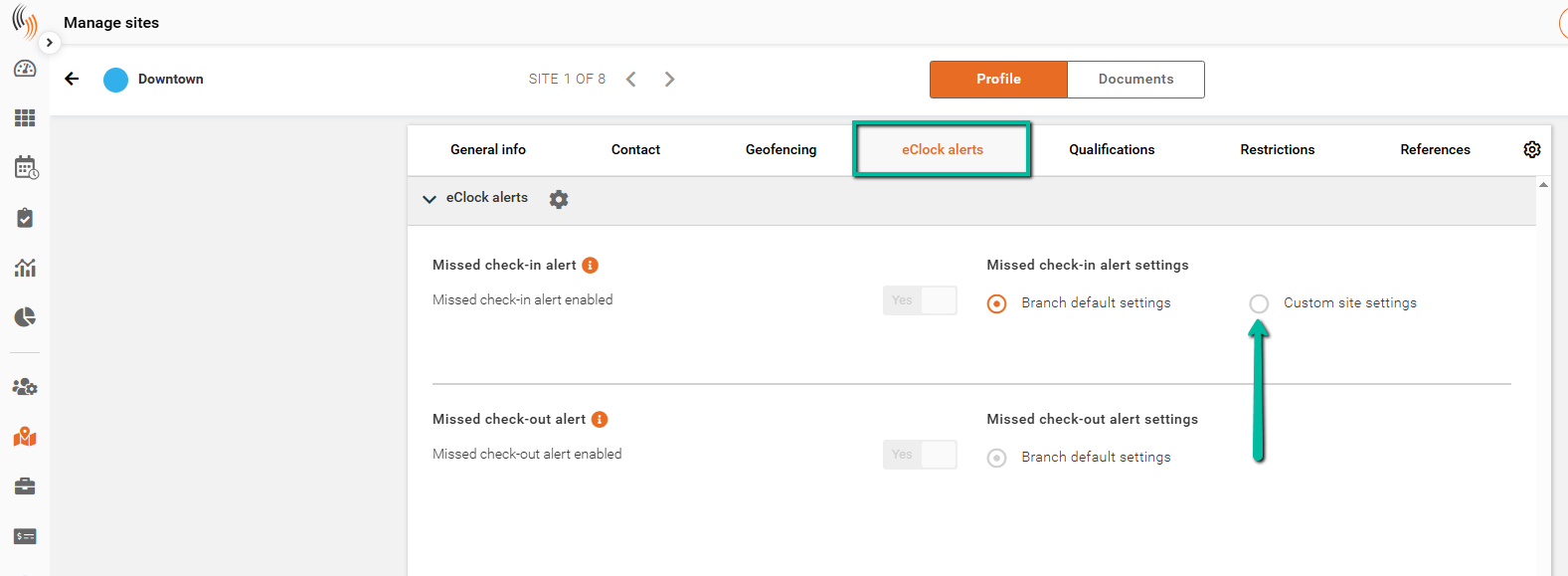
When Allow These Settings to Be Overridden for Specific Sites is enabled, administrators can manage alert settings directly at the site level.
To configure site-specific alerts:
- Navigate to Manage Sites.
- Select a site.
- Open the eClock Alerts section.
- Select Custom Site Settings for the desired alert type.
Send First Notification
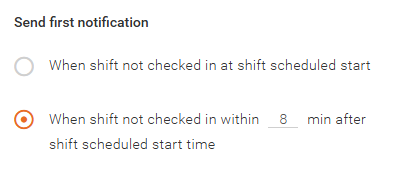
The Send First Notification setting determines when the initial alert is sent.
When Shift Not Checked In at Shift Scheduled Start
Sends the first notification immediately when the scheduled shift start time is reached and the employee has not checked in.
When Shift Not Checked In Within X Min After Shift Scheduled Start Time
Sends the first notification after a specified delay if the employee has not checked in.
The delay can be configured between 1 and 9 minutes after the scheduled shift start time.
Repeat Notification
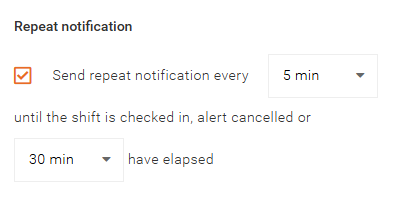
The Repeat Notification setting controls whether additional notifications are sent after the initial alert.
Send Repeat Notification Every X Min Until the Shift Is Checked In, Alert Cancelled, or X Min Have Elapsed
Repeat notifications can be sent every 5, 10, or 15 minutes for a duration of 20, 30, or 60 minutes.
Notifications will stop automatically when:
- The employee checks in.
- The alert is cancelled.
- The configured notification period expires.
Recipients
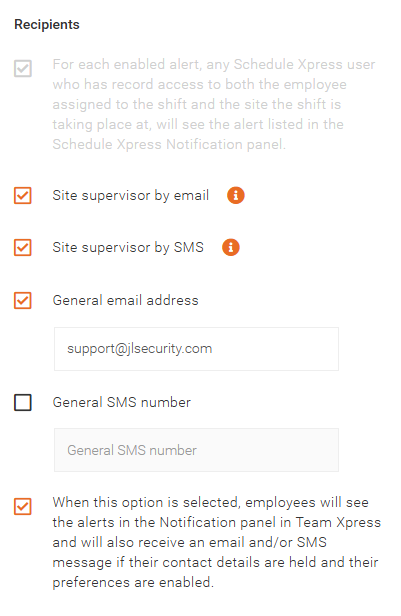
There are multiple recipient options available for eClock Alerts:
- Site Supervisor by Email
- Sends the alert to the site supervisor via email.
- The site supervisor's email address is configured within the site profile.
- Site Supervisor by SMS
- Sends the alert to the site supervisor via SMS (text message).
- The site supervisor's phone number is configured within the site profile.
- General Email Address
- Sends the alert to one or more specified email addresses.
- Multiple email addresses must be separated by a semicolon (;) with no spaces.
- General SMS Number
- Sends the alert to one or more specified phone numbers via SMS.
- Multiple phone numbers must be separated by a semicolon (;) with no spaces.
- Employee Notifications (Team Xpress)
- Sends alerts to employees through the Notifications Panel in Team Xpress.
- Depending on their notification preferences and available contact information, employees may also receive alerts via email and/or SMS.
Notification Schedule
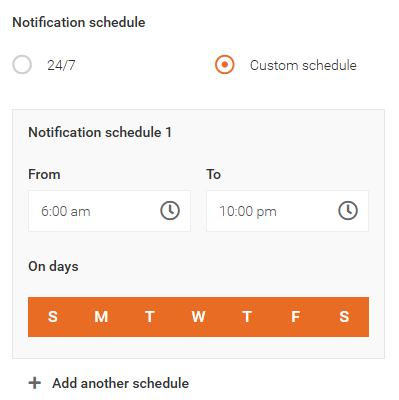
The Notification Schedule determines when alerts are allowed to be sent.
24/7
Alerts can be sent at any time without restrictions.
Custom Schedule
Alerts are only sent during configured days and times.
You can:
- Specify From and To times.
- Select the applicable days of the week.
- Create multiple schedules if required.
How Alerts Are Delivered
Alerts are primarily delivered through the Notifications Panel in Schedule Xpress.
Depending on your configuration, alerts may also be delivered through:
- SMS
- Team Xpress Notifications
The appearance and formatting of notifications may vary depending on the device and delivery method used.
For examples of how alerts appear to recipients, see the eClock Alerts Notifications article.