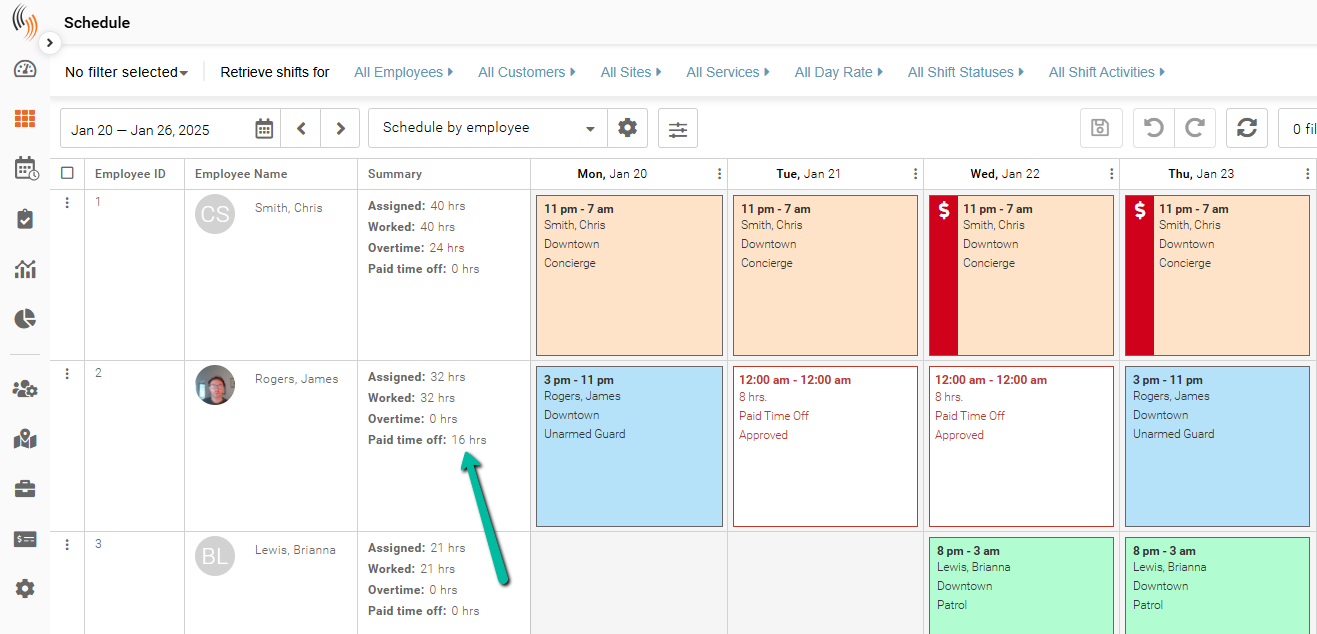
View Time Off in Schedule
Display and review employee time off directly in the schedule.
Display employee time off directly in the schedule to track availability and understand how time off impacts coverage.
Display Time Off in the Schedule
To display time off in the Schedule, click the settings cog and use an employee-centric layout that includes Employee ID and Employee Name in the Row header options.
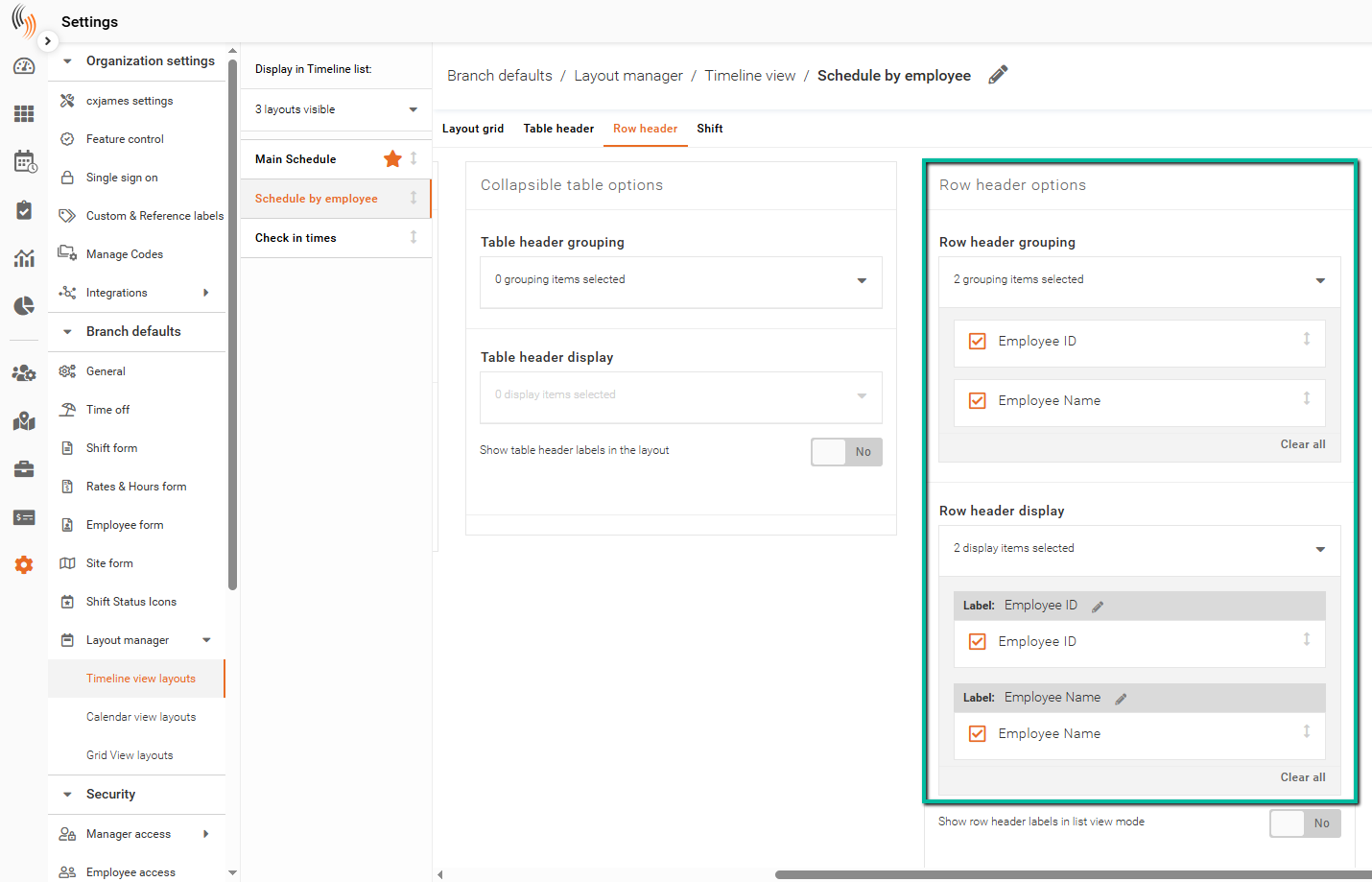
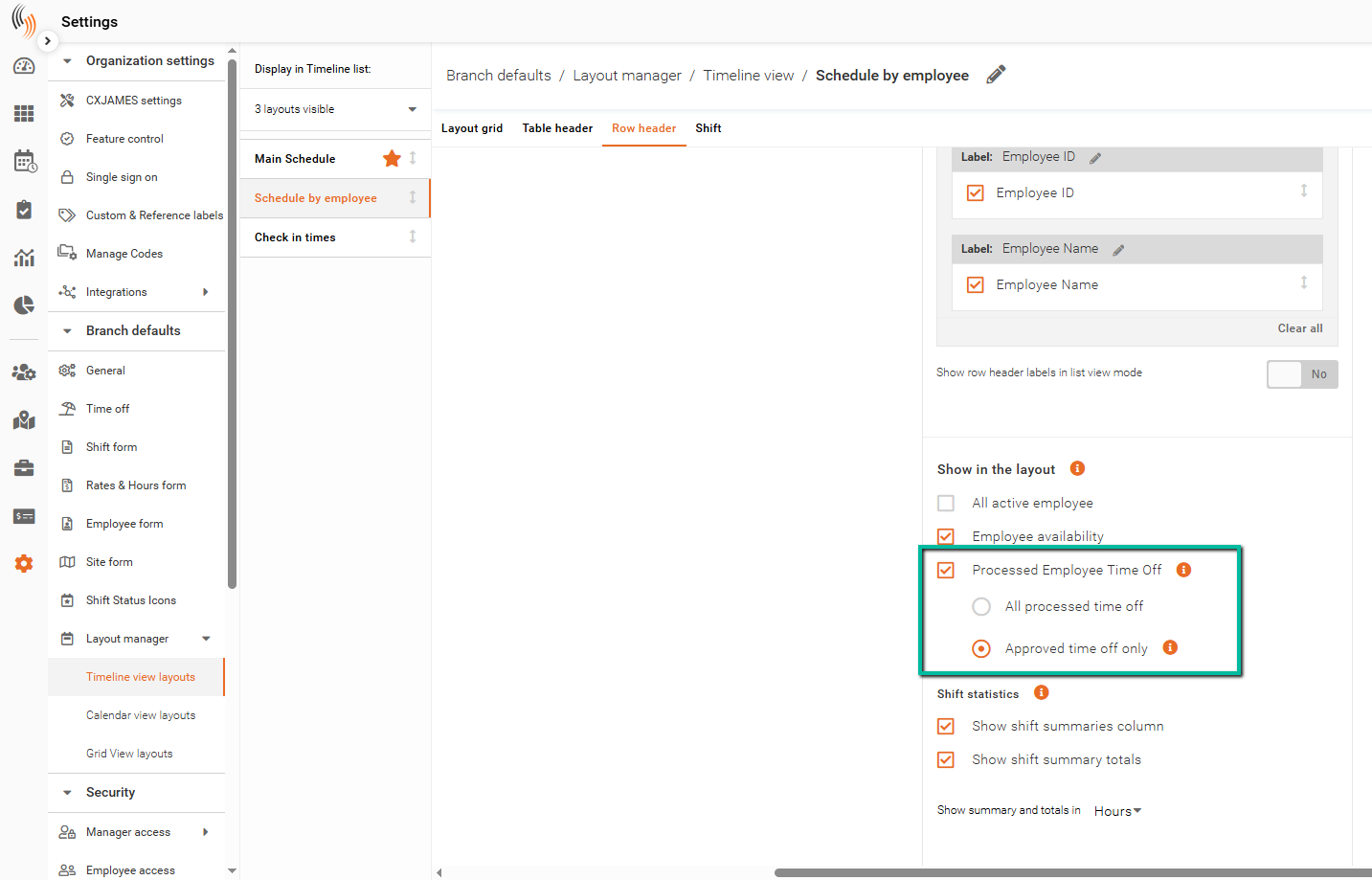
You can choose to display either:
- All time off records (including approved, declined, and cancelled), or
- Approved time off only
To configure this, go to your layout settings and navigate to:
Row header options → Show in the layout
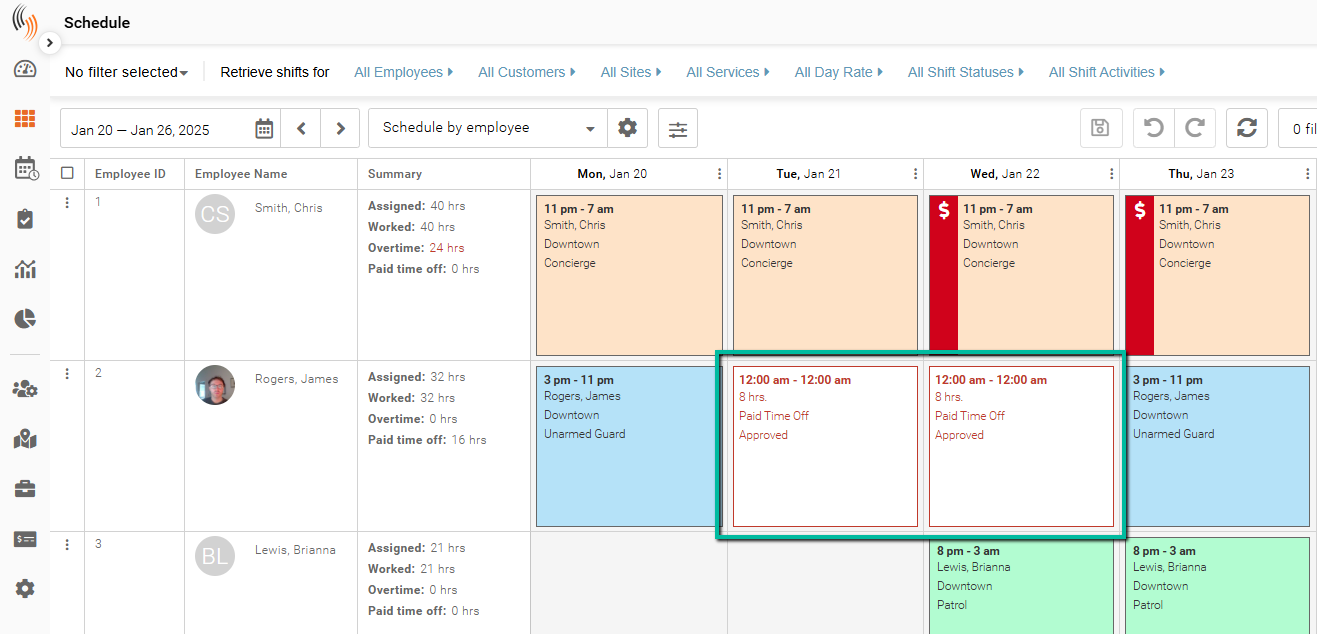
Below is an example of how time off records appear in the schedule.
View Paid Time Off Debit in the Schedule
The schedule displays paid time off based on the debit amount, not the full duration of the time off.
For example:
- An employee may request 24 hours of time off
- But only be paid for 8 hours (based on the debit amount)
In this case:
- The schedule will still show the full time range (e.g., 12:00 AM – 12:00 AM)
- The weekly summary will reflect the debit amount only