Manage Employee Documents
The Documents feature provides a centralized location for managing employee files, policies, certifications, performance records, incident reports, and other workforce documentation.
Access Documents
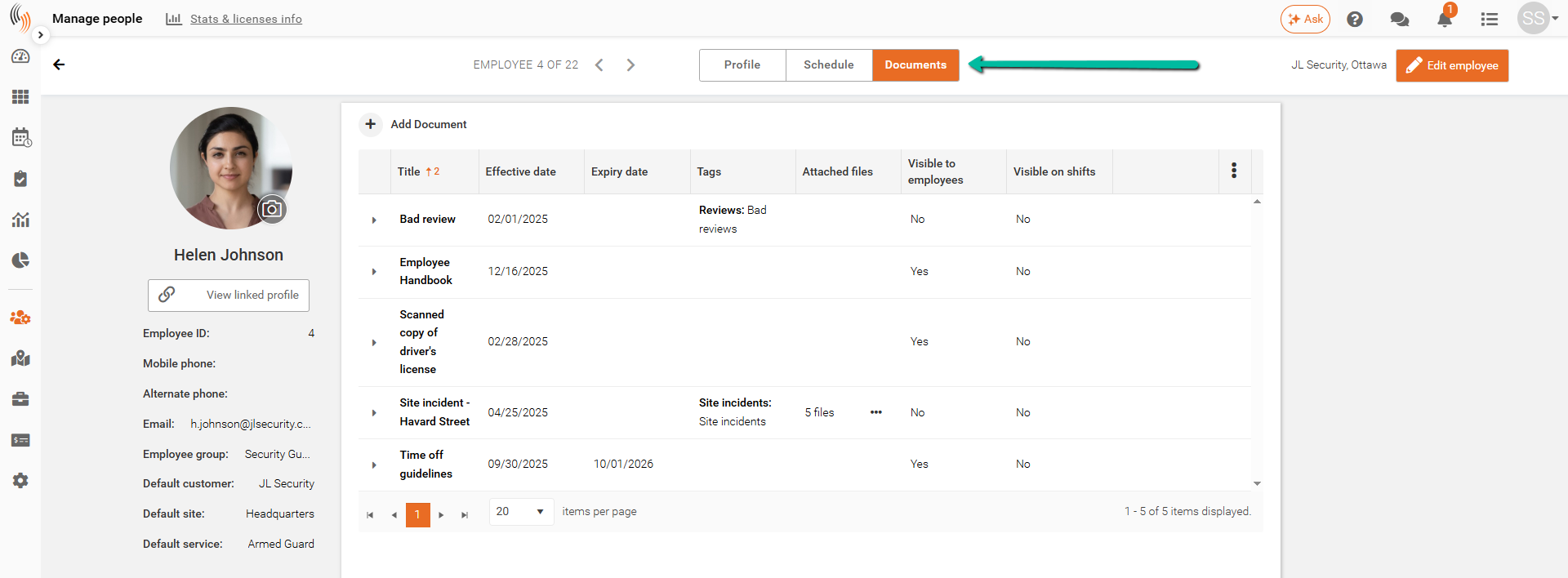
To access Documents, open an employee profile in Manage People and select Documents.
Feature Access for Employee Documents
Access to Documents is controlled through Feature Access Groups.
To configure document permissions:
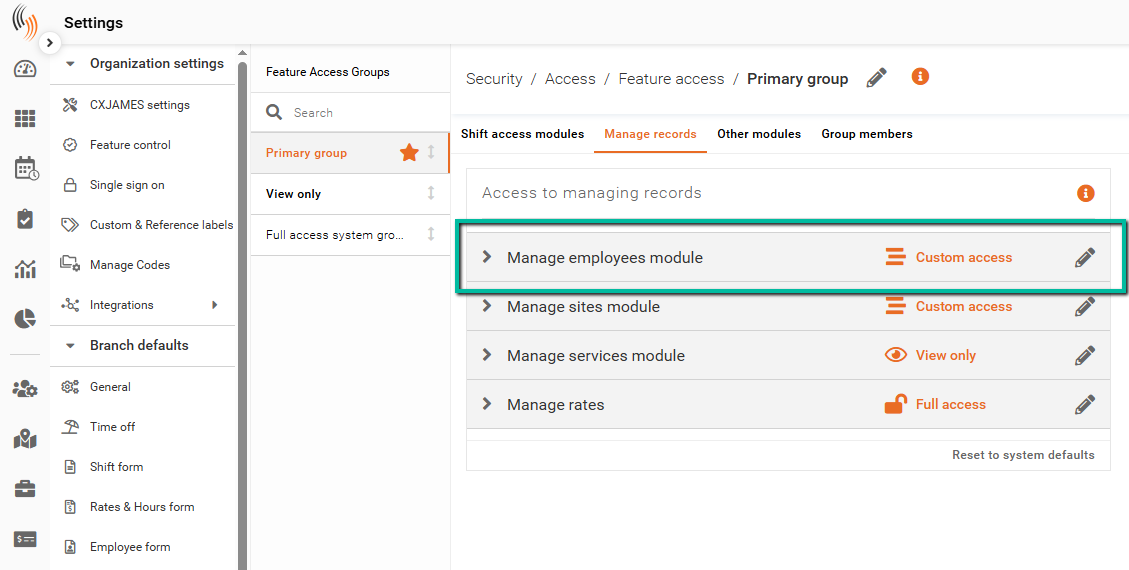
- Navigate to Settings → Security → Manager Access → Feature Access
- Select the appropriate Feature Access Group
- Expand Manage Employees
- Locate Documents
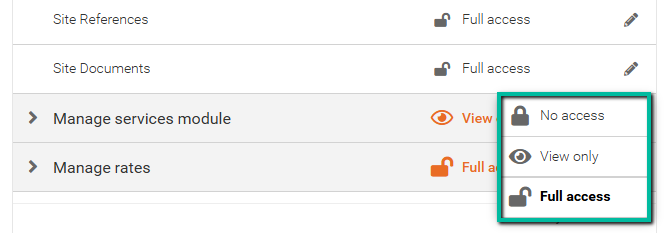
- Click the Pencil icon and choose an access level:
- No Access
- View Only
- Full Access
Note: Only Full Admins can modify Feature Access Groups.
Add an Employee Document
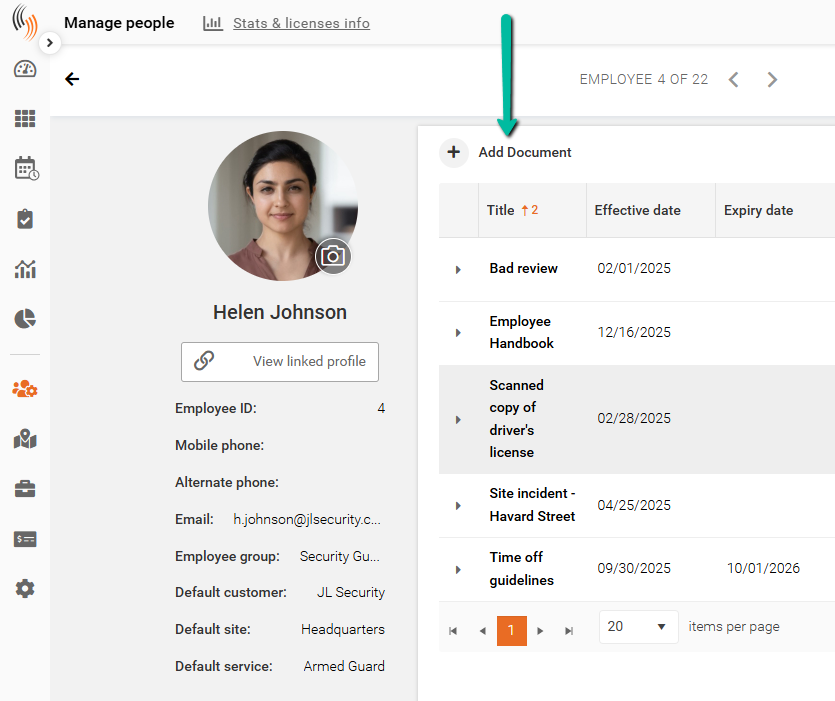
To create a document:
- Open Documents
- Click Add Document
- Complete the document information
- Click Save
Configure Employee Document Information
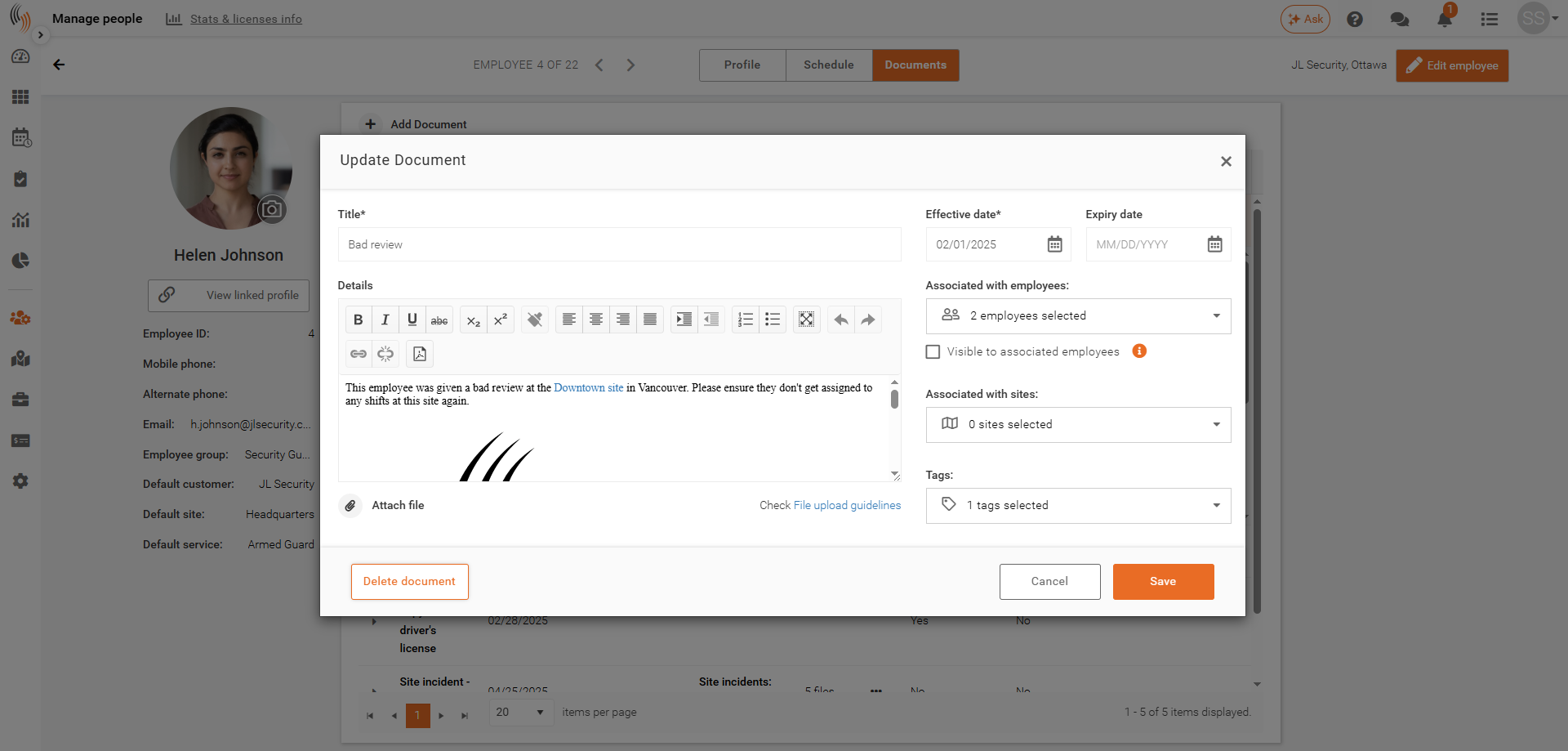
When creating or editing a document, you can configure:
- Details – Enter document content using the editor.
- Effective Date and Expiry Date – Define the active period for the document.
- Associated Employees – Select employees linked to the document.
- Tags – Categorize documents for easier searching and organization.
- Attach File – Upload supporting files.
Format an Employee Document
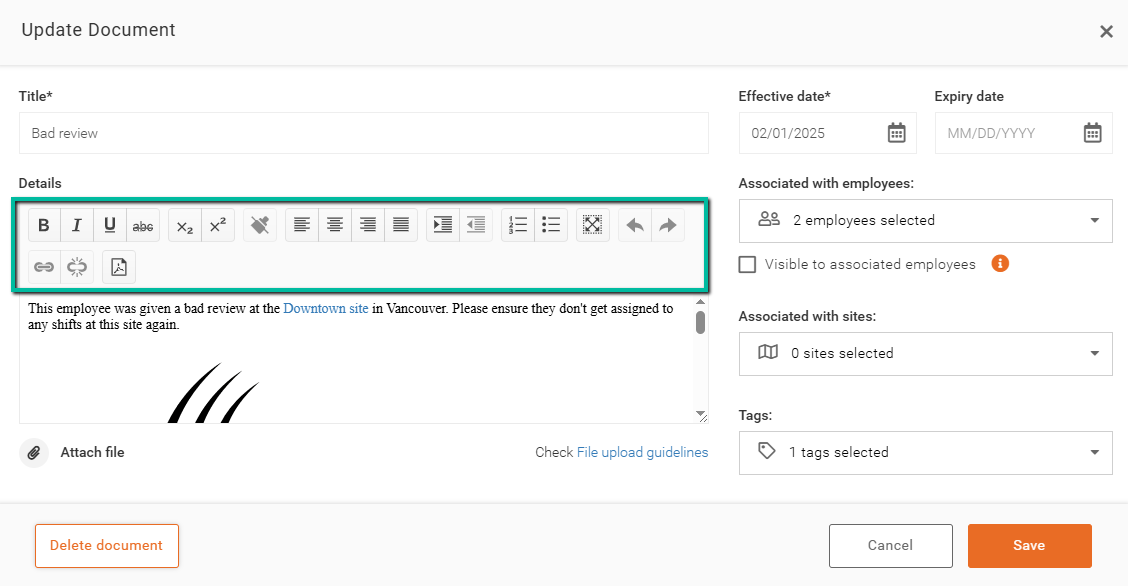
Enter your document details and use the available formatting tools in the editor to customize the content as needed.
Add Hyperlink to Employee Document
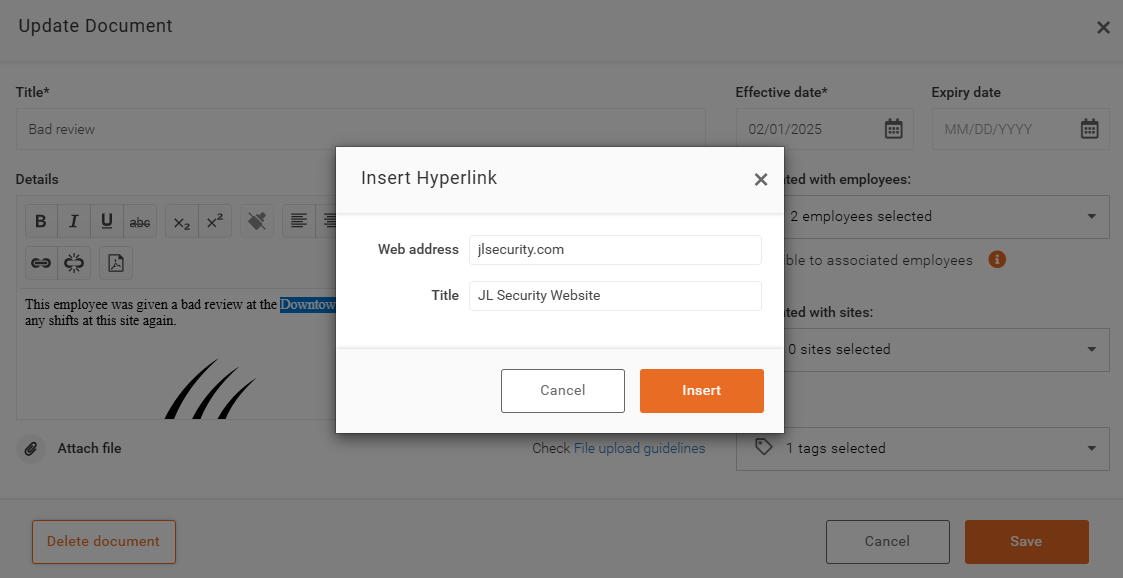
To add a hyperlink, highlight the desired text and click the hyperlink button.
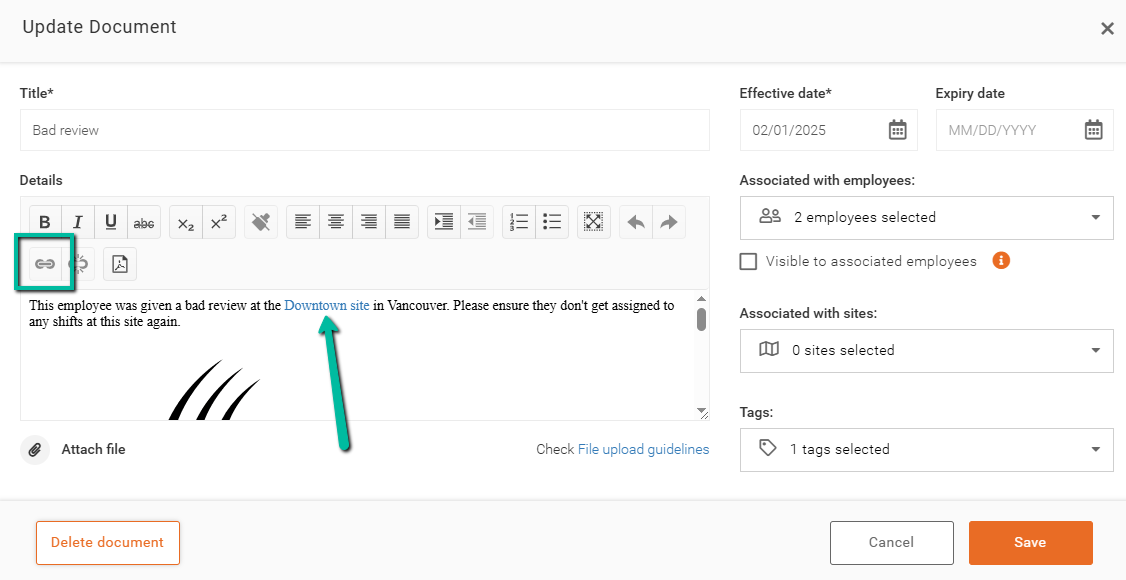
Enter the Web address and Title to create the hyperlink.
Click Insert to complete.
View Employee Document Content
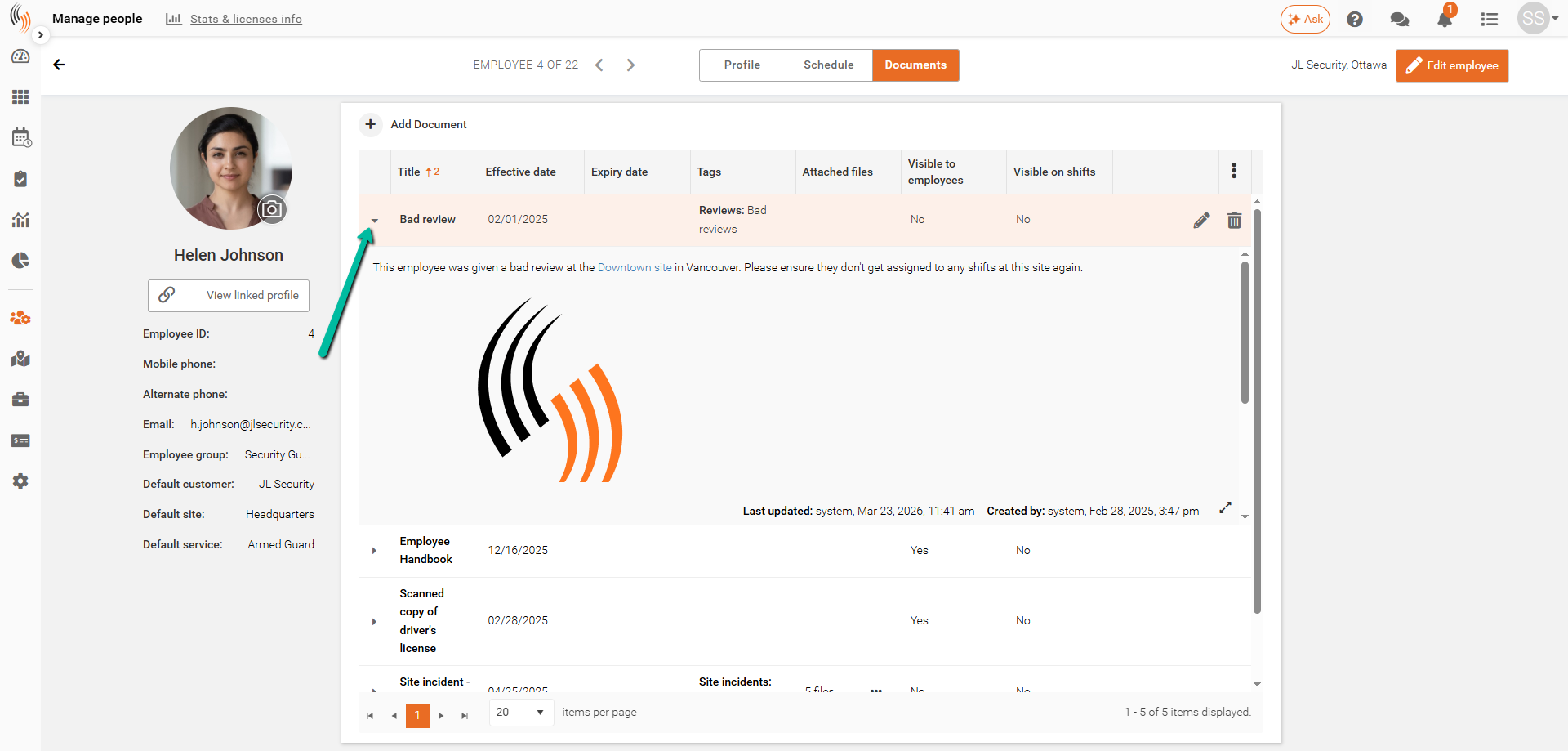
To view a document, click the Dropdown Arrow beside the document name.
Expanding the document allows you to review its contents, including document details, attached files, associated employees, tags, and visibility settings without opening the document in edit mode.
Edit an Employee Document
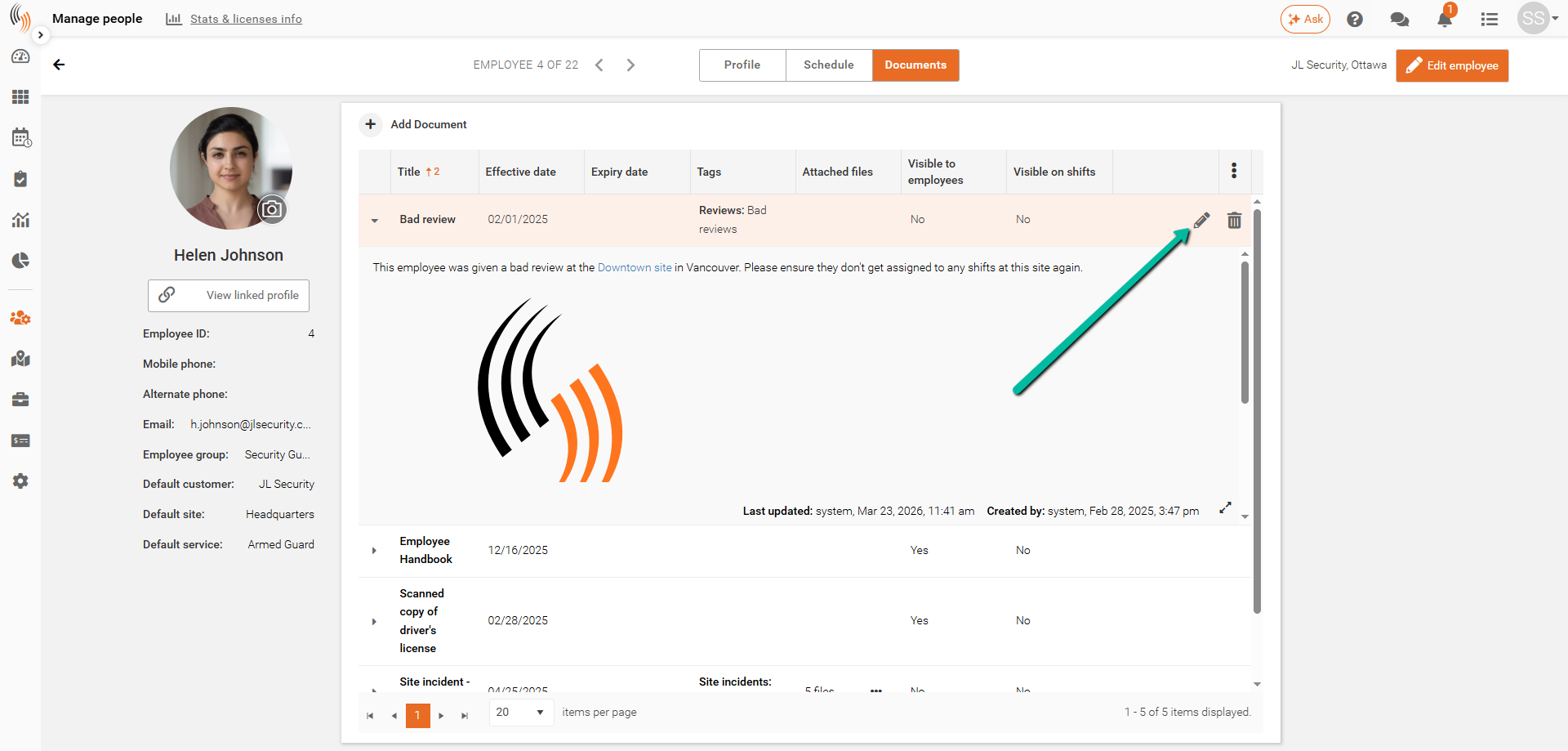
To modify a document, click the Pencil icon
Delete an Employee Document
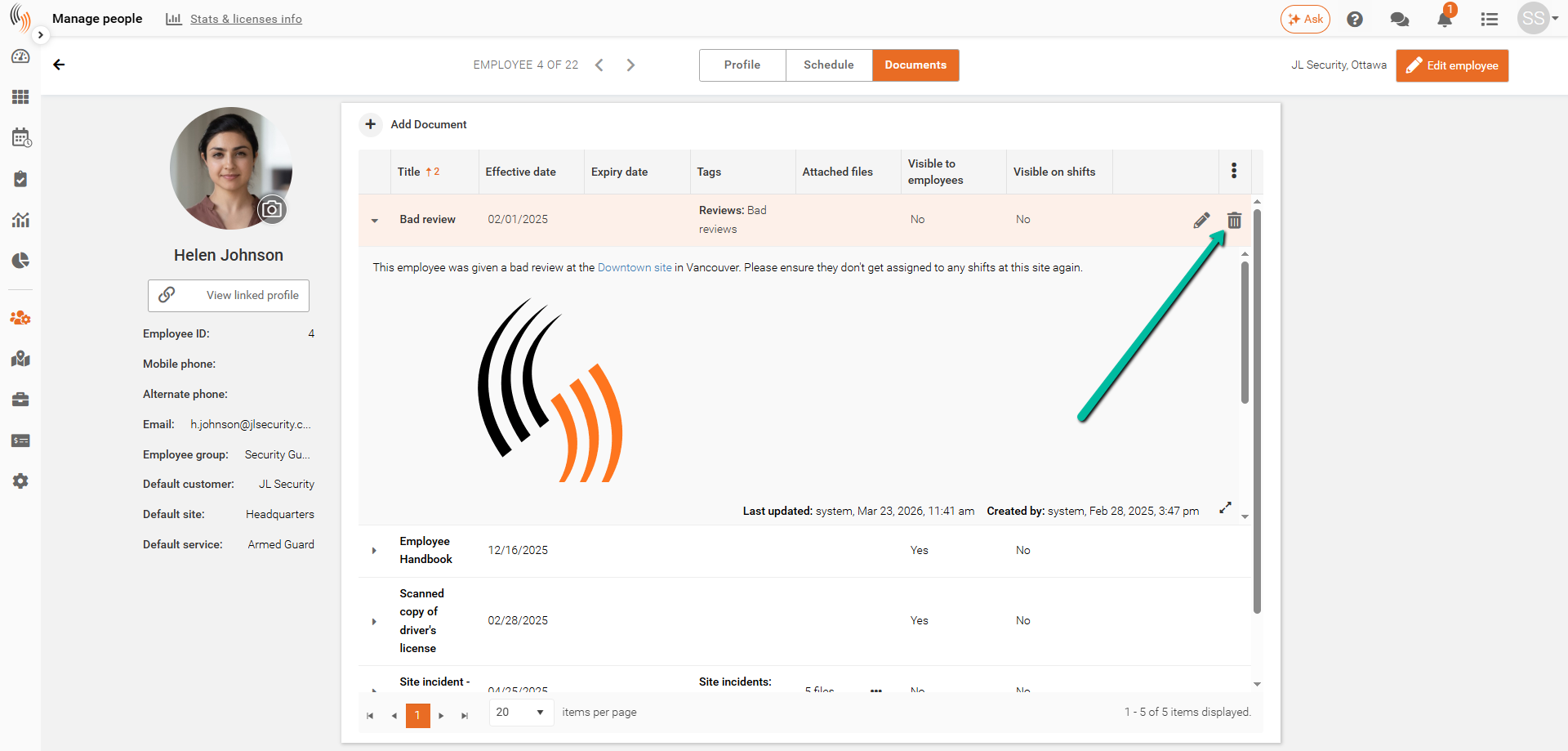
To remove a document, click the Trash Can icon.
Important Note: Deleting a document permanently removes it from the employee profile.
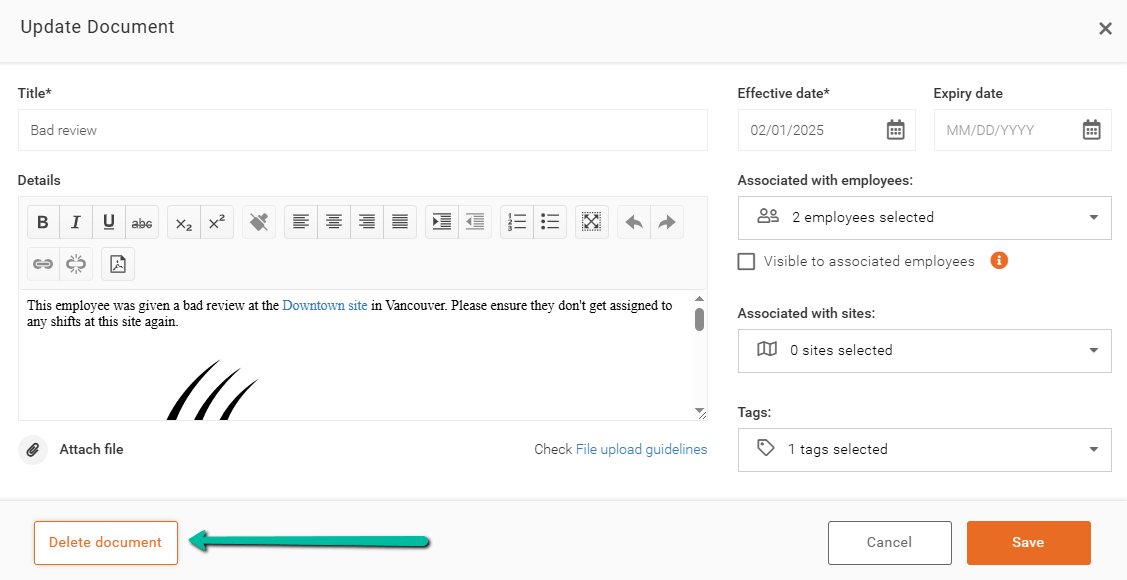
Alternatively, you can delete the document from within the document itself by clicking Delete document.
Add Image to Employee Document Details
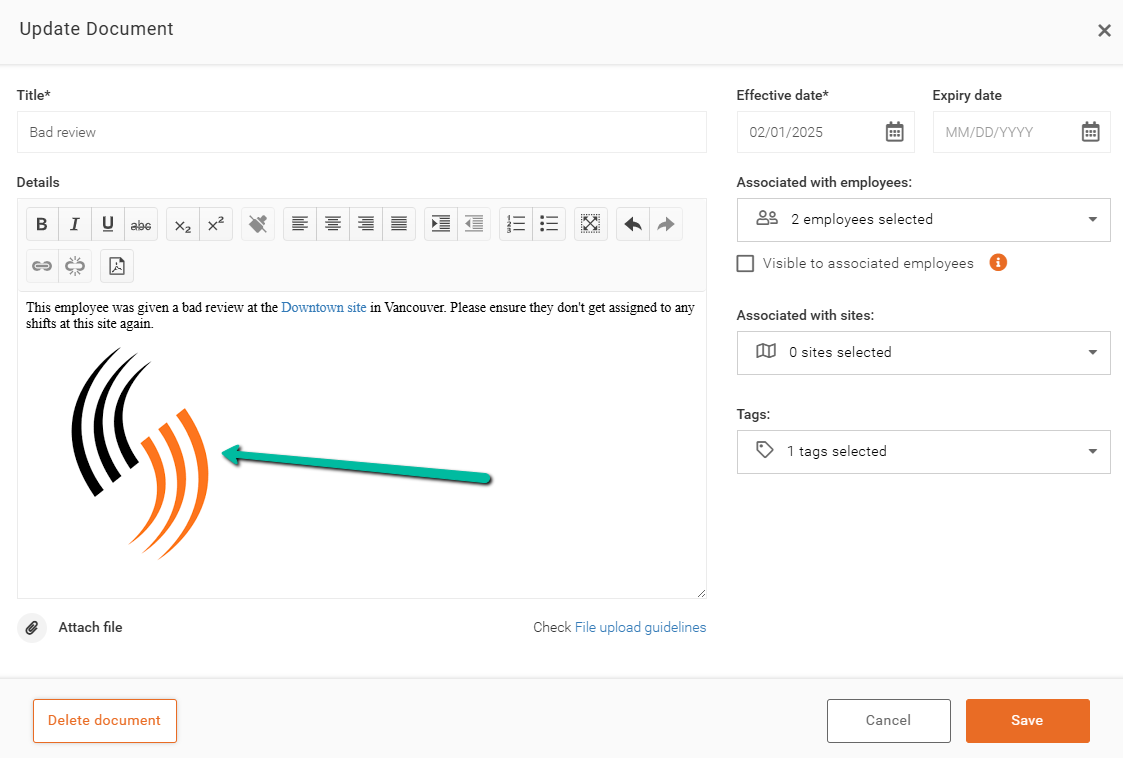
To add an image to the Details section, right-click the desired image and select Copy, then right-click in the editor and select Paste.
Make Documents Visible to Employees in Team Xpress
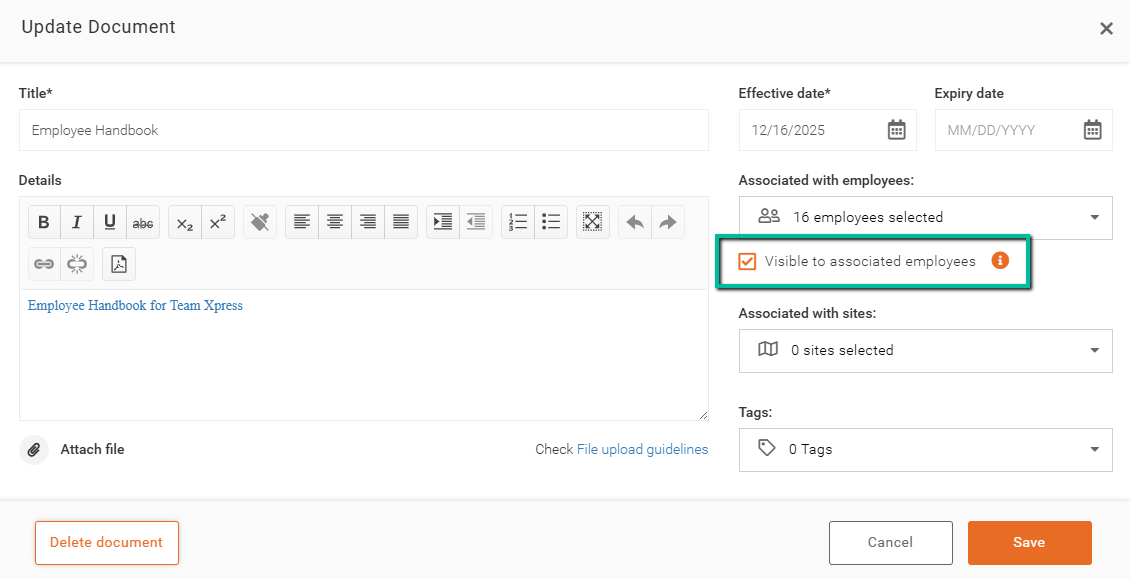
To make a document available to employees in Team Xpress, enable Visible to Associated Employees within the document settings.
If multiple employees are associated with the document, select the employees who should have access.
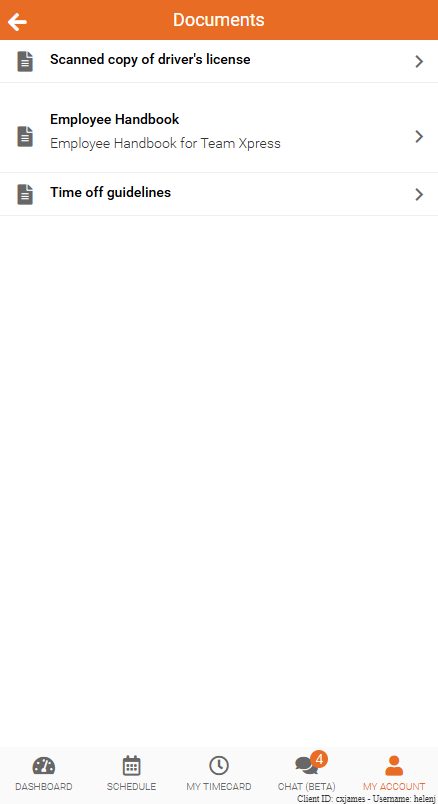
Employees can view shared documents under:
My Account → Documents
Tags for Employee Documents
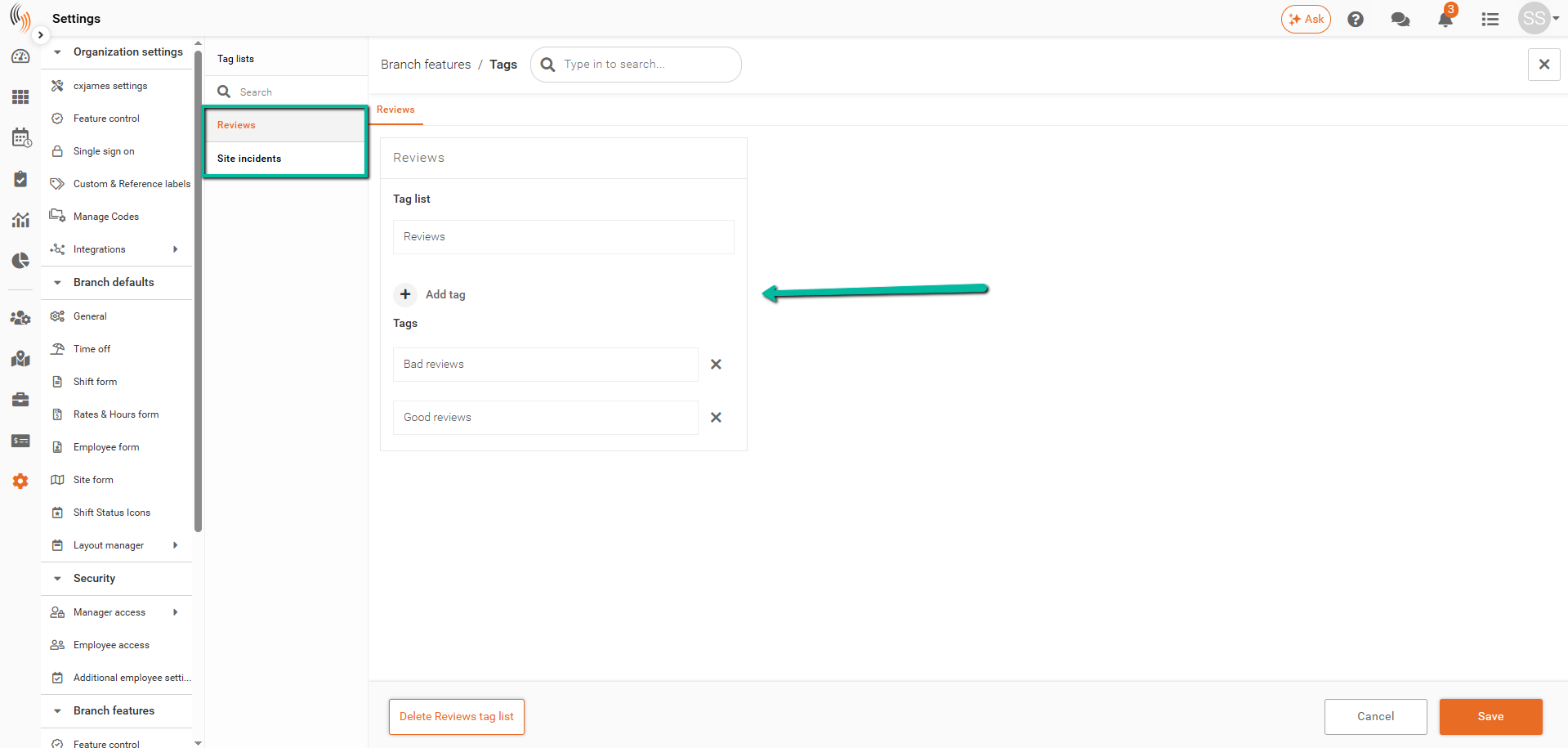
Tags help organize and categorize documents.
To manage tags:
Settings → Branch Features → Tags
You can create and manage tags to group related documents, such as:
- Performance Reviews
- Incidents
- Certifications
- Policies
Attach File in Employee Documents
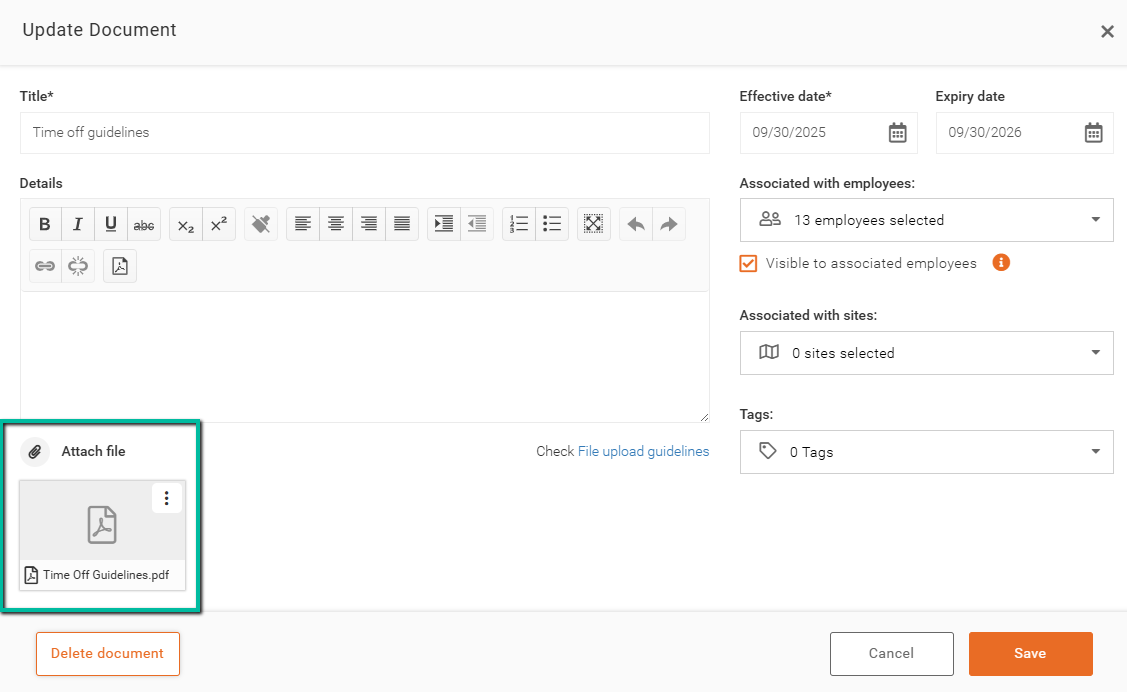
To upload a file, select Attach File within the document.
File Upload Guidelines for Employee Documents
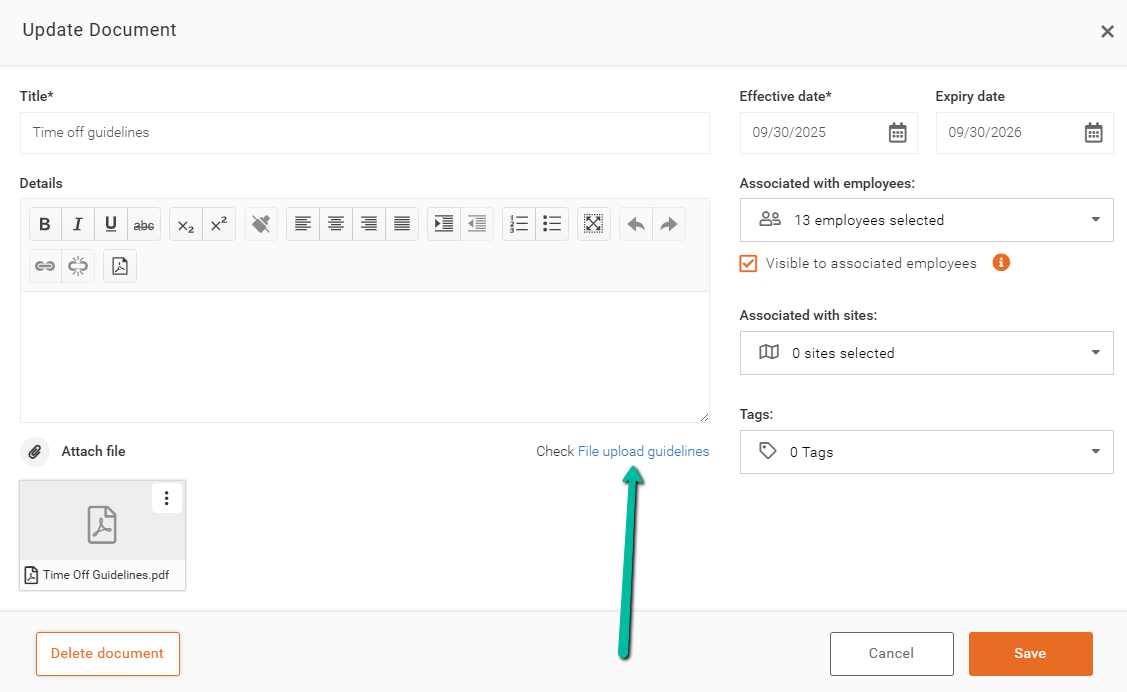
When using the Attach file option in Documents, ensure your files meet the required criteria by reviewing the File upload guidelines.
Select File upload guidelines for more details.
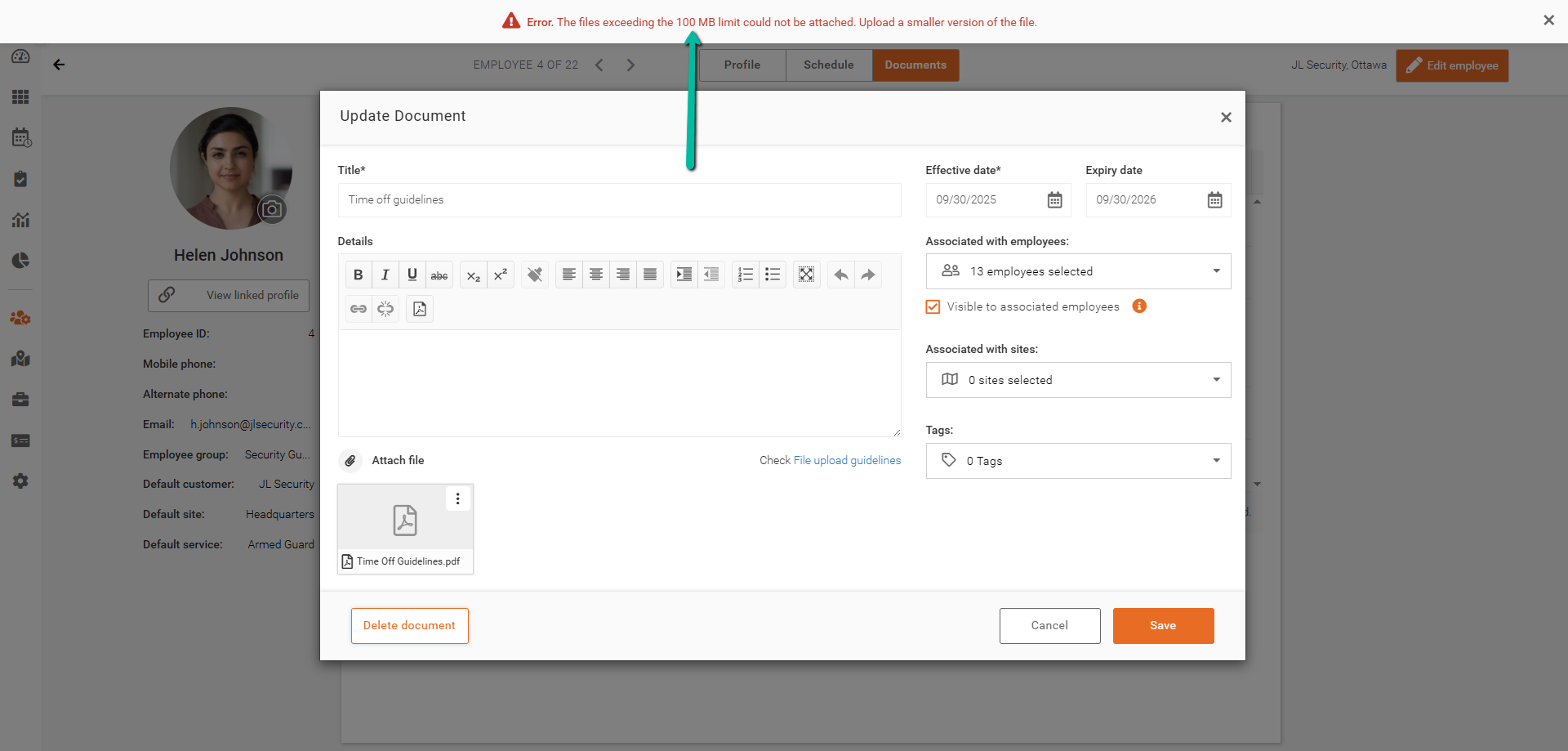
File Size Limit (MB) for Employee Documents
The maximum file size for uploads is 100MB. Please compress or reduce your file size before uploading.
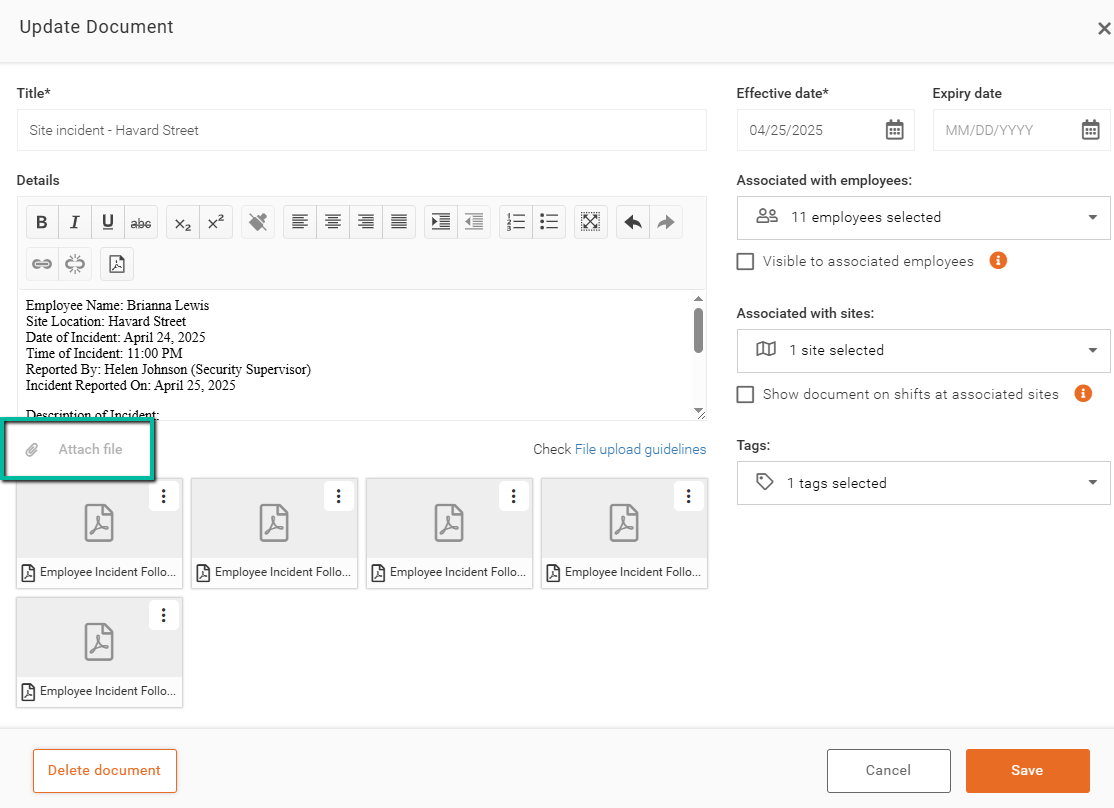
Maximum Number of File Attachments for Employee Documents
Documents support a maximum of 5 attachments. Once this limit is reached, the Attach file button will be disabled. To add additional files, please remove an existing attachment by selecting the three-dot menu and choosing Delete.
Supported File Types
To ensure successful file uploads, please verify that your file format is compatible with our system. The following file types are currently supported:
Documents
- PDF (.pdf)
- Microsoft Word (.doc, .docx)
- Rich Text Format (.rtf)
- Plain Text (.txt)
- OpenDocument Text (.odt)
- OpenDocument Spreadsheet (.ods)
Spreadsheets
- Microsoft Excel (.xls, .xlsx)
- Comma-Separated Values (.csv)
Images
- PNG (.png)
- JPEG (.jpg, .jpeg)
Videos
- AVI (.avi)
- MP4 (.mp4)
Unsupported File Types
The following file formats are not compatible with our upload system:
Data Interchange Format (.dif)
Java Source Code (.java)
JavaScript (.js)
Python Script (.py)
Attempting to upload an unsupported file type will result in an error message. Please convert your file to one of the supported formats listed above before proceeding with your upload.
If you attempt to upload a file with any of the unsupported extension listed above, you will receive an error message. Please ensure your file has one of the supported extensions before uploading.
View Employee Documents in Team Xpress
When Visible to Associated Employees is enabled, employees can access documents directly from Team Xpress under:
My Account → Documents
This allows employees to view shared documents without requiring access to Schedule Xpress.
This version cuts the article by roughly 35–40% while keeping all of the actual functionality and follows the cleaner structure you've been using in the newer documentation.