
Publish Shifts for Self-Scheduling
Use Self-Scheduling to publish open shifts that eligible employees can view and request through Team Xpress. This helps reduce manual scheduling while giving employees more flexibility to manage their work schedules.
Why Use Self-Scheduling?
Self-Scheduling allows employees to request shifts based on availability while ensuring scheduling rules are maintained.
For Employees
- Greater control over shift selection
- Improved flexibility in managing availability
- Increased visibility into available shifts
For Organizations
- Reduced time spent assigning shifts manually
- Improved scheduling efficiency
- Better alignment between staffing needs and employee availability
Set Self-Scheduling Criteria
Before publishing shifts, configure Self-Scheduling Criteria to ensure only eligible employees can request them.
These settings define rules such as Qualifications and other scheduling options to maintain accuracy and compliance.
Create Open Shifts
Shifts must be created as Open before they can be used for Self-Scheduling.
When creating a shift, set the Employee Name field to Open so it is available for employees to claim.
To work more efficiently, learn to Repeat Shifts and use Shift Templates for creating multiple identical open shifts.
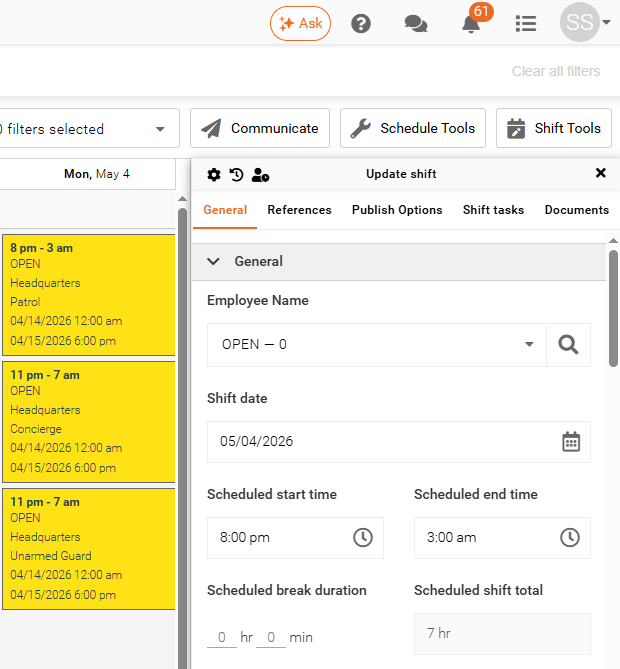
Publish Shifts for Self-Scheduling
To make a shift available for Self-Scheduling:
- Open the shift panel.
- Go to Publish Options.
- Select Publish for Self-Scheduling.
- Set the start date and time.
- Set the end date and time.
Once saved, the shift will be available to eligible employees in Team Xpress.
Note: If this option is not visible, enable it within your Shift Form settings.
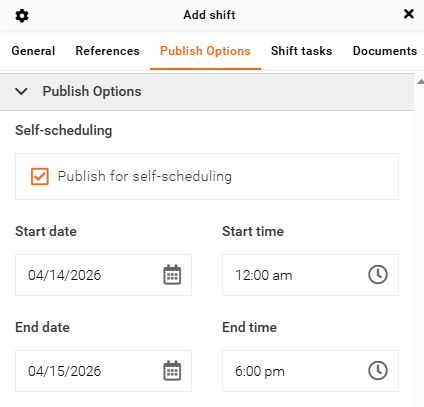
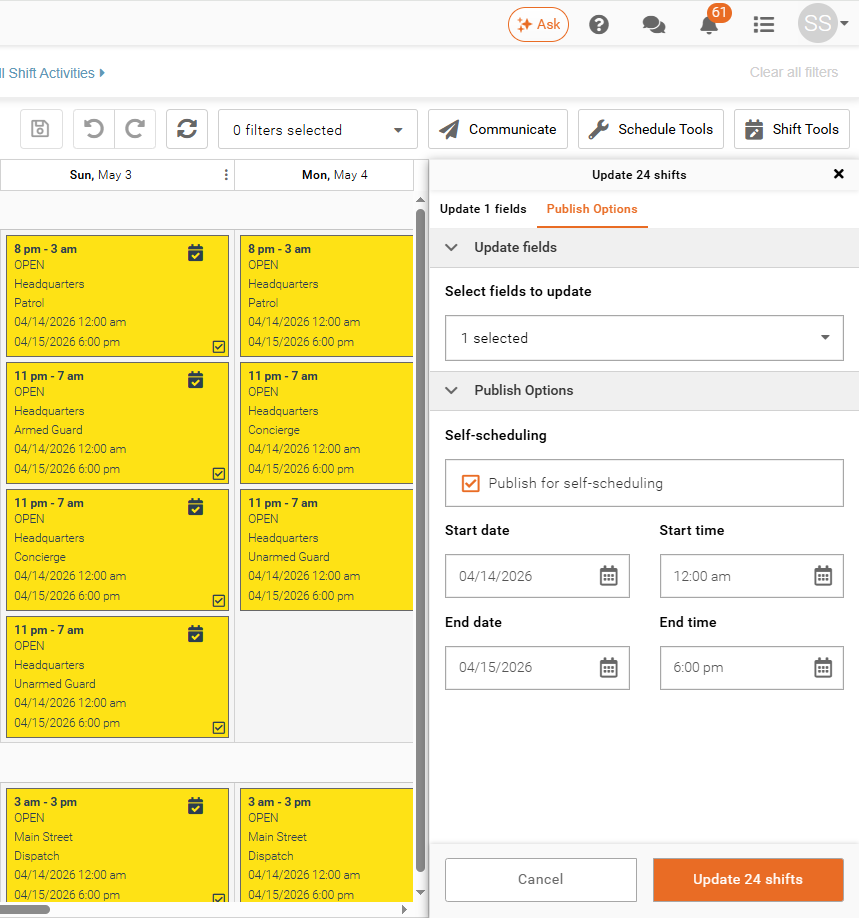
Publish Multiple Shifts for Self-Scheduling
You can apply Self-Scheduling settings to multiple shifts at once.
Select the shifts you want to update, then apply the Self-Scheduling option and define the start and end times.
Note: Bulk updates are only available for shifts with identical configurations.
Enable Site Map View
To allow employees to view site locations before selecting shifts, ensure the following settings are configured:
- Site ID is selected in Shift Grouping
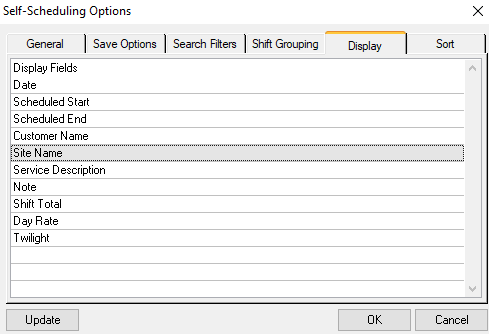
- Site Name is enabled in Display
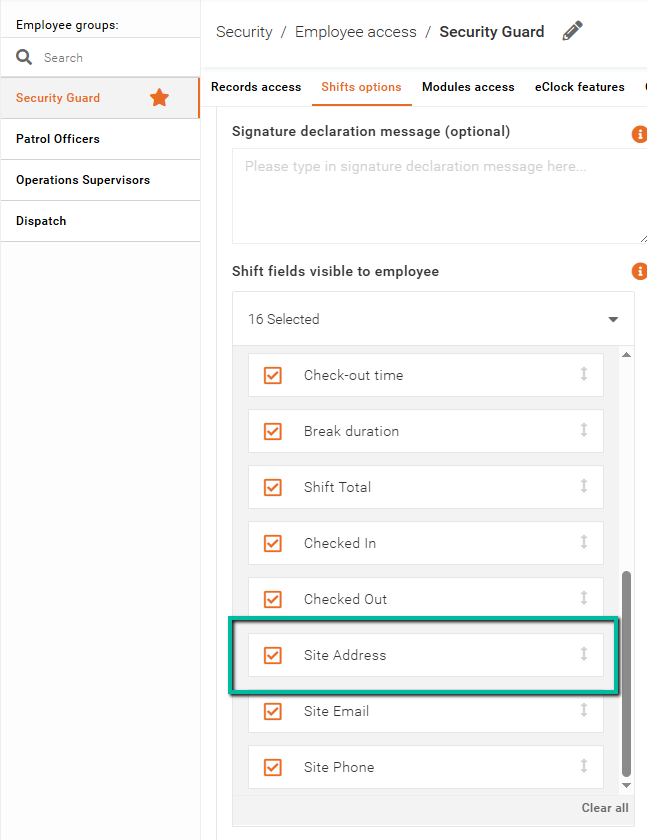
- Site Address is visible in the Employee Access Group
This allows employees to preview the shift location in Team Xpress before making a selection.
Site ID is selected in Shift Grouping:
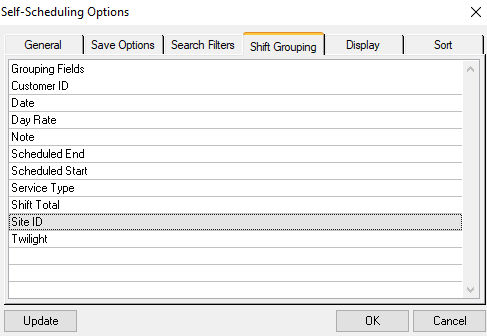
Site Name is enabled in Display:
Site Address is visible in the Employee Access Group:
Configure Self-Scheduling Lead Times
To provide early access to shifts for specific employees, configure a Self-Scheduling Lead Time rule in Branch Rules within eTime Xpress.
This allows selected employees to view and request shifts before the standard self-scheduling start time, giving priority access based on your scheduling requirements.
Note: Please contact Celayix Support if you would like to configure a Self-Scheduling Lead Time.