
Set Up Shift Questions
Shift Questions can be used for shift attestations to help ensure accuracy and compliance at the end of each shift.
These digital confirmations allow employees to verify their timecards, confirm adherence to meal and rest break requirements, and acknowledge important safety policies. This helps organizations maintain compliance, improve accountability, and ensure all shift-related information is properly validated.
Enable Shift Questions
If you would like to enable Shift questions, please contact our support team.
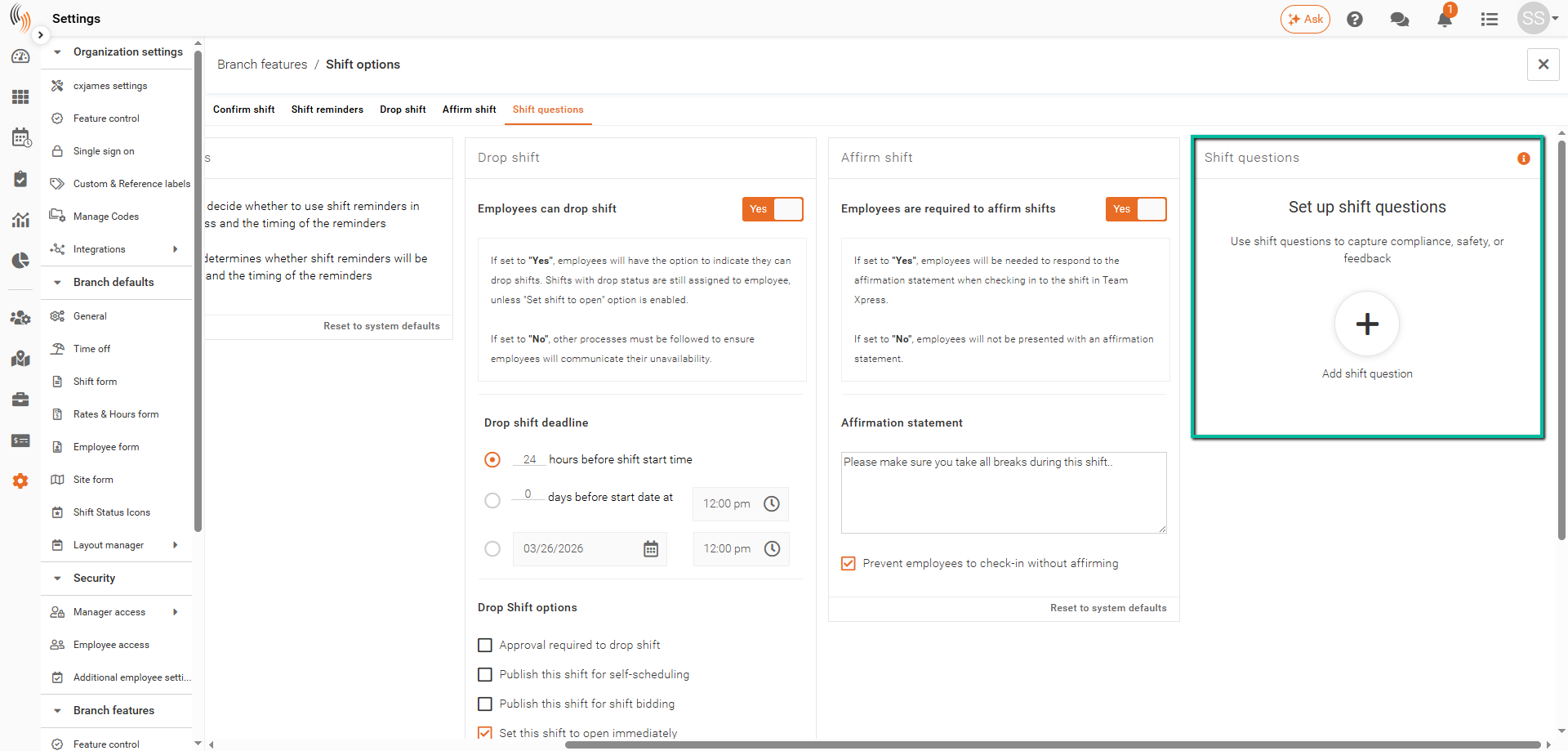
Once enabled, you can find the feature under Settings > Branch features > Shift options.
Employee Access to Shift Questions
By default, once the Shift questions feature is enabled, employees will have access to any questions you create.
If you want to disable it for specific employee groups, navigate to Settings > Security > Employee access. Under Shift options and field visibility, uncheck the following options:
- Answer Shift Check-out Questions
- Answer Shift Check-in Questions

Shift Questions Setup
To create a question, head to Settings > Branch features > Shift options > + Add shift question.

Create a Shift Question
To create a Shift question, complete the following fields:
- Question name – Enter a name for internal reference (e.g., Meal Breaks)
- Question – Enter the question employees will answer
- Question visibility – Choose when the question appears:
- Shown at check-in
- Shown at check-out
- Hidden, draft (if the question isn't ready to go live)
- Response required – Toggle on (orange) if an answer is mandatory
- Answer choices – Add at least one response option using Add answer choice
- Show details textbox (optional) – Allow employees to enter additional information
- Answer outcome (optional) – Define an outcome for the selected answer
See an example for meal breaks below.
Important: You can create a maximum of 5 questions at a time.

Show Details Textbox
Checking the Show details textbox allows employees to provide a reason for their answer.

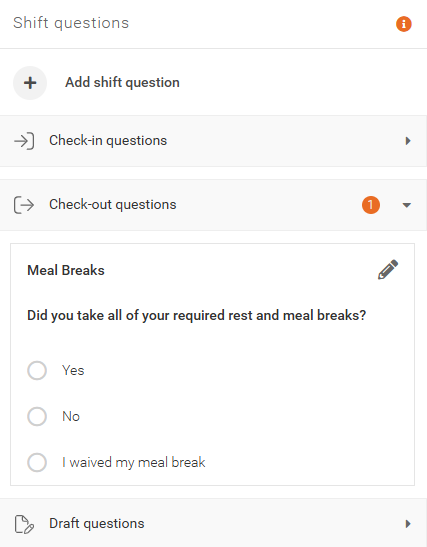
Once saved, the question will appear under your Shift options as shown below.
All questions are organized into the following dropdown categories:
- Check-in questions
- Check-out questions
- Draft questions
This allows you to easily manage and locate your Shift questions based on when they are displayed to employees.
Edit a Shift Question
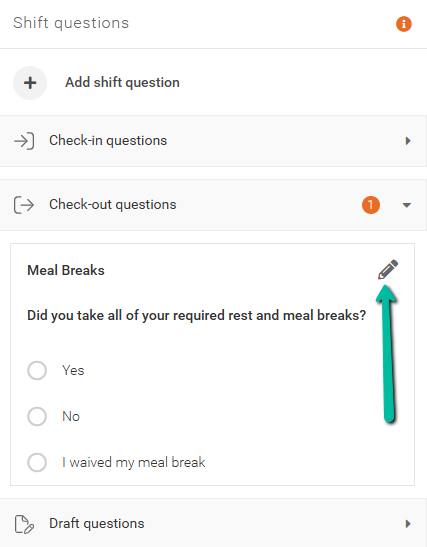
To edit a Shift question, click the pencil icon located in the top right corner of the question.
Shift Questions - What Do Employees See?
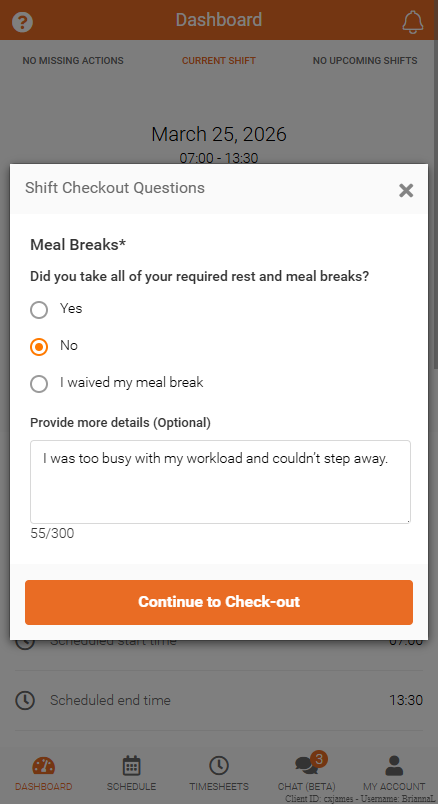
Upon Check-in or Check-out, employees will see the Shift question(s) and must provide an answer before they can proceed.
These responses are recorded and can be accessed by admins for compliance purposes.
Note: Employees will only have access to the Provide more details section if the Show details textbox option is enabled when creating the question.
Shift Questions - How Do Admins Access Employee Answers?
Admins can monitor employee responses to Shift questions directly within the Time Processing grid and take appropriate action if needed.
The following columns can be added to a new or existing Time Processing layout filter:
- [Question Name] question
- [Question Name] answer
- [Question Name] answer details
- [Question Name] answer outcome
- [Question Name] answer date & time
Note: For every question you create, a corresponding set of columns will automatically be generated in this format within Time Processing.
These columns provide full visibility into employee responses, including what was answered, any additional details provided, and the recorded outcome for compliance tracking.
See the example below, which shows three different outcomes for the question:
“Did you take all of your required rest and meal breaks?”
