Change Service Status to Active
Learn how to make Inactive services active again so they can be used in scheduling.
If a service has been set to Inactive, it will no longer appear in active schedules or be available for new assignments. You can make it Active again at any time, while preserving all historical data.
Make a Single Service Active
To make a service Active:
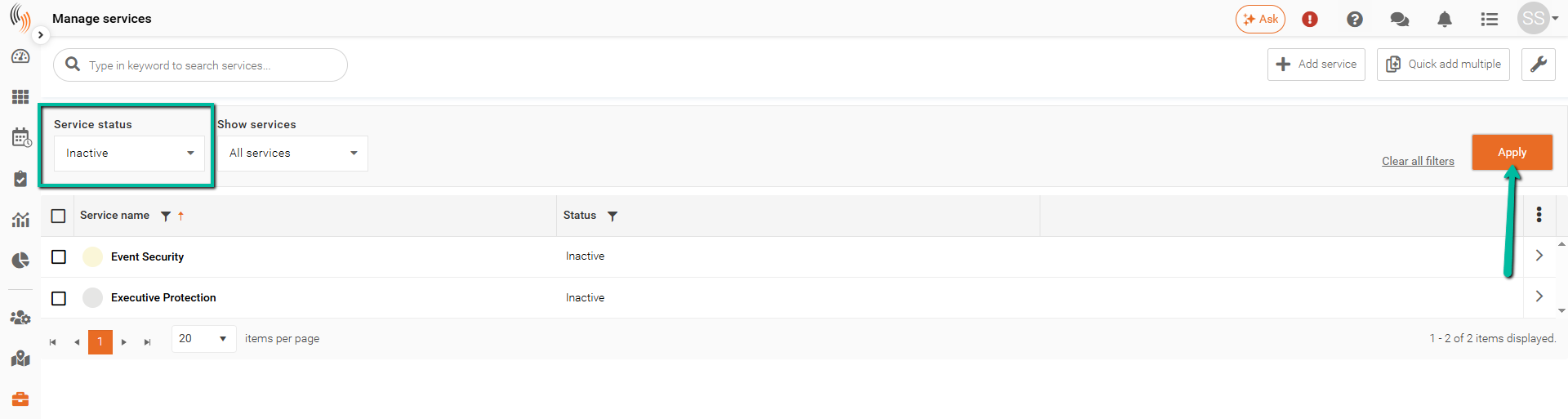
- Select Inactive in the Service Status dropdown and click Apply to view Inactive services
Once the list is filtered:
- Locate and select the service you want to update
- Click Edit Service
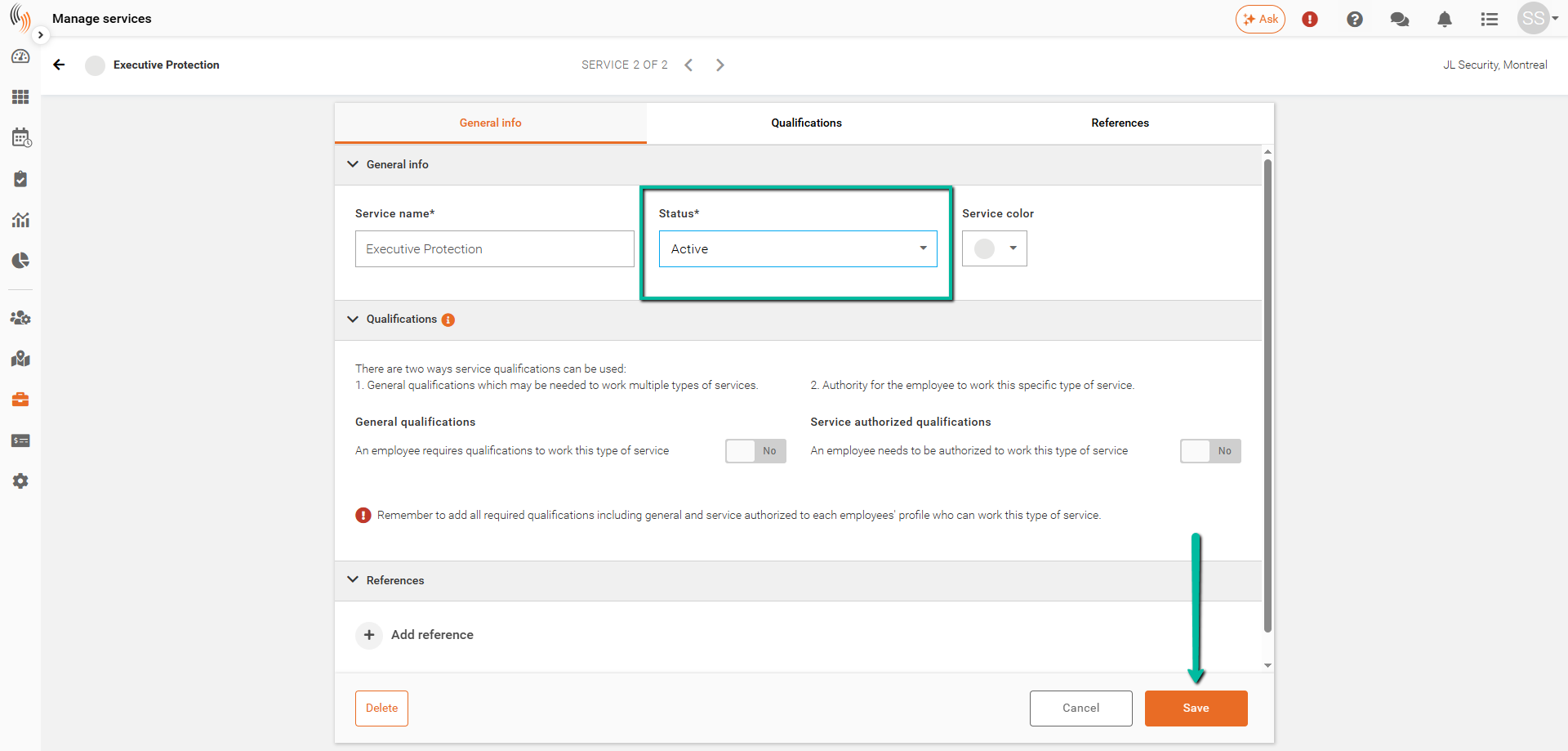
- In the General Info section, change the Status to Active
- Click Save
Once updated, the service will be available again for scheduling and assignment.
Make Multiple Services Active
To make multiple services Active at once:
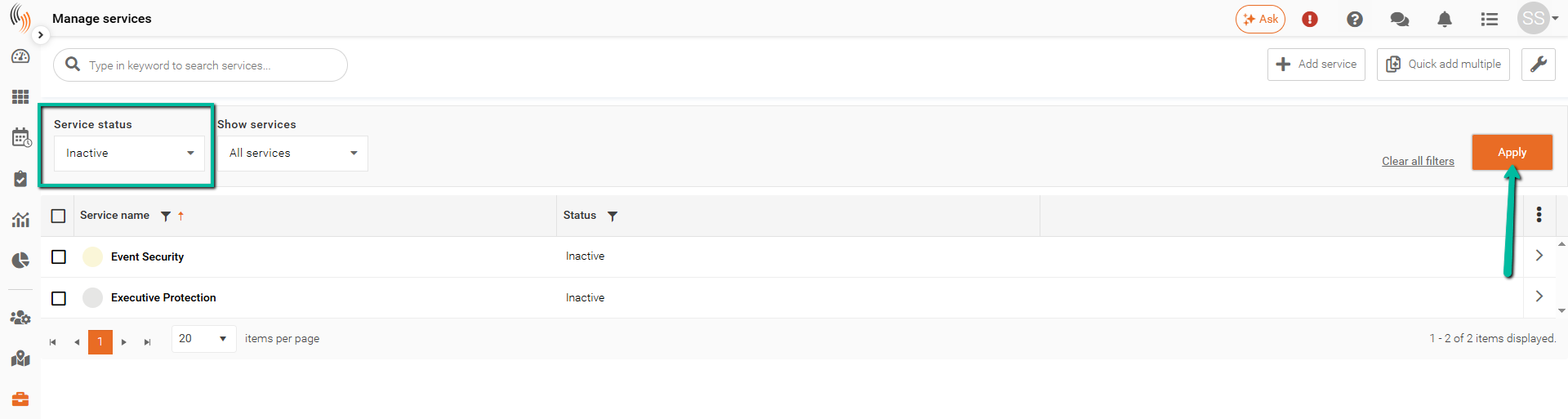
- Select Inactive in the Service Status dropdown and click Apply
Once the list is filtered:
- Select the services you want to update
- Click Update Services in the top-right corner
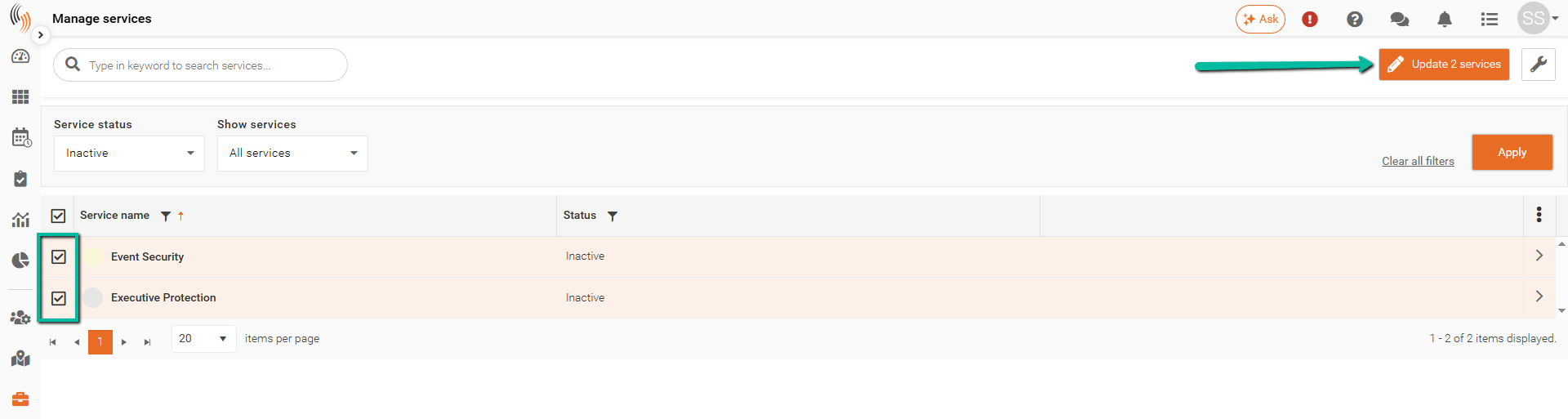
Once the update window opens:
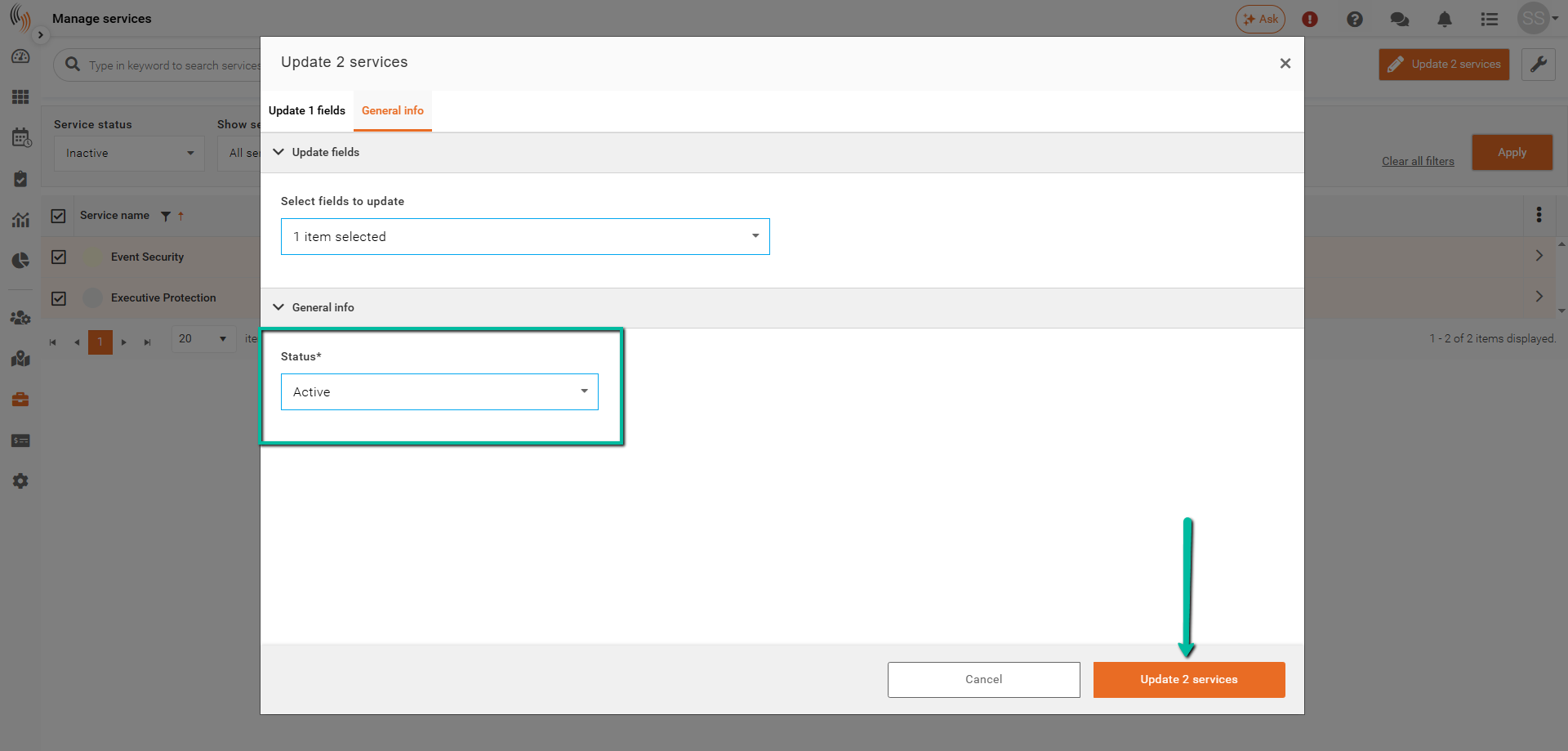
- Select Status from the Select Fields to Update dropdown and click into the space outside of the dropdown to close it
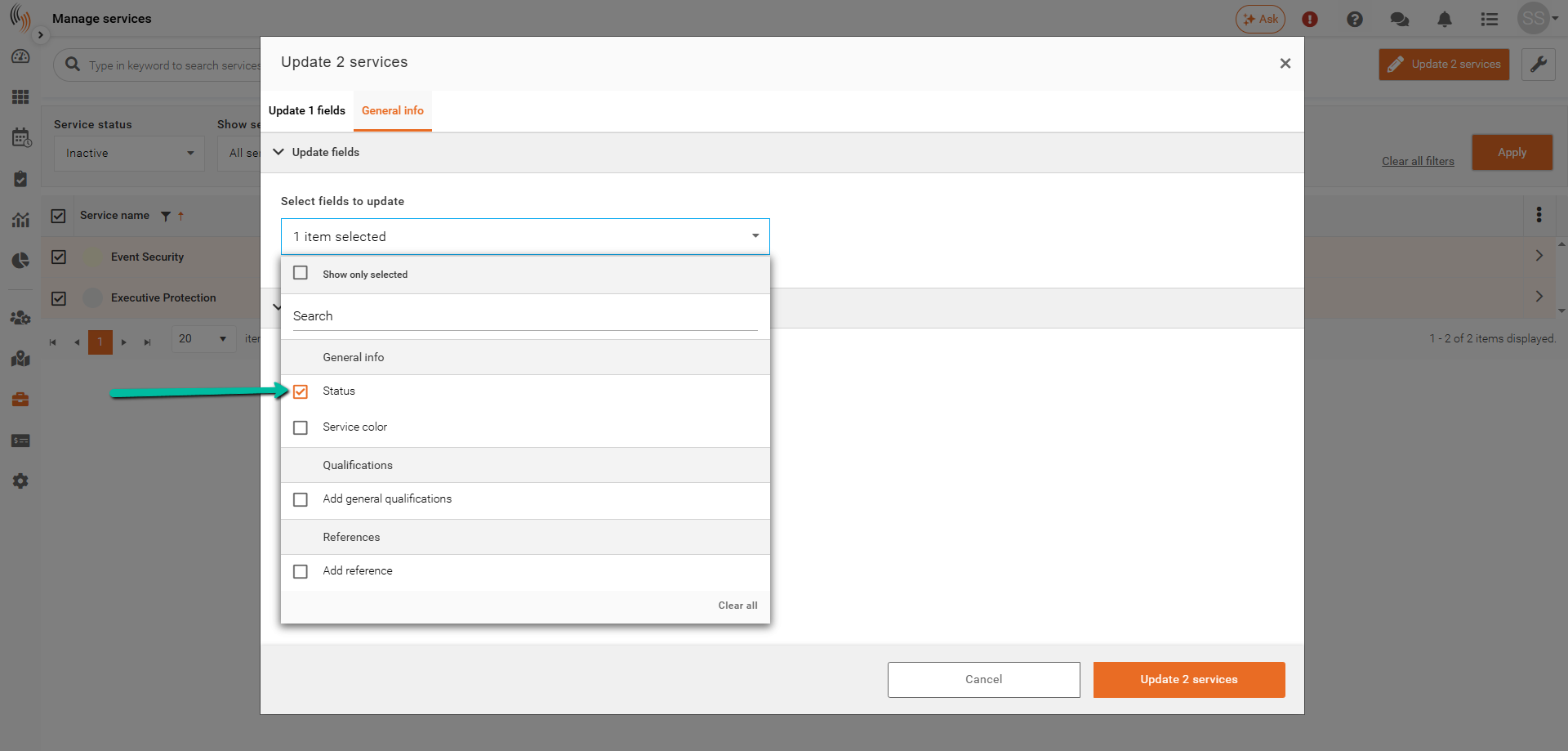
To complete the process:
- Choose Active as the status
- Click Update Services to apply the changes