Export Payroll from Time Processing
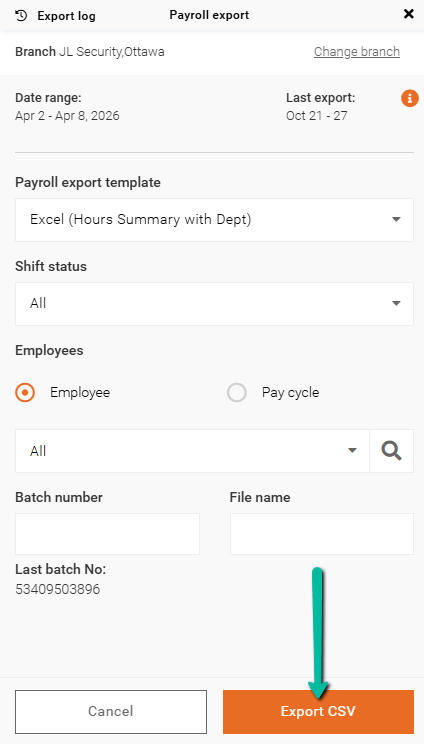
This article outlines how to export payroll data from Time Processing, including how to generate a payroll file using the Payroll Export feature based on selected filters and settings.
This article explains how to export payroll data from Time Processing. The Payroll Export feature allows administrators to generate a file containing employee time data for payroll processing based on selected filters and settings.
Access Time Processing
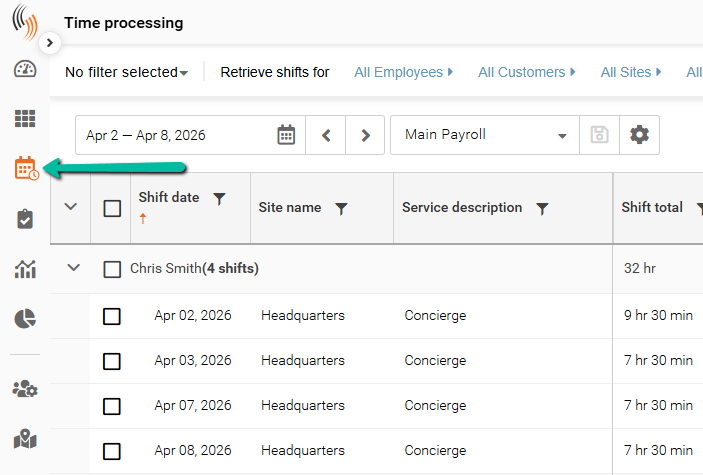
To export payroll data, first navigate to Time Processing.
- Open Schedule Xpress
- Select Time Processing
- Choose or build a filter that includes payroll hours
- Set your desired date range and apply the filter
Export Payroll
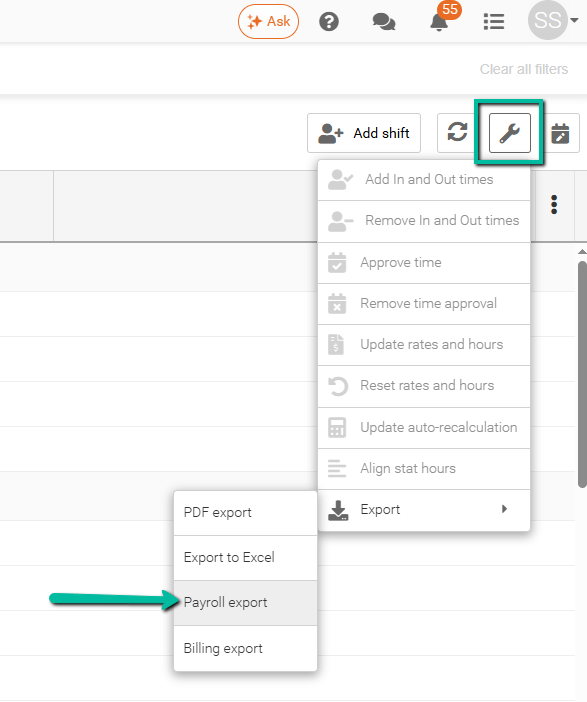
- Click the wrench icon in the top-right corner
- Select Export → Payroll Export
- The Payroll Export panel will open
Configure Payroll Export
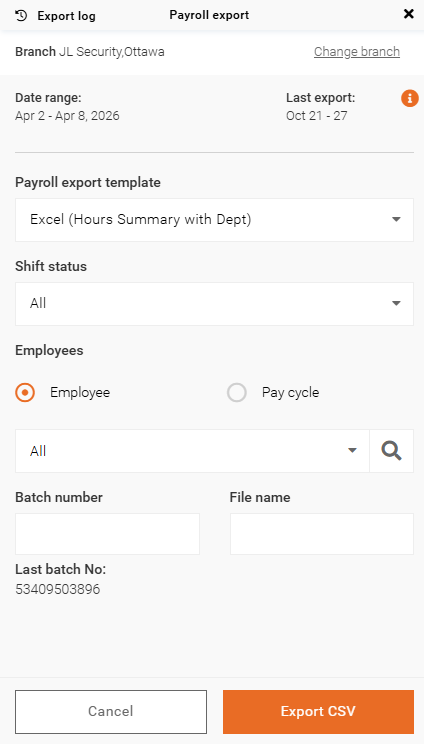
Within the Payroll Export panel, configure the following:
- Branch
Confirm or change the branch if needed - Date Range
Displays the selected date range from Time Processing - Payroll Export Template
Select the appropriate export template (e.g., Excel Hours Summary) - Shift Status
Choose which shift statuses to include (e.g., All or specific statuses) - Employees
- Select Employee to export for specific individuals
- Select Pay Cycle to export based on a pay cycle
- Use the search field to refine your selection
- Batch Number (Required)
Enter a batch number for tracking purposes - File Name (Required)
Specify a custom name for the export file
Note: If you are using isolved or Greenshades API, you do not need to complete these fields, as the configuration is managed within the external payroll system.
Export the File
- Click Export CSV or XML
- The payroll file will be generated and downloaded