Change Branch
Easily manage and navigate between multiple branches within Schedule Xpress.
For organizations with multiple branches, the Change Branch feature lets you quickly switch to the branch you want to manage. Once selected, you can view schedules, update settings, and access reports specific to that branch—without logging out or interrupting your workflow.
How to Change Branch
The Change Branch feature allows you to seamlessly switch between multiple branches within your organization.
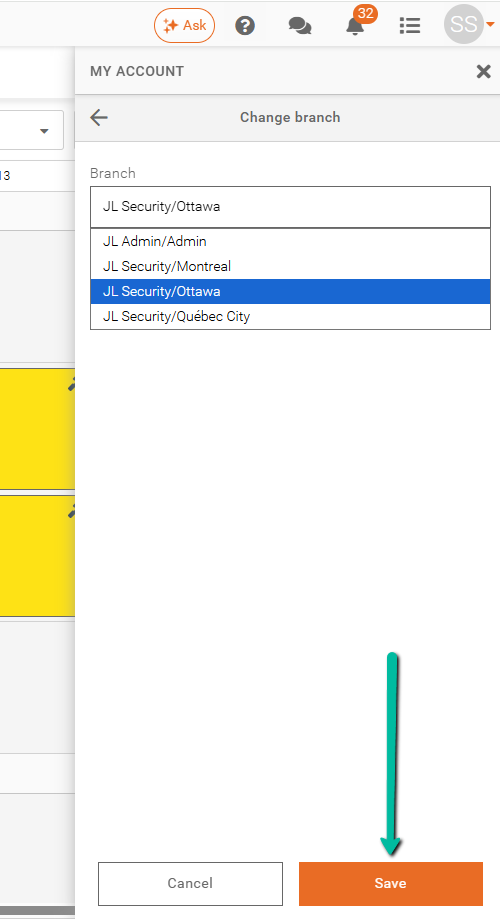
To change branches:
- Select your desired branch from the available options.
- Click Save to confirm your selection.
Once confirmed, you will be automatically redirected to the branch you selected, giving you access to its schedules, settings, and reports.