
Unlock and Manage Time Kiosk Settings
Celayix Kiosk is locked by default to prevent unauthorized access to kiosk settings and configuration options. Supervisors can unlock the device using their credentials to manage kiosk settings, review sync status, and update device configuration before returning the device to kiosk mode.
Unlock the Kiosk
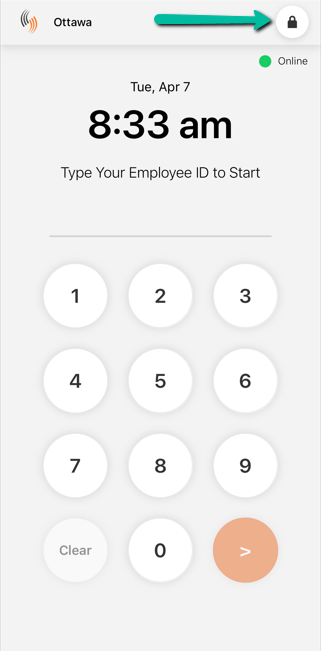
The kiosk can be locked to prevent unauthorized access. When locked, a supervisor must log in through the Unlock device screen to regain access to kiosk settings.
Unlock Device
Tapping the lock icon on the keypad screen opens the Unlock device (Supervisor login) page within the app.
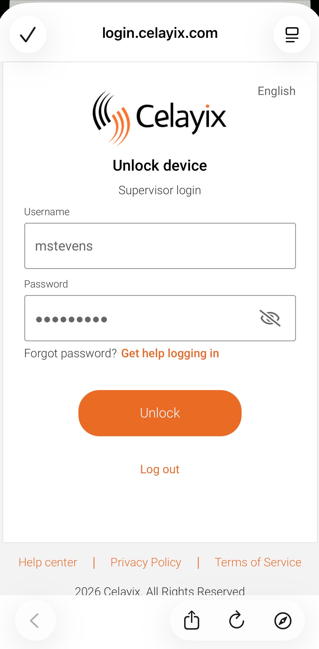
The unlock screen includes:
- Username
- Password
Only supervisor credentials associated with the kiosk’s client can be used to unlock the device. Employee (non-supervisor) credentials are not supported.
Time Kiosk Settings
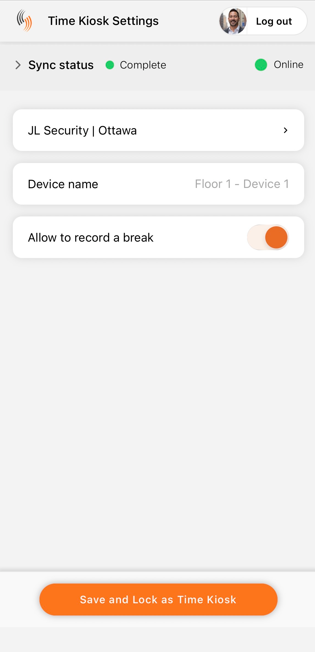
The Time Kiosk Settings screen allows supervisors to configure device settings and view sync status before locking the device for employee use.
Sync Status
The Sync Status section shows whether the kiosk is connected and up to date.
It includes:
- Online status indicates if the device is currently connected
- Schedule data shows the sync status of employee data
- Attendance data shows the sync status of clock activity (punch data)
These statuses indicate the current state of syncing for both employee data and clock activity:
- Pending means sync has not started yet
- In Progress means sync is currently running
- Complete means sync finished successfully and data is up to date
- Error means sync failed and data may not be up to date
If the kiosk is offline, syncing will not occur. If a status does not update or shows an error, please contact support.
Device Settings
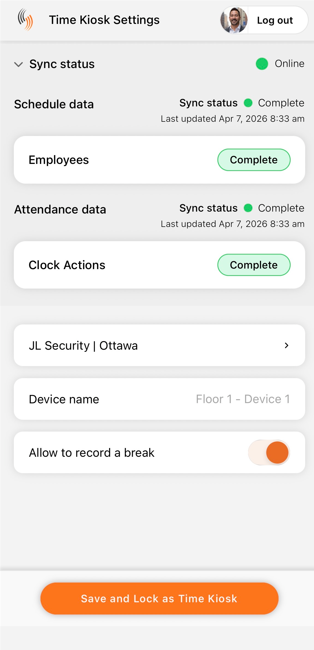
Supervisors can configure the following:
- Location (Client/Site):
Displays the assigned client and site for the kiosk - Device Name:
Identifies the kiosk (e.g., Floor 1 - Device 1) - Allow to Record a Break:
Enables or disables the ability for employees to record break punches
Save and Lock Kiosk
Once setup is complete, tap Save and Lock as Time Kiosk to:
- Save all configuration changes
- Lock the device into kiosk mode for employee use
After locking, supervisor login is required to access settings again.