Add Administrators
Administrator accounts in Schedule Xpress allow Users to access administrative features and manage workforce operations within the platform. Depending on the level of access required, Administrators can be configured as either Full Admins with unrestricted access or Managers with controlled feature and record permissions.
Add an Administrator
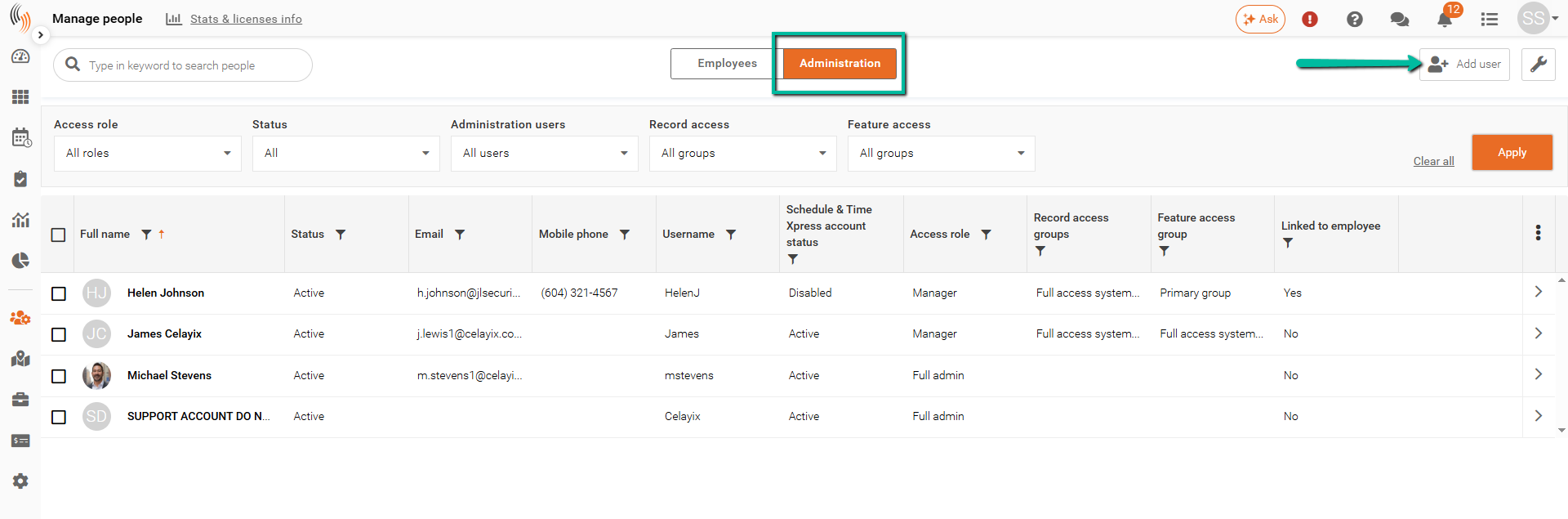
Administrator accounts can be added within:
Manage People > Administration
Account Details
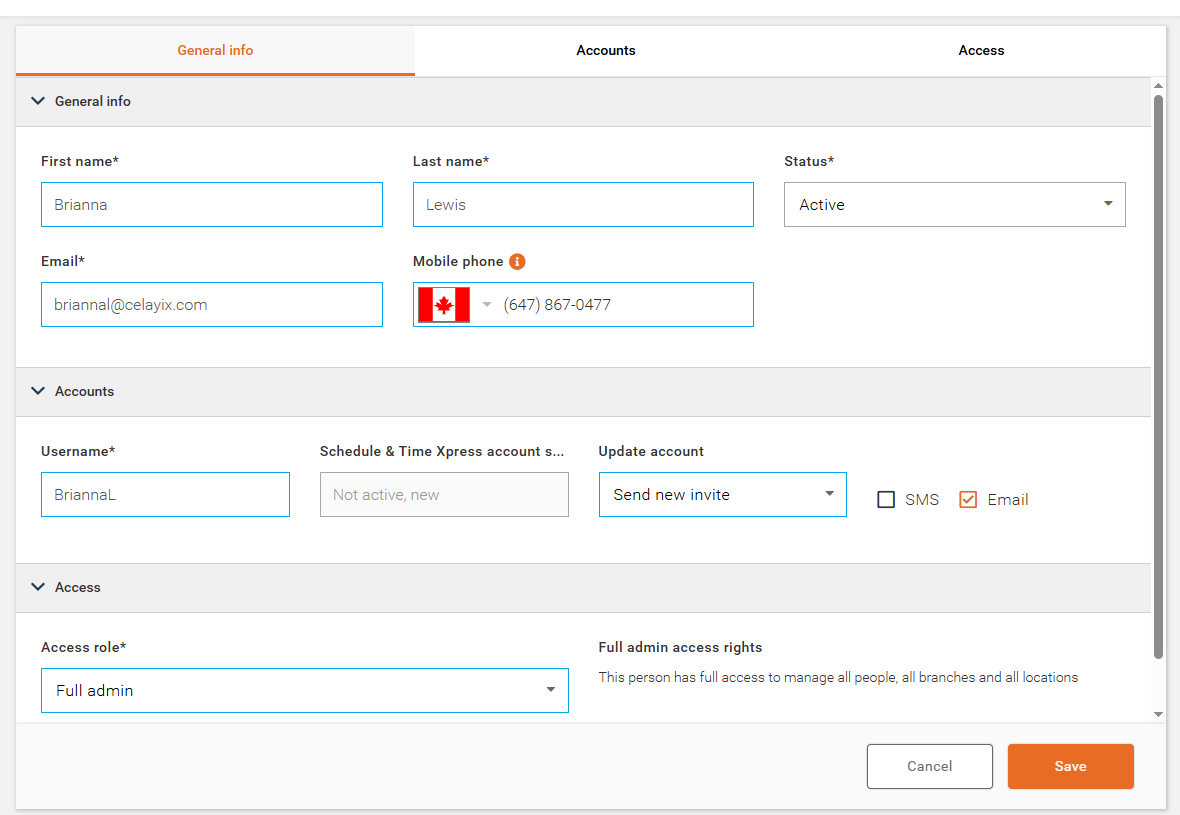
The following details are required when adding an Administrator account:
- First name
- Last name
- Status
- Email address
- Mobile phone number
- Username
- Access role
Additional account setup options include:
- Send new invite to issue an account invitation
- Selecting SMS or Email as the invitation delivery method
Depending on the selected Access role, you may also need to configure:
If you are linking an existing employee profile to an Administrator account, continue to the next step.
Link an Administrator to an Employee
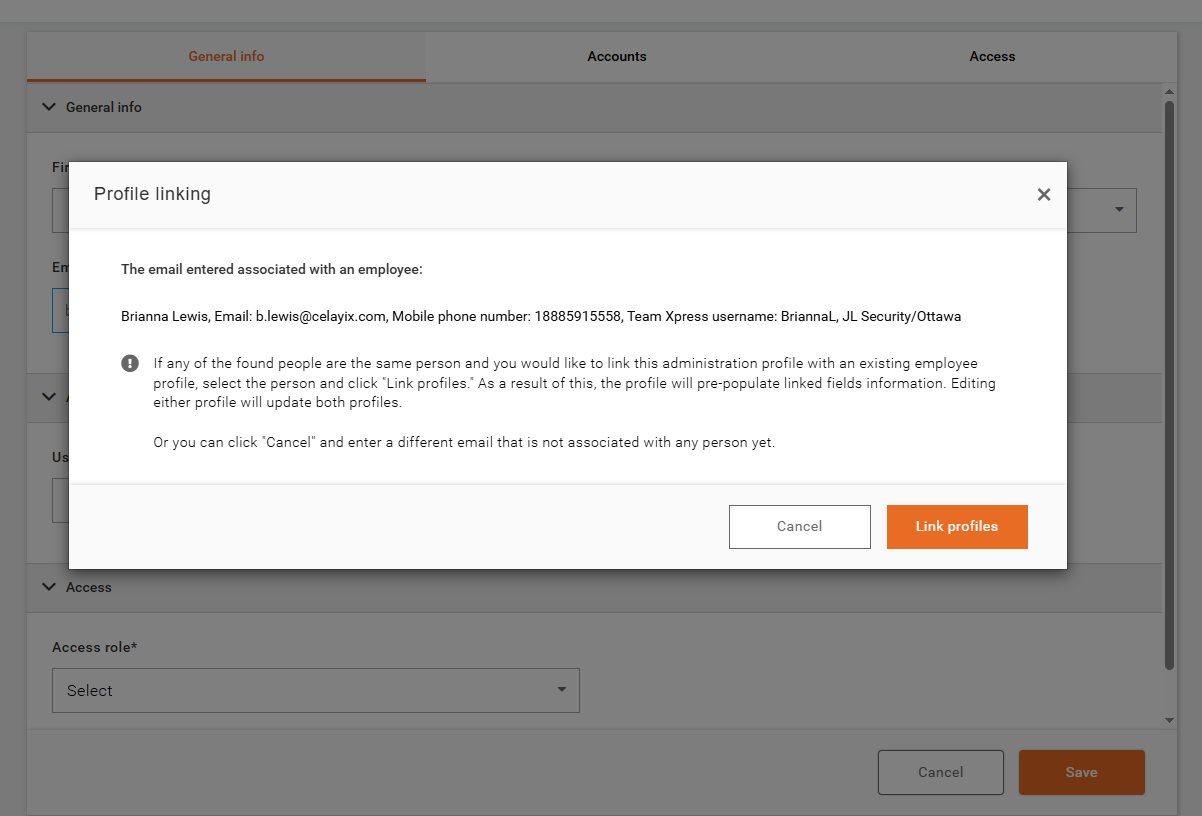
Administrators can be linked to an existing employee profile within Schedule Xpress. To create the link, follow the steps below:
- Click Add user in the top right corner.
- Paste the employee’s email address into the Email field of the Administrator account.
- Click outside of the field to force the link connection between the Administrator and employee profile.
Note: The employee profile cannot have a username longer than 8 characters. If the username exceeds 8 characters, the employee and Administrator account will not link successfully and the username will need to be shortened first.
Full Admin vs Manager Access
Administrators can be configured as either a Full Admin or a Manager.
- Full Admins have unrestricted access to Schedule Xpress features and records.
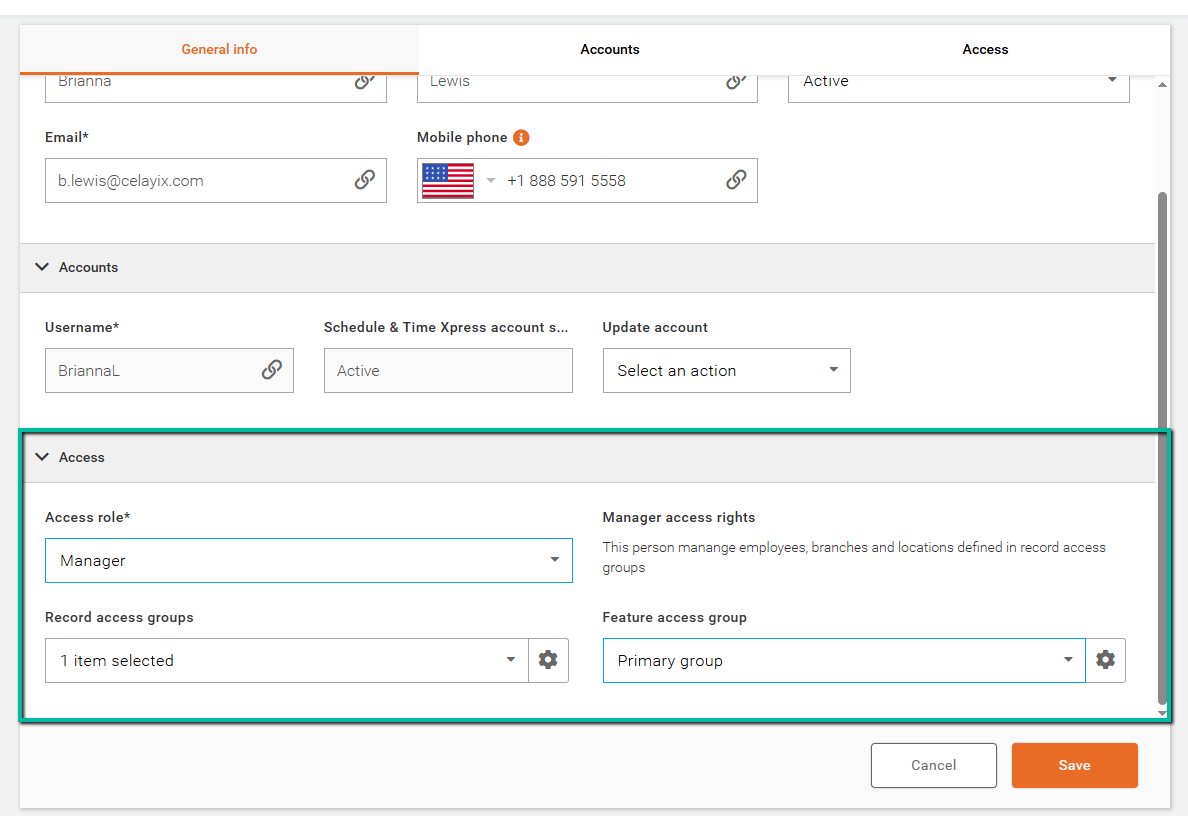
- Managers require both a Feature access group and a Record access group to control which features and records they can access.
To learn more, refer to the following articles:
Assign Access Groups During Administrator Setup
Feature and Record access groups can be assigned directly when creating or editing an Administrator account.
These settings are located at the bottom of the Administrator profile.
Send the Administrator Invitation
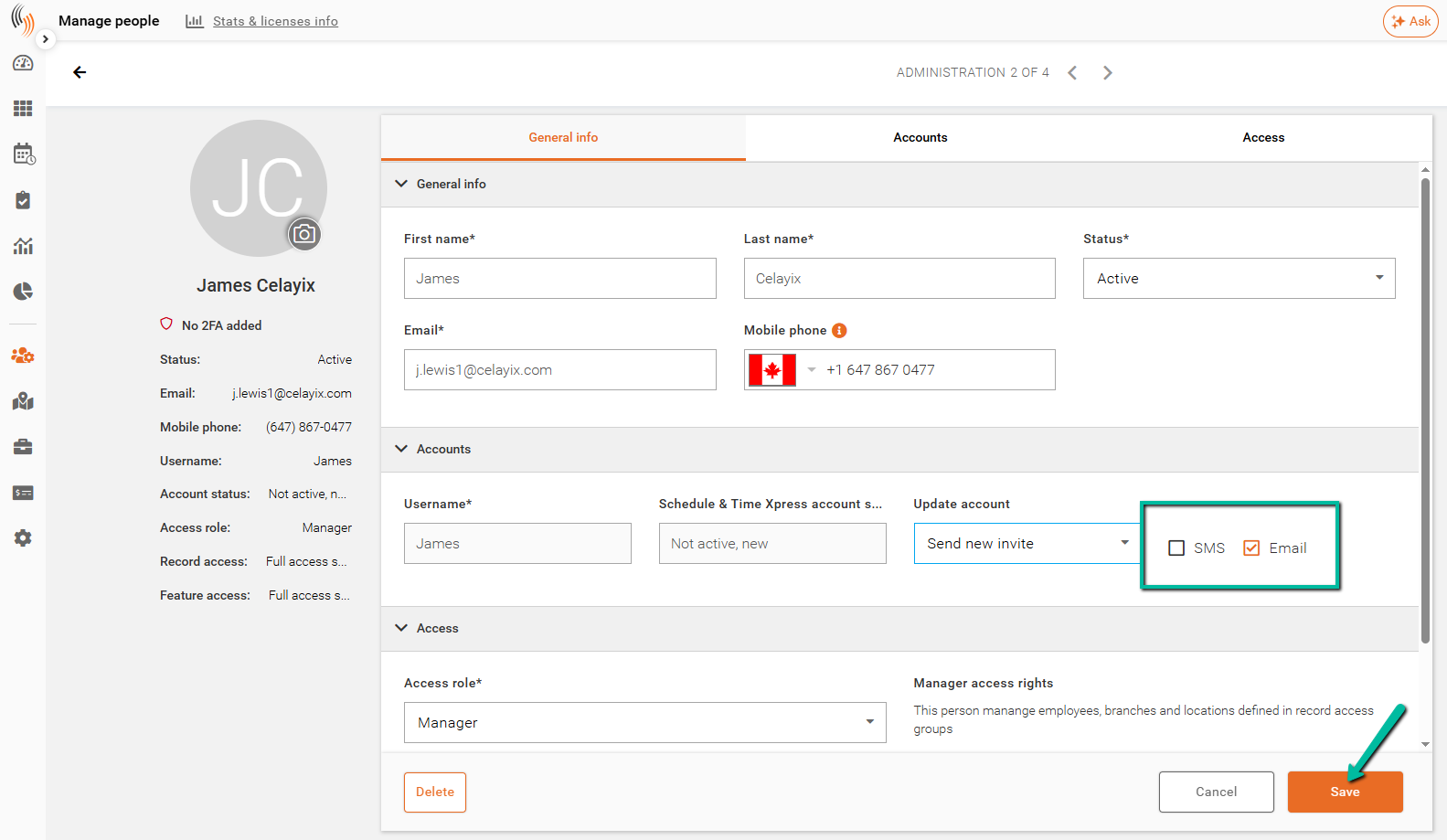
Before completing the Administrator setup, ensure you select an invitation delivery method.
Administrators can receive their account invitation by:
- SMS
Once the invitation method has been selected, click Save to create the Administrator account and send the invitation.