Review & Assign in Shift Bidding
After sending bid invitations, administrators can review submitted bids in Schedule Xpress and determine which employees will fill each shift.
You can manually assign shifts, use automatic assignment options, and track bid results throughout the bidding process. This helps ensure shifts are filled efficiently while giving employees fair opportunities to bid on available work.
Review Shift Bids in Progress
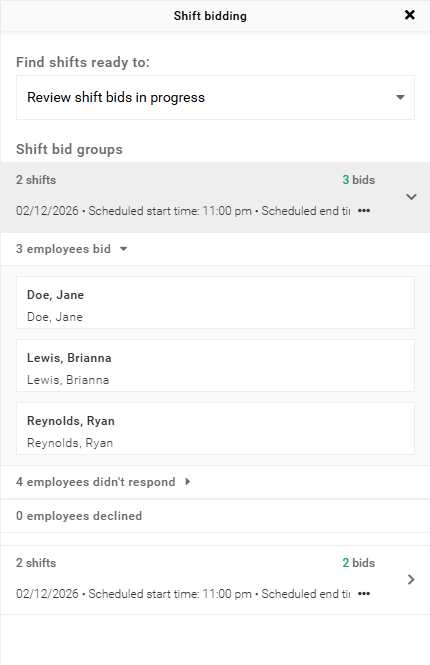
You can monitor the status of active shift bids to see whether employees have submitted bids, declined invitations, or have not yet responded.
To review active bids, navigate to:
Schedule Tools → Shift Bidding → Review Shift Bids in Progress
From here, you can track bidding activity and monitor employee responses before the bidding deadline is reached.
Assign Shift Bids
The final step in the Shift Bidding process is assigning shifts to employees.
Note: Shifts can only be assigned after the bidding deadline has passed.
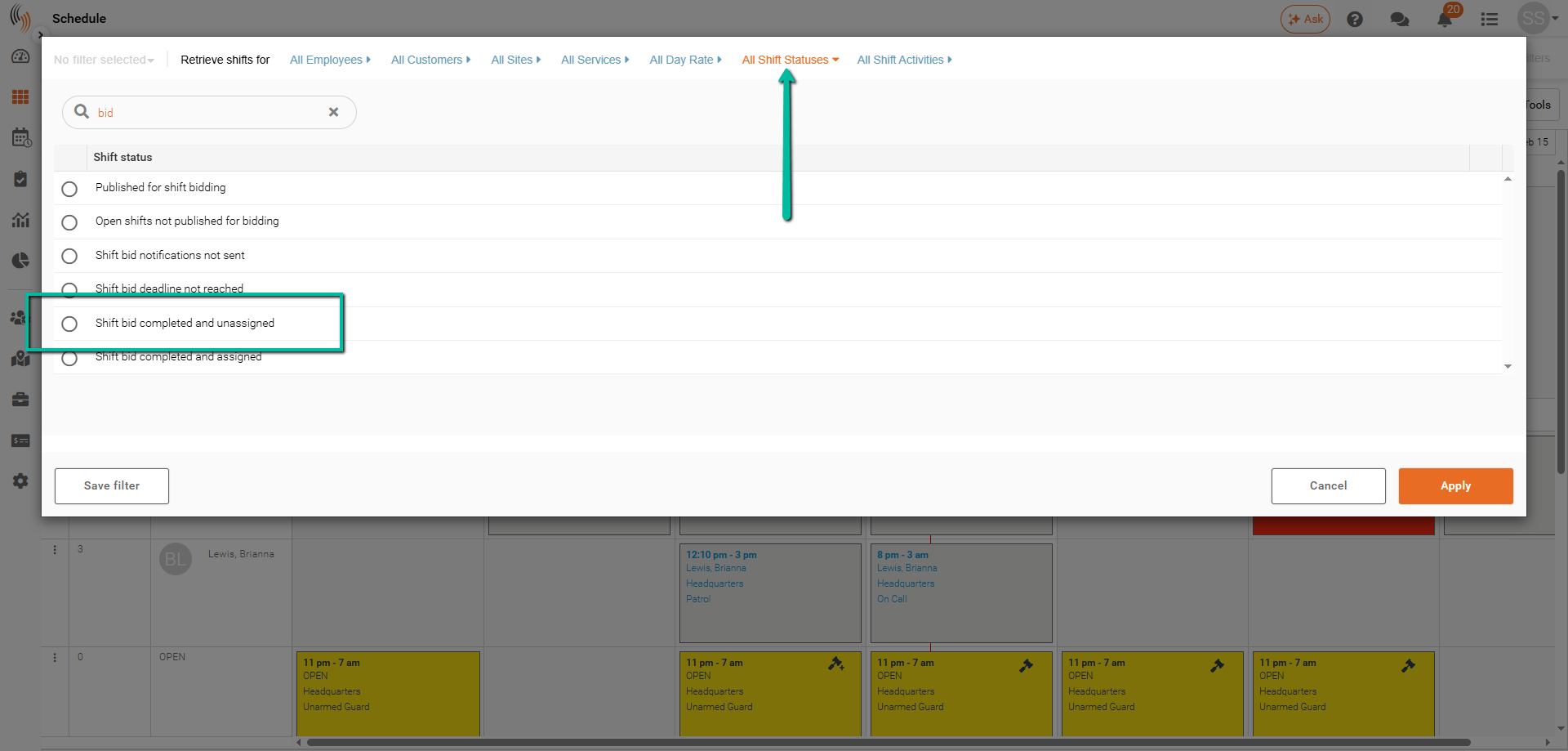
To quickly locate shifts ready for assignment, use the following filter:
All Shift Statuses → Shift Bid Completed and Unassigned
This filter displays all shifts where bidding has ended but no employee has been assigned.
Next, navigate to:
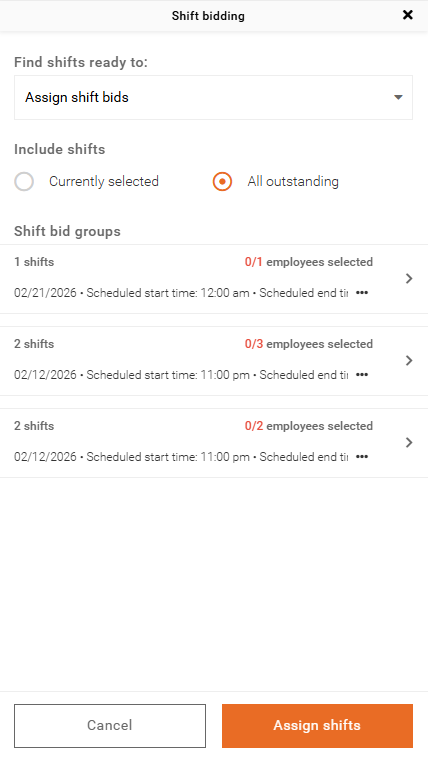
Schedule Tools → Shift Bidding → Assign Shift Bids
All shifts with completed bidding deadlines will be displayed.
Select Shifts to Assign
You can view shifts using one of the following options:
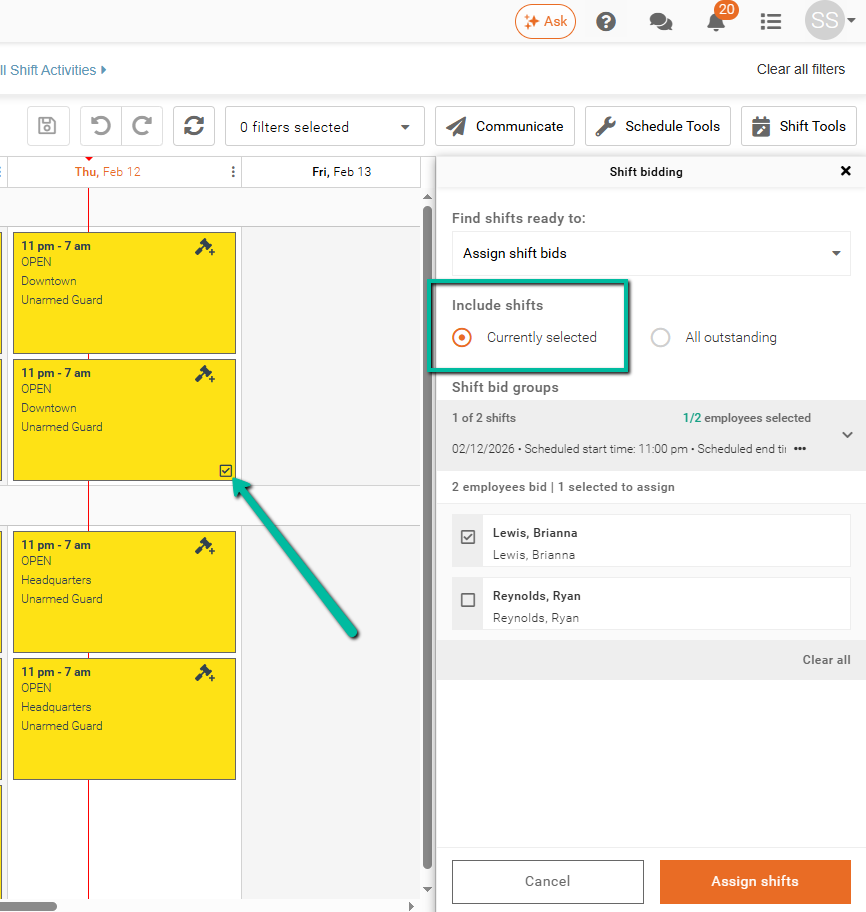
- Currently Selected – Displays only the shifts currently selected in the schedule.
- All Outstanding – Displays all shifts that have not yet been assigned.
We recommend using Currently Selected, as it allows you to focus on specific shifts directly from your schedule.
Note: Multiple shifts can be selected at the same time. However, shifts with identical values will be grouped together and must be assigned to the same employee.
Assign an Employee to a Shift
Once you have selected a shift to assign:
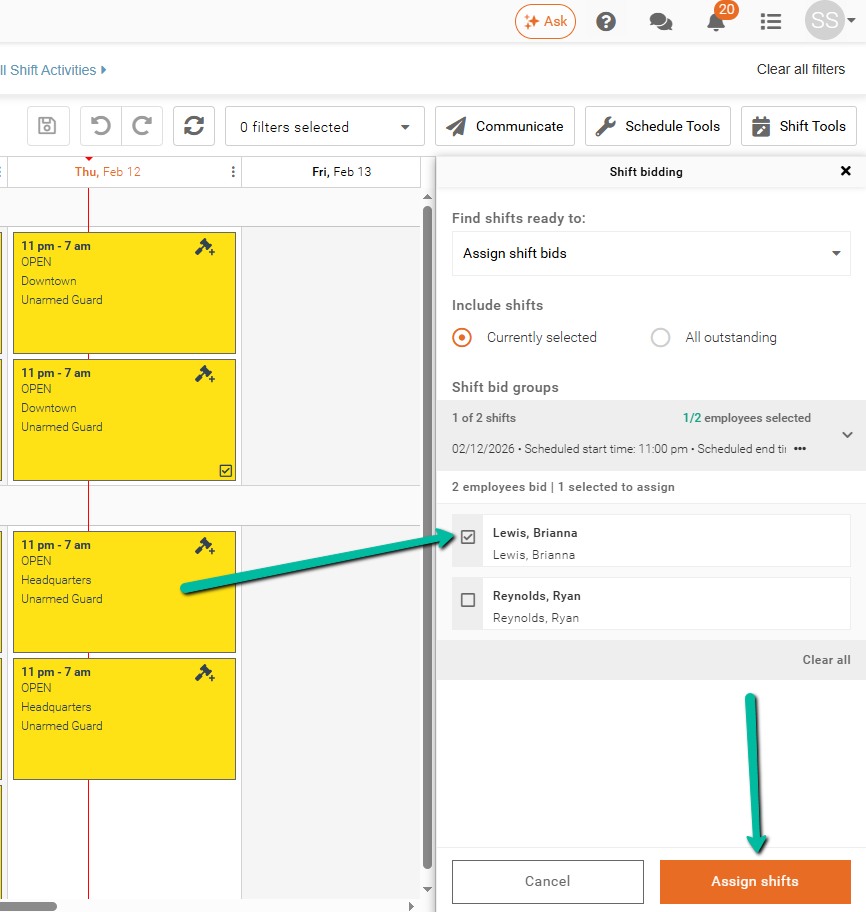
- Clear all selected employees.
- Select the employee you want to assign to the shift.
- Click Assign Shift(s).
Tip: Click Clear All in the bottom-right corner to quickly remove all employee selections before choosing the employee you want to assign.
This ensures the shift is assigned to the correct employee.
Assign Multiple Employees to Shifts Simultaneously
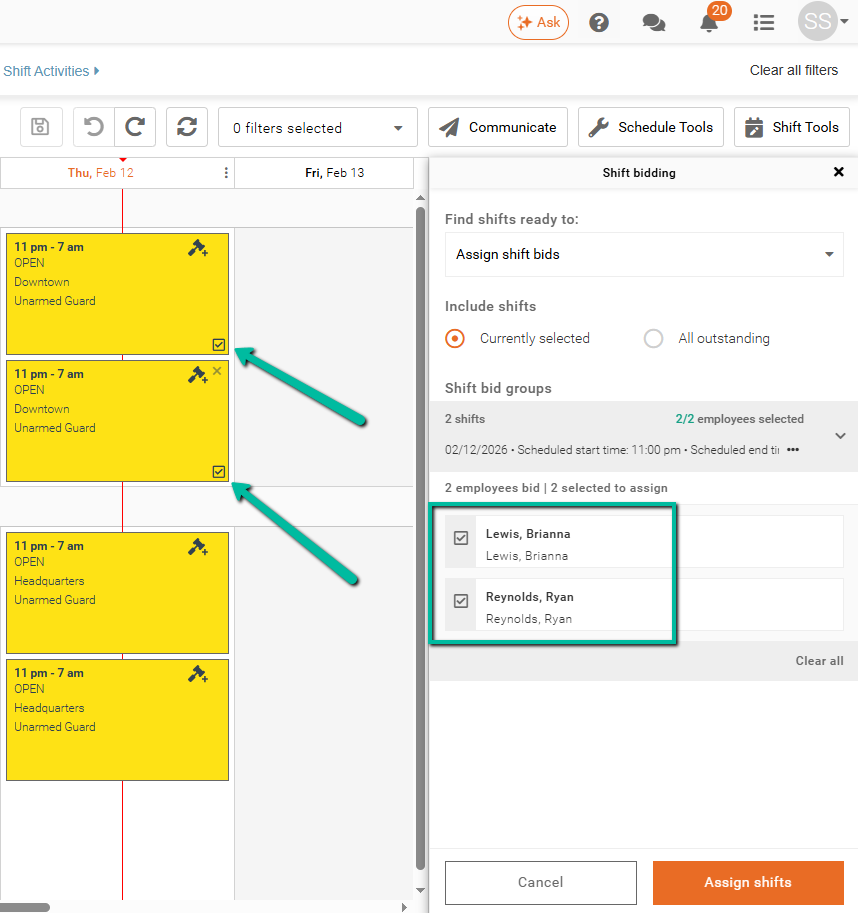
If multiple shifts belong to the same Shift Group and multiple employees have submitted bids, you can assign several shifts in a single transaction.
For example, if two shifts belong to the same Shift Group and two employees have submitted bids, both shifts can be assigned at the same time by clicking Assign Shifts.
Note: If there are more selected employees than available shifts, the highest-ranked employees at the top of the list will be assigned first.