Chat with Employees
The Chat feature allows administrators to communicate directly with employees within Schedule Xpress, with messages delivered to employees in Team Xpress. This makes it easy to share updates, ask questions, and resolve issues in real time.
Access the Chat Feature
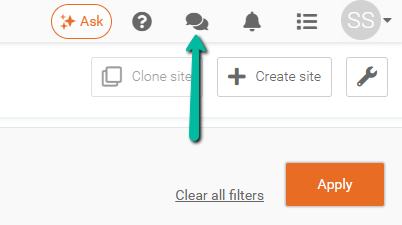
To open Chat, click the Chat Bubble Icon in the top-right corner of Schedule Xpress.
Note: The Chat feature is only visible if it is enabled on your account. To activate Chat, please contact support.
Start a Chat
Here’s how to initiate a conversation with a manager or employee.
Step 1: Click the Chat Bubble Icon
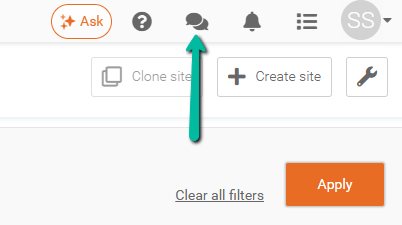
Click the Chat Bubble Icon in the top-right corner of Schedule Xpress.
Step 2: Click the Plus (+) Icon
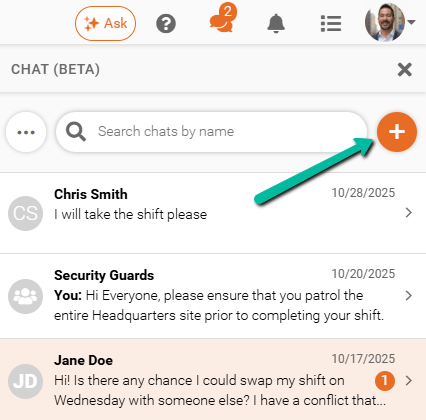
Click the Plus Icon (+) to start a new chat.
Step 3: Choose Who You Want to Chat With
Select whether you want to chat with an Employee or a Manager.
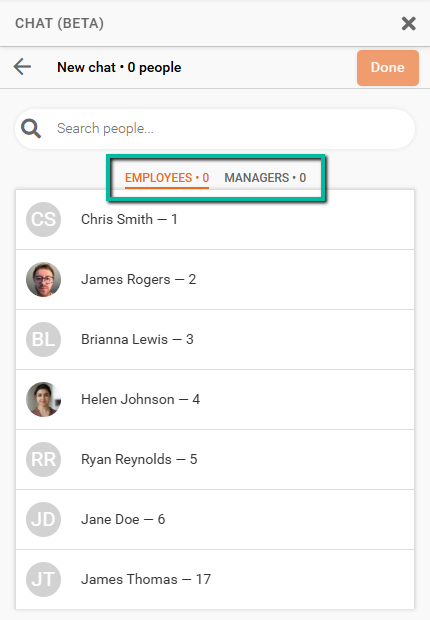
Step 4: Select the Employee
Click the name of the employee you want to message and click Done.
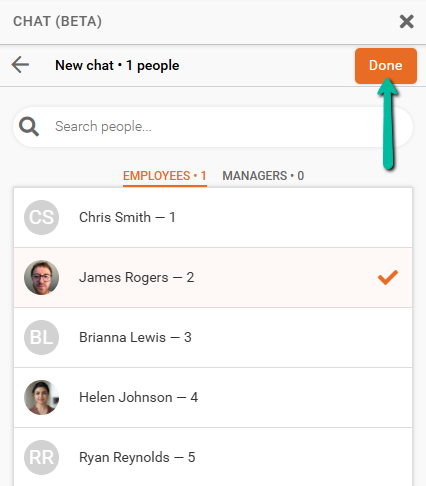
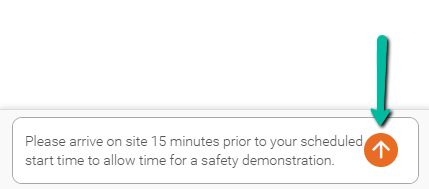
Step 5: Type and Send Your Message
Type your message in the chat box, then click the Upward Arrow to send it.
After it's sent, the employee or manager will receive a notification.
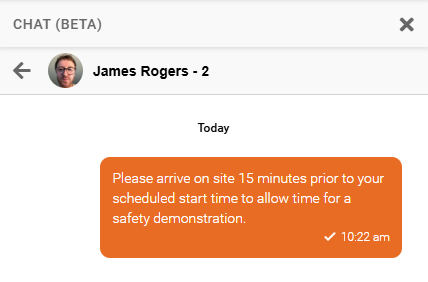
Message Status Indicators
Chat messages include delivery and read indicators:
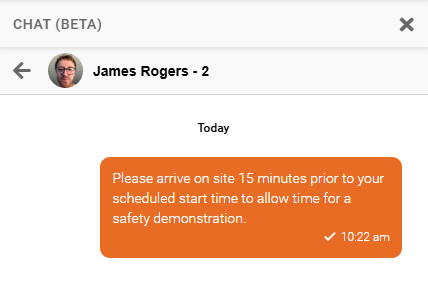
- ✔️ One Check Mark – Message Delivered
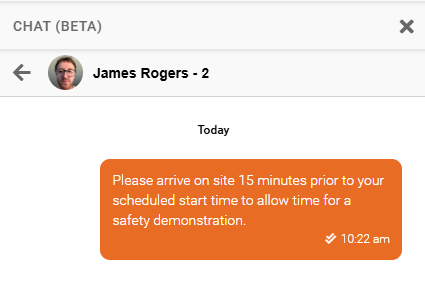
- ✔️✔️ Two Check Marks – Message Read
See the examples below.
One Check Mark – Message Delivered
Two Check Marks – Message Read
Create Group Chats
Group Chats allow you to communicate with multiple employees at once, helping teams stay coordinated and informed.
Method 1: Start a Group Chat Manually
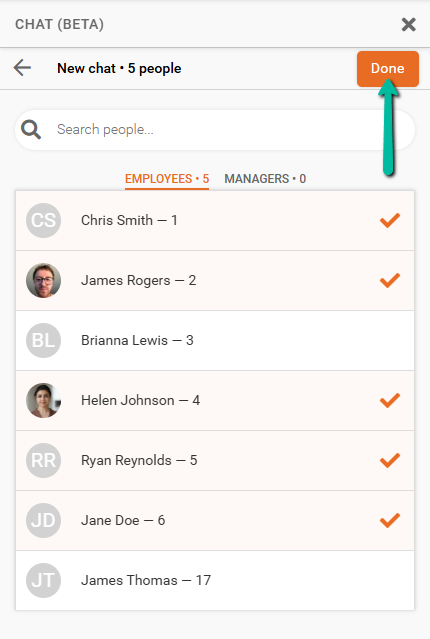
- Click the Plus Icon (+)
- Select multiple employees to include in the chat, then click Done
Method 2: Start a Group Chat from the Schedule
- Select employees’ shifts in the schedule
- Click Communicate
- Choose Chat with Employees
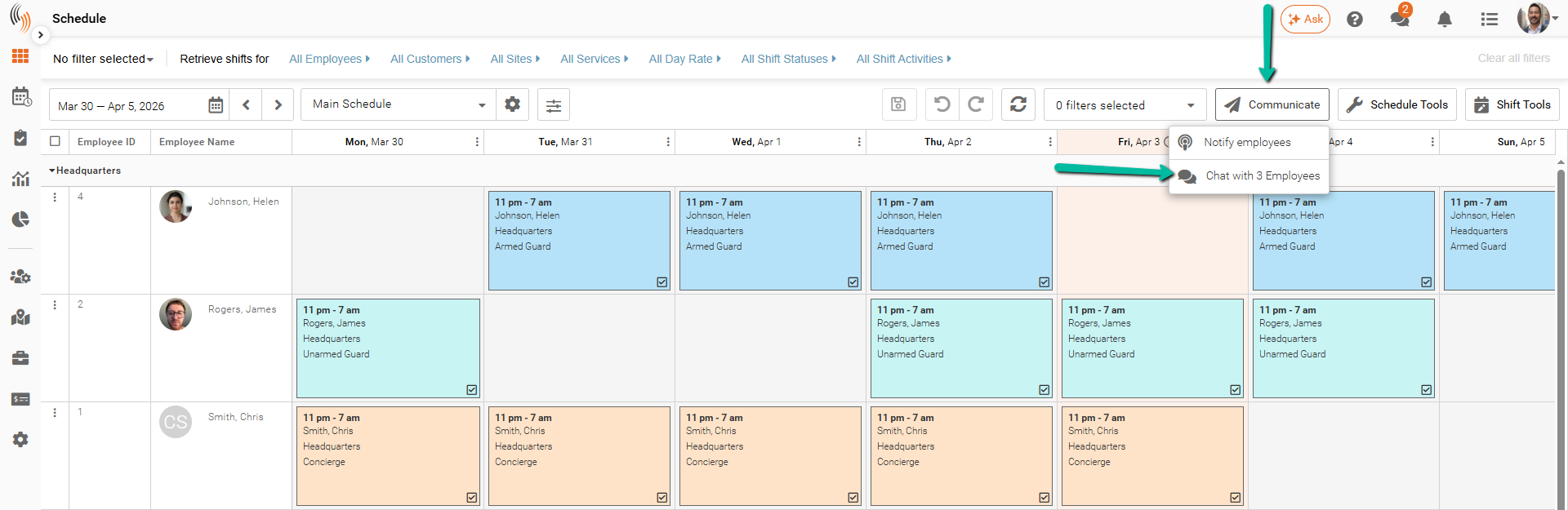
Starting a group chat using either method will initiate a conversation with the selected employees.
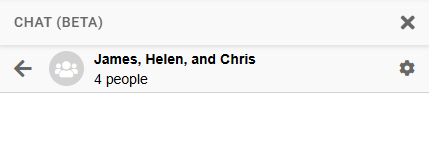
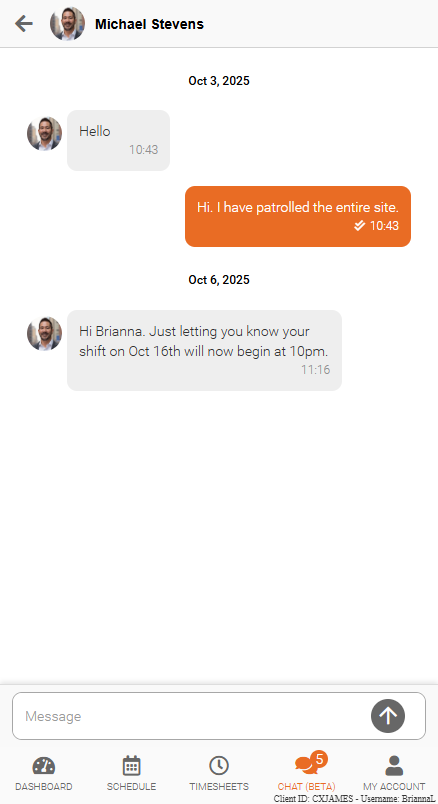
Chat View in Team Xpress
The Chat shows employees their conversations with managers and team members, including both individual and group chats.
Employees can view messages, respond in real time, and stay updated on schedule changes and team communication.
You can read more about this in our Chat with Managers article.
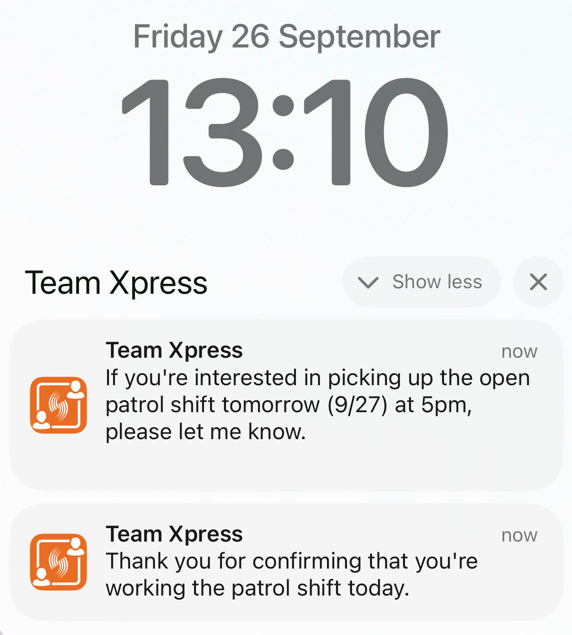
Chat Notifications in Team Xpress
Employees receive pop-up notifications for chat messages directly on their lock screens, ensuring they don’t miss important updates.
Note: Employees must have the latest version of the Team Xpress app installed to receive notifications. You can also read our Chat with Managers article for more information.
Set Chat Permissions for Employees
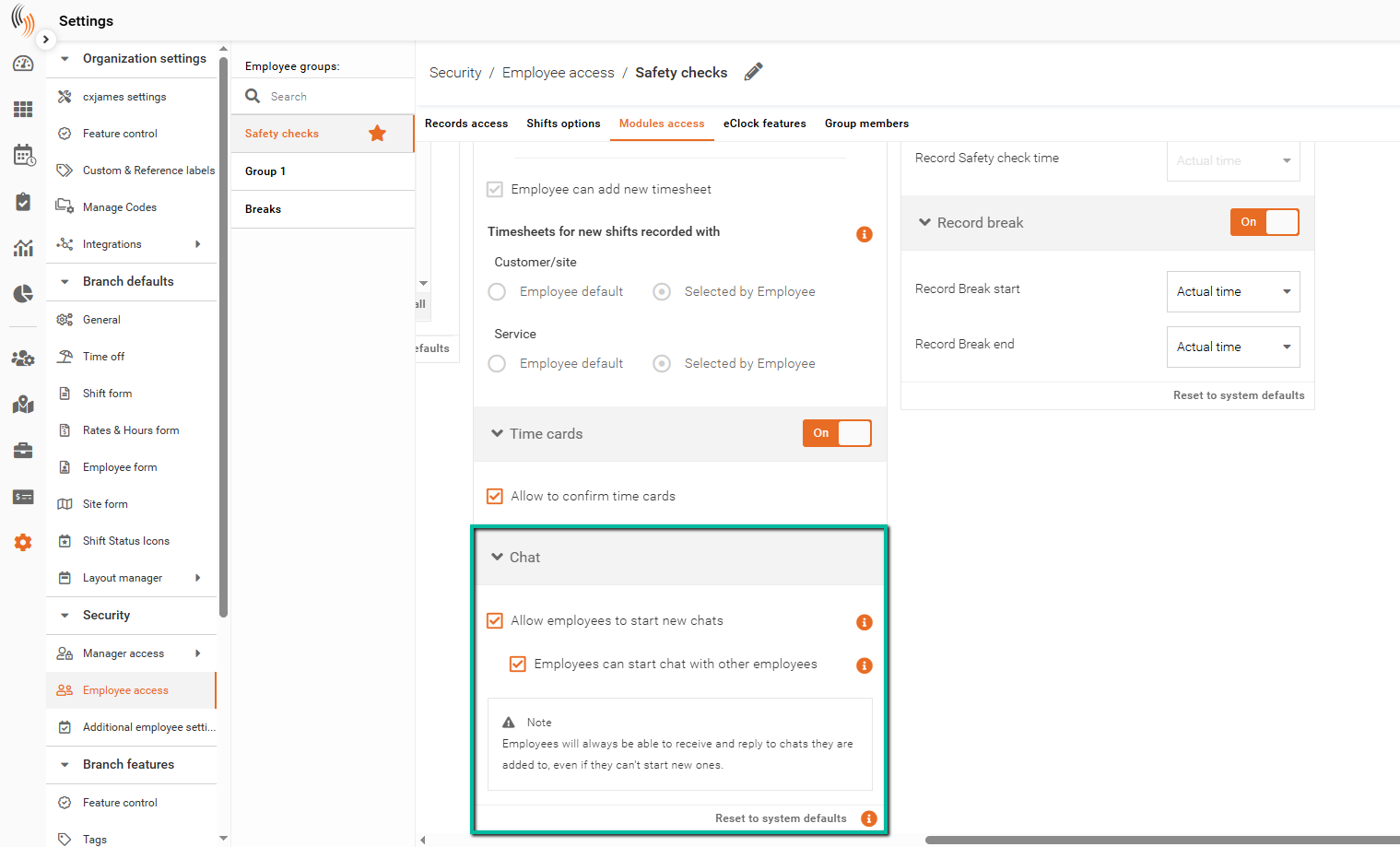
Admins can control chat permissions under Settings > Security > Employee Access in Schedule Xpress.
- Allow Employees to Start New Chats
Enables employees to initiate new conversations with managers. - Employees Can Start Chat with Other Employees
Allows employees to start chats with their coworkers, not just managers.
Note: Employees can still receive and reply to chats they are added to, even if they cannot start new ones, as long as chat access is enabled.