Run Autofill
Autofill automatically assigns employees to open shifts based on predefined filters and eligibility criteria. Using an Autofill Filter, the system evaluates factors such as employee availability, qualifications, and scheduling rules to identify the most suitable employees for each shift. This helps reduce manual scheduling effort while ensuring shifts are filled efficiently and consistently.
Before You Begin
Before running Autofill, ensure you have:
- Created an Autofill Filter
- Assigned an Employee Search Rule to the filter
Find Autofill
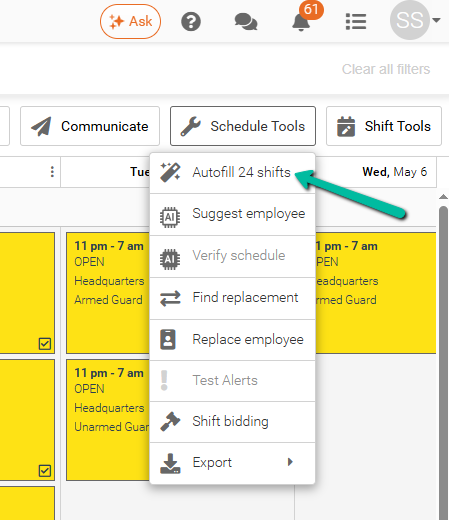
To access Autofill, go to Schedule Tools → Autofill.
At least one shift must be selected for the option to become available.
Select Shifts
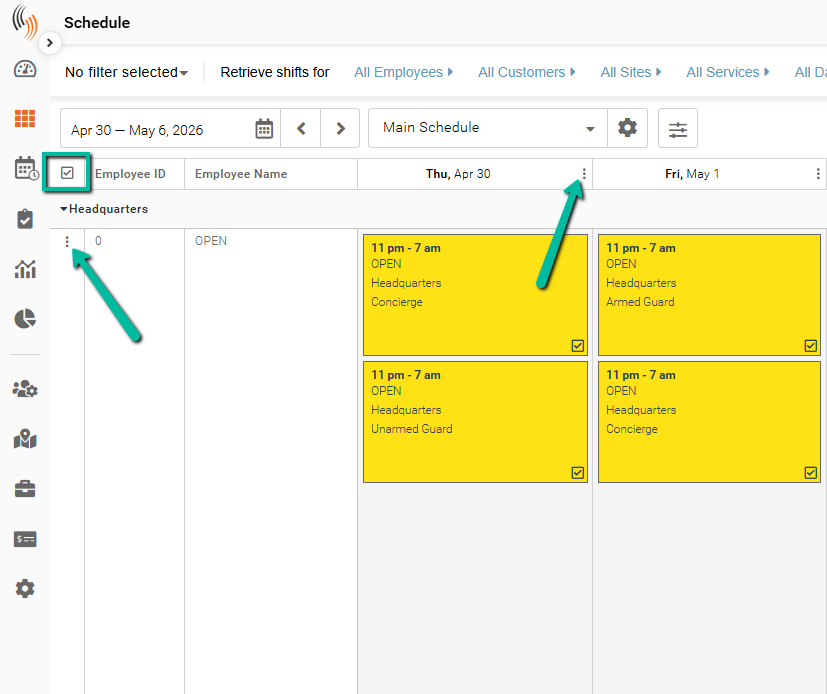
Before running Autofill, select the shifts you want to fill.
You can:
- Select all shifts using the checkbox in the top-left corner
- Select individual shifts using their checkboxes
- Use filters to locate specific shifts
Run Autofill
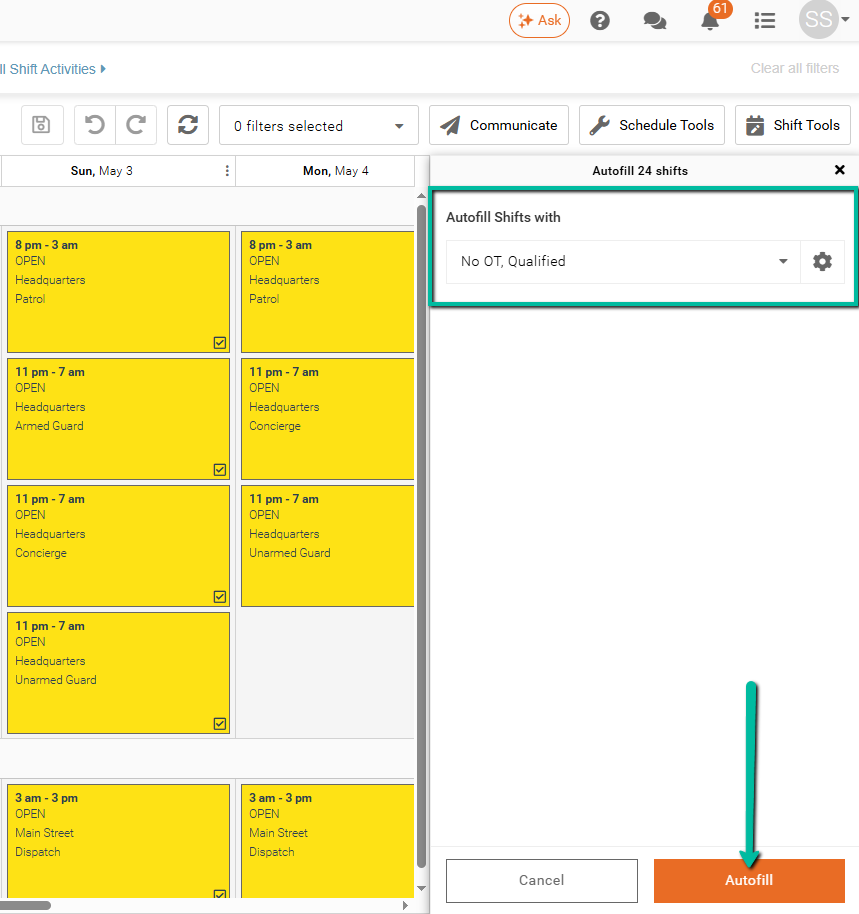
After selecting your shifts:
- Go to Schedule Tools → Autofill ‘X’ shifts
- Choose the Autofill Filter you want to apply
- Click Autofill
Review Autofill Results
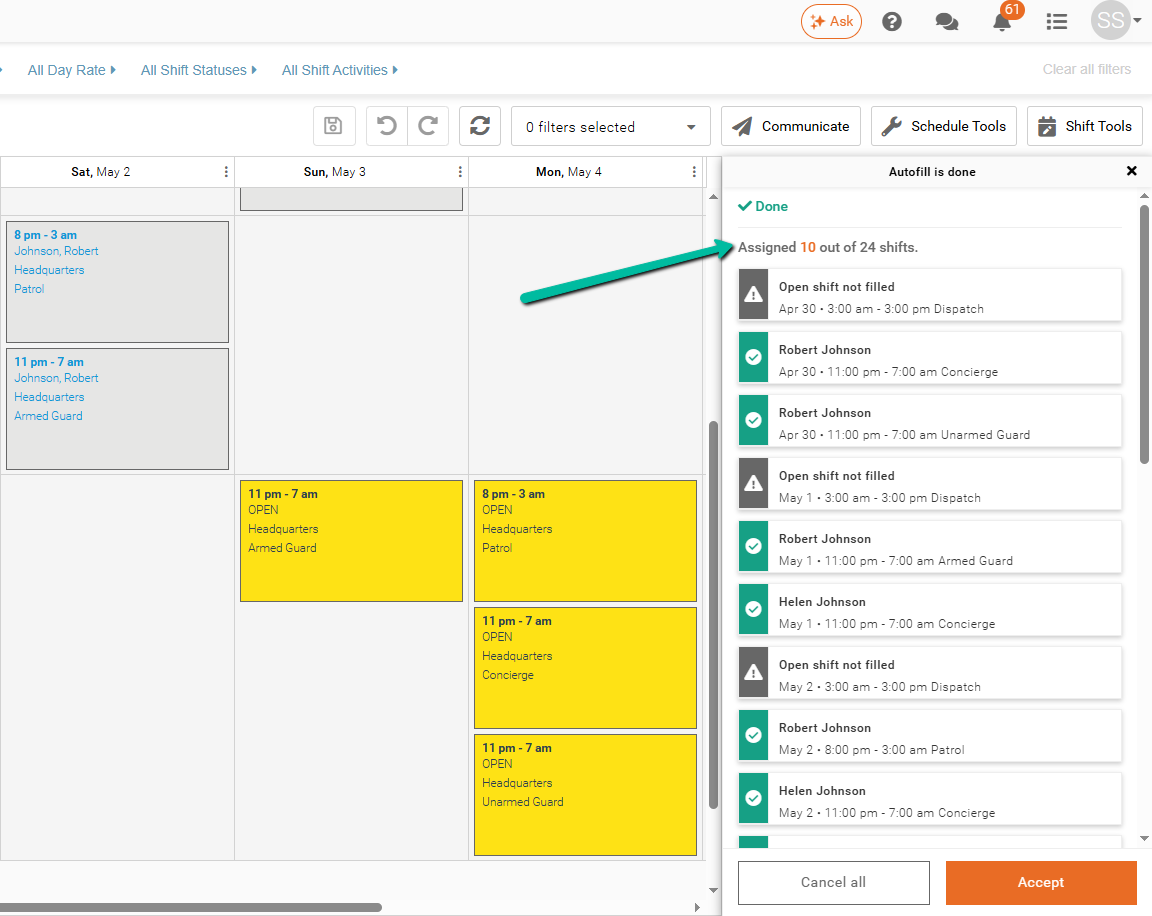
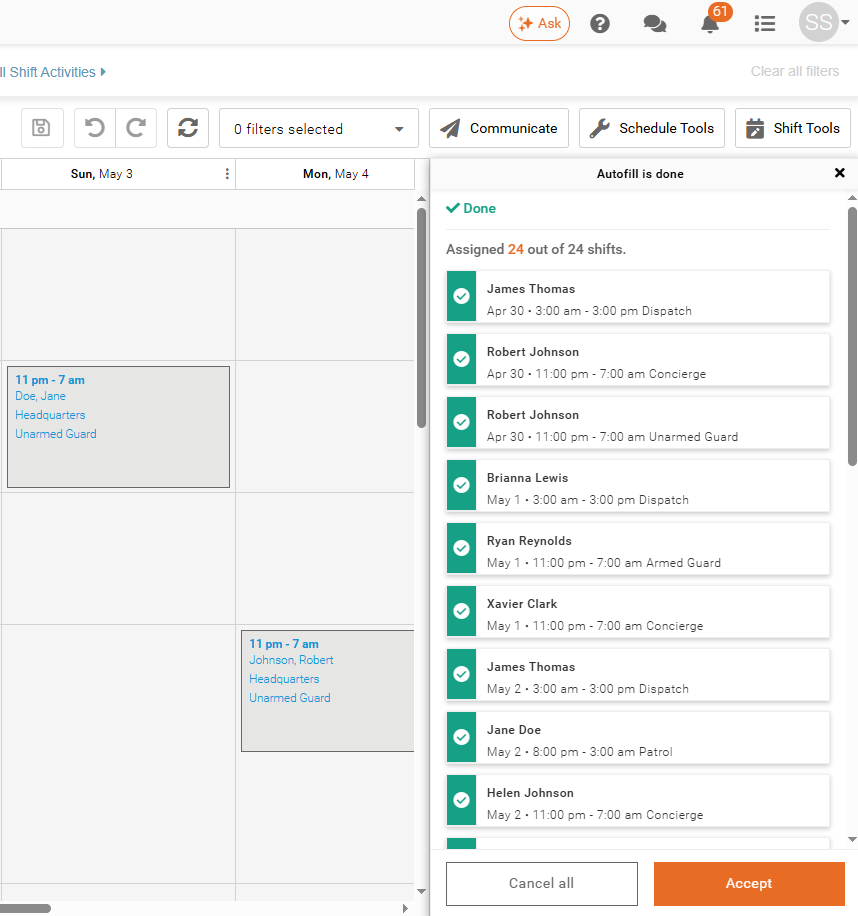
After Autofill runs, a summary of assigned shifts is displayed.
You can:
- Accept to confirm the assignments
- Cancel All to revert shifts back to Open
Important: You can make changes to individual shifts before accepting the results. You can also close the panel (Schedule Tools → Autofill Results) to review the schedule before accepting or canceling.
Unfilled Shifts
If some shifts are not filled, it means either all available employees have been exhausted or no employees met the filter criteria.
To resolve this, you can:
- Adjust the Employee Search Rule
- Use a different Autofill Filter
- Assign employees manually
Unfilled shifts will remain as Open.