Bulk Update Sites
The Bulk Update Sites feature allows administrators to apply the same changes to multiple sites simultaneously. This helps reduce manual updates and maintain consistency across site records.
Step 1 - Navigate to Manage Sites
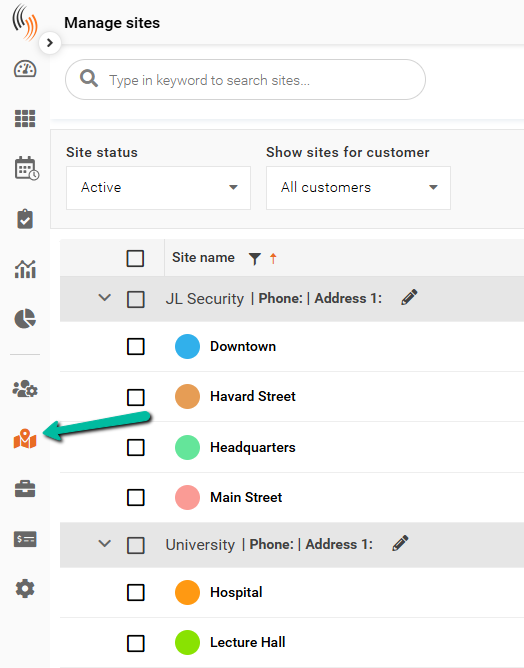
Navigate to Manage Sites from the Schedule Xpress homepage.
Step 2 - Select Sites
Select the sites you want to update using one of the following methods:
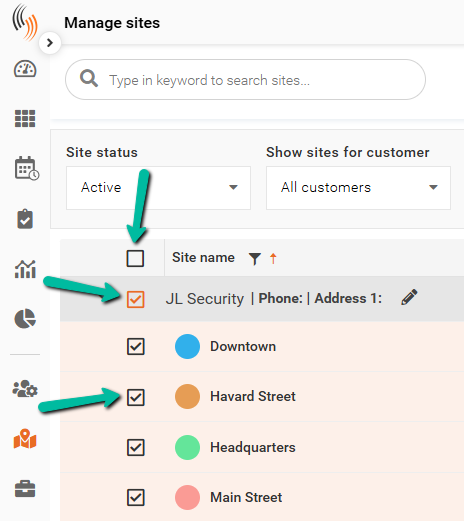
- Select individual sites using the checkboxes beside each site.
- Select all sites on the current page using the header checkbox.
- Select all sites for a customer using the checkbox on the customer header row.
Note: If your site list spans multiple pages, use the page controls at the bottom of the screen to navigate between pages or increase the number of sites displayed per page.
Step 3 - Update Sites
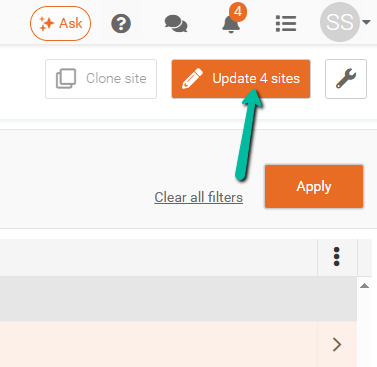
After selecting the desired sites, click Update Sites in the top-right corner.
The button will display the number of selected sites.
Step 4 - Choose Fields to Update
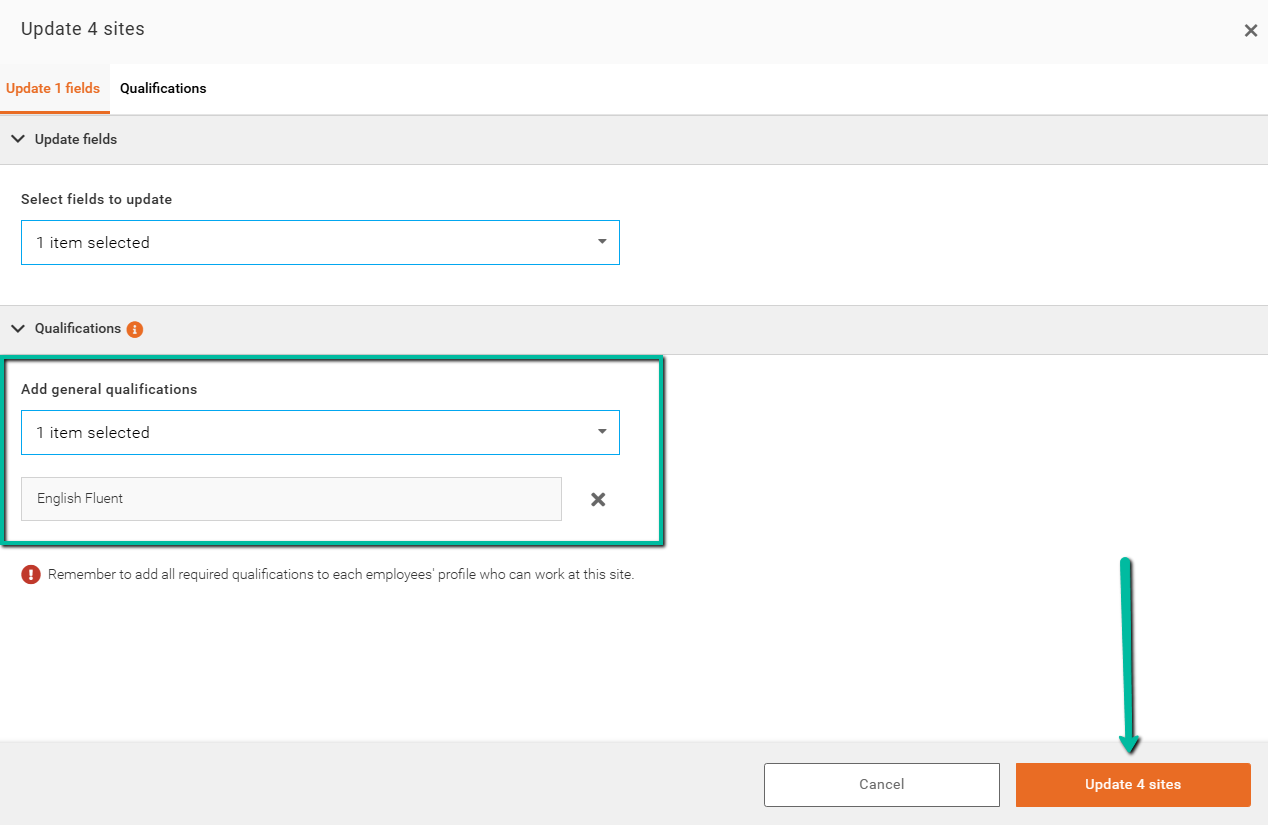
Under Select Fields to Update, choose the field or fields you want to update across the selected sites.
For example, you may choose to update:
- Qualifications
- Status
- Contact Information
- Other available site fields
Multiple fields can be selected at the same time.
Once selected, click outside the dropdown to continue.
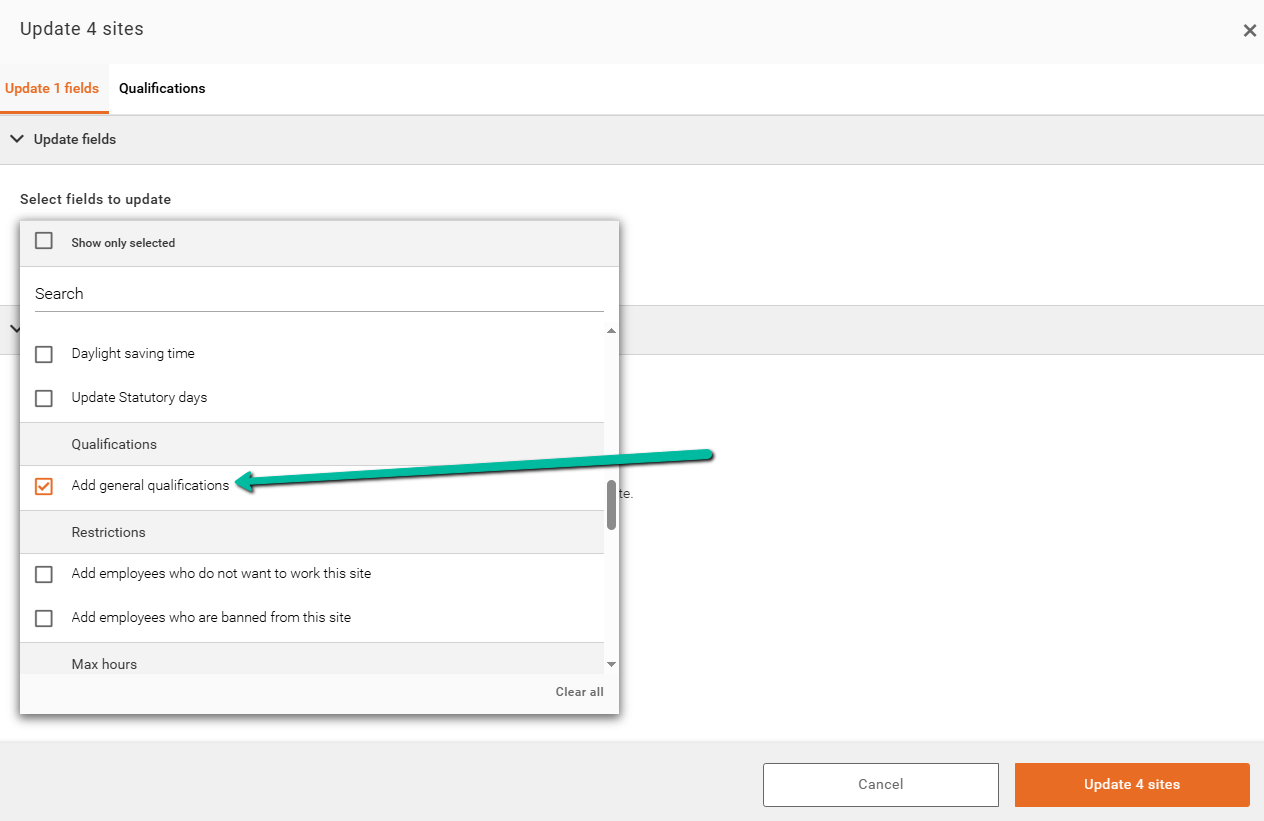
Step 5 - Apply Values
After selecting the fields to update, additional options will appear for each selected field.
Choose the value you want to apply to the selected sites. For example, selecting a qualification such as English Fluent will add that qualification to all selected sites.
When finished, click Update Sites to apply the changes.
The selected sites will immediately reflect the updated values.