Configure Shift Form
The Shift Form Configuration controls the visibility of fields within the Schedule Xpress shift panel. This allows administrators to customize what information is shown, ensuring only relevant data is displayed based on organizational needs.
Access Shift Form
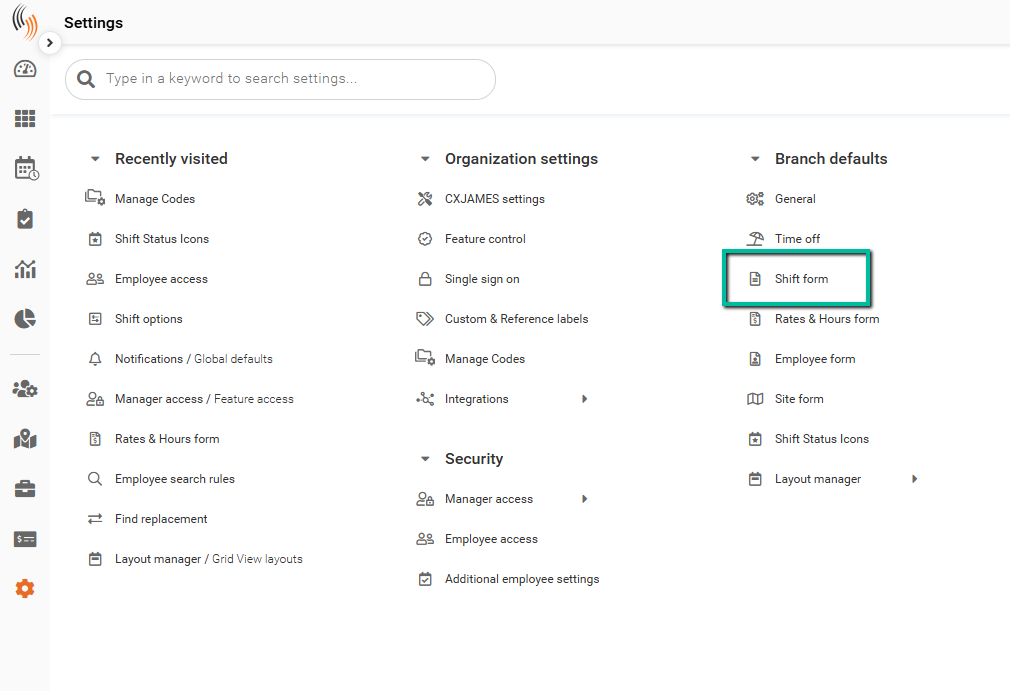
You can access the Shift Form in two locations within Schedule Xpress:
- Settings → Branch defaults
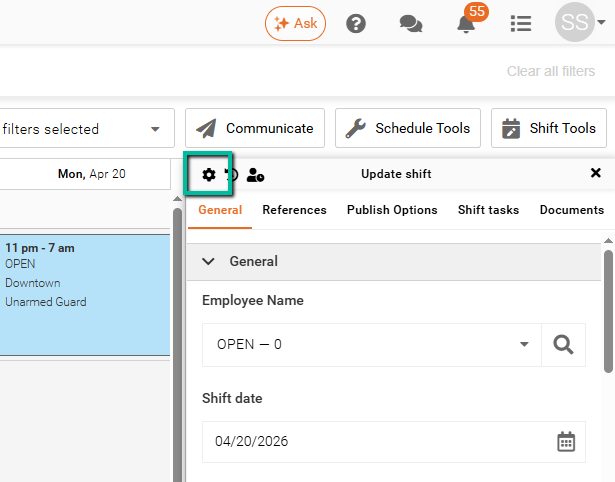
- Directly from the shift panel within your schedule
Alternatively, you can access the Shift form via the shift panel within your Schedule.
Shift Form Overview
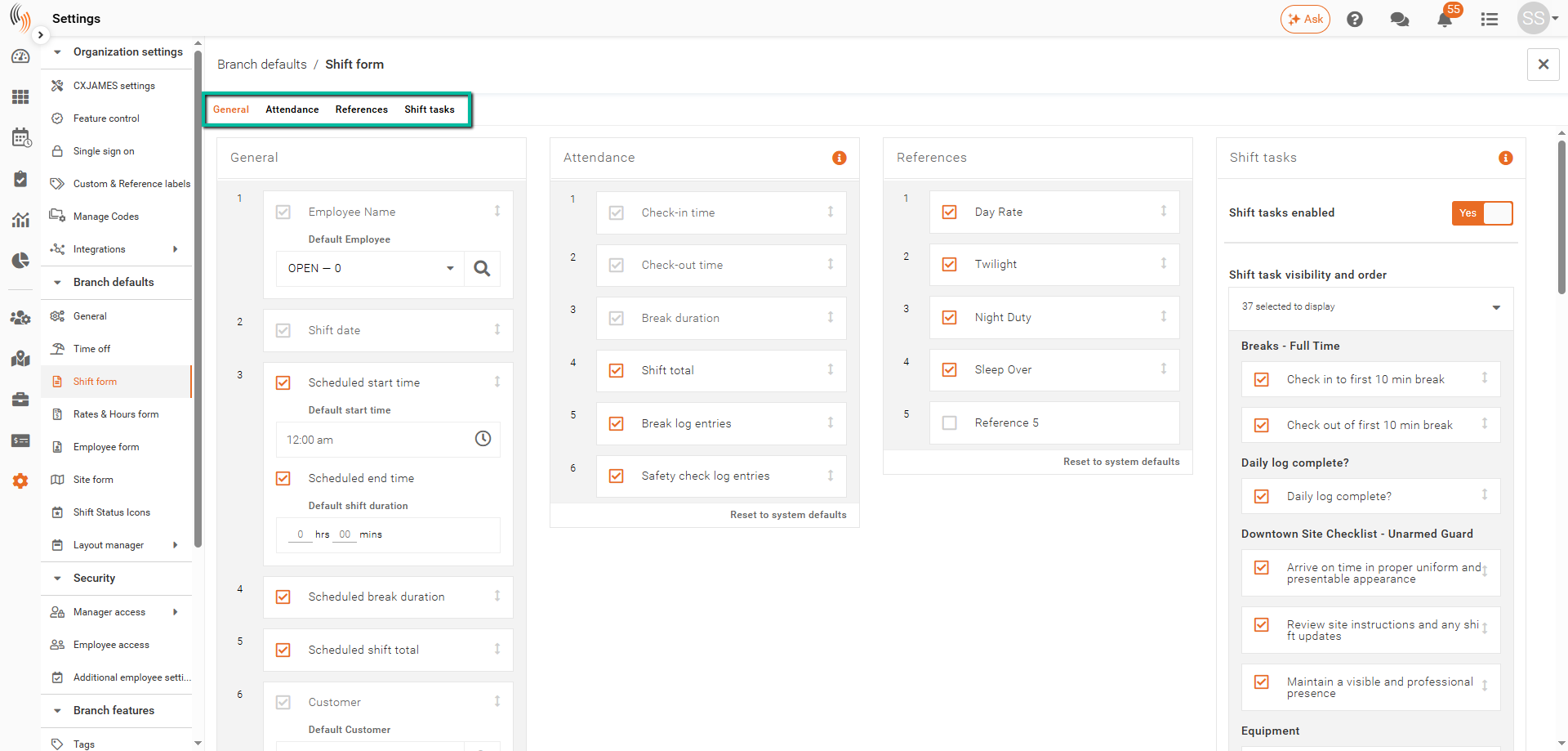
The Shift Form is divided into four sections:
- General
- Attendance
- References
- Shift tasks
The following sections explain how each component can be configured.
General
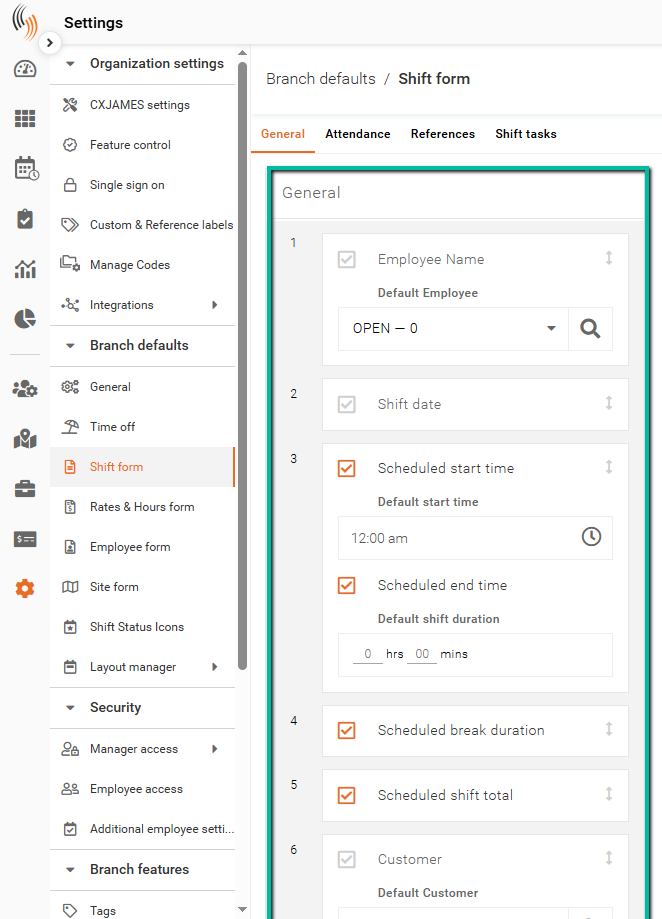
The General section allows you to control which fields appear in the General section of the shift panel when creating or editing shifts.
Select or deselect fields based on your scheduling requirements.
Note: Greyed-out fields are required and cannot be removed.
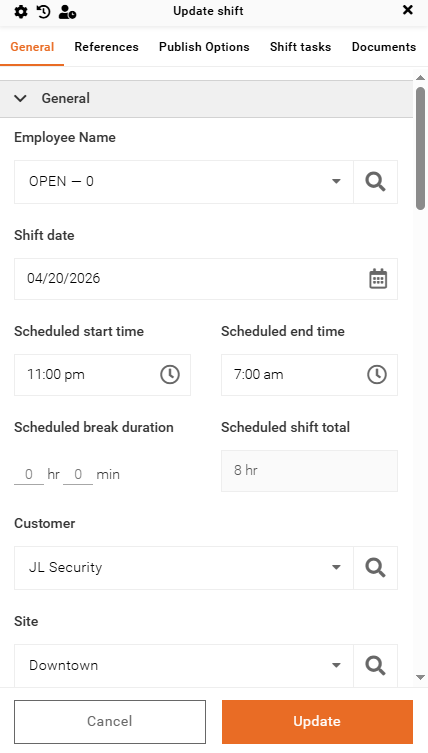
The fields you choose will be displayed in the shift panel, as shown below:
Attendance
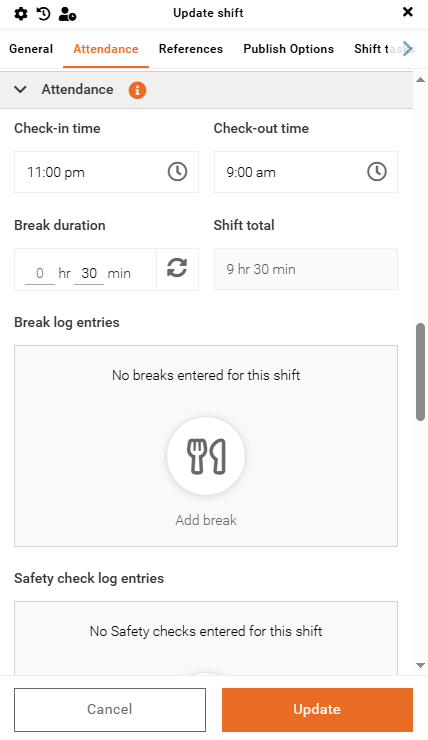
The Attendance section controls which fields are displayed in the shift panel within Time Processing.
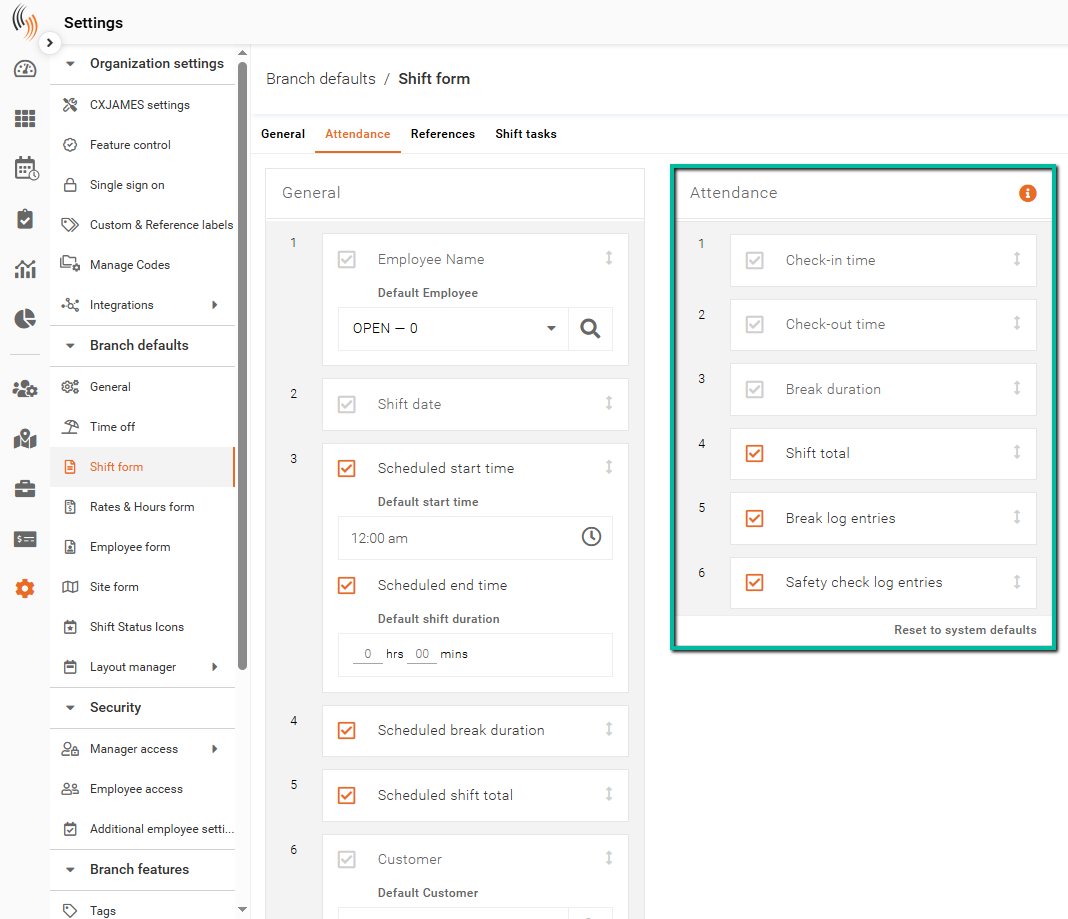
Select the fields you want to include or exclude. Your selections will be reflected in the Attendance section of the Time Processing shift panel.
References
The References section allows you to configure which shift references are displayed in the shift panel.
For example, a reference such as Night Duty can be selected to indicate specific shift details or conditions to users.
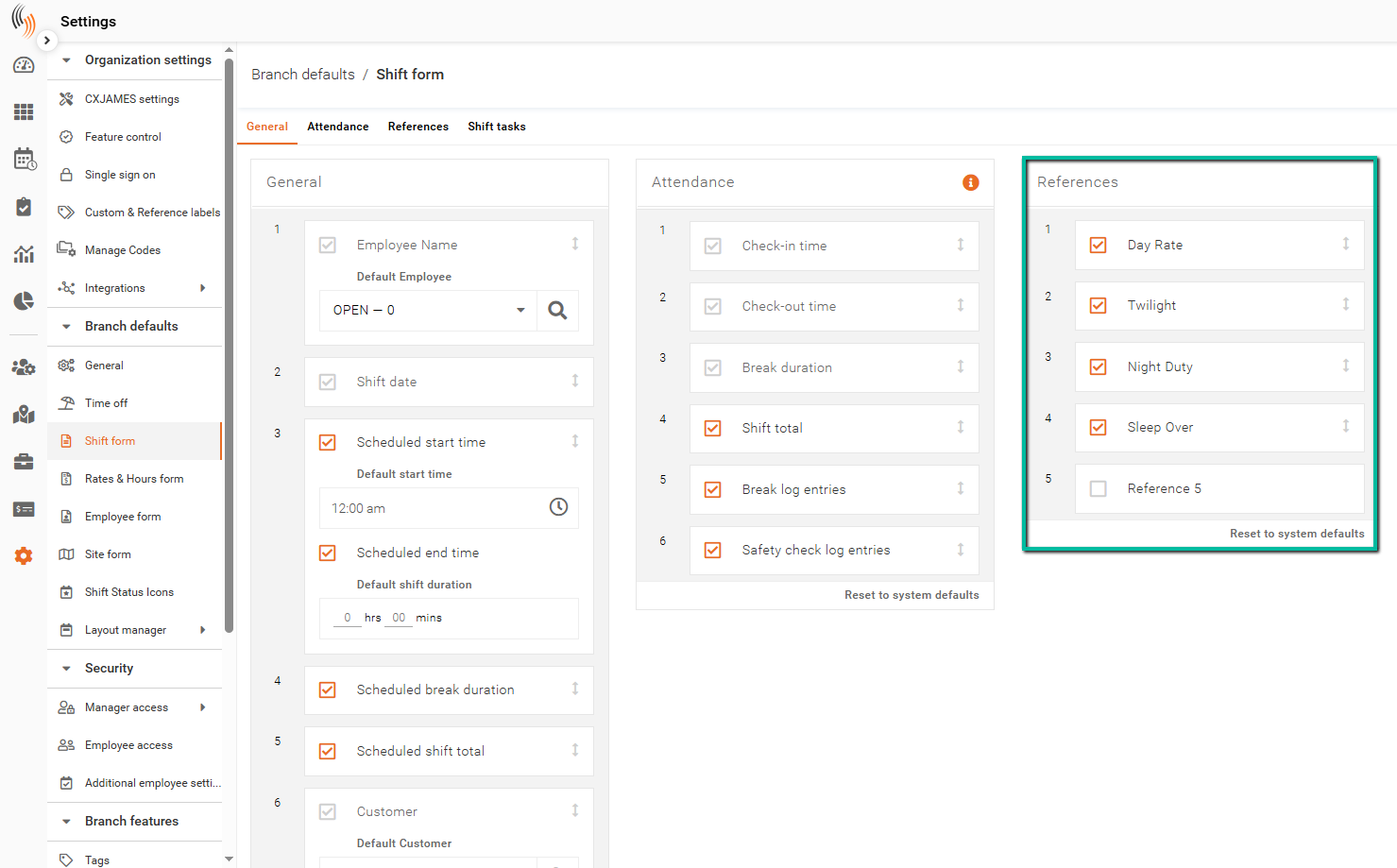
Selected references will appear in the References section of the shift panel.
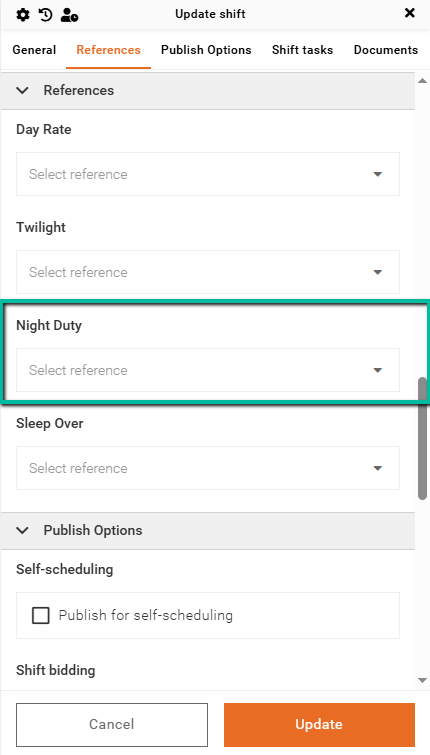
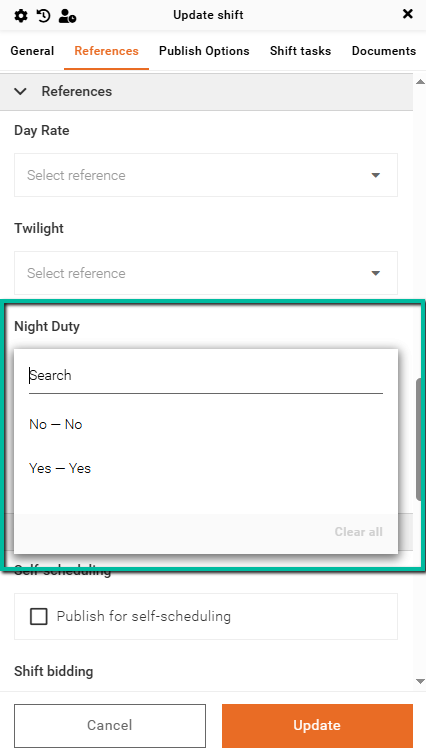
To apply these configurations, select the appropriate option within each reference when creating or editing a shift.
Shift Tasks
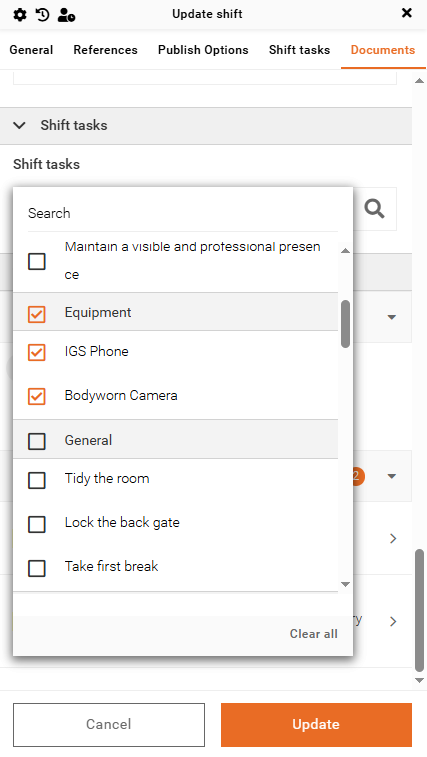
The Shift Tasks section allows you to configure which tasks are available in the shift panel, including their visibility and display order.
To begin, set Shift tasks enabled to Yes.
Once enabled, select the tasks you want to display and use the arrows on the right to adjust their order.
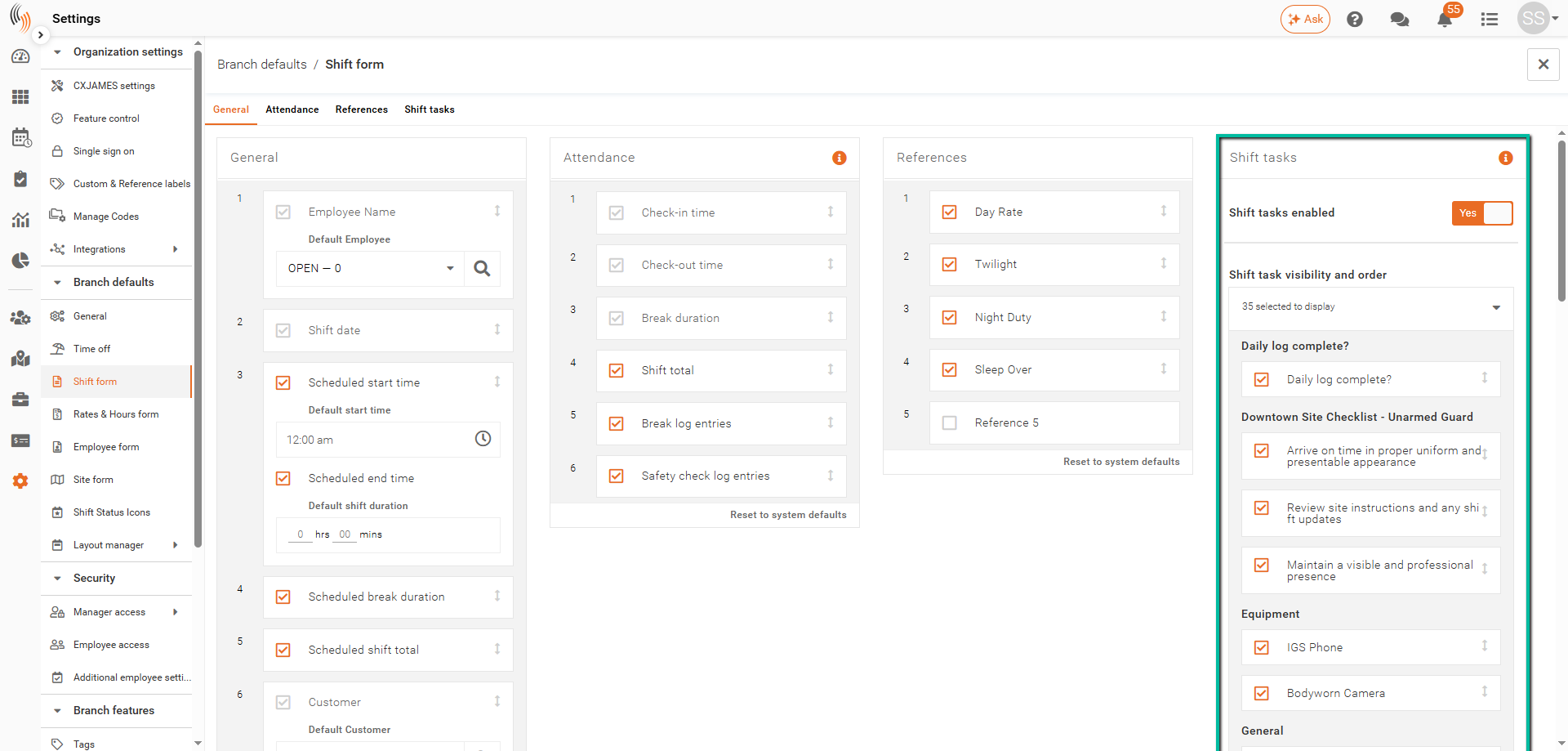
Shift tasks appear towards the bottom of the shift panel.
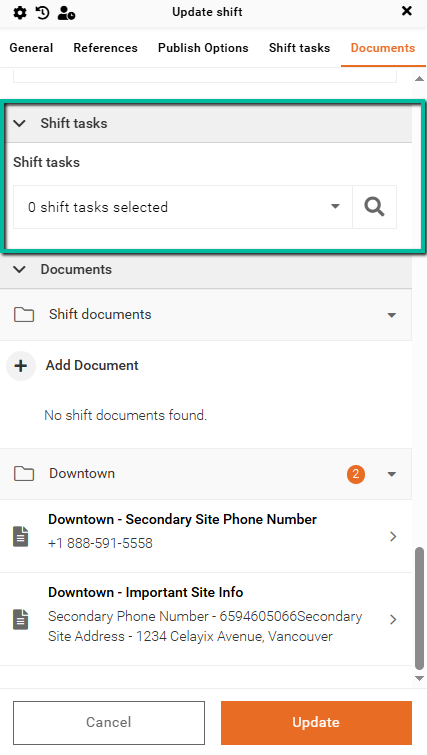
For enabled tasks, you can apply them to single shifts or update multiple shifts at once by selecting them in bulk.