Automatch Behavior for Kiosk Punches
Celayix Kiosk supports Automatch functionality, which automatically links employee punches to scheduled shifts based on configured matching rules. This helps improve payroll accuracy and reduce manual time processing by aligning kiosk punches with the correct shifts.
Automatch Behavior (Kiosk Punches)
Celayix Kiosk punches are matched to shifts using the configured shift matching rules, while rounding settings are applied separately to determine the recorded check-in and check-out times, ensuring accurate alignment with schedules and payroll.
How matching works:
- Punches are matched to shifts based on a defined matching window around the scheduled start time
- For example, if the rule allows matching up to 1 hour before or after the shift start, any punch within that range can be linked to the shift
- If multiple eligible shifts exist, the system determines the best match based on timing and employee data
- Break punches are applied within the same matched shift
- Offline punches are processed and matched once the kiosk reconnects
Example: Matching Window
- Shift start time: 9:00 AM
- Matching rule: 1 hour before and after the shift start time
- (i.e., punches can match if they occur between 8:00 AM and 10:00 AM)
Results:
- Punch at 8:00 AM → Matched (within window)
- Punch at 9:30 AM → Matched (within window)
- Punch at 10:30 AM → Not matched (outside window)
If no matching shift is found:
- The punch may remain a match exception, or
- Be assigned to an unscheduled shift, depending on system configuration
Break Threshold Handling
- Break durations are calculated from actual punches
- Threshold settings may adjust how break time is applied or displayed
Match Statuses in Time Xpress
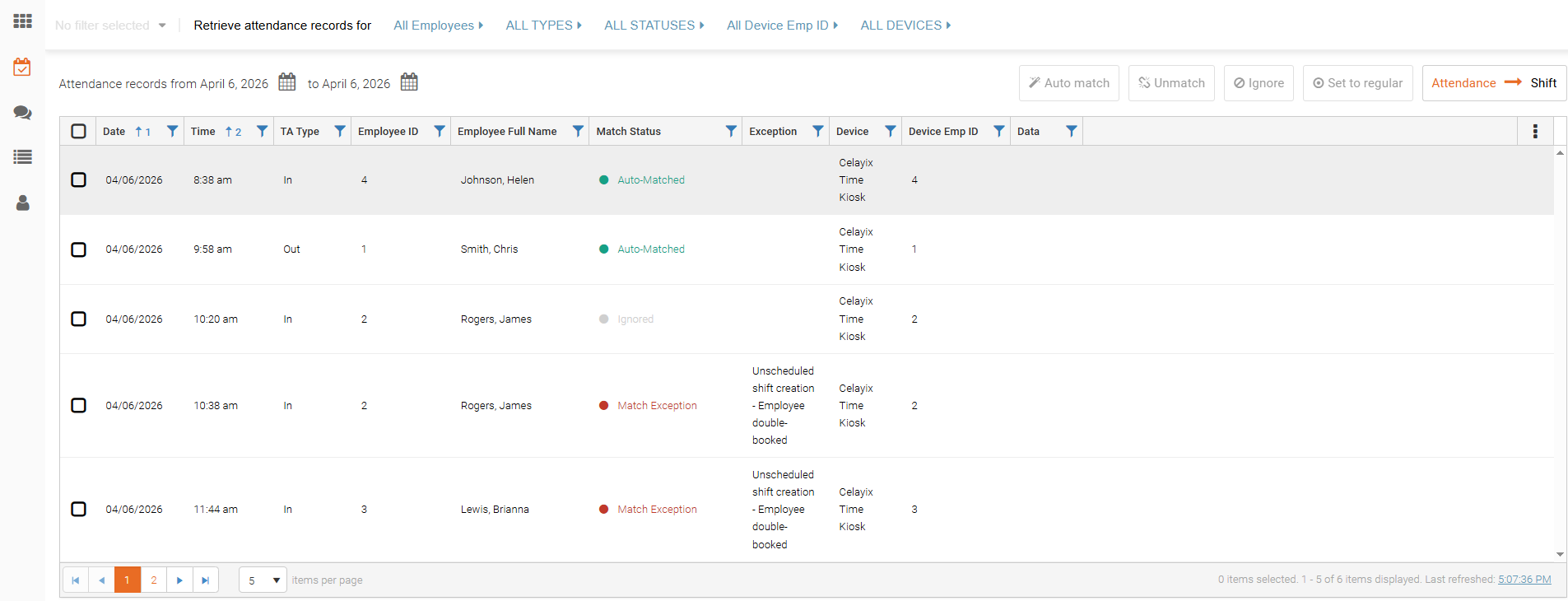
The following match statuses may appear in Time Xpress when reviewing kiosk punch records:
- Auto-Matched (green): Punch was successfully linked to a shift
- Match Exception (red): Punch could not be matched (e.g., no shift within range or conflicting records)
- Ignored (grey): Punch was excluded from processing based on system rules or configuration
View Automatch Records in Time Processing
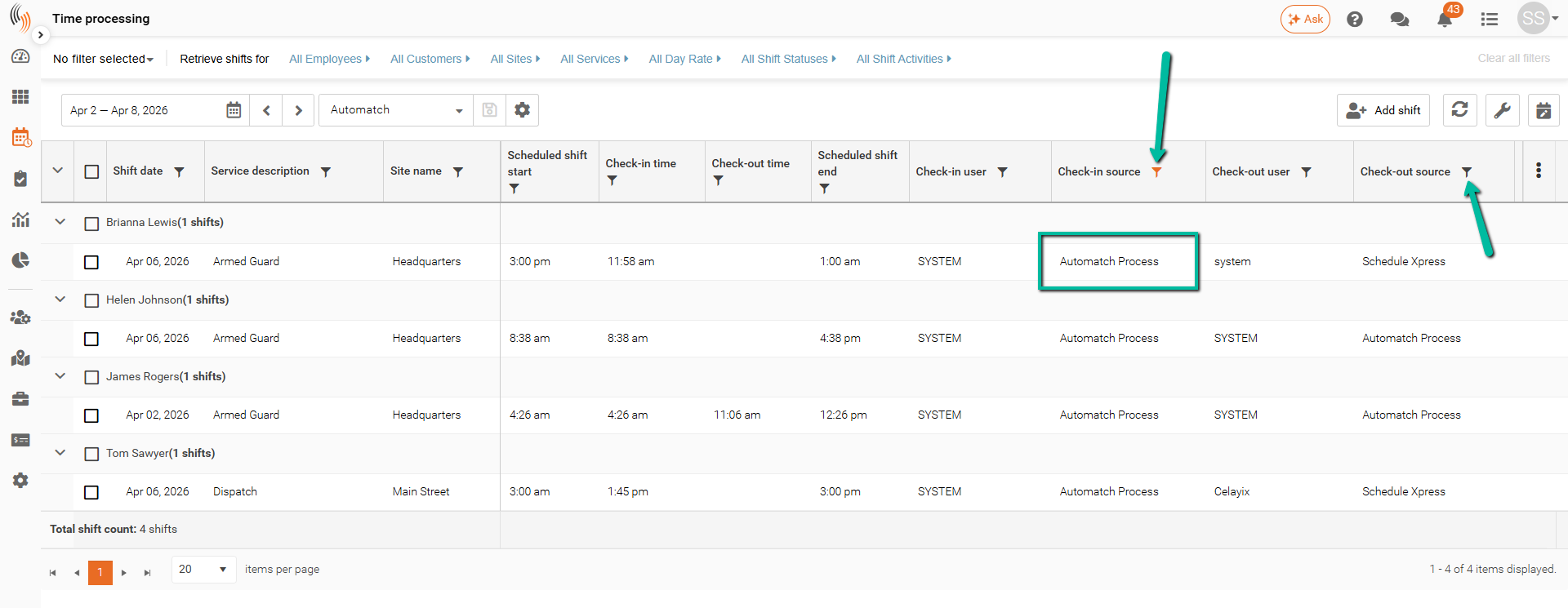
To identify automatch-created records and how check-ins and check-outs were generated, use the filter funnels on the relevant columns in Time Processing:
- Use the filter (funnel) icons on column headers to refine your results
Filter by:
- Check-in source → shows how the check-in was created (e.g., Automatch Process)
- Check-out source → shows how the check-out was created
Optional for more context:
- Check-in user → who/what performed the check-in
- Check-out user → who/what performed the check-out
This allows you to quickly isolate and review automatch-generated records.