Change Status of Employee
Keeping employee records up to date is essential for accurate reporting, compliance, and operational efficiency. By changing an employee’s status between Active, Inactive, and Archived, administrators can clearly reflect employment changes such as onboarding, temporary leave, termination, or long-term record storage.
This structured status management helps maintain clean data, improves visibility across teams, and preserves important employment history without cluttering active workforce records.
Employee Status Types
Employee records can be managed using three distinct statuses to accurately reflect an employees status within your organization.
Here are the different status types and what they mean:
- Active – Employees who are currently working and have full system access. Active employees count toward your total active license allocation and occupy an available license.
- Inactive – Employees who are temporarily not working (e.g., on leave or suspended) but whose records remain in the system. Inactive employees still count toward your active license total and continue to occupy a license.
- Archived – Employees who are no longer with the organization or whose records are retained for historical purposes only. Archived employees do not count toward your active license total, freeing up a license for reassignment while preserving their data for reporting and compliance purposes.
Filter Employees by Status
You can filter the employee list by the following status options:
- All – Displays all employees regardless of status.
- Active – Displays only employees who are currently active.
- Inactive – Displays employees who are marked as inactive.
- Archived – Displays employees whose profiles have been archived.
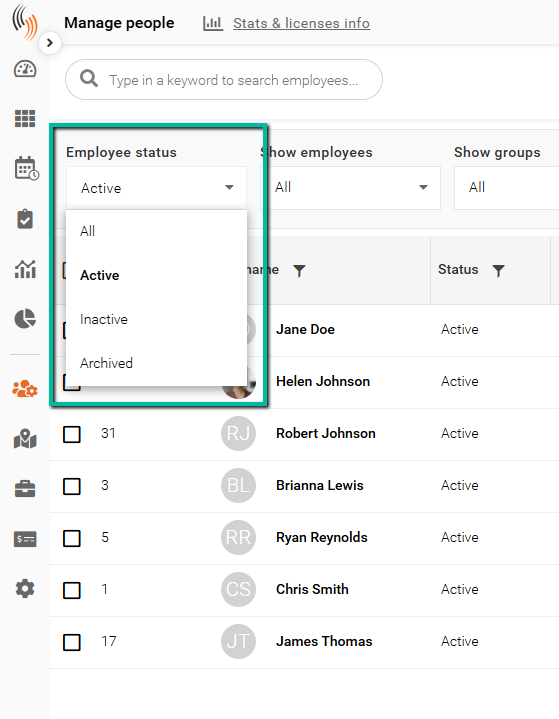
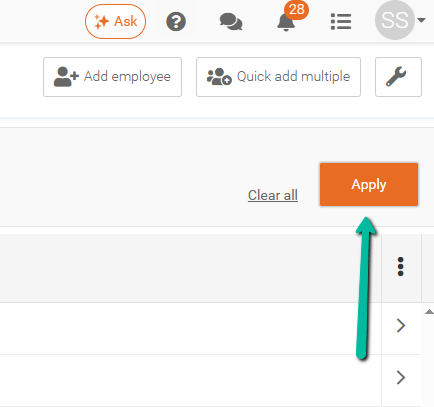
After selecting the status you wish to search by, make sure to click the orange Apply button above the grid on the right.
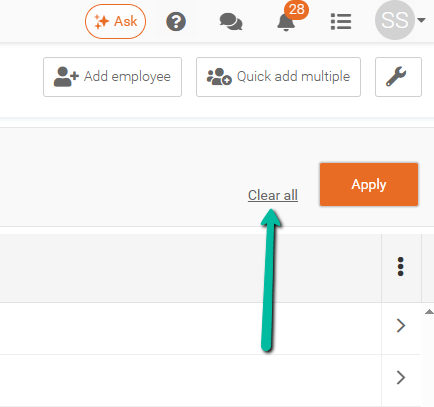
Clear All Employee Status Filters
To return to the default view showing only Active employees, click the Clear All button located next to the orange Apply button at the top right above the grid.
Changing Employee Status: Active → Inactive or Archived (Deactivation)
To change an employee’s status from Active to Inactive or Archived:
- Go to Manage People.
- Open the employee’s profile.
- In the Contact section, locate the Status field.
- Change the status from Active to Inactive or Archived.
- Click Save to apply the change.
Important
- Changing the status to Inactive removes the employee from active workflows, but their account still counts as an Active license, as it's more like a temporary layoff.
- Setting the status to Archived removes the employee from active workflows and frees up a license slot for a new employee.
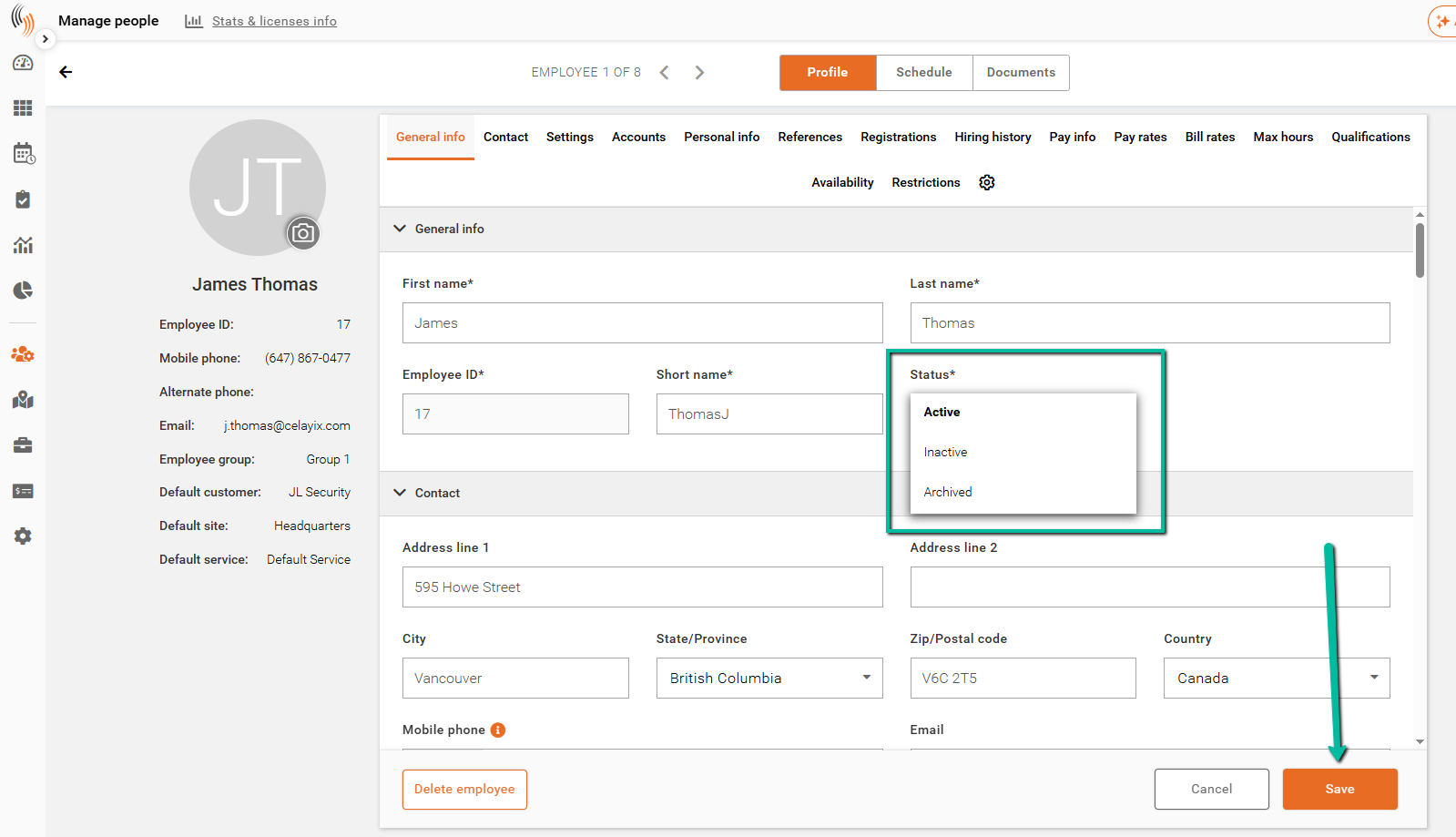
Change Employee Status: Inactive or Archived → Active
To change an employee’s status:
- Go to Manage People.
- Open the employee’s profile.
- In the Contact section, locate the Status field.
- Change the status from Active to Inactive or Archived.
- If changing the status to Archived, continue to the next step.
- If changing the status to Inactive, proceed to Step 6.
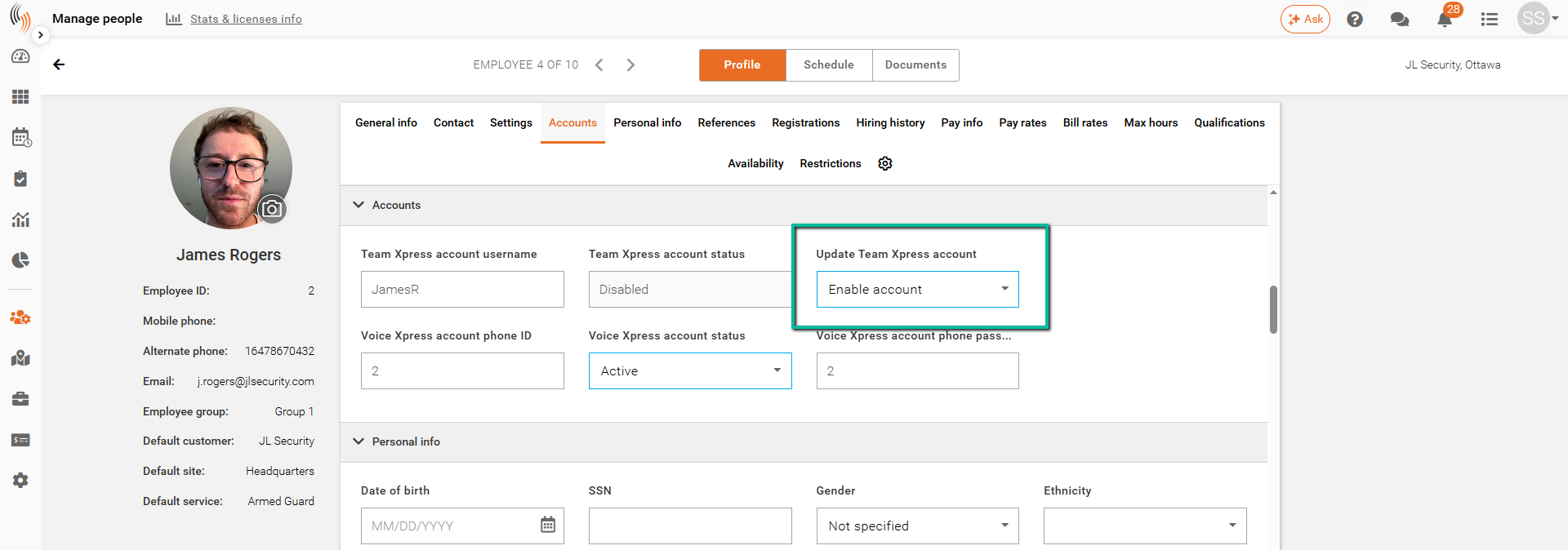
- If you selected Inactive, navigate to the Update Team Xpress Account section and change the setting to Enable.
- Click Save to apply the change.
Important
After setting the employee to Active and enabling the Team Xpress account, you must send a new invitation for the employee to join the Team Xpress app again.
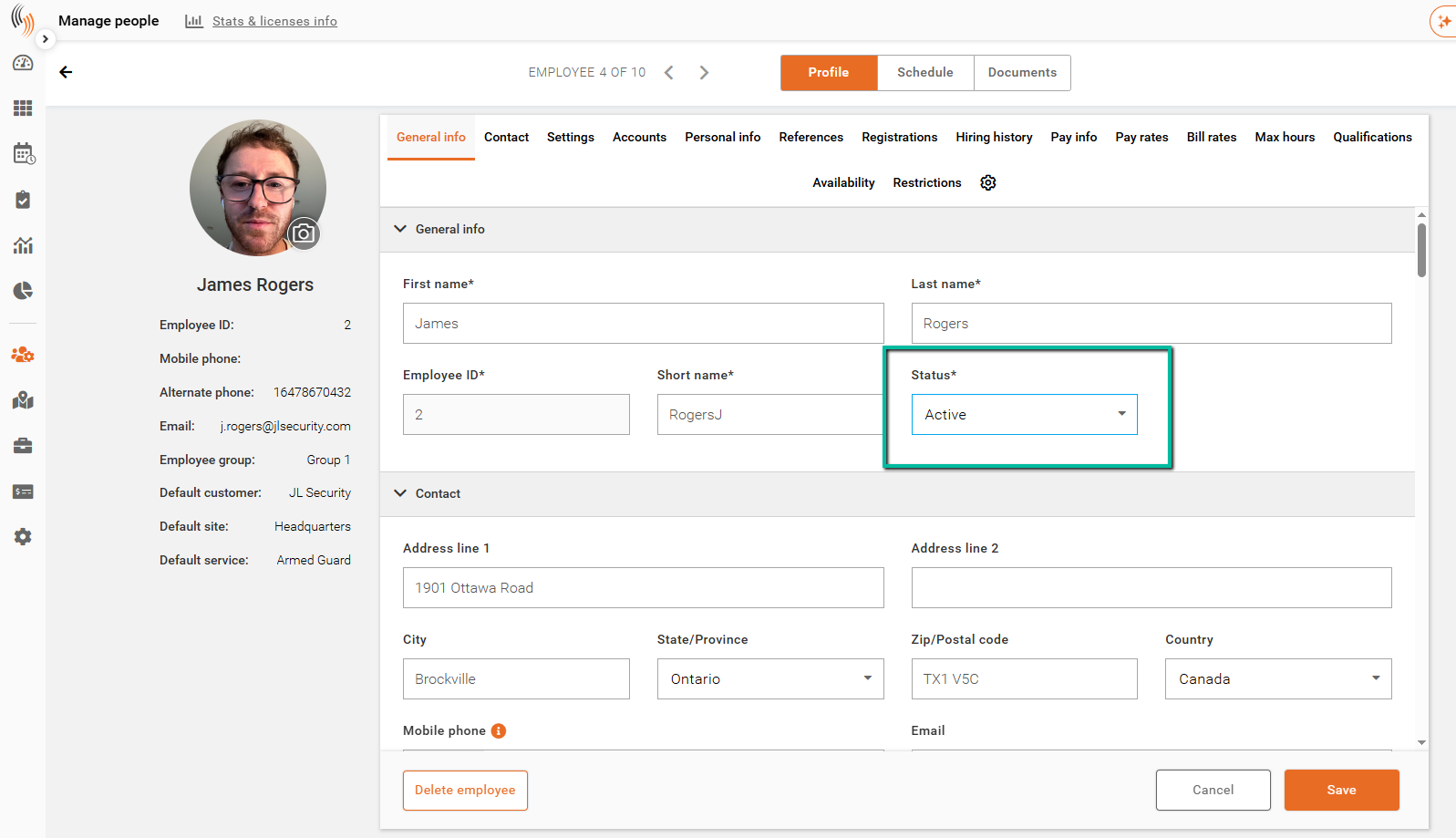
When an employee status is being changed from Archived to Active, ensure you Enable the account under Update Team Xpress account.