
Configure Employee Form
The Employee Form determines which data fields and sections are visible within employee profiles in the Manage People section of Schedule Xpress. This allows administrators to customize the employee profile layout and ensure users only see information relevant to their role and business requirements.
Access Employee Form
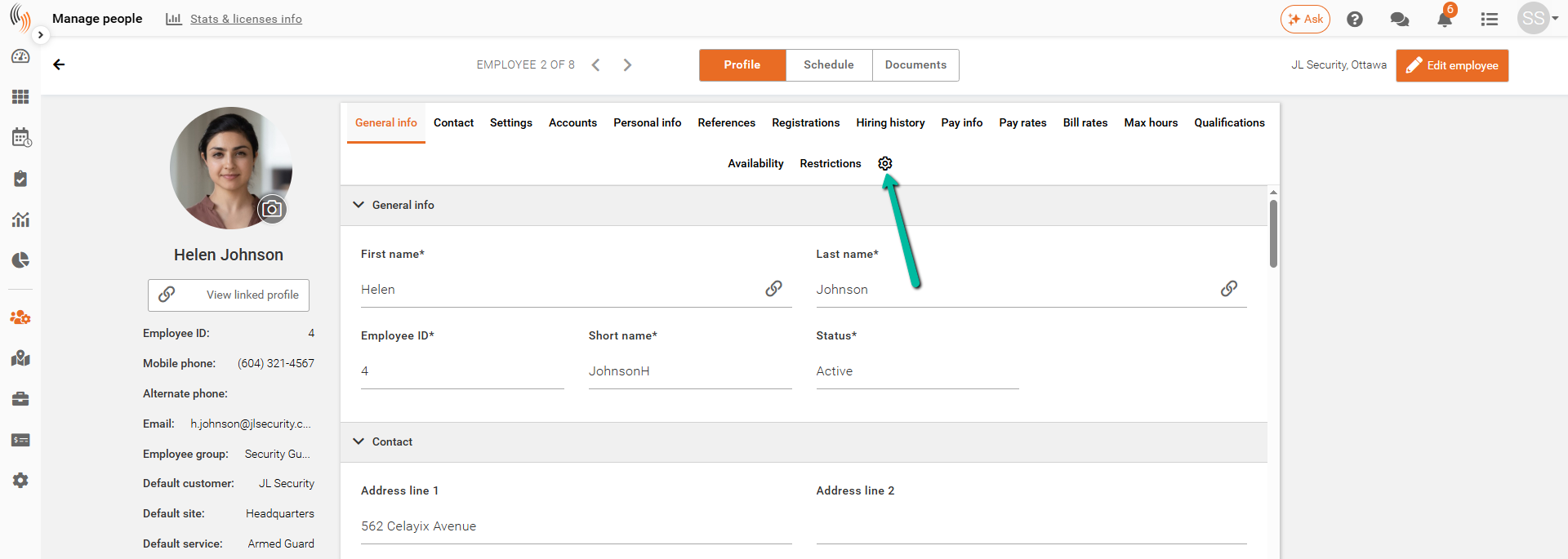
You can access the Employee Form in two ways:
- From an employee profile by clicking the Settings (Gear) icon
- Settings → Branch Defaults → Employee Form
Employee Form Overview
The Employee Form allows administrators to control which sections and fields are displayed within employee profiles.
By enabling or disabling sections, organizations can customize the employee profile experience and simplify data management for administrators and managers.
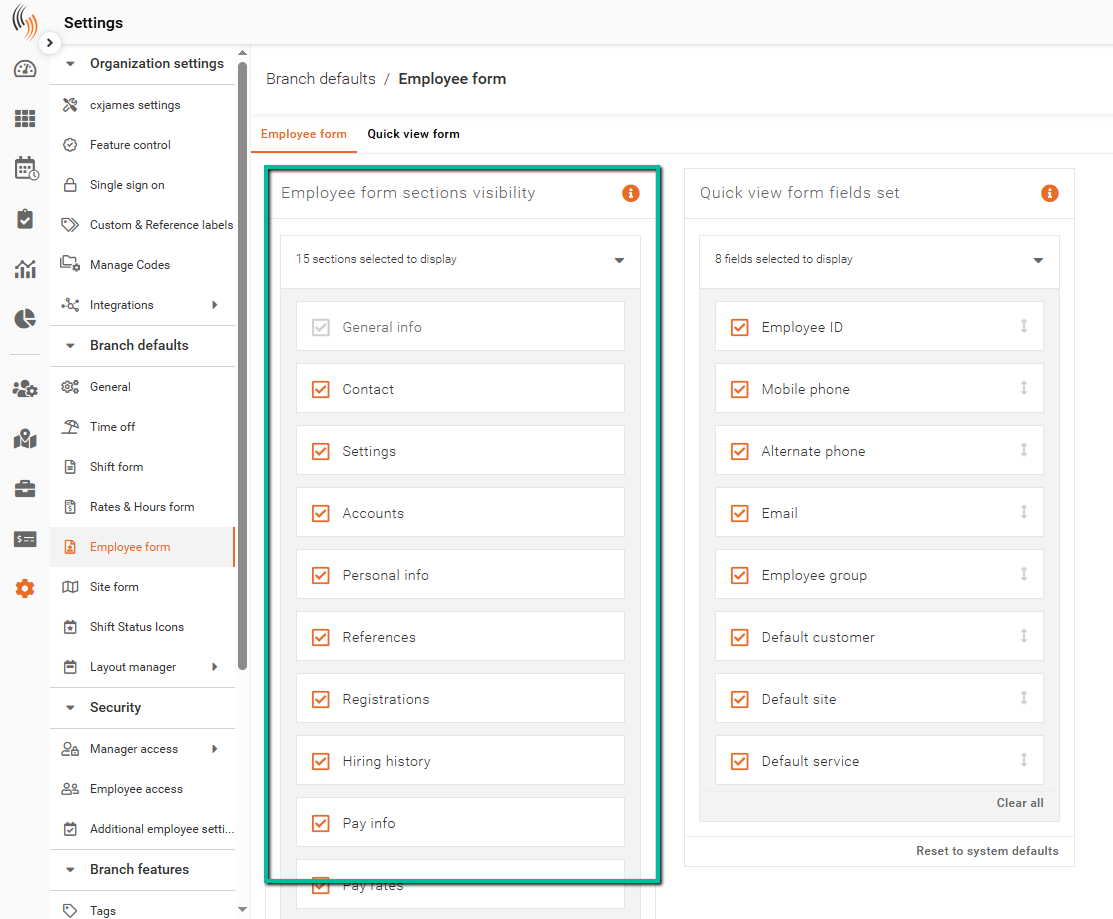
Employee Form Sections Visibility
Use Employee Form Sections Visibility to control which sections appear within employee profiles.
Select or deselect sections to ensure only relevant information is visible to users managing employee records.
Common sections may include:
- General Info
- Contact
- Settings
- Accounts
- Personal Info
- References
- Registrations
- Hiring History
- Pay Info
- Pay Rates
- Bill Rates
- Max Hours
- Qualifications
- Availability
- Restrictions
The available sections may vary depending on your system configuration.
Quick View Form Fields Set
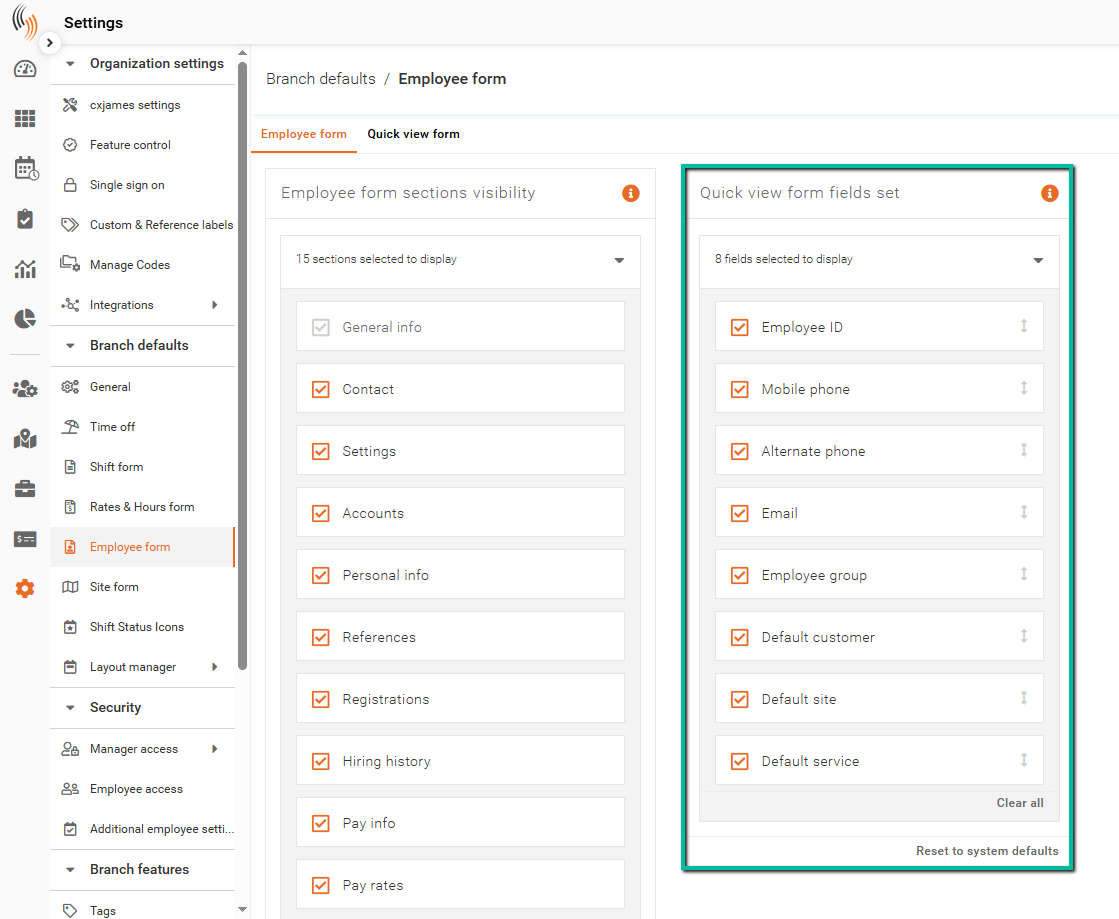
The Quick View Form Fields Set controls which employee fields are displayed in the employee quick view throughout Schedule Xpress.
Select the fields you want to display by checking them in the list. Only selected fields will appear in the quick view.
Common quick view fields include:
- Employee ID
- Mobile Phone
- Alternate Phone
- Employee Group
- Default Customer
- Default Site
- Default Service
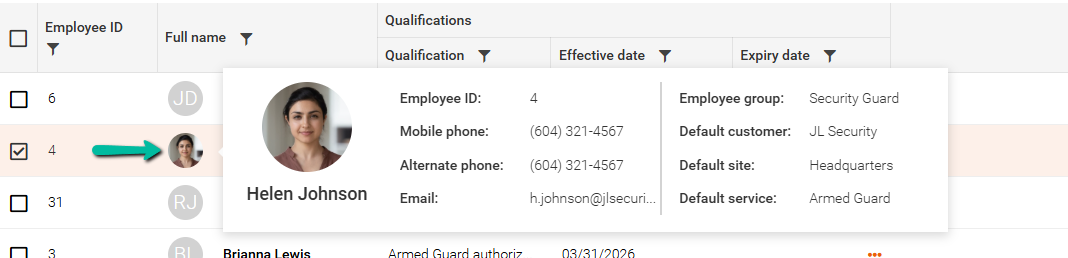
To view the configured fields, click an employee's Profile Icon in Manage People. The selected fields will appear in the employee quick view, allowing users to quickly access key employee information without opening the full employee profile.
Configure Employee Profile Visibility
Once sections have been selected, they will appear within employee profiles throughout Manage People.
Configuring the Employee Form helps organizations standardize employee records, reduce unnecessary data entry, and ensure users have access to the information they need.