Approve Time in Time Processing
Manage and finalize employee worked hours by reviewing and approving shifts in Time Processing. This process ensures all time entries are accurate and locked before payroll is processed.
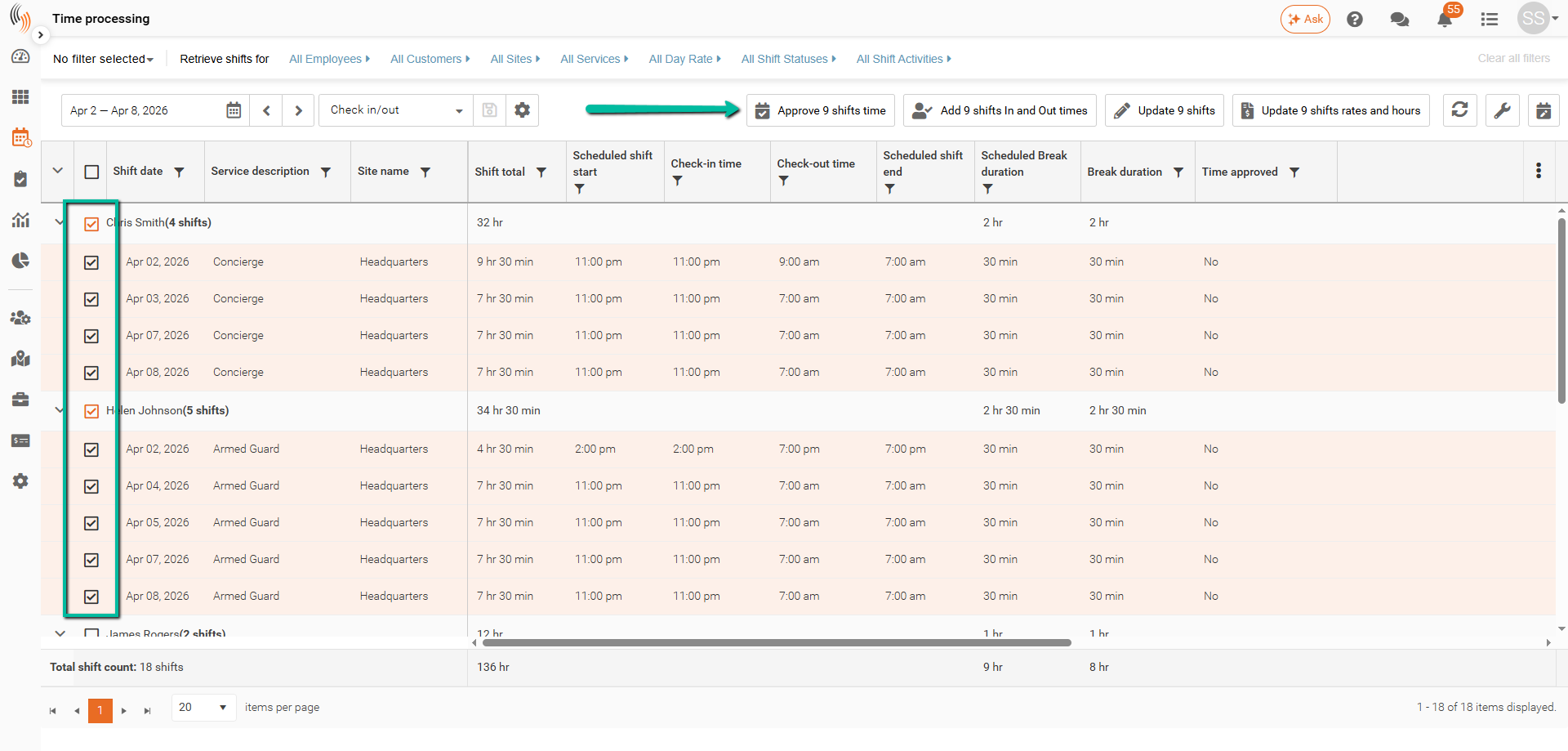
Select Shifts for Approval
Before approving time, ensure all shift details are accurate.
- Review Shifts
Carefully check employee check-in and check-out times to ensure accuracy - Select Shifts
Choose the shift(s) you want to approve - Approve Time
Click Approve Time above the Time Processing grid, or use the wrench icon (top-right) → Approve Time if the button is not visible.
Note: Approving time locks the shifts, preventing further edits and ensuring the data is ready for payroll processing.
Remove Time Approval
If a shift has already been approved but requires changes, you must first remove the approval.
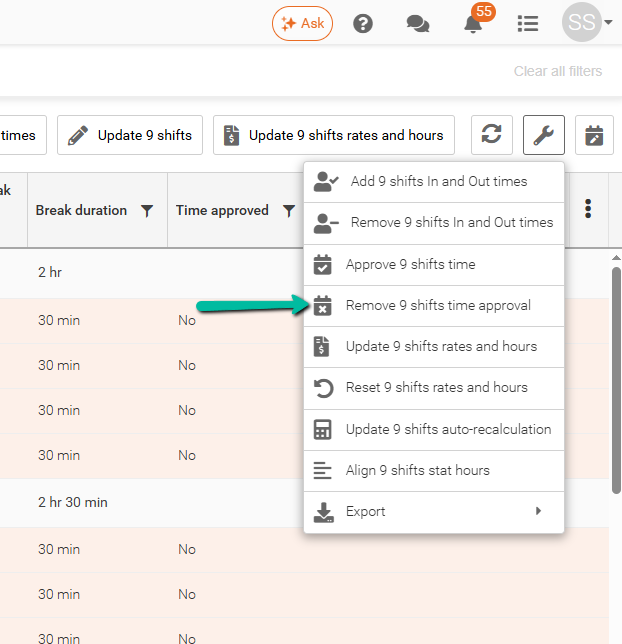
- Select Shifts
Choose the shift(s) you want to update - Open Options
Click the wrench icon in the top-right corner - Remove Approval
Select Remove Shifts Time Approval
Once the approval is removed, you can edit the shift and re-approve it when ready.
Identify Approved Shifts
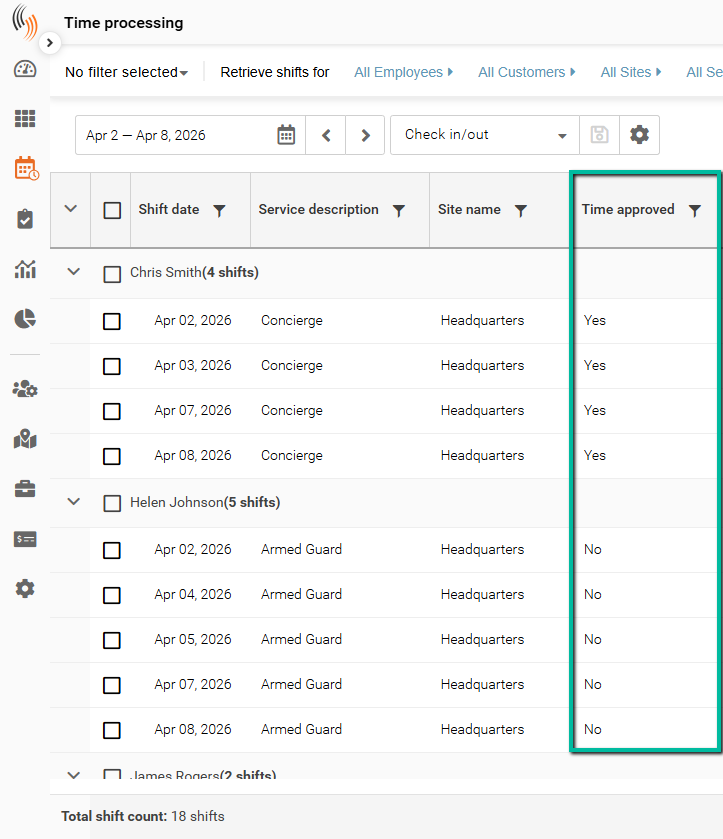
Approved Shift
- The Time Approved column displays Yes, or
- A padlock icon appears in the shift panel, indicating the shift is locked
Unapproved Shift
- The Time Approved column displays No, meaning the shift is still editable
Filter by Approval Status
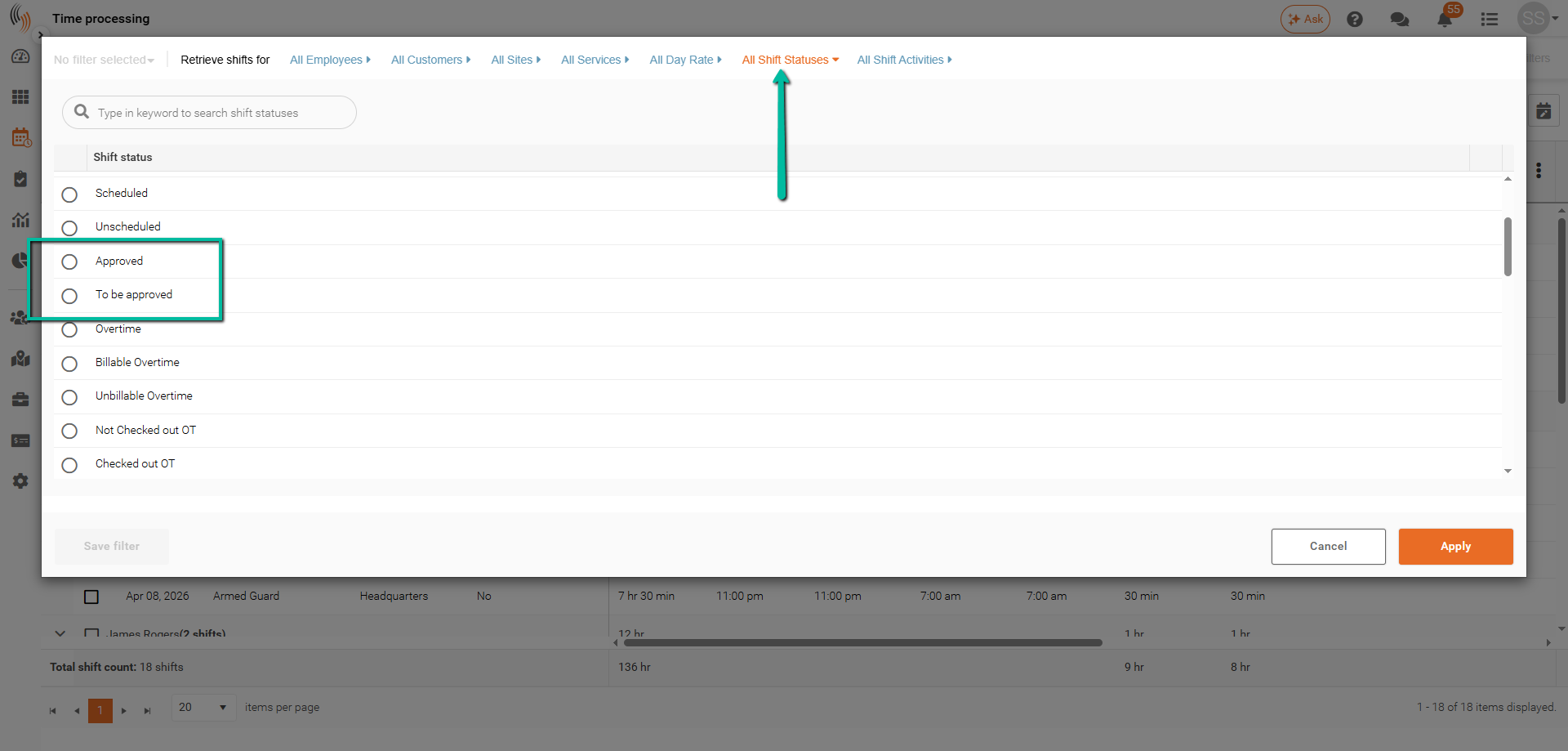
- Click All Shift Statuses
- Select:
- Approved – displays approved shifts
- To Be Approved – displays unapproved shifts