
Create Autofill Filters
Autofill Filters control how employees are automatically assigned to shifts. Each filter applies an Employee Search Rule and assignment method to ensure shifts are filled efficiently.
Autofill Filters Setup
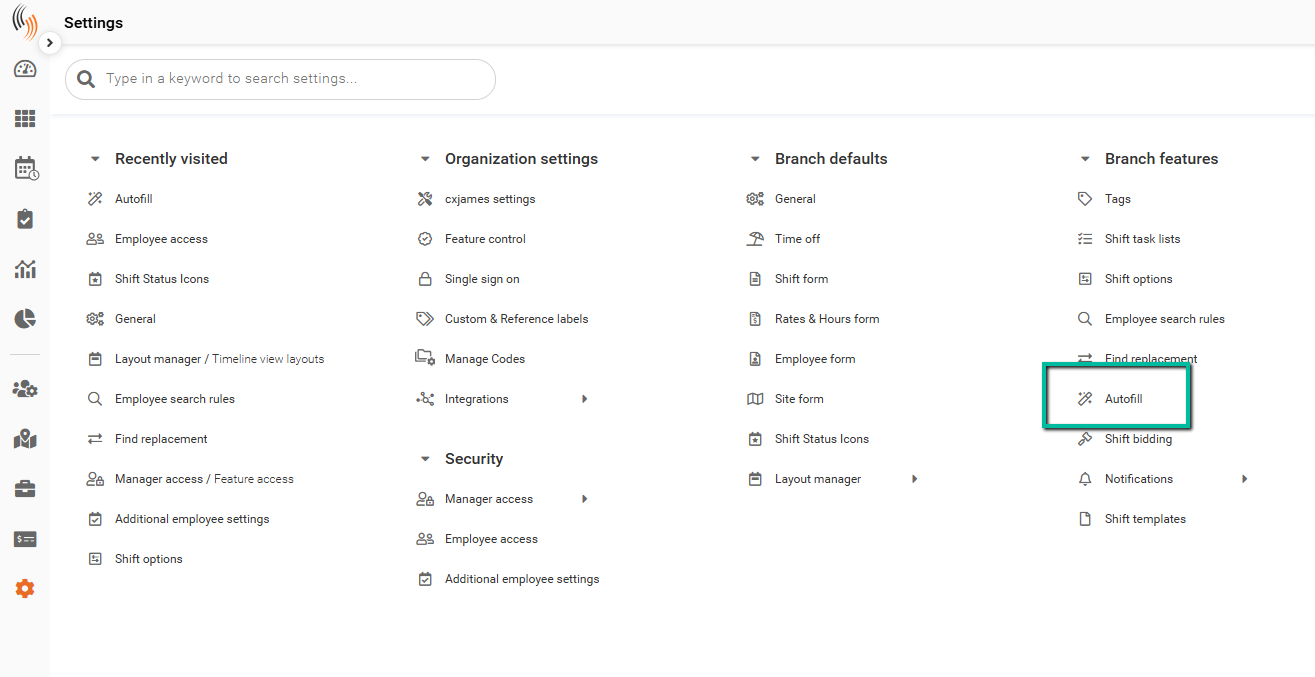
To access Autofill settings, go to Settings → Branch Features → Autofill.
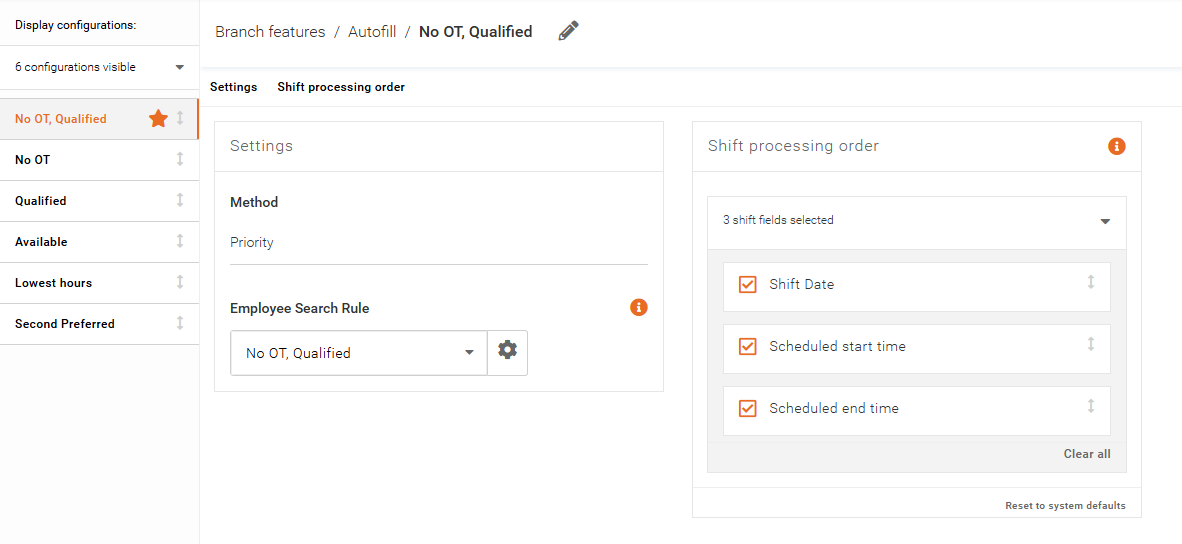
All existing Autofill configurations are displayed in the left-hand sidebar.
Create, Clone, or Delete a Configuration
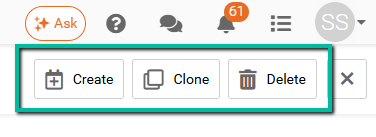
Use the options in the top-right corner to manage Autofill configurations:
- Create a new configuration
- Clone an existing configuration
- Delete a configuration
Choose an Autofill Method
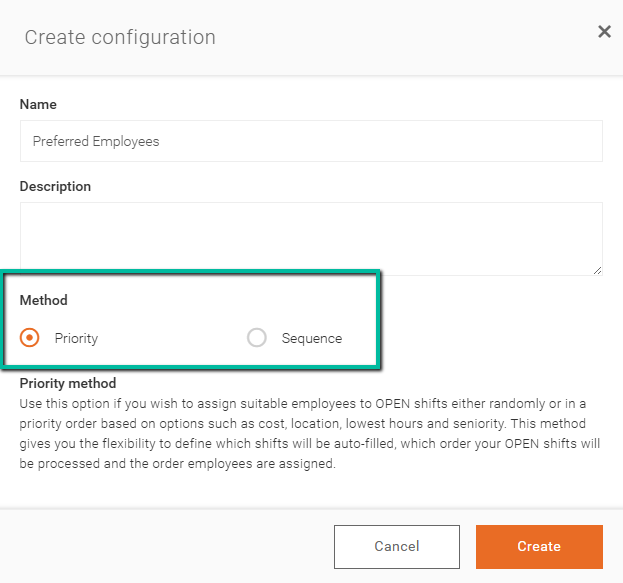
The Method determines how employees are assigned to shifts during the Autofill process.
Selecting the appropriate method helps ensure shifts are filled according to your organization's scheduling strategy.
Priority
Priority assigns the most suitable employee first based on the selected Employee Search Rule.
The system evaluates all eligible employees and assigns the best match to each shift based on the configured criteria.
Sequence
Sequence assigns employees one at a time in a defined order.
The system follows the configured Employee Sequence Order, assigning each employee to shifts in turn until all eligible shifts have been filled.
Assign an Employee Search Rule
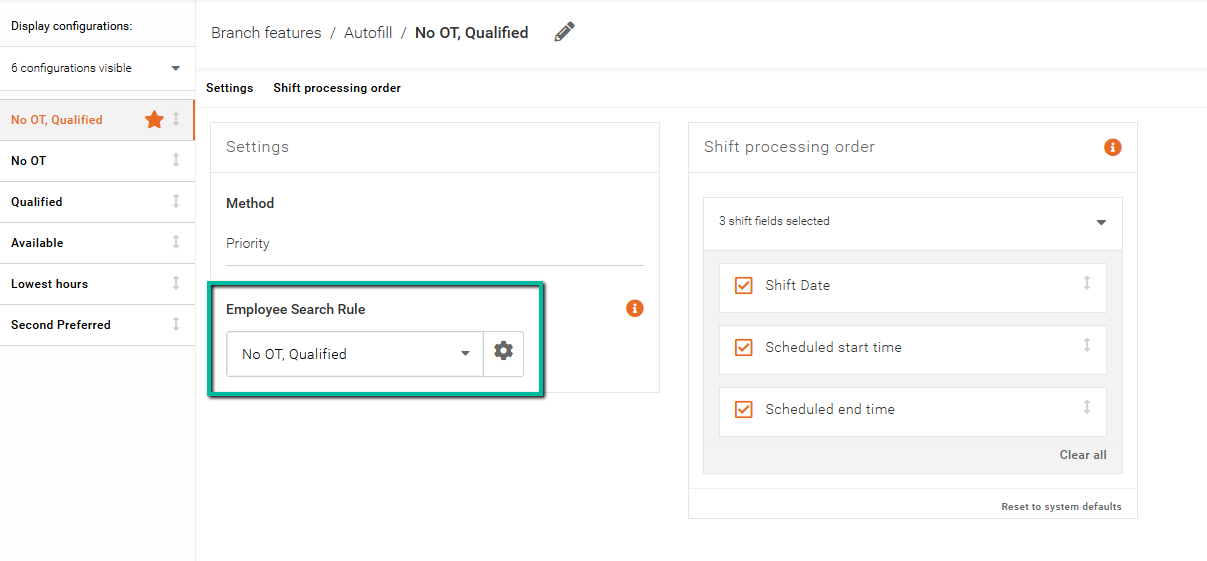
The Employee Search Rule determines which employees are eligible for Autofill.
To select a rule, go to the Settings section and choose an option from the Employee Search Rule dropdown.
Each rule applies criteria such as availability, qualifications, or overtime restrictions.
Configure Employee / Shift Assignment
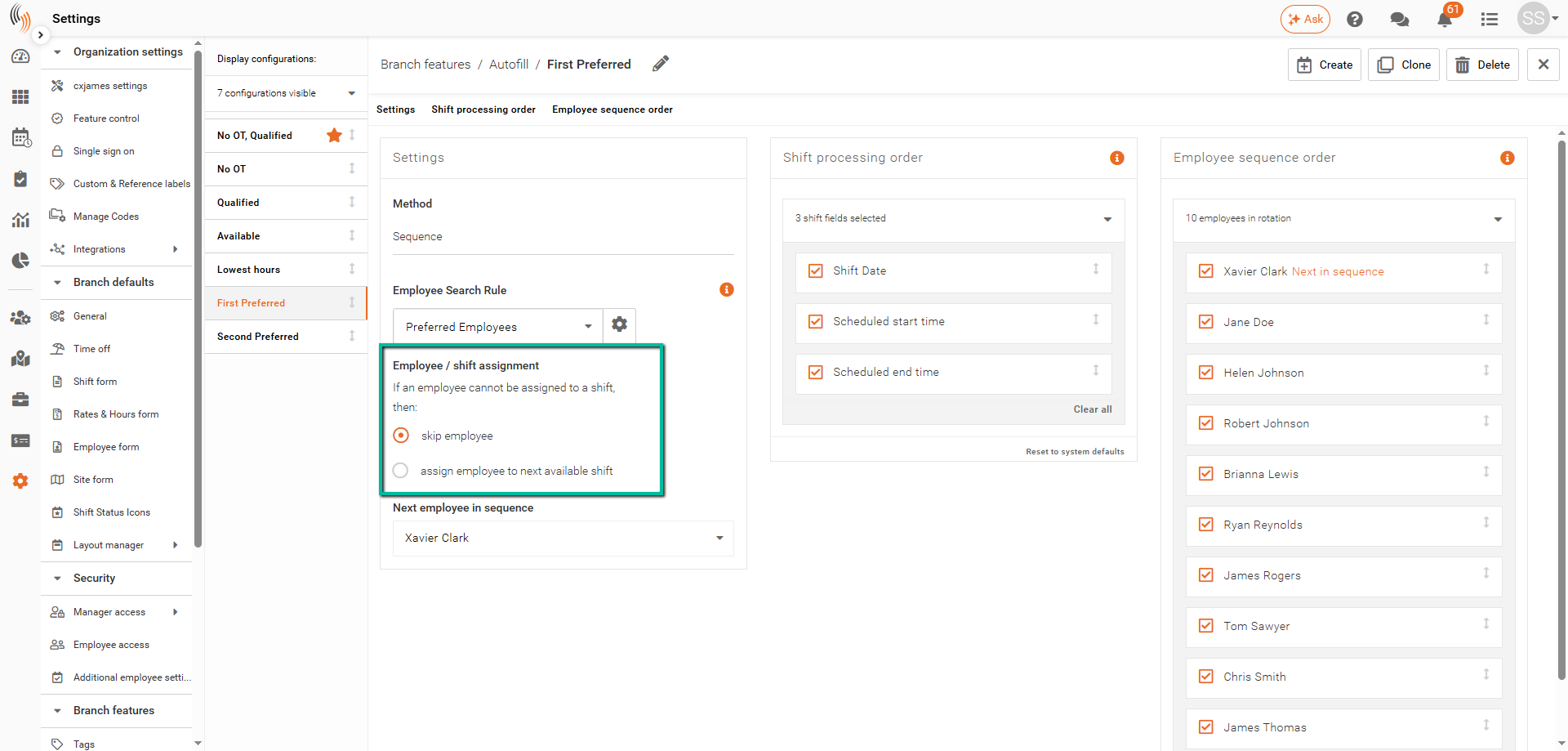
This setting applies when using the Sequence method.
Define how the system behaves if an employee cannot be assigned to a shift:
- Skip Employee
Moves to the next employee in the sequence. - Assign Employee to Next Available Shift
Assigns the employee to the next shift they are eligible for.
Configure Employee Sequence Order
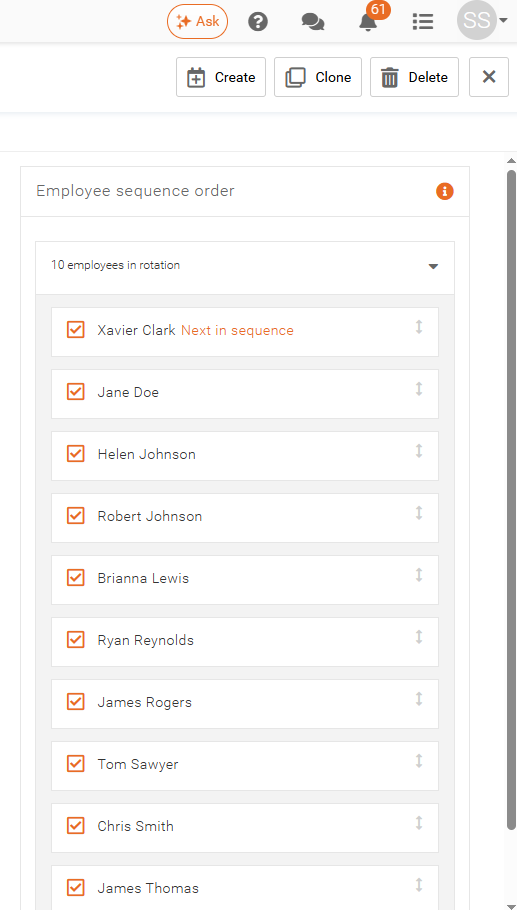
When using the Sequence method, define the order in which employees are assigned.
You can select or unselect employees from the list and adjust their order using the arrow controls to move them up or down. The employee marked as Next in Sequence is flagged and will be assigned first.
After each Autofill run, this flag updates to the next employee in the sequence, ensuring a fair rotation based on the last employee who was not selected.
The system will continue assigning shifts based on this defined order.
Set a Default Configuration
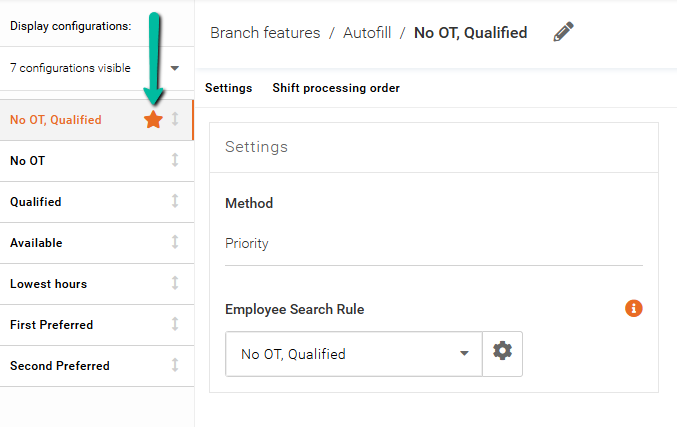
To set a configuration as default, click the star icon next to the configuration name. The star will turn orange to indicate it is selected.
The default configuration will be used when running Autofill.
Important: Default configurations cannot be deleted. To delete one, assign a different configuration as default first.
Next Steps
After setting up your Autofill configuration, you can run Autofill to automatically assign employees to shifts based on your defined rules.
For more information, see the Run Autofill article.