Set Up Shift Bidding
Before employees can participate in Shift Bidding, administrators must configure the feature in Schedule Xpress. This involves enabling the feature, defining eligibility and search rules, and specifying key parameters such as deadlines, bidding rules, and assignment preferences.
Proper setup ensures the bidding process operates smoothly and according to organizational guidelines.
What Needs to Be Configured for Shift Bidding?
Before employees can participate in Shift Bidding, several settings must be configured to ensure shifts are offered to the right employees and awarded according to your organization's requirements.
Administrators should complete the following setup steps:
- Enable Shift Bidding in Schedule Xpress
- Configure Employee Search Rules used to identify eligible employees
- Configure Shift Bidding Parameters, including bid deadlines and auto-assignment options
- Enable Shift Bidding within the appropriate Employee Access Group
Let's look at each of these configurations in more detail.
Step 1 - Enable Shift Bidding in Schedule Xpress
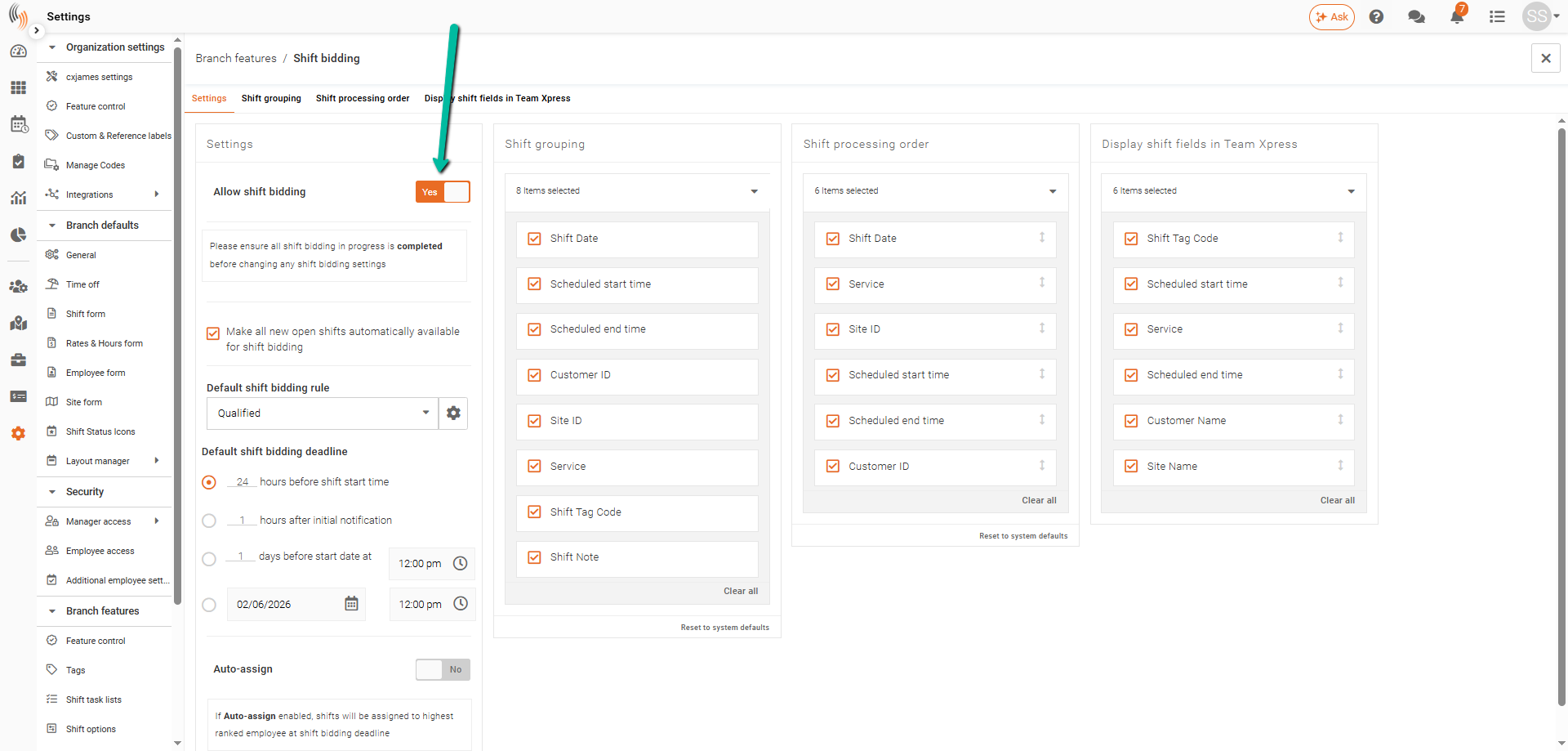
The first step to using Shift Bidding is to ensure the feature is enabled in your database. In Schedule Xpress, navigate to Settings → Branch Features → Shift Bidding and set Allow Shift Bidding to Yes.
If you do not see Shift Bidding under Settings, please Contact Support for assistance.
Step 2 - Configure Employee Search Rules for Shift Bidding
To identify the employees you want to invite to bid, you must first create an Employee Search Rule. For step-by-step instructions, see our Build Employee Search Rules article.
When creating employee search rules for shift bidding, you might consider names like:
- Qualified Employees
- Available Employees
- No Overtime Caused
- Certified for Night Shifts
Important: When creating Employee Search Rules for Shift Bidding, do not set the Employee Sort Order to Daily, Weekly, or Monthly Total Hours, Rotation Count, or Cost—these criteria are not supported for Shift Bidding.
Step 3 - Set Default Deadlines, Rules, and Auto-Assign for Shift Bidding
Once you have created your Employee Search Rules, return to Shift Bidding settings by navigating to:
Settings → Branch Features → Shift Bidding
Within this section, you can configure the default settings used when publishing shifts for bidding.
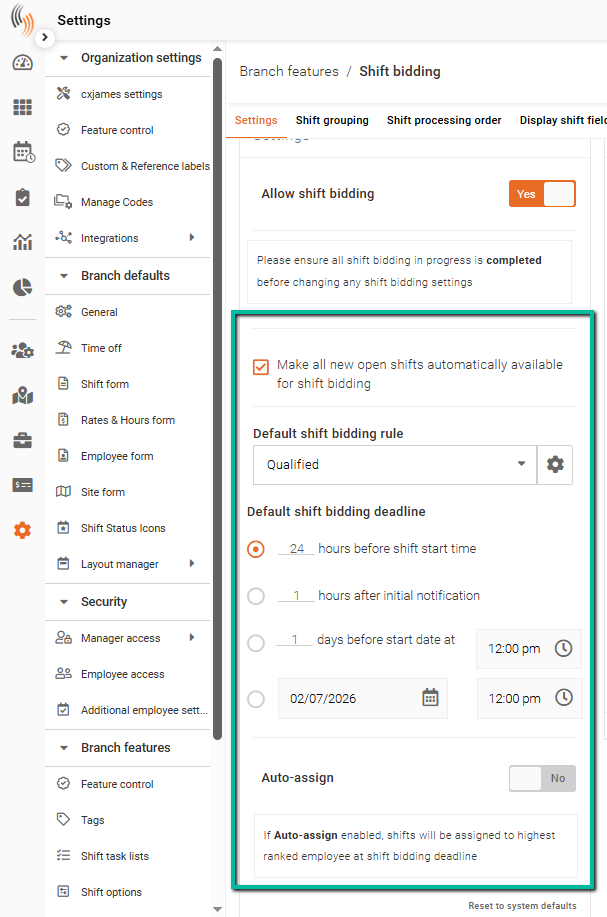
Make All New Open Shifts Automatically Available for Shift Bidding
When enabled, all newly created Open Shifts will automatically be marked as available for Shift Bidding.
Default Shift Bidding Rule
Select the default Employee Search Rule that will be used when inviting employees to bid on shifts.
For example, you may choose a rule such as Qualified to ensure only employees who meet the required criteria are invited to bid.
Note: The selected rule can be changed when publishing individual shifts for bidding.
Default Shift Bidding Deadline
Choose how long employees have to submit bids before the bidding period closes.
Available options include:
- 24 Hours Before Shift Start Time (default)
- 1 Hour After Initial Notification
- 1 Day Before Shift Start Date at a Specific Time
- Specific Date and Time
Auto-Assign
When Auto-Assign is enabled, shifts will automatically be assigned when the bidding deadline is reached.
The shift will be awarded to the highest-ranked employee based on the configured Shift Bidding Criteria.
Choose your Shift Grouping, Shift Processing Order and Display Shift Fields in Team Xpress
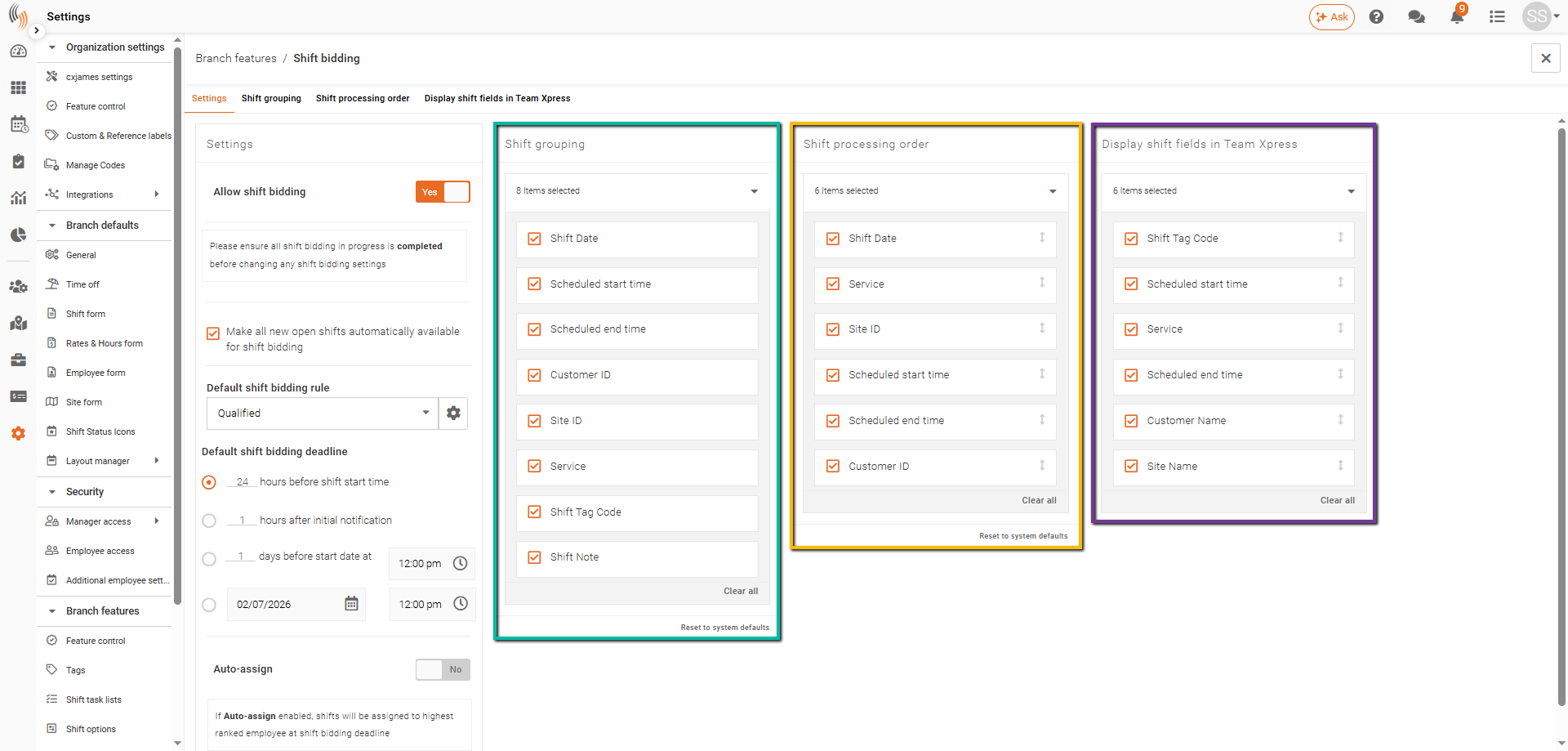
Within your Shift Bidding setup, you have the option to define Shift Grouping, Shift Processing Order, and Display Shift Fields in Team Xpress. Here's a brief explanation of each:
- Shift Grouping (Green): This text explains how shifts are grouped when admins use the Send Bid Invitations by Shift Groups feature. Shifts that share the same value in each of the selected fields are grouped together. This allows admins to send invitations for a specific type of shift all at once.
- Shift Processing Order (Yellow): This will determine the order in which shifts are assigned to employees if Auto-Assign is used. Typically, shifts are allocated chronologically, from the earliest to the latest based on the shift date. However, users have the flexibility to adjust this order as they see fit.
- Display Shift Fields in Team Xpress (Purple): This panel enables users to select which Shift Bidding fields they want to display in the Team Xpress app. Please note that if the fields have not been chosen in the Shift Grouping, they will not be available for selection here.
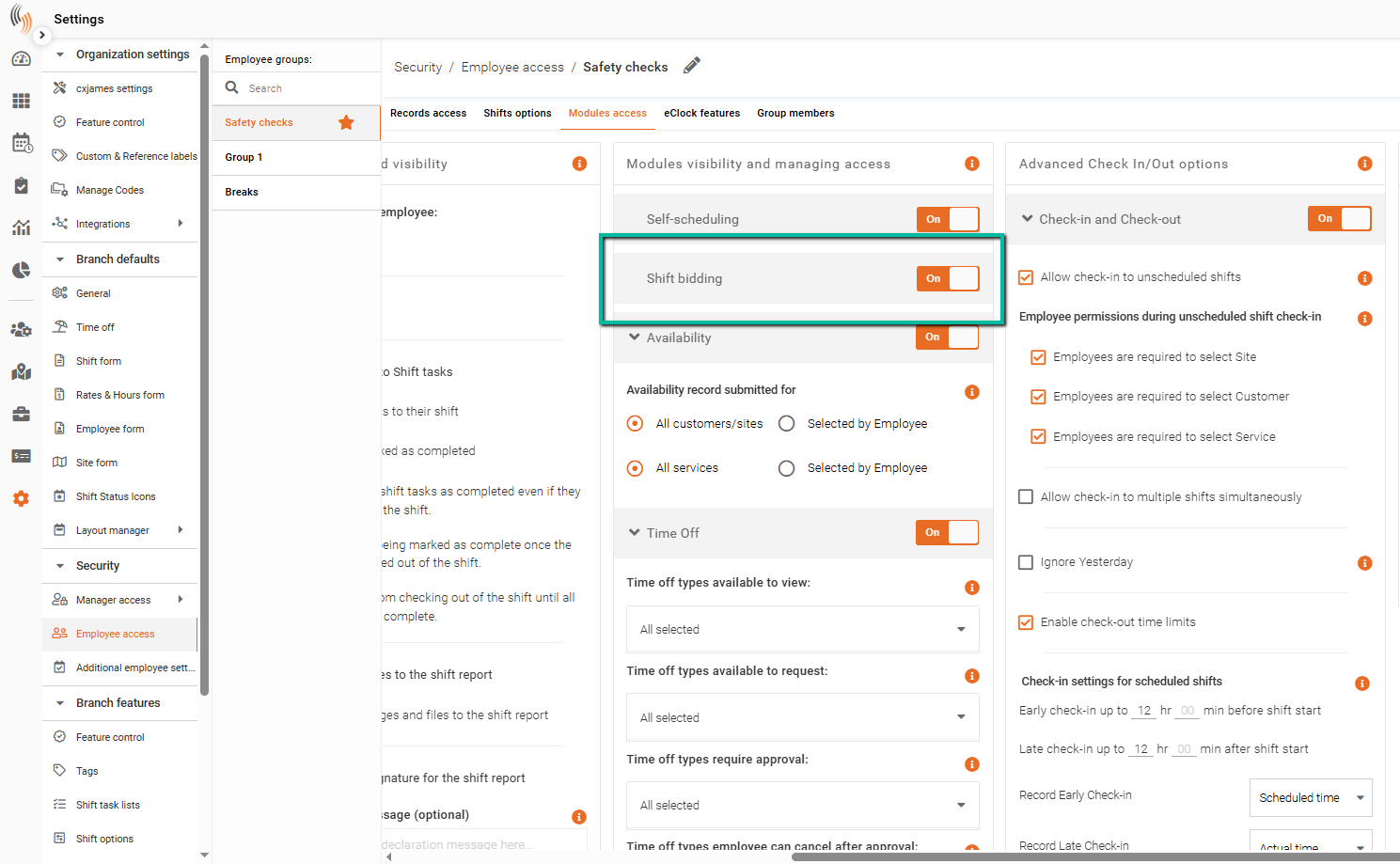
Step 4 - Enable Shift Bidding for Employees
After completing your setup, the final step is to enable the feature for employees in their Team Xpress app. To do this, go to Settings → Security → Employee Access and switch the feature flag to Yes.