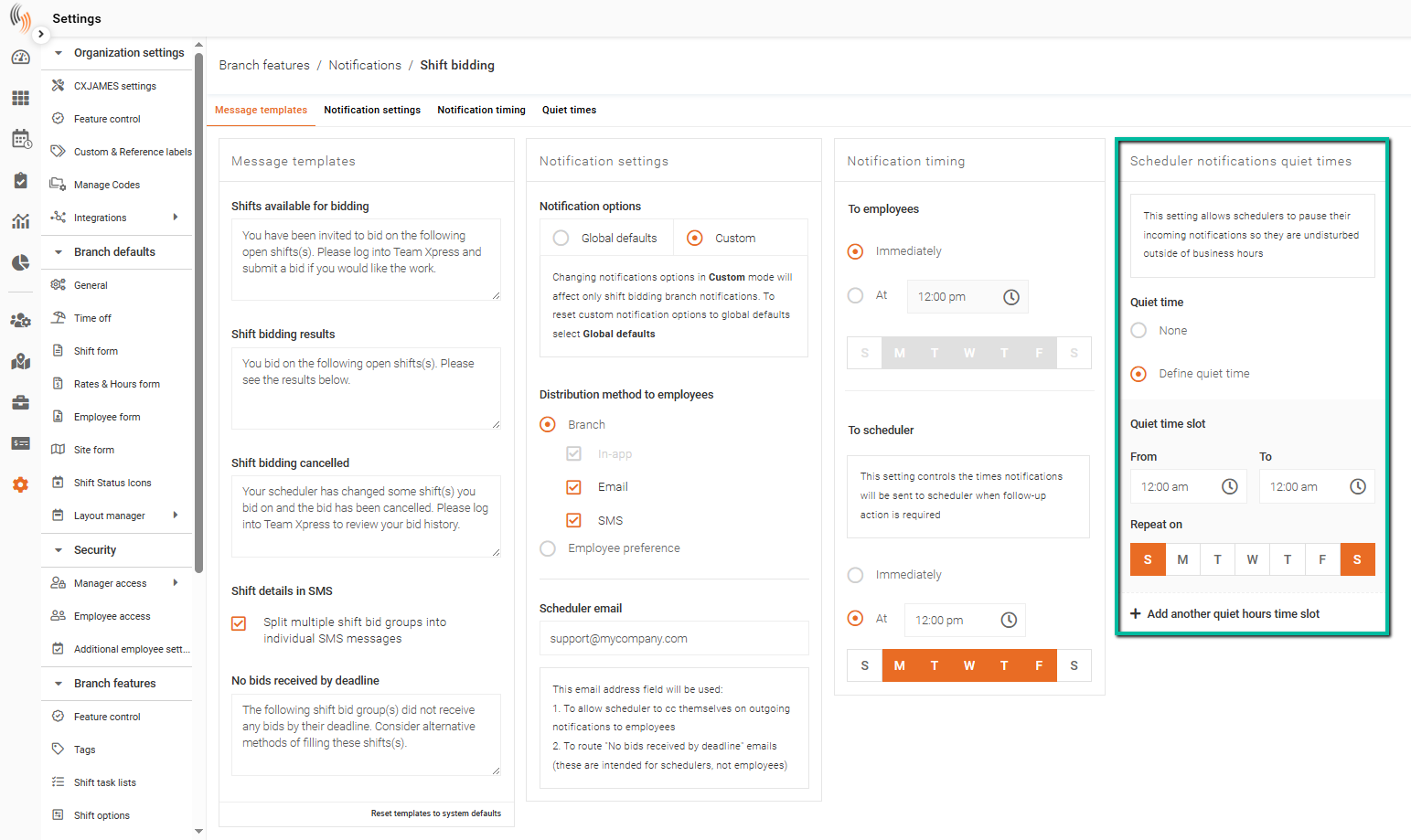
Configure Shift Bidding Notifications
Shift Bidding Notifications alert employees when shifts are available to bid on and notify administrators of important bidding events. Configuring these notifications helps improve visibility, participation, and communication throughout the bidding process.
Find Shift Bidding Notifications
Shift Bidding Notifications can be configured under:
Settings → Branch Features → Notifications → Shift Bidding
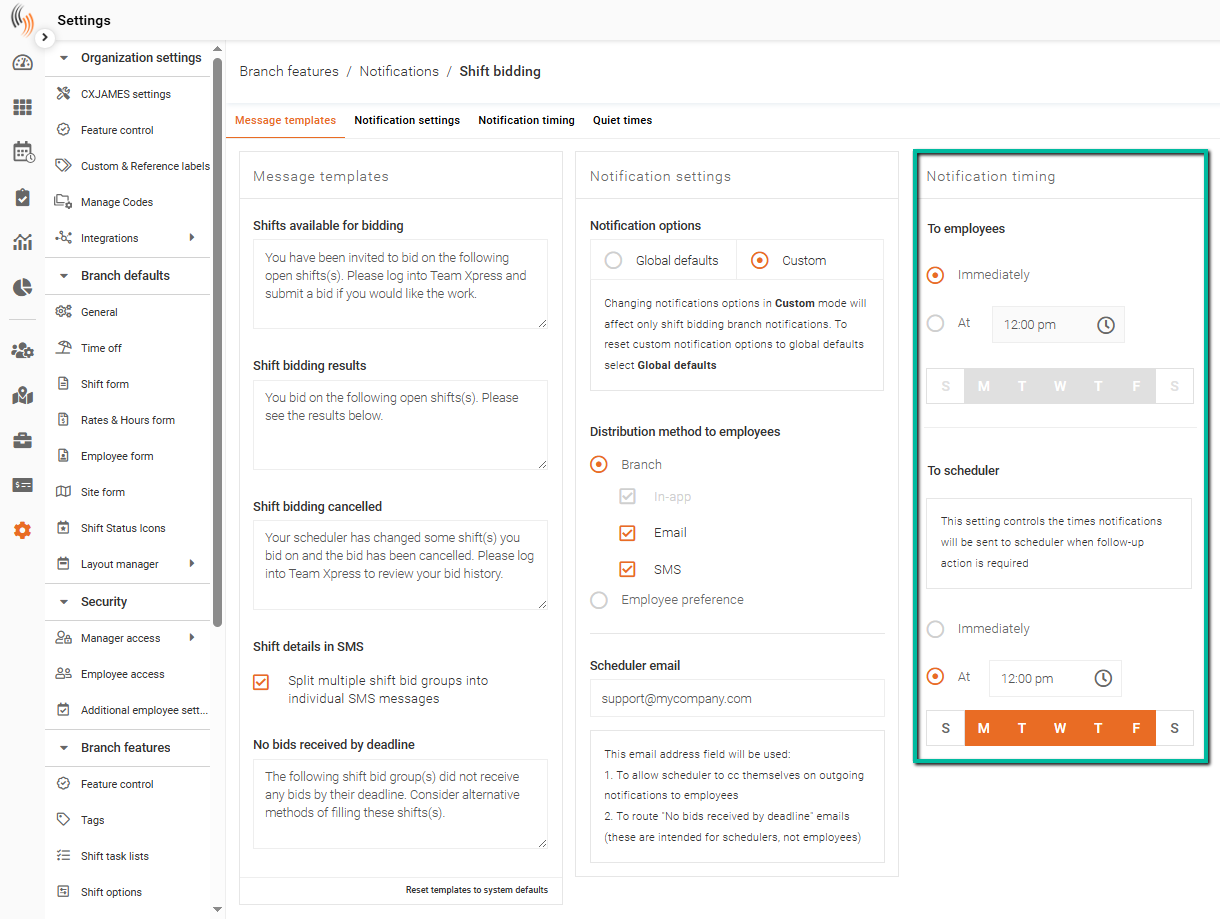
Within this section, you can configure:
- Message Templates
- Notification Settings
- Notification Timing
- Notification Quiet Times
Let's look at each of these settings in more detail.
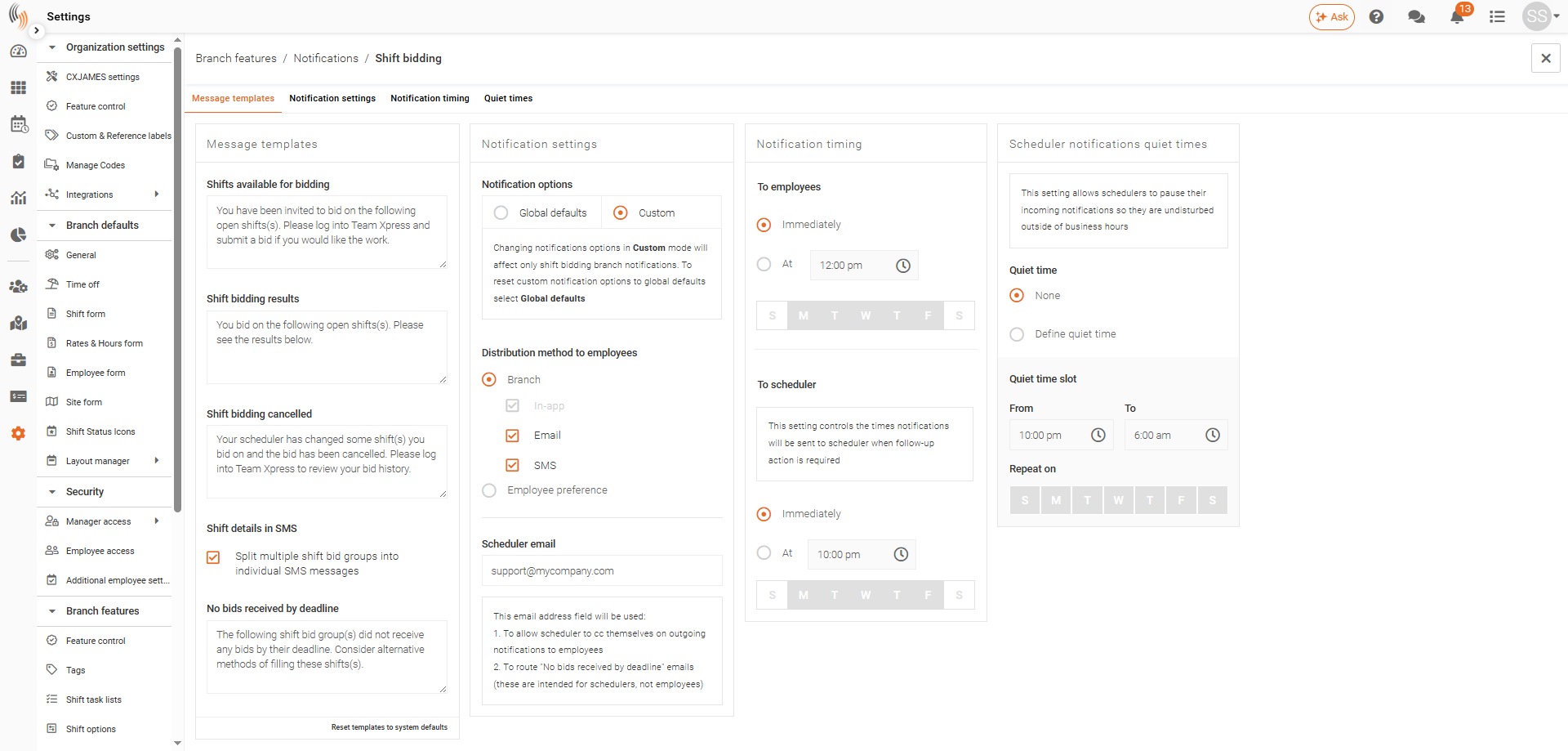
Message Templates for Shift Bidding
You can customize the messages used for Shift Bidding Notifications.
Employee Notifications
Employees can receive notifications for:
- Shifts Available for Bidding
- Shift Bidding Results
- Cancelled Shift Bids
Administrator Notifications
Administrators can receive notifications for:
- No Bids Received by the Bidding Deadline
Customize these templates to ensure employees and administrators receive clear and relevant information.
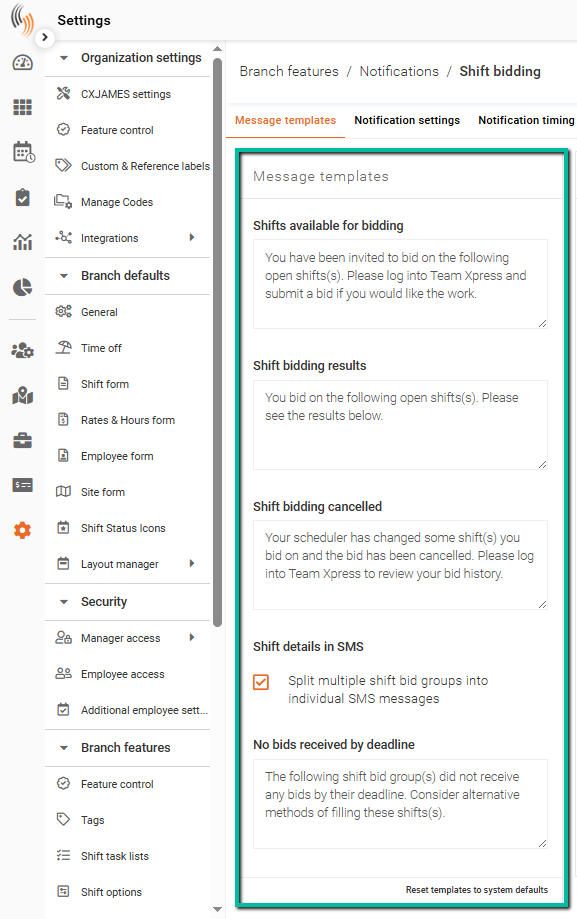
Notification Settings for Shift Bidding
Notification Settings determine how Shift Bidding Notifications are delivered.
You can choose to send notifications through:
- SMS
- Email and SMS
You can also specify a Scheduler Email Address for notification delivery.
Note: If preferred, you can use your Global Defaults rather than configuring notification settings specifically for Shift Bidding.
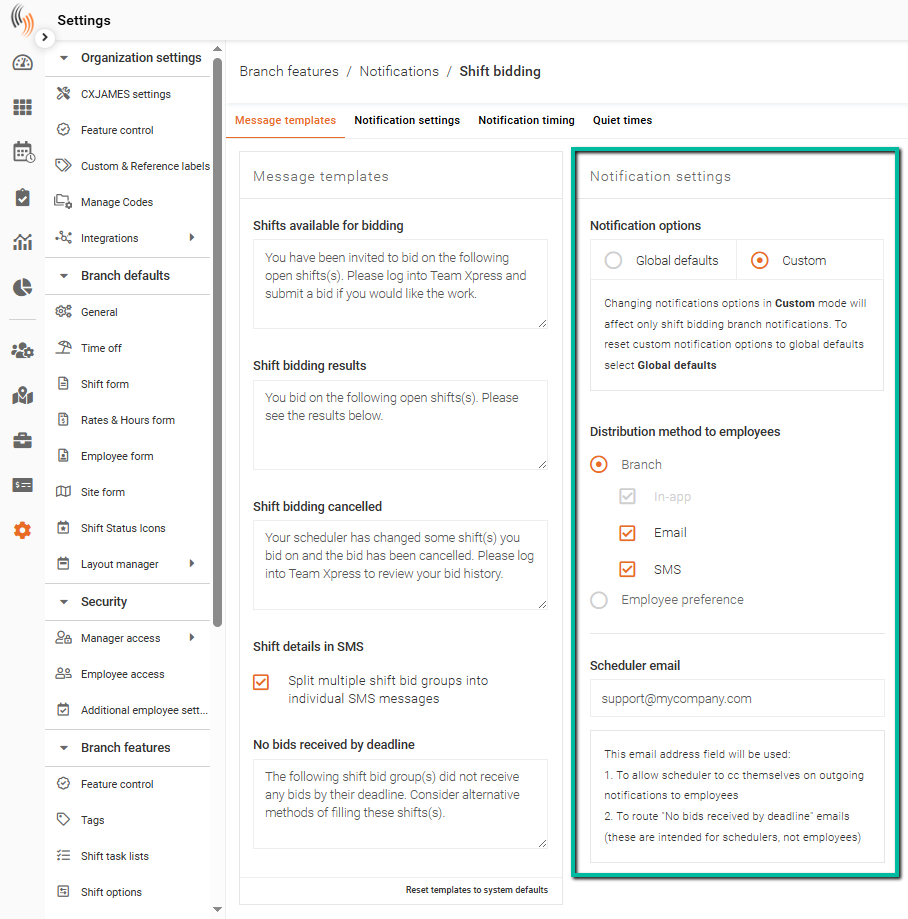
Notification Timing for Shift Bidding
Notification Timing allows you to control when notifications are sent to employees and administrators.
Notifications can be sent:
- Immediately when an event occurs
- At specific times on selected days
To send notifications at a specific time, select At and configure your preferred days and times.
Notification Quiet Times for Shift Bidding
Notification Quiet Times allow you to prevent notifications from being sent during specific periods.
This helps reduce alerts outside of normal working hours.
To configure quiet times:
- Select the start and end times.
- Choose the days the quiet period should apply to.
If you need multiple quiet periods, click Add Another Quiet Hours Time Slot.