Filter Services and Customize Columns
Learn how to filter and customize service data in Schedule Xpress for quick, efficient access.
Filtering helps you quickly find the information you need. In Schedule Xpress, filters and column customization options let you narrow results and tailor your view for clarity and relevance.
As an Admin, you can display only the services and information that matter most.
Service Status Filter
Use the Service Status filter to display:
- All services
- Active services
- Inactive services
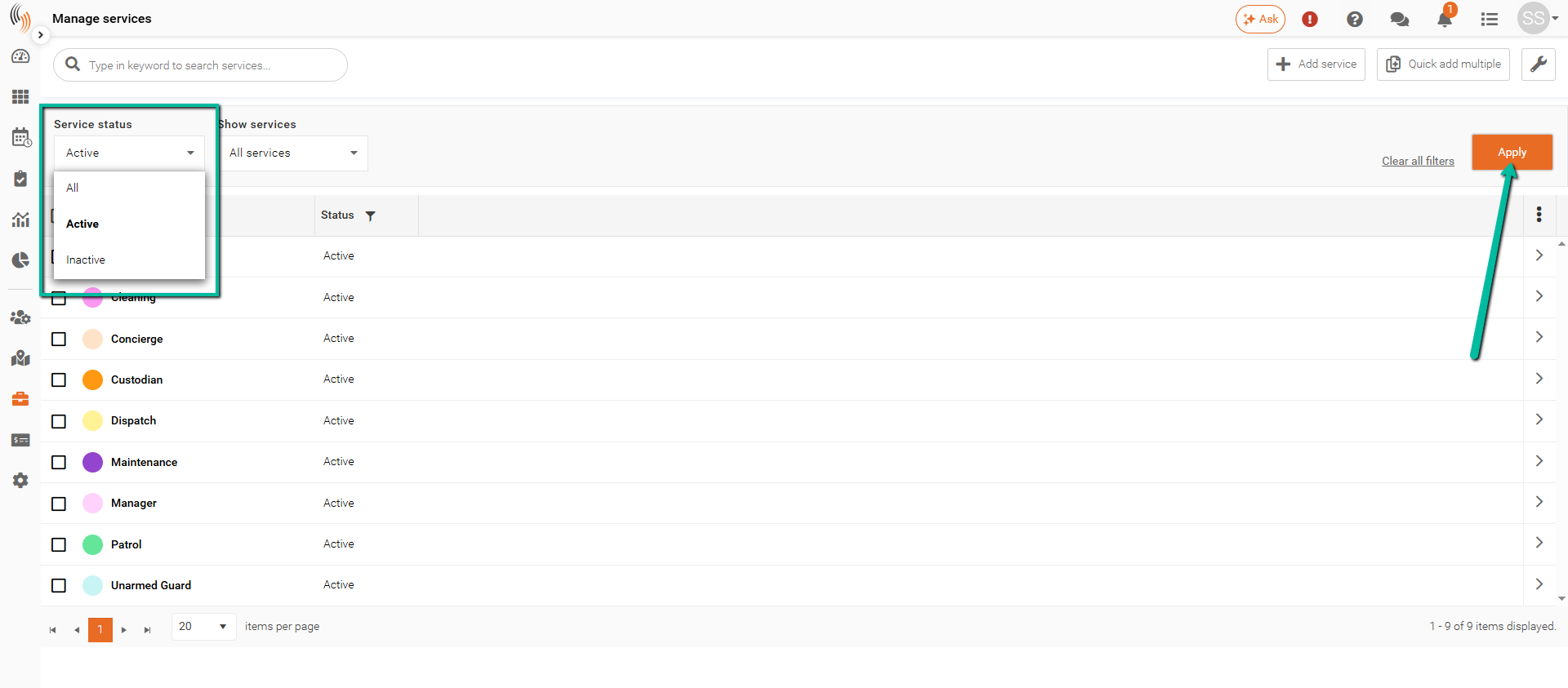
To filter by service status:
- Select a status from the Service Status dropdown menu.
- Click Apply.
Show Services Filter
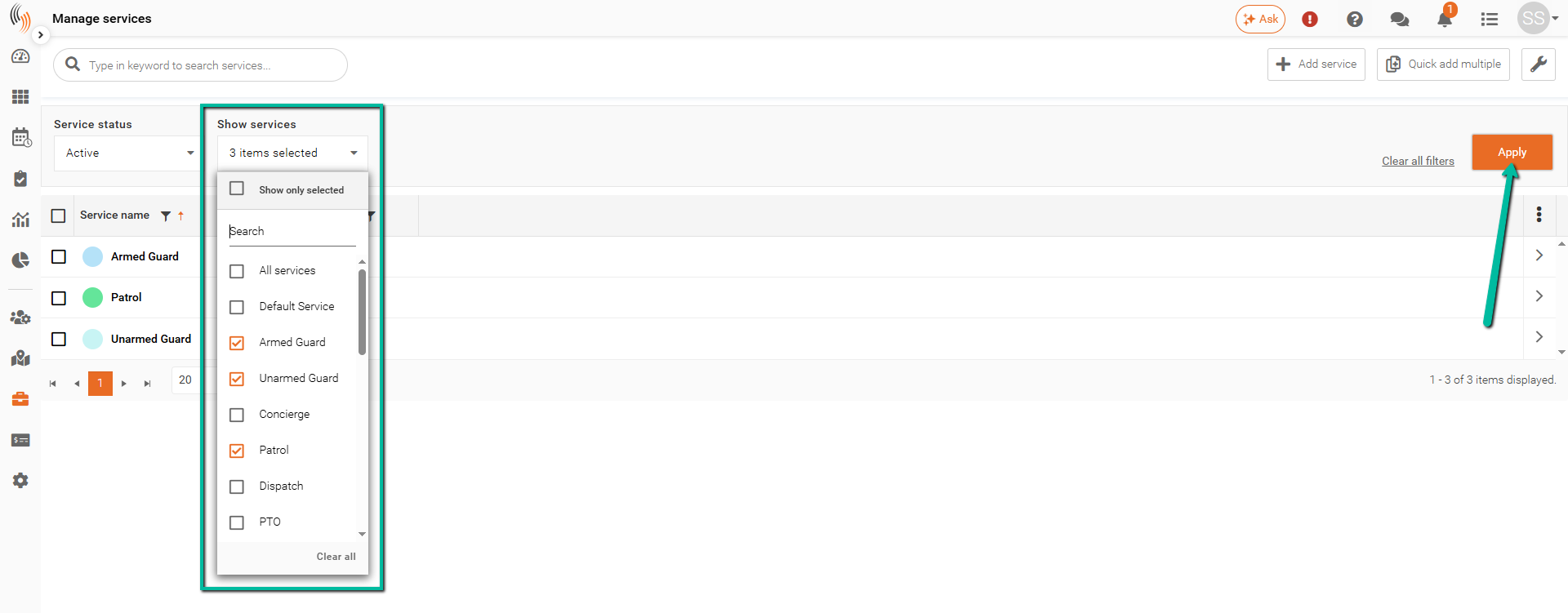
Use the Show Services filter to display specific services.
To filter services:
- Check the boxes next to the services you want to view.
- Select as many services as needed.
- Click Apply.
Clear All Filters
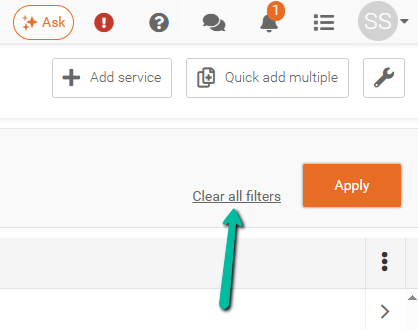
To remove all selected filters, click Clear All Filters.
This resets the screen to display all service data.
Customize Service Display Columns
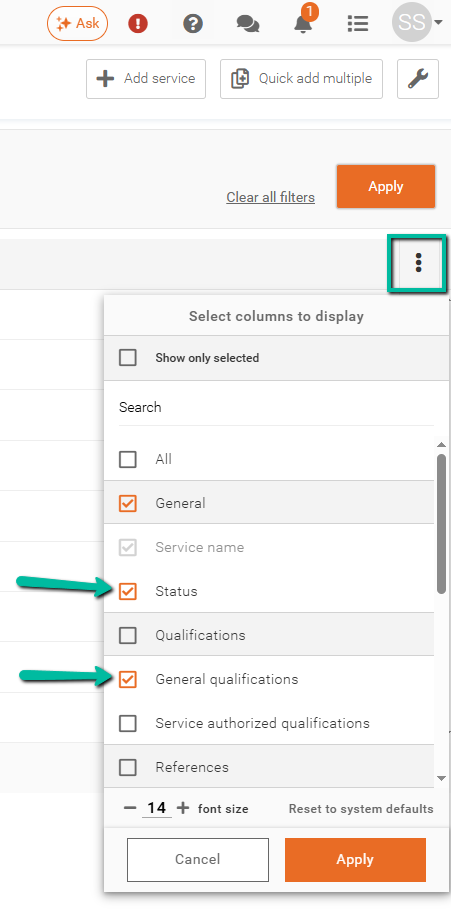
You can control which columns appear in the Manage Services list to better suit your workflow.
- Click the three dots (⋮) in the top-right corner of the table
- Select or deselect the columns you want to display
- Click Apply to activate the changes.
This allows you to show only the most relevant service information, making the list easier to read and manage.