
Two-Factor Authentication (2FA)
Protecting your Schedule Xpress account starts with strong login security. Two-factor authentication (2FA) adds an extra layer of protection by requiring not just your password, but also a second verification step—such as a code from your phone or an authentication app. By enabling 2FA, you ensure that even if your password is compromised, unauthorized access to your account is prevented.
Why use Two-Factor Authentication (2FA)?
Using Two-Factor Authentication (2FA) to log in to Schedule Xpress adds an extra layer of security beyond just a password. Even if someone steals or guesses your password, they cannot access your account without the second factor—usually a temporary code sent to your phone or generated by an authenticator app.
Celayix Apps Supported by Two-Factor Authentication (2FA)
2FA can be used with the following Celayix application:
- Schedule Xpress – Web-based scheduling and management portal.
Recommended Two-Factor Authentication (2FA) Apps for Celayix
The following authenticator apps are recommended for generating time-based one-time codes during login:
- Google Authenticator – simple, widely supported, and available on iOS and Android.
- Authy – offers cloud backup and multi-device sync for added convenience.
- Microsoft Authenticator – integrates easily with Microsoft accounts but works for any 2FA-supported service.
Using any of these apps helps ensure your scheduling information stays secure even if your password is compromised.
Set Up Two-Factor Authentication in Schedule Xpress
If the option to use 2FA hasn’t already been enabled for your account, you’ll need to contact the Celayix support team to activate it.
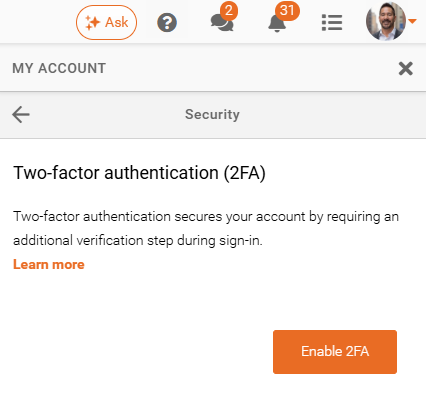
Once it’s enabled, you can go to My Account > Security > Enable 2FA to start the setup process using your preferred authenticator app.
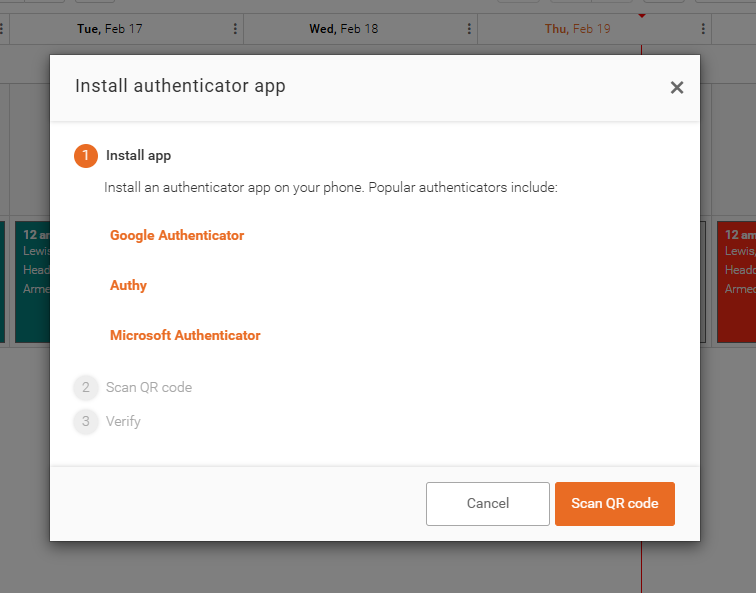
Next, you'll arrive at the Install App section, where you'll find a list of popular authenticator apps to choose from, in case you haven't downloaded one yet.
Click Scan QR code to proceed to the next step.
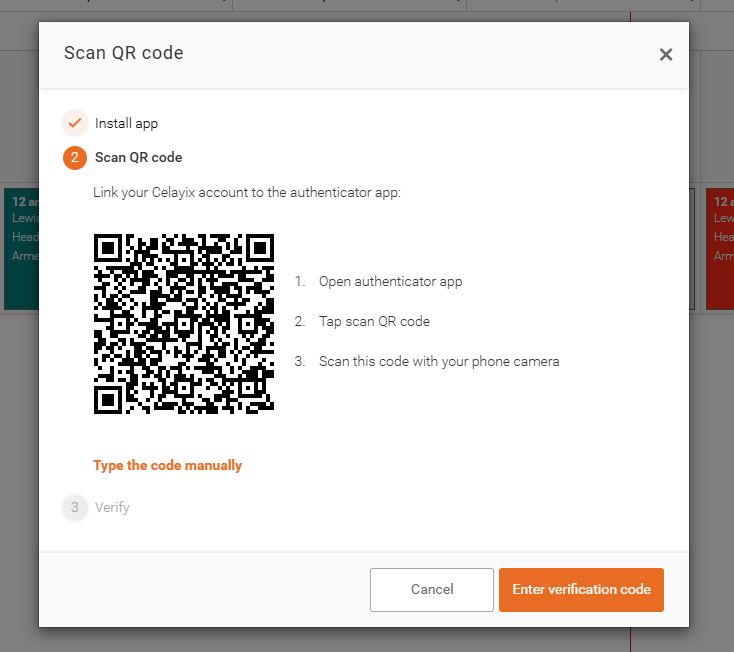
The next phase is to:
- Open your authenticator app
- Tap scan QR code
- Scan the code with your phone camera
If you can't scan the QR code, you can also click on Type the Code Manually (located below the QR code) to copy the code and paste it into your authenticator.
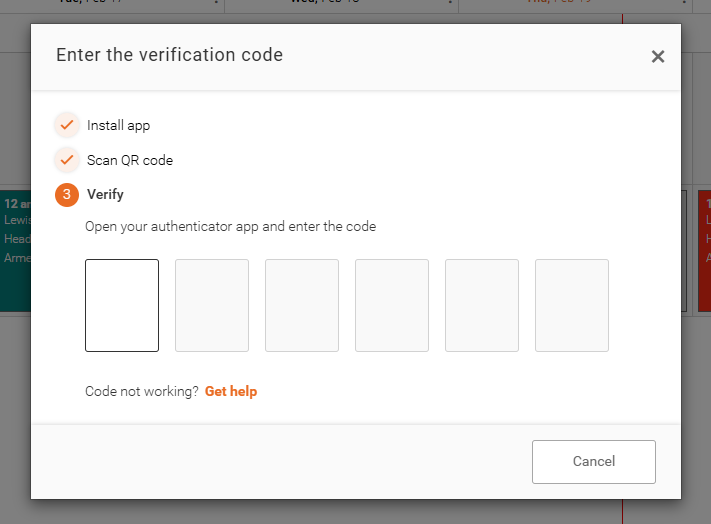
The last step is to enter the verification code to complete the process.
Important: When you enter the correct code, you'll receive a recovery key. Make sure to read about it in the following step.
Recovery Key for Two-Factor Authentication (2FA)
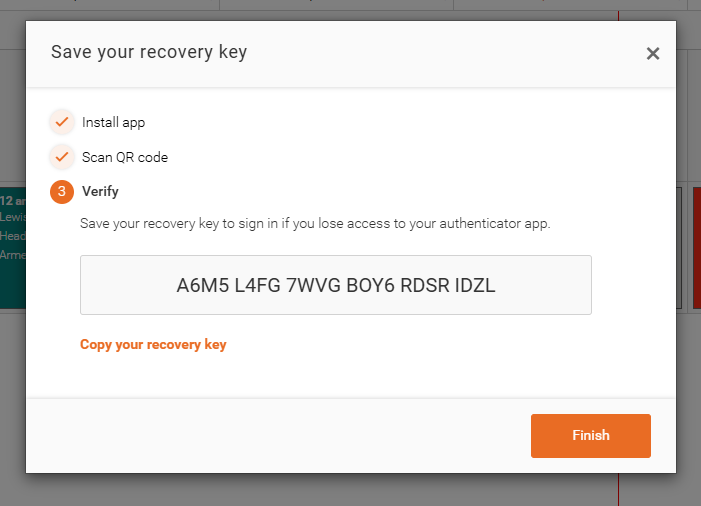
When you've verified 2FA on your Celayix account, you’ll receive a recovery key. This key is essential for regaining access if you ever lose your 2FA device or can’t generate authentication codes. Keep it secure and private, as it allows you to log in and reset your 2FA, ensuring you’re never locked out of your account.
After copying the recovery key, click Finish to complete the process. You can now authenticate your log in to Schedule Xpress.
Lost Your Recovery Key?
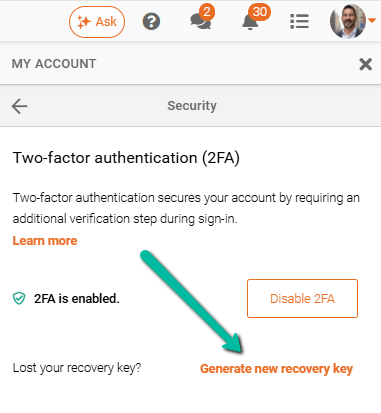
If you lost your recovery key, go to My Account > Security and click Generate New Recovery Key. Follow the prompts to securely create and save a new key for future access.
Sign in to Schedule Xpress using Two-Factor Authentication (2FA)
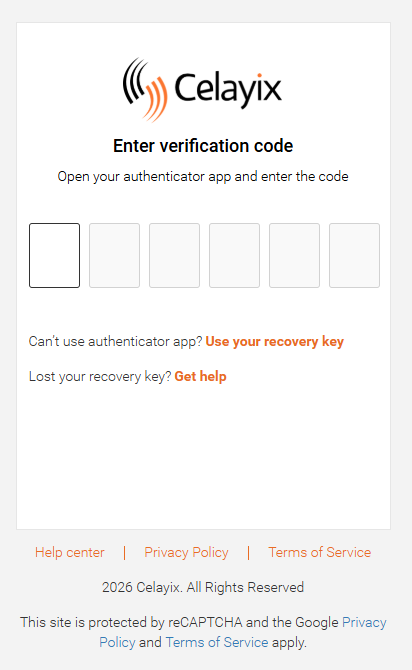
When you sign in to Schedule Xpress, you’ll be prompted to enter your two-factor authentication (2FA) code for added security.
After entering your username and password, simply type in the verification code sent to your authentication app to complete the sign-in process.
If you don’t have access to your 2FA code, you can choose the option to use your recovery key instead. Entering your recovery key will securely verify your identity and allow you to access your account.
Disable Two-Factor Authentication (2FA) in Schedule Xpress
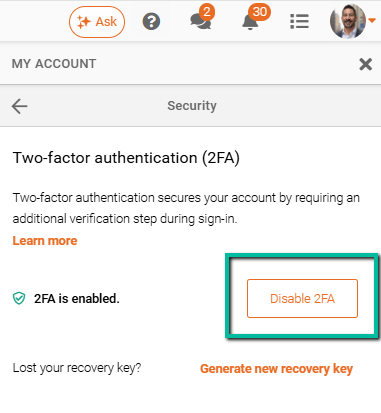
If you want to disable 2FA, go to My Account > Security and click Disable 2FA.
Contact Support to Activate Two-Factor Authentication (2FA) in Your Celayix Database
If 2FA hasn’t yet been enabled in your Celayix database, you’ll need to reach out to the Celayix support team to have it activated. Once enabled on the backend, users can then set up 2FA in their accounts, ensuring an added layer of security across your organization’s scheduling platform.