Set Up Geofencing for Sites
Geofencing is a location-based feature in Schedule Xpress that allows administrators to validate employee locations during check-in and check-out. By creating a virtual boundary around a site, organizations can help improve attendance accuracy, reduce unauthorized clock actions, and strengthen workforce accountability.
Why Use Geofencing?
Geofencing helps organizations:
- Improve Time and Attendance Accuracy – Verify that employees are physically at the site when performing clock actions.
- Support Accurate Payroll and Billing – Ensure time records are tied to verified locations.
- Reduce Administrative Effort – Minimize manual timekeeping reviews and adjustments.
- Enhance Safety and Compliance – Confirm employees are working at approved locations.
- Increase Workforce Accountability – Provide visibility into where employees are checking in and out.
How to Set Up Geofencing
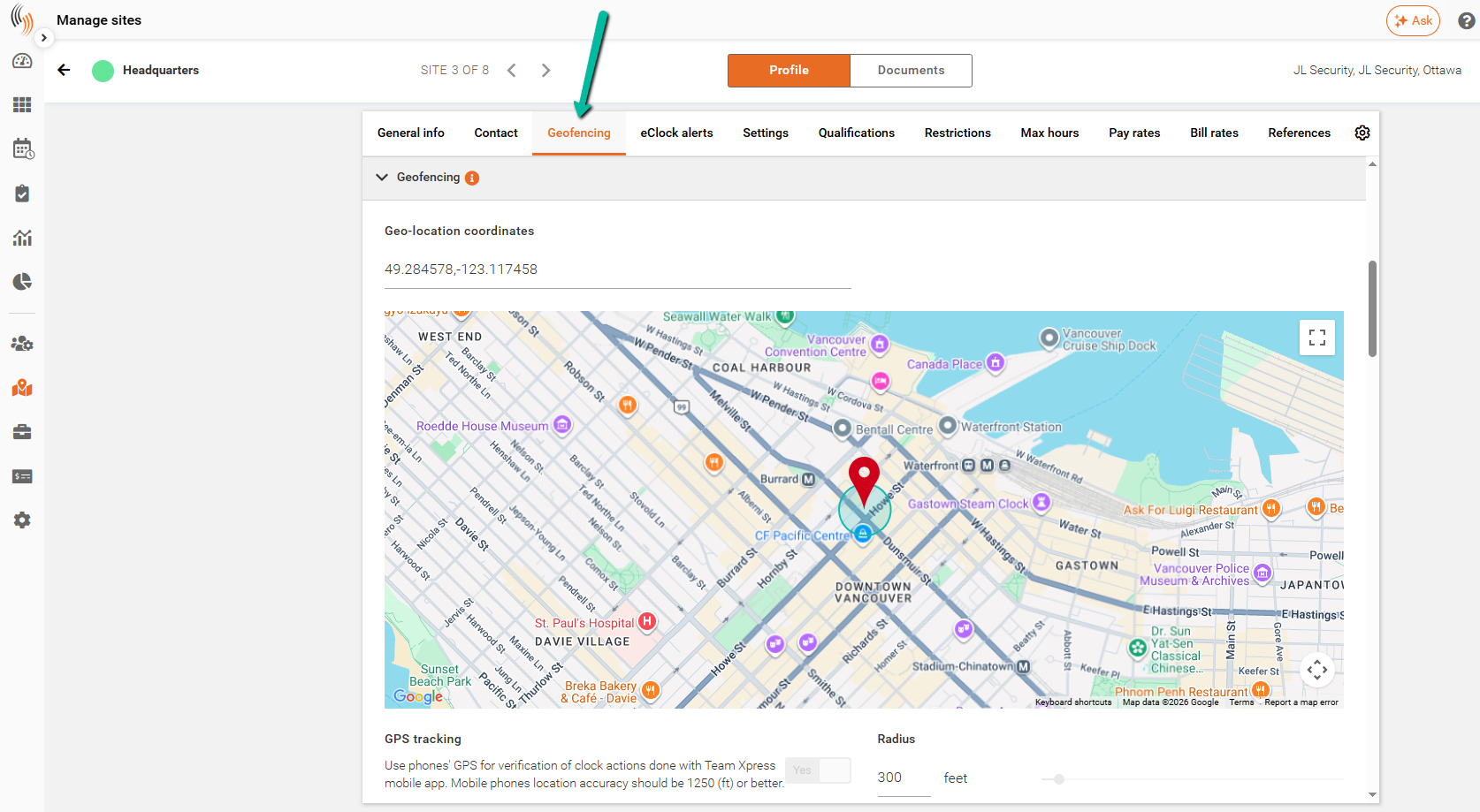
To configure geofencing for a site, navigate to:
Manage Sites → Select Site → Geofencing
Configure Geofencing Coordinates
To obtain accurate geolocation coordinates, first complete the site's address information in the Contact section.
Alternatively, if you already know the latitude and longitude, you can enter them directly into the Geo-Location Coordinates field.
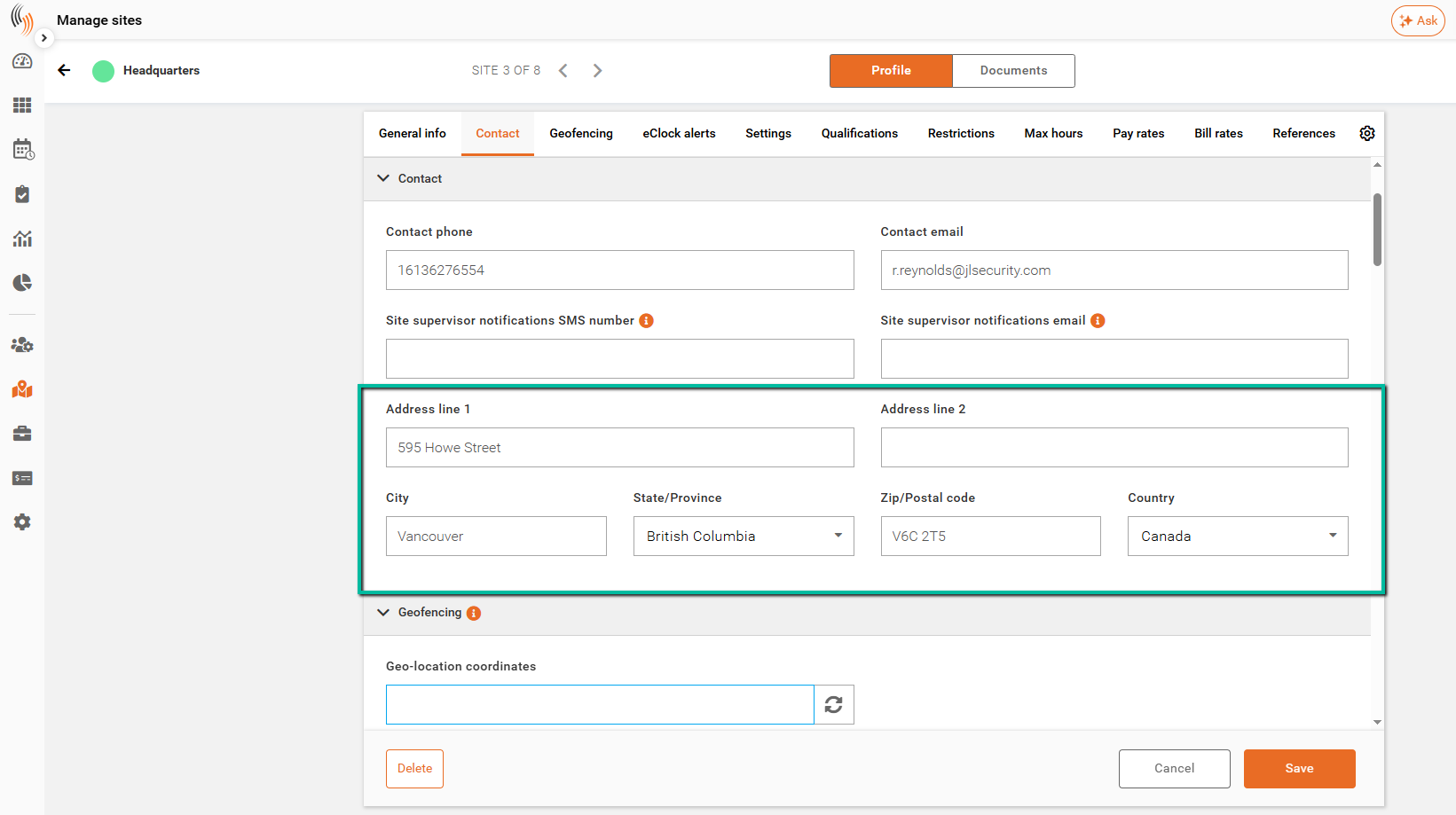
Once the address has been entered:
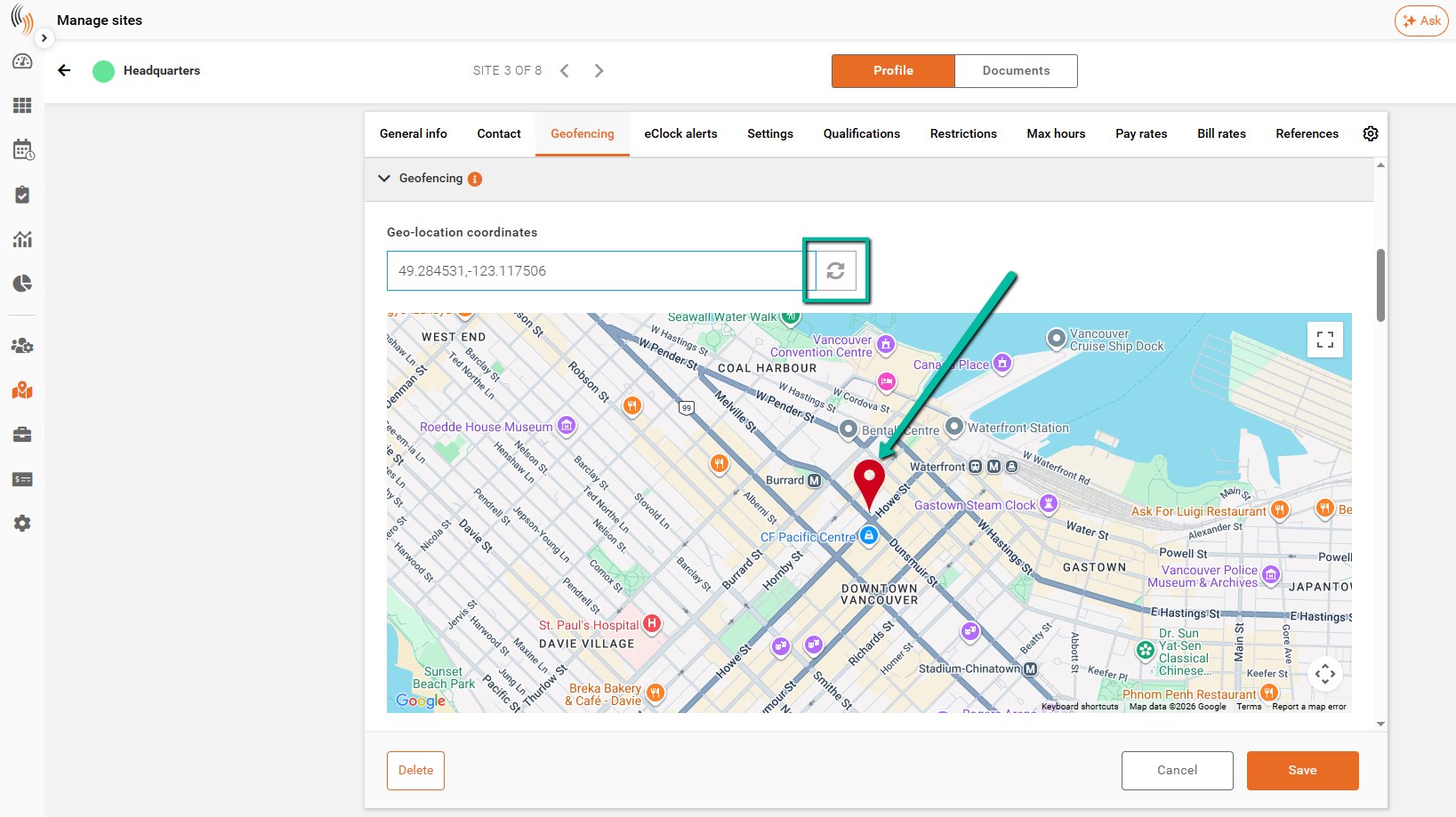
- Navigate to the Geofencing tab.
- Click the Refresh arrows beside the coordinates field.
- The system will automatically populate the Geo-Location Coordinates.
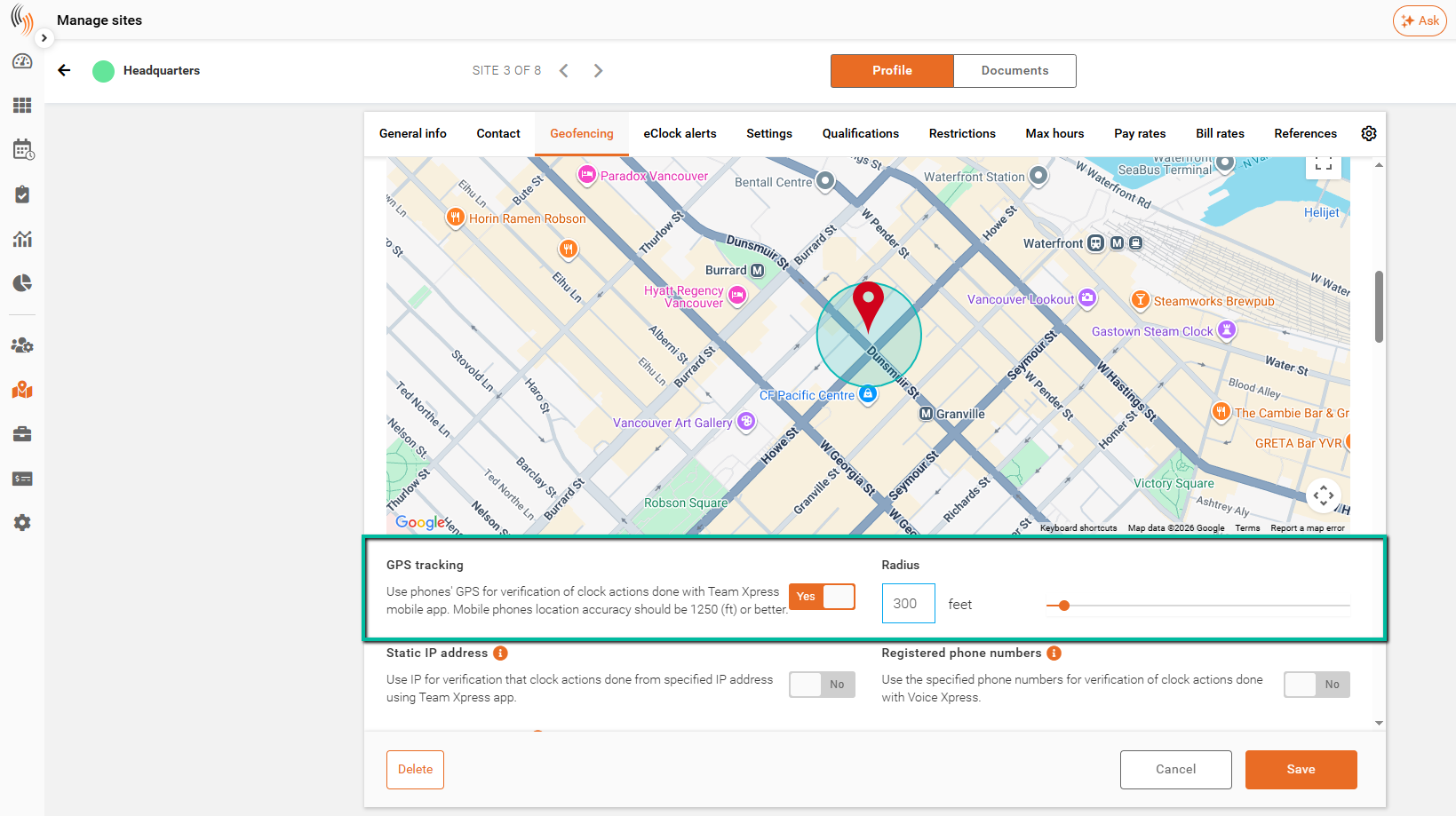
- A red pin will appear on the map indicating the site location.
The red pin represents the center point of the geofence and can be repositioned by clicking and dragging it on the map.
Enable GPS Tracking
To create a geofence:
- Set GPS Tracking to Yes.
- Enter the desired radius or adjust the radius using the slider.
- The geofence boundary will automatically appear on the map.
The selected radius determines how close employees must be to the site when performing clock actions.
Important Note: Geofencing in Schedule Xpress is only used to validate employee location during Check-In and Check-Out. Employee locations are not continuously tracked.
Configure Geofencing Verification
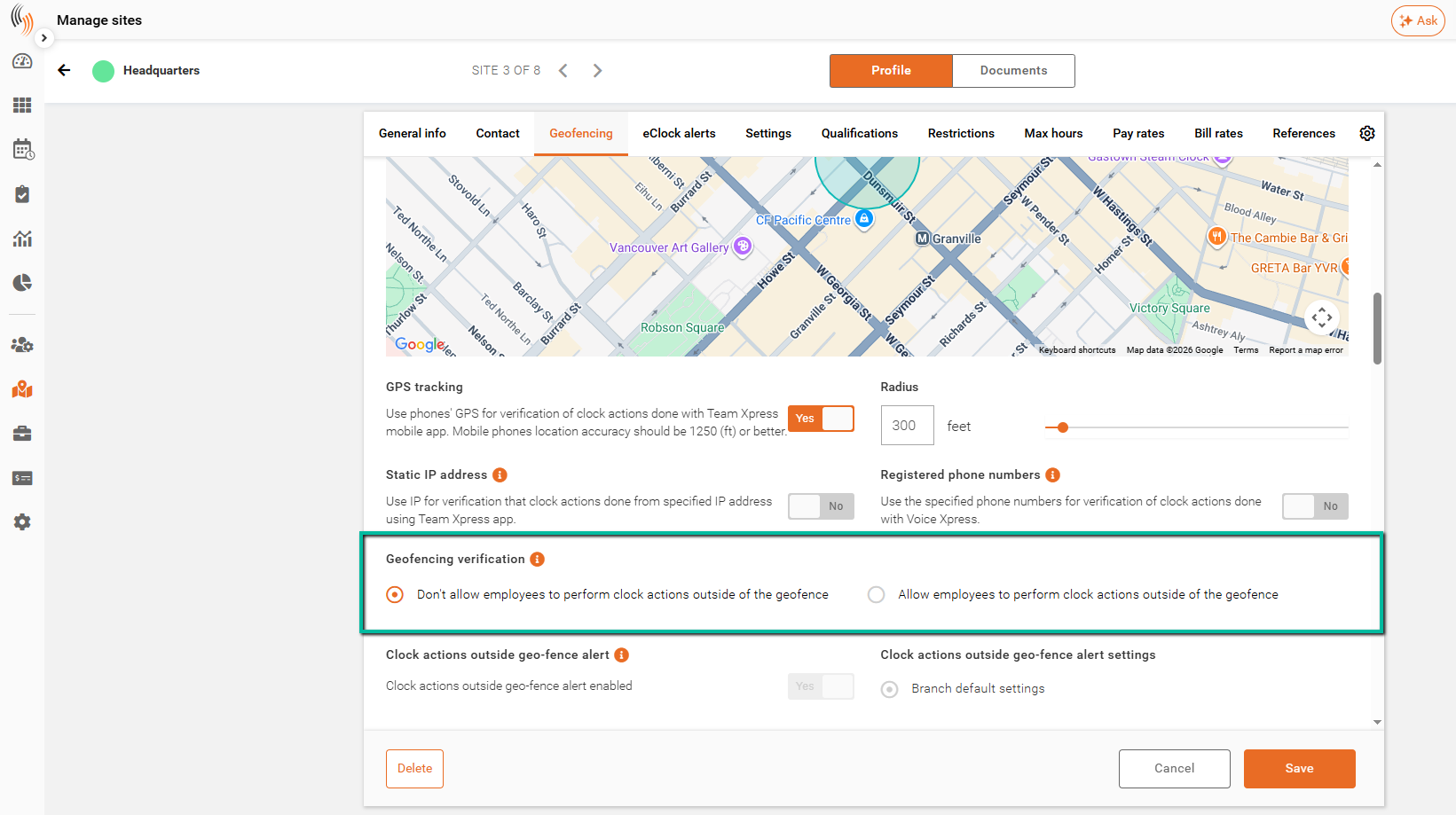
Geofencing Verification determines whether employees can perform clock actions outside the geofence.
Don't Allow Employees to Perform Clock Actions Outside of the Geofence
Employees must be located within the configured geofence radius to complete Check-In and Check-Out actions.
If they are outside the geofence, the clock action will be blocked.
Allow Employees to Perform Clock Actions Outside of the Geofence
Employees can perform Check-In and Check-Out actions outside the geofence after confirming they have authorization to do so.
Note: By default, sites are configured to allow clock actions outside the geofence.
How Geofencing Appears for Employees
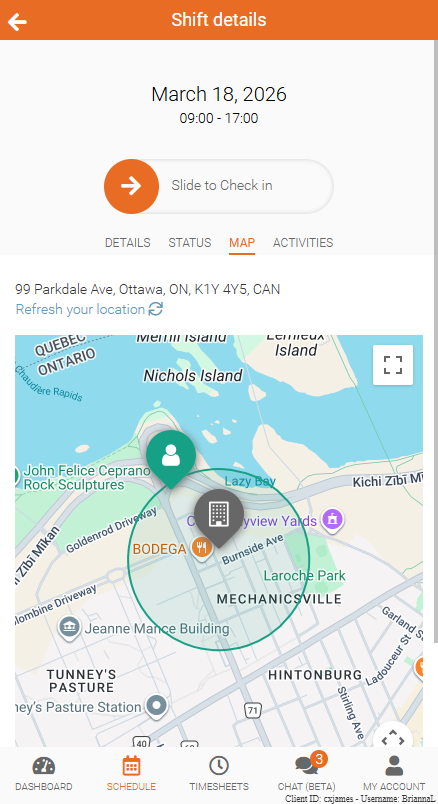
Once geofencing has been configured, employees will see location validation during Check-In and Check-Out within Team Xpress.
For more information, see Geofence for Check-Ins and Check-Outs.