Delete Services
Deleting unused services can help keep Manage Services organized and reduce clutter when scheduling. However, deleting a service should be done with caution, as it may impact historical data.
Important Note: Deleting a service is permanent and cannot be undone.
Before a service can be deleted, all shifts associated with that service must also be deleted. This will remove related historical data, which may impact payroll, billing, and reporting.
As a best practice, consider setting the service to Inactive instead. This preserves historical records while preventing the service from being used for future scheduling.
Delete a Service
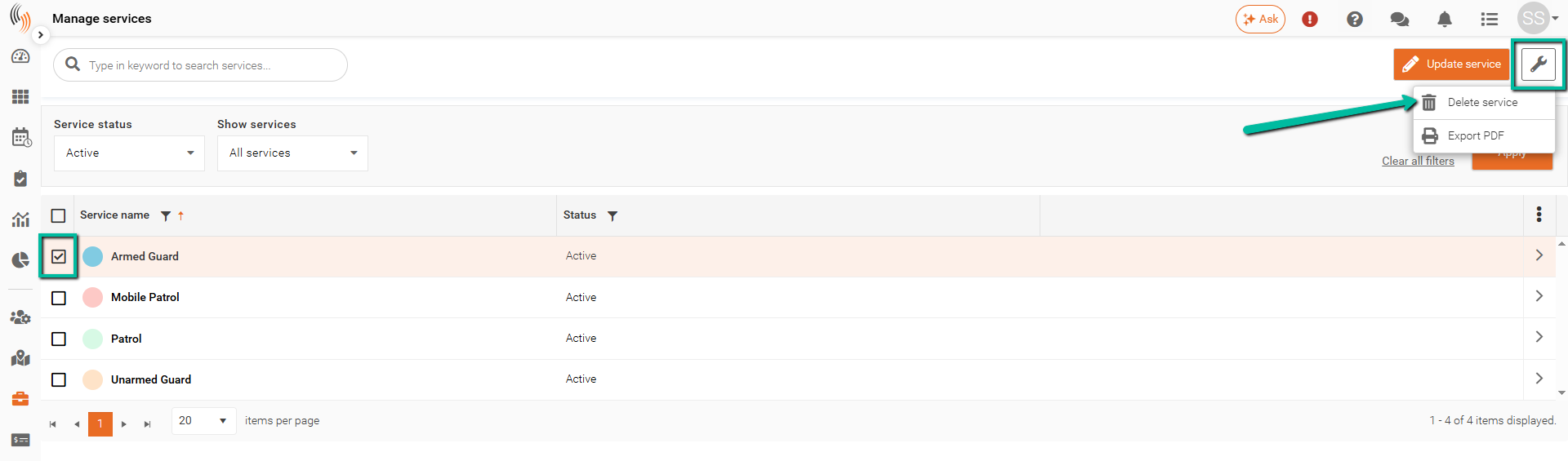
You can delete a service either from the Manage Services list or from within the service profile (see images below).
From the Manage Services list
- Select the service you want to delete
- Click the Wrench icon in the top-right corner
- Select Delete Service
- Click Delete in the confirmation dialog
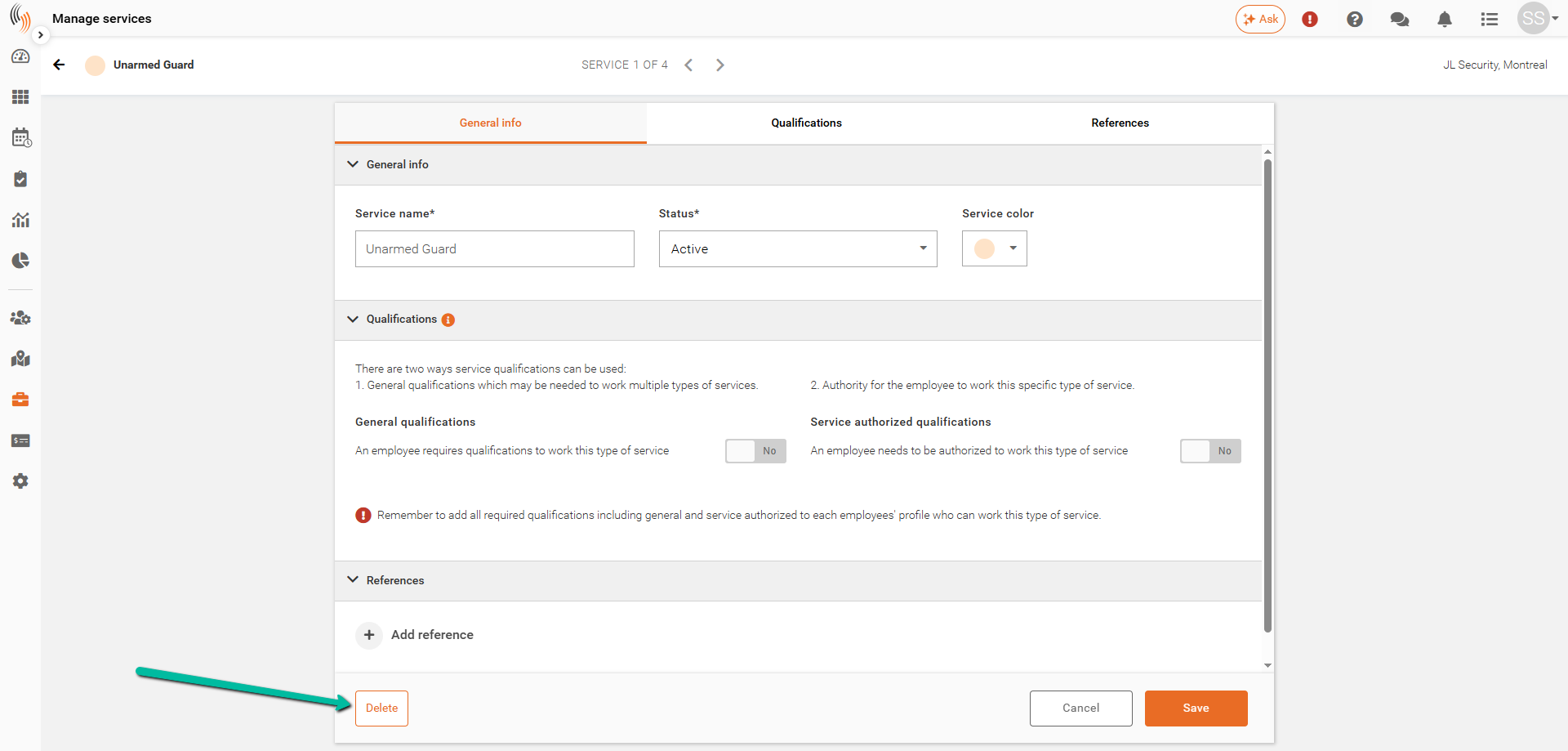
From the Service Profile
- Locate and select the service you want to delete
- Click Edit Service
- Click Delete (bottom-left corner)
- Click Delete again to confirm
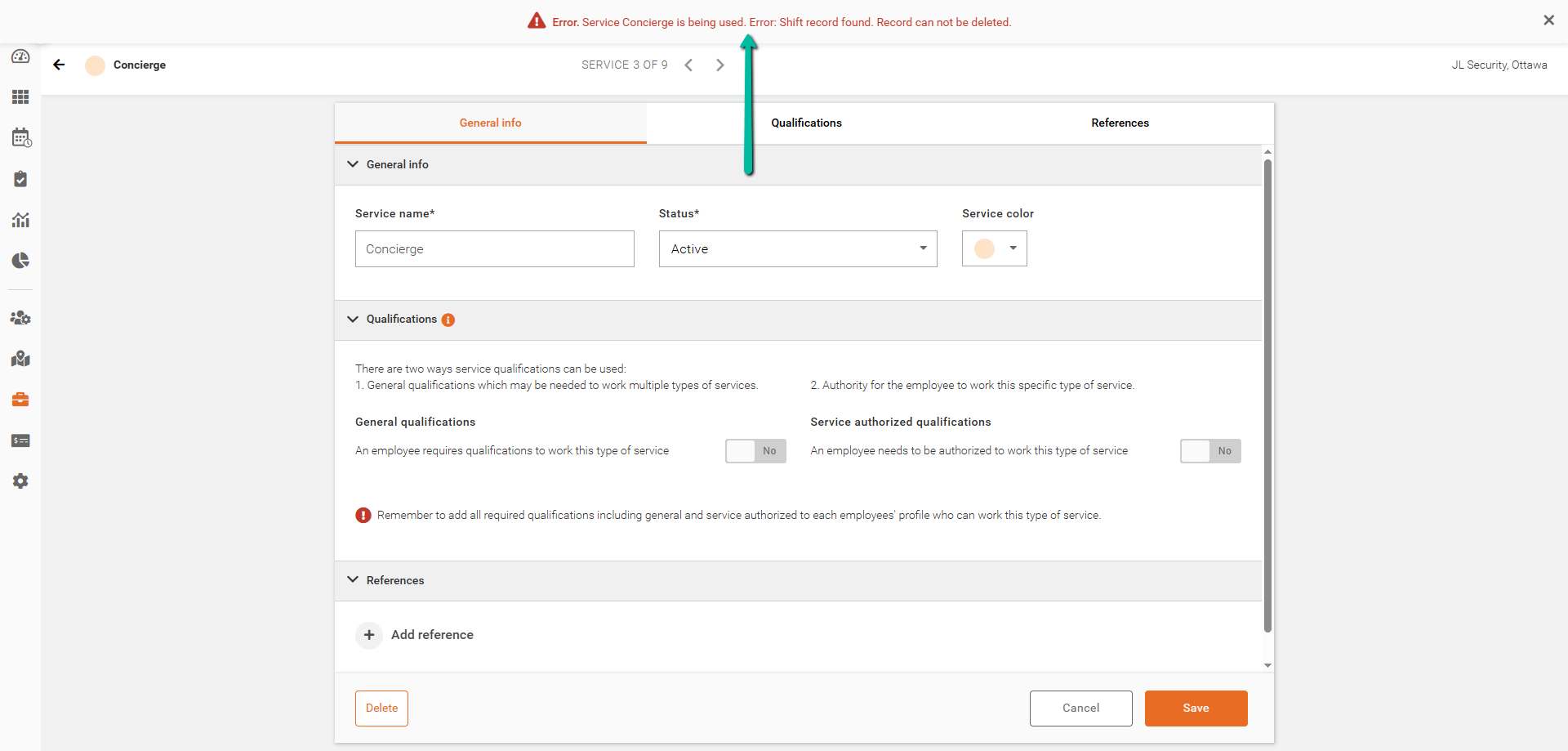
Error Message When Deleting a Service
If a service has associated shifts, an error message will appear indicating that shift records have been found. To proceed, all shifts linked to the service must be deleted.
Important: Deleting these shifts will result in the loss of all related historical data.