Shift Changes History
Shift Change History shows a detailed record of all updates made to a shift, including what changed, who made the change, and when it occurred. Each shift includes a chronological timeline to help you quickly review activity.
Find Shift Change History
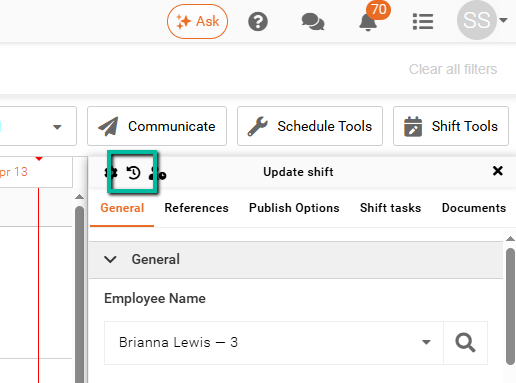
To view Shift Change History, open a shift and click the Show Shift Change History icon (backward-facing arrow) in the shift panel.
This is available in both the Schedule and Time Processing.
View Shift Change History
The information displayed varies depending on where it is accessed:
Schedule
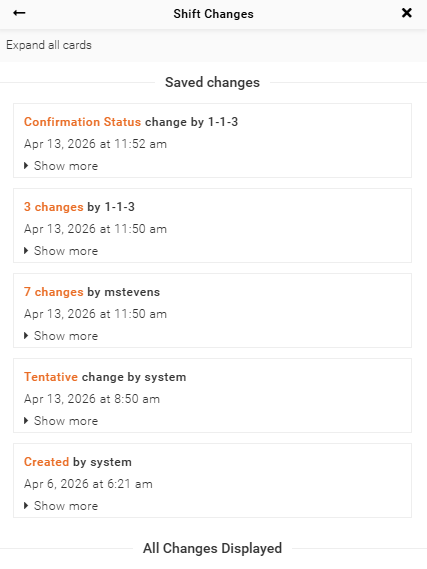
Displays all updates made within the shift panel, including shift creation, scheduled start and end times, breaks, and employee confirmations.
Time Processing
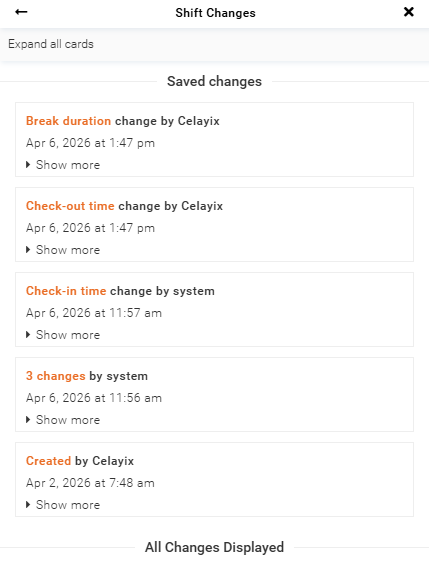
Displays both scheduling updates and time attendance records, including check-in and check-out activity and how those actions were performed.
Show More Details
Each entry in Shift Change History can be expanded to show additional details.
Click Show More to view the full breakdown of the change.
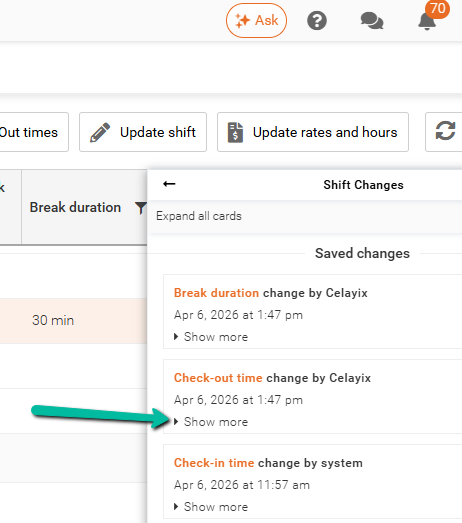
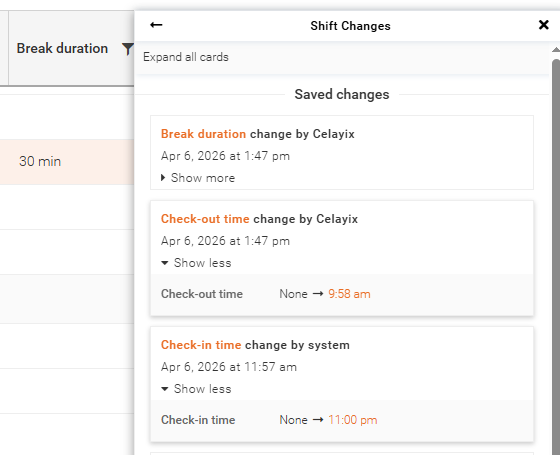
For example, if you expand the Check-In Time and Check-Out Time changes, you can view the exact updates, like when a check-in or check-out time has been modified.
Click Show Less to collapse the details.
Identify Who Made Changes
Each update shows the user responsible for the change.
- Changes made in the Team Xpress app display the employee ID
- Changes made by an Admin display the username
This makes it easy to identify who performed each action.
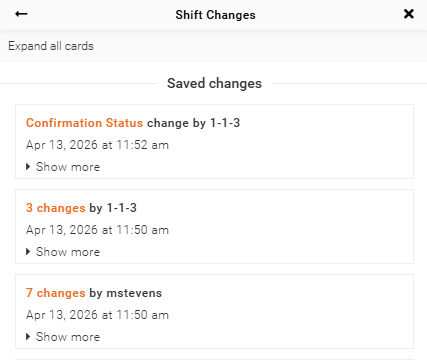
In the example below, the admin mstevens made 7 changes, while the employee (ID 3) made 4 changes, including confirming the shift.