Notify Employees
The Notify Employees feature allows Users to send notifications directly from Schedule Xpress.
Notifications are delivered through the Team Xpress app and can also be sent by Email or SMS if the employee has consented to receive them.
Find Notify Employees
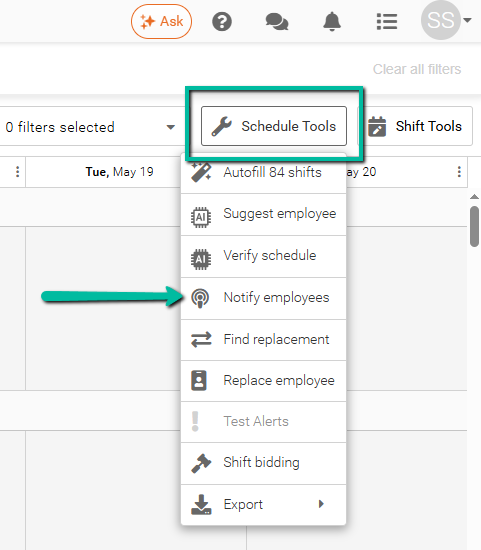
You can find Notify Employees after selecting a shift or multiple shifts under:
Schedule Tools → Notify Employees
Use Notify Employees
There are two primary ways to use Notify Employees:
- Send a general notification to employees
- Send notifications about selected shifts
The notification options available will depend on whether shifts are selected in the schedule.
Send a General Notification
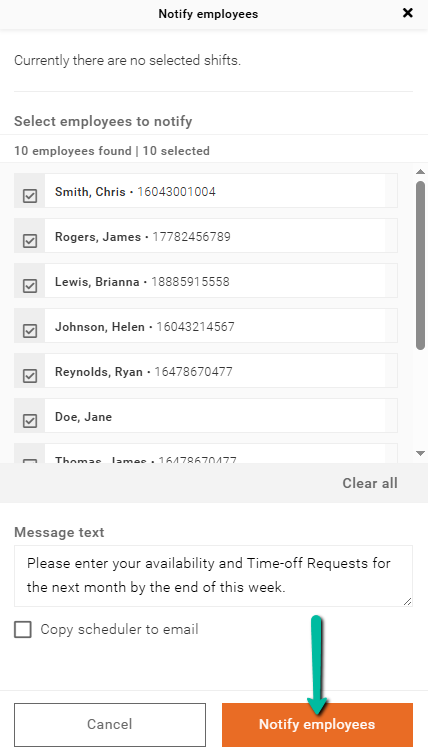
If no shifts are selected, Users can send a general notification to employees about any workforce-related information.
Example:
Please enter your availability and Time-off Requests for the next month by the end of this week.
To send a general notification:
- Open Schedule Tools → Notify Employees
- Ensure no shifts are selected
- Select the employees to notify
- Enter your message
- Click Notify Employees
The Select Employees to Notify list will default to all employees. Users can manually remove or select employees as needed.
Notify Employees About Open Shifts
If open shifts are selected, Users can notify employees who may be eligible to work those shifts.
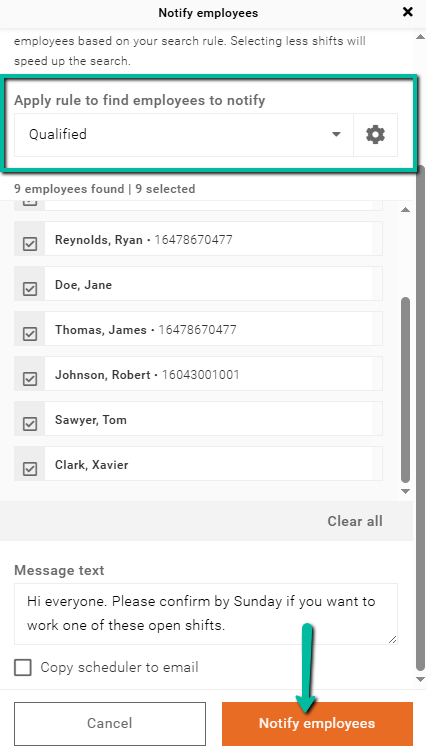
An Employee Search Rule must be applied to identify employees who match the shift requirements.
Only employees who qualify for at least one selected shift will appear in the notification list.
To send an open shift notification:
- Select one or more open shifts
- Open Notify Employees
- Apply an Employee Search Rule
- Select employees to notify
- Enter your message
- Click Notify Employees
Example:
Hi everyone. Please confirm by Sunday if you want to work one of these open shifts.
Notify Employees About Assigned Shifts
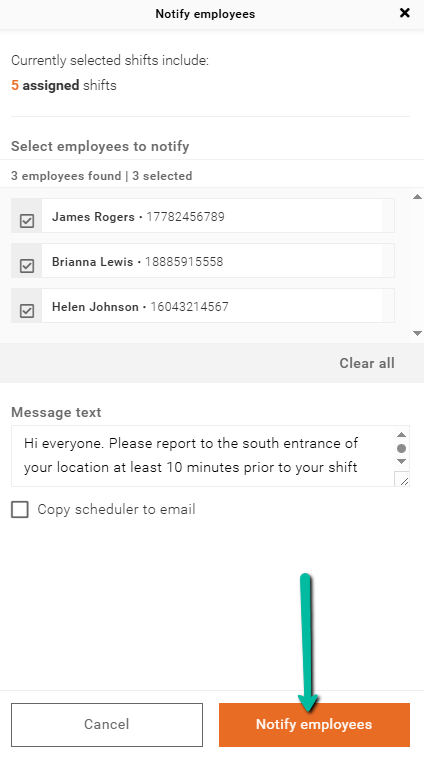
If assigned shifts are selected, Users can send notifications directly to the employees assigned to those shifts.
The employee list will automatically populate based on the selected shifts.
To send an assigned shift notification:
- Select assigned shifts in the schedule
- Open Notify Employees
- Review the employees selected
- Enter your message
- Click Notify Employees
Example:
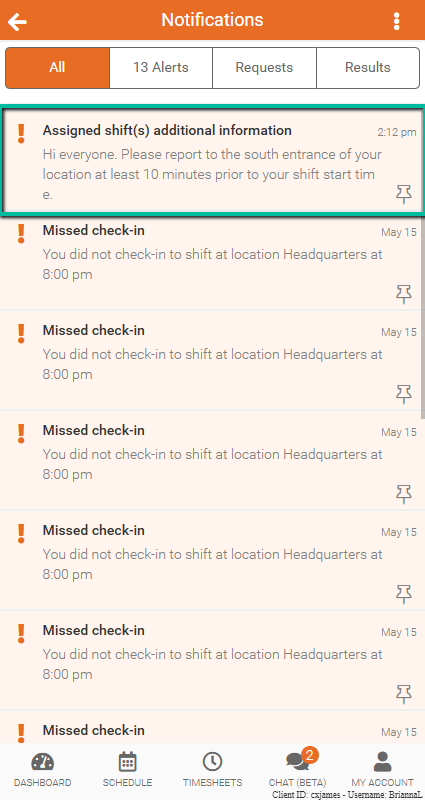
Hi everyone. Please report to the south entrance of your location at least 10 minutes prior to your shift start time.
Notification Delivery Methods
Notifications sent through Notify Employees are delivered through the Team Xpress app.
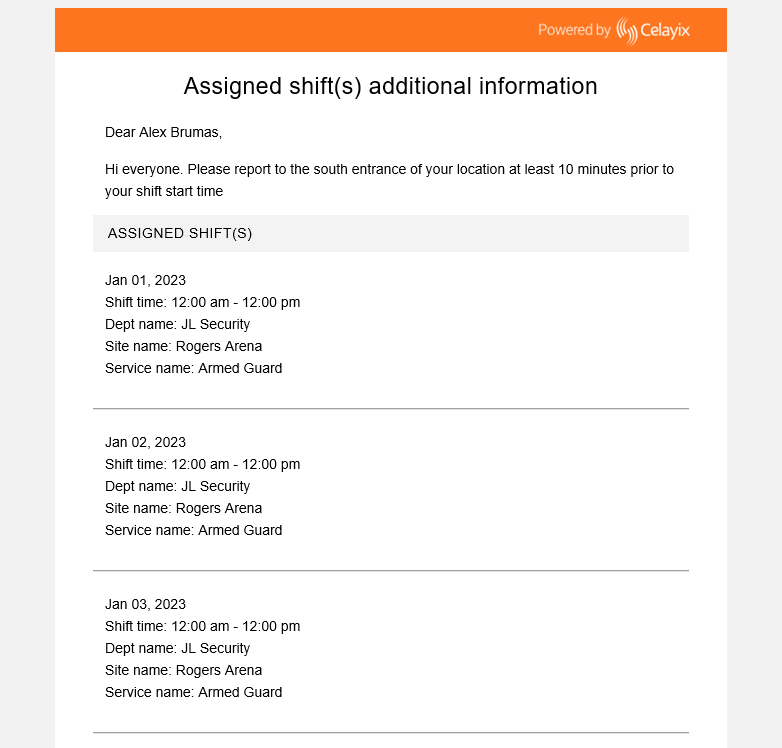
Depending on employee consent settings and available services, notifications can also be delivered through:
- SMS
Please note: To receive SMS notifications, you need an active SMS package with Celayix. For more information, please contact Celayix Support.
View Notify Employee Notifications in Team Xpress
Notifications sent through Notify Employees will also appear in the Notifications Panel (bell icon) within the Team Xpress app.
Employees will receive:
- Mobile push notifications
- Lock screen notifications
- Alerts within the Team Xpress app
This helps employees stay informed about schedule updates, open shifts, and workforce communications.