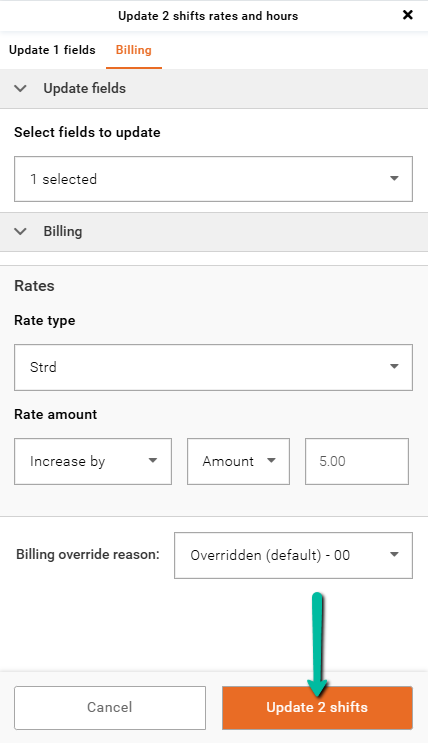
Update Rates and Hours
The Update Rates and Hours feature allows users to adjust payroll and billing details before shift approval—similar to Time Xpress or eTime Xpress.
- This is the final step prior to shift approval
- Users have full control to modify hours and rates before submission
Access the Rates & Hours Form
You can customize the display of rates and hours, and choose whether to enable the use of allowances.
- Go to Settings → Branch Defaults → Rates & Hours Form
OR
- Click the Settings icon in the Update Rates and Hours module
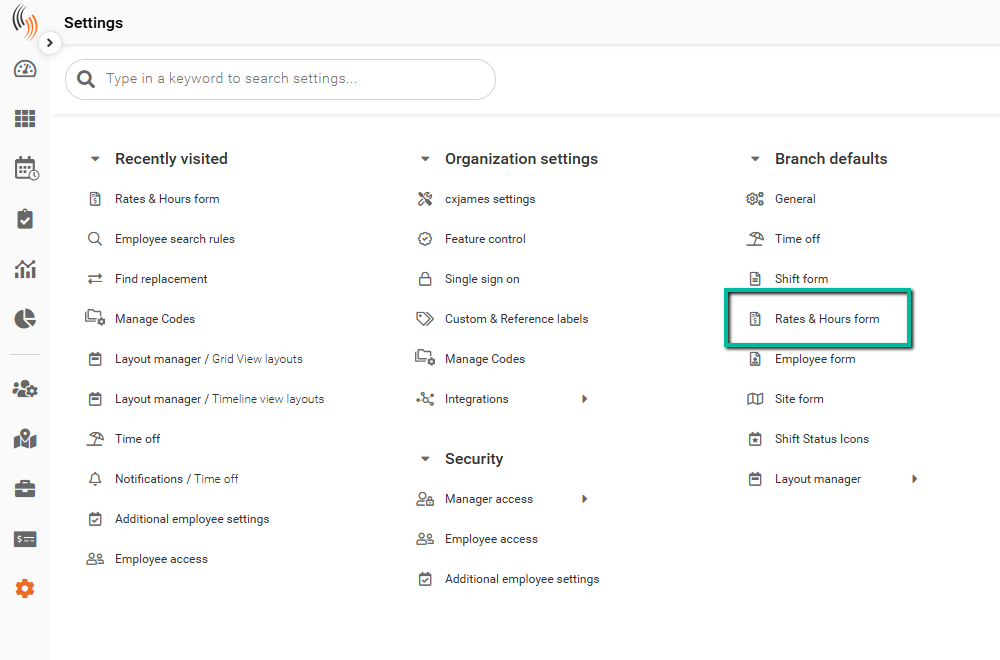
Configure the Rates & Hours Form
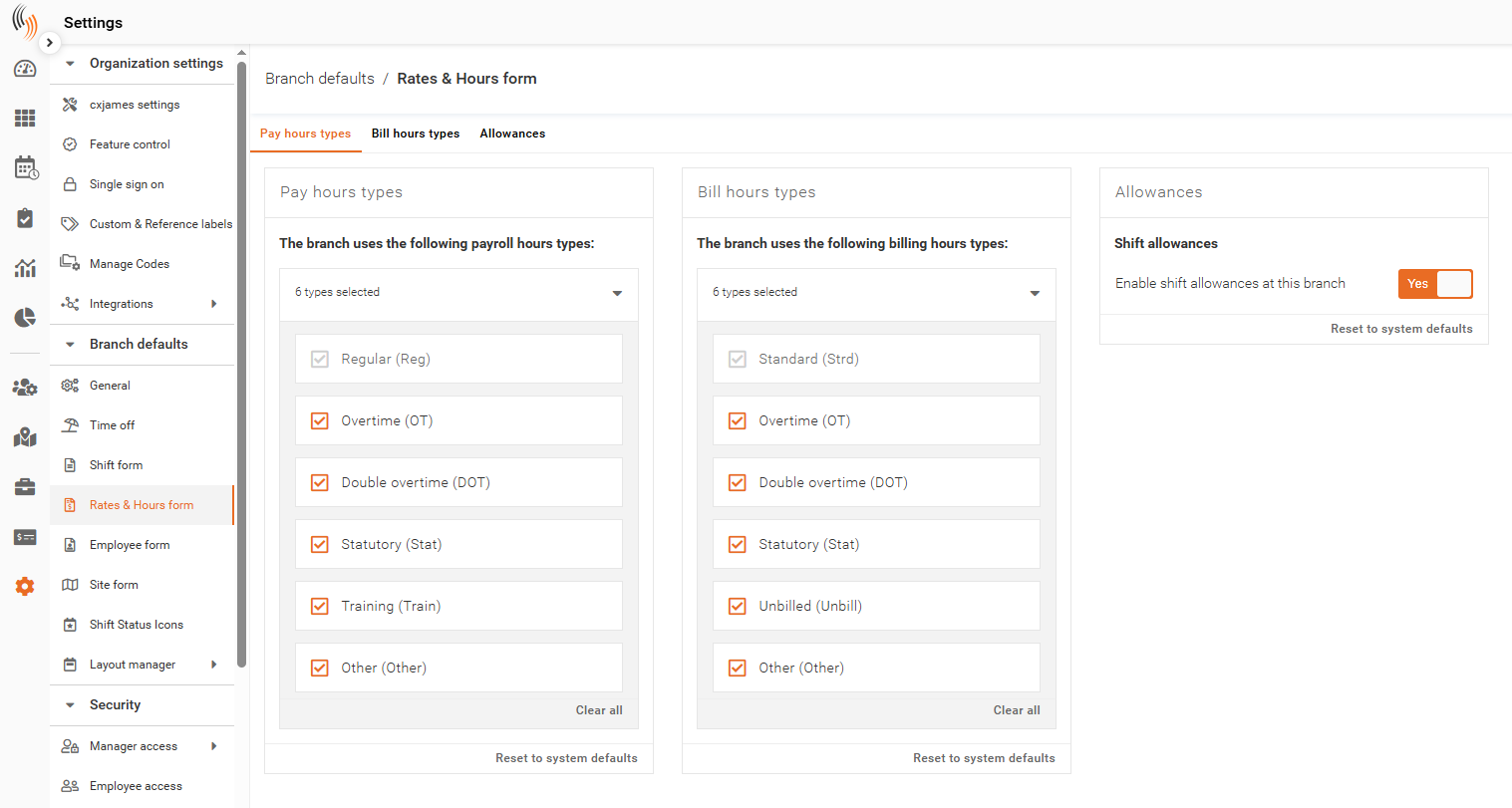
Within the form, you can select and unselect the pay hours types and bill hours types you want to display, and enable shift allowances if required.
If you want only specific pay types:
- Select Regular (Reg) and Overtime (OT)
- Unselect all other pay types
Only these will appear in the Update Rates and Hours module.
Note: Pay total, Shift total, Pay allowances, and Pay amount will still calculate correctly—even if some hour types do not display.
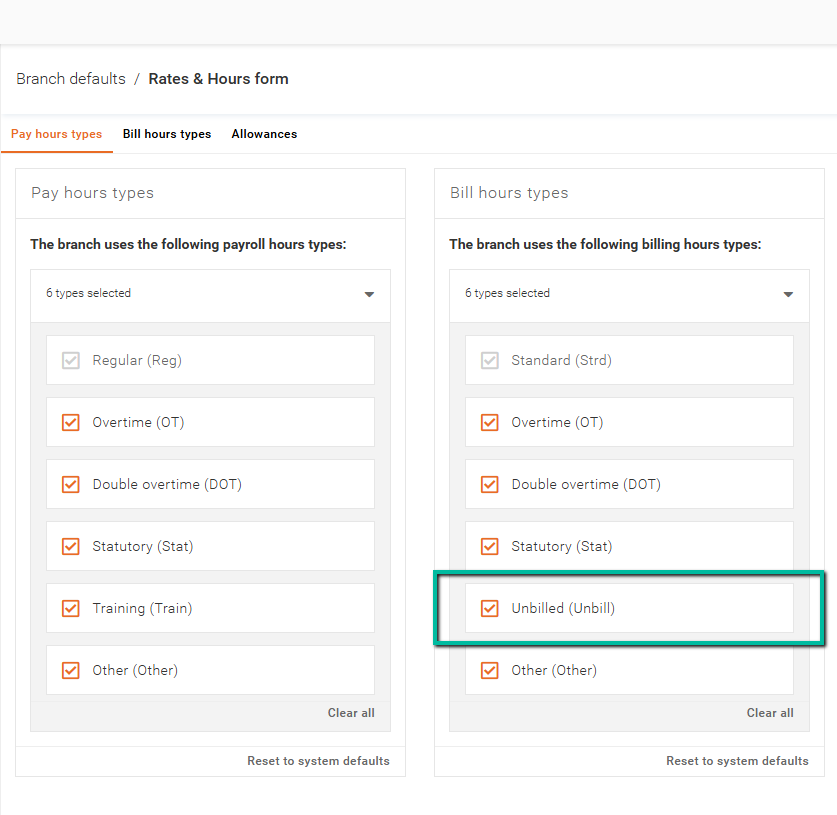
Unbilled Hours
Some services do not require billing. These are unbilled hours.
To include unbilled hours, select Unbilled (Unbill) under Bill hours types in the Rates & Hours form.
Update Rates and Hours in Time Processing
Begin by selecting a shift by checking the box to the left, then click Update Rates and Hours. You can also select multiple shifts to apply the same update in bulk.
Note: The system handles worked, unworked, and approved shifts differently. Worked shifts allow edits to rates and hours, while unworked and approved shifts cannot be edited and appear greyed out.
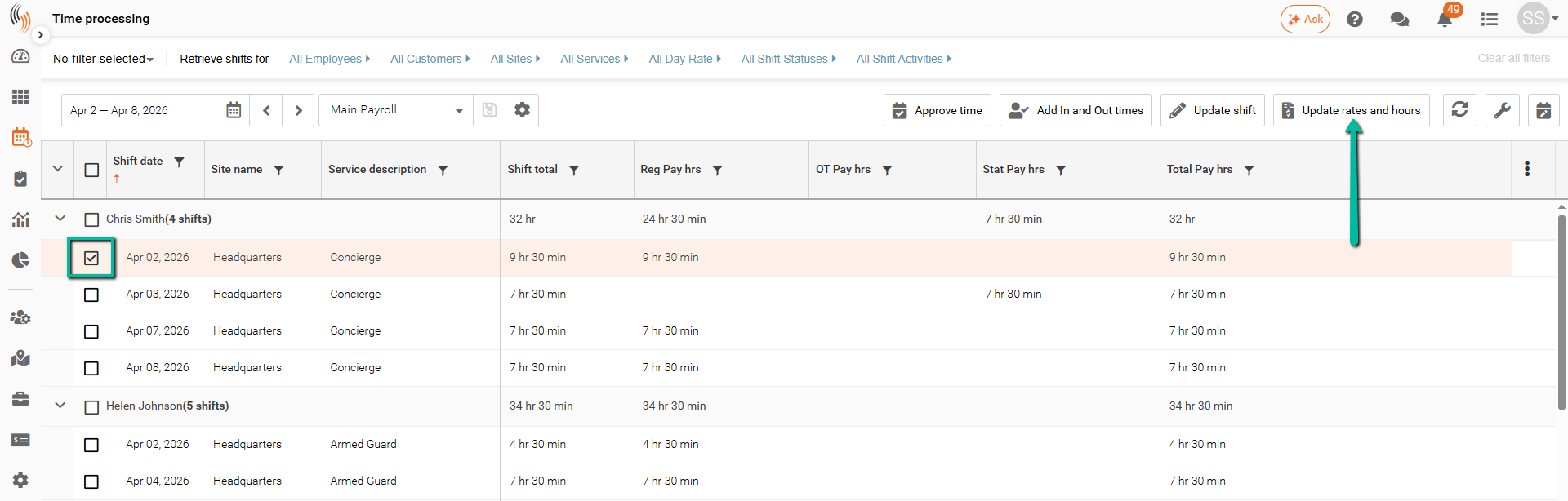
Edit Rates and Hours
For worked shifts, you can adjust how hours and rates apply to the shift by using the Payroll and Billing tabs in the Update Rates and Hours window.
Update Pay or Bill Hours
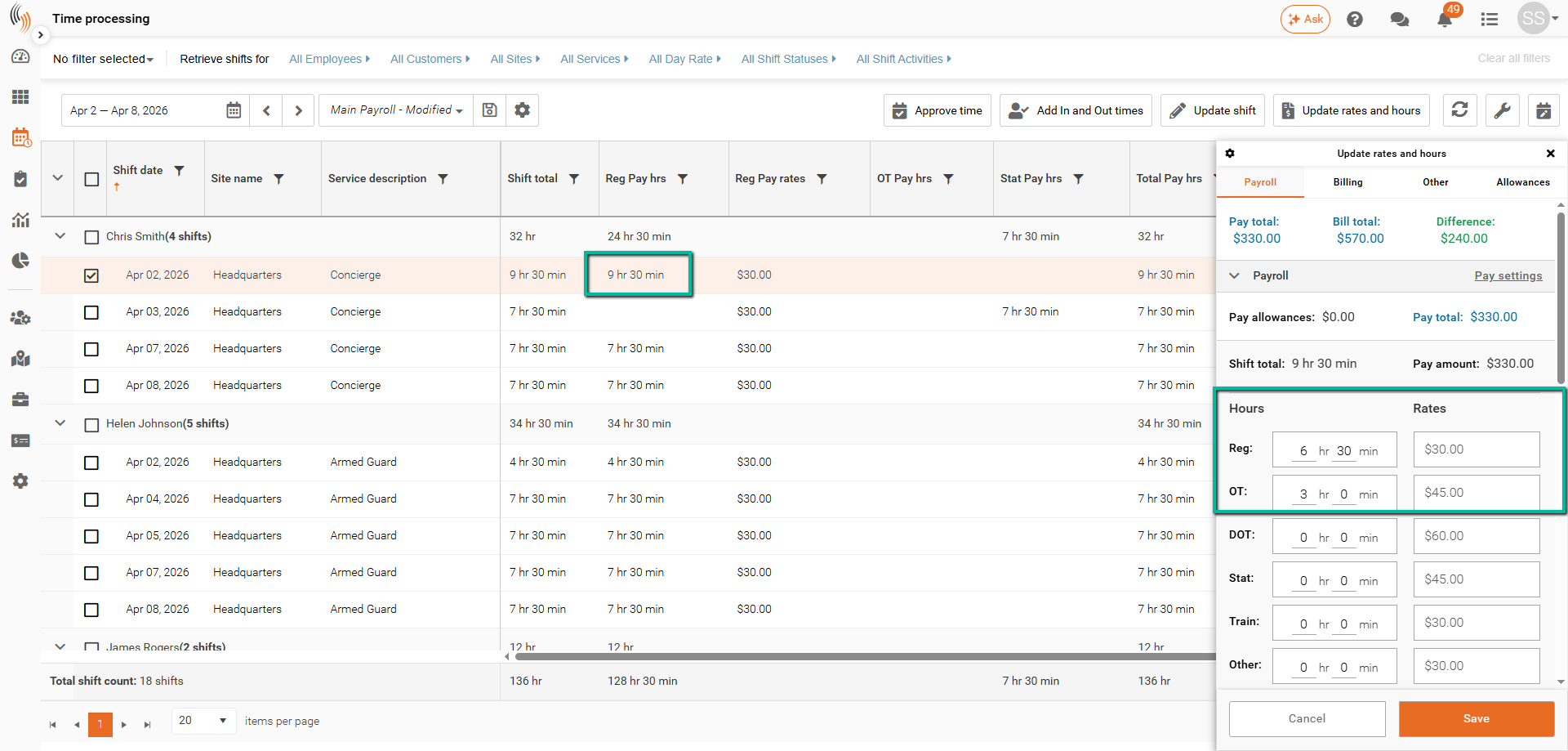
Select the Payroll or Billing tab, then enter the number of hours for each pay type such as Regular and Overtime. The system updates the Shift total automatically.
The example below shows a change from 9 hours 30 minutes of Regular pay to 6 hours 30 minutes of Regular pay and 3 hours of Overtime.
Note: The hours distribution must match the total worked hours. Otherwise, the system displays an error.
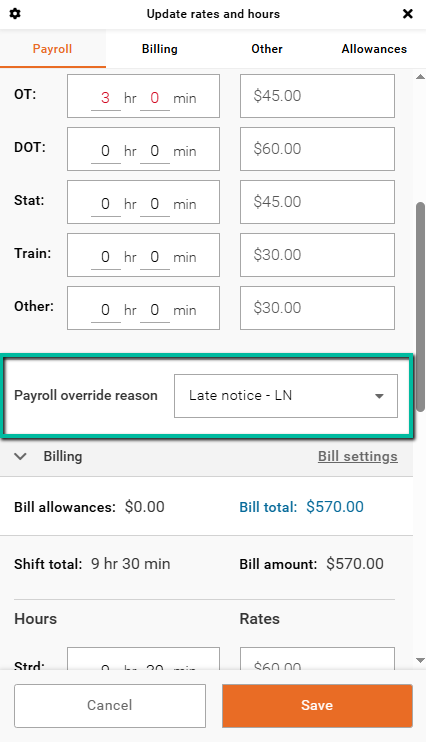
Prior to the saving the update, you can give a Payroll or Billing overridge reason.
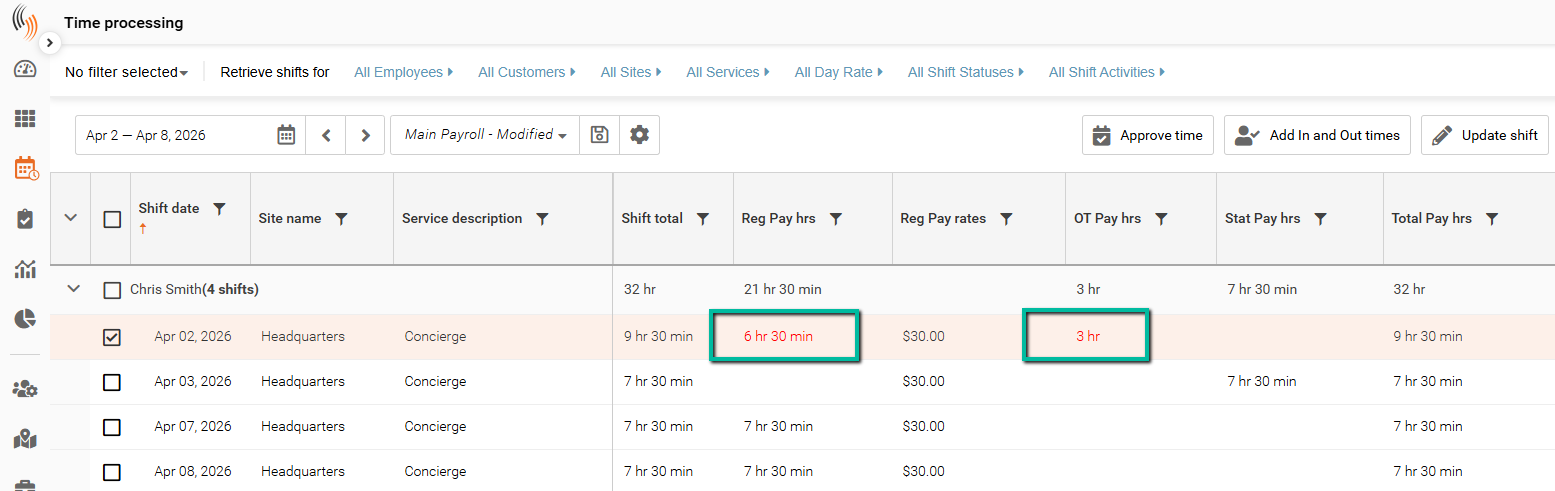
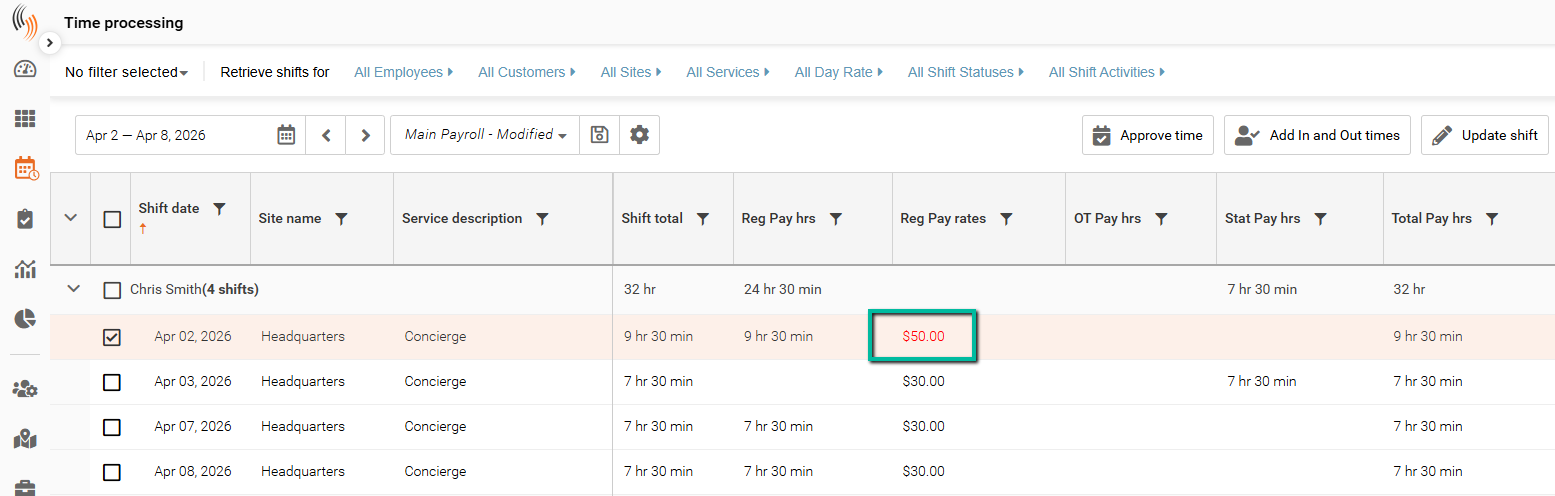
Select Save to apply the changes. The updated values appear in red in the grid.
Bulk Update Pay or Bill Hours
You can update pay or bill hours for multiple shifts at once by moving hours from one type to another.
Select the shifts → click Update # Shifts Rates and Hours → choose Pay Hours or Bill Hours in Select fields to update.
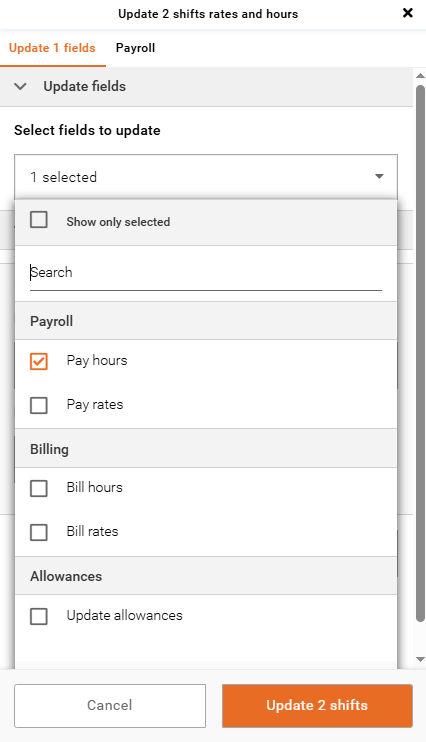
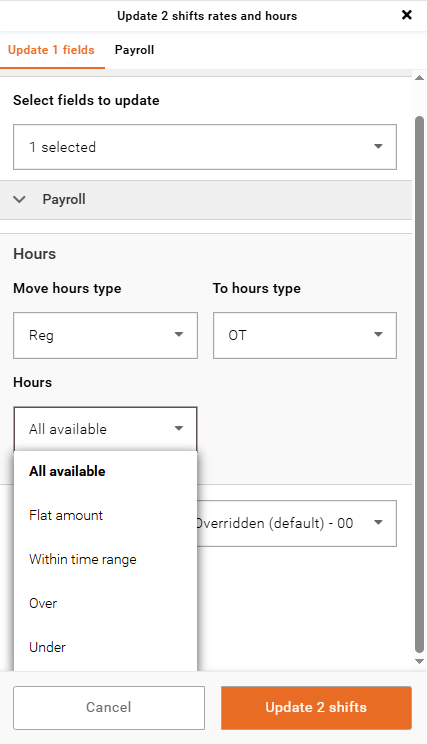
In the Payroll or Billing section, select the Move hours type and the To hours type. This allows you to move hours from one type (for example, Regular or Standard) to another (such as Overtime).
Next, choose how the hours should be applied from the Hours dropdown:
- All available – Moves all hours from the selected type to the new type
- Flat amount – Moves a specific number of hours that you enter
- Within time range – Moves hours that fall within a defined time range
- Over – Moves only the hours above a specified threshold
- Under – Moves only the hours below a specified threshold
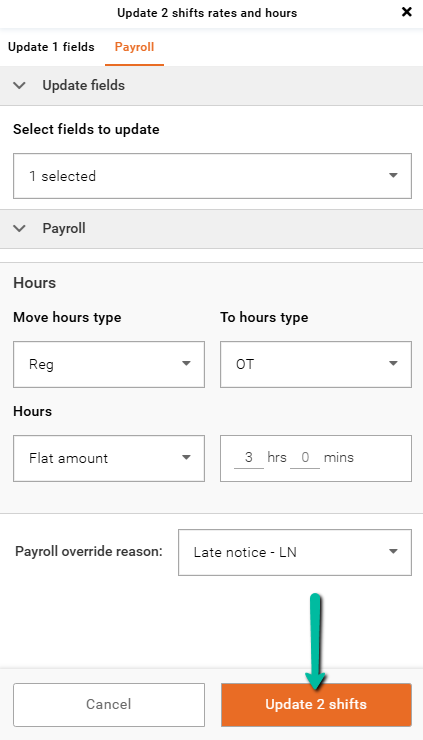
Choose an Override Reason and click Update # Shifts to apply the changes.
Update Pay or Bill Rates
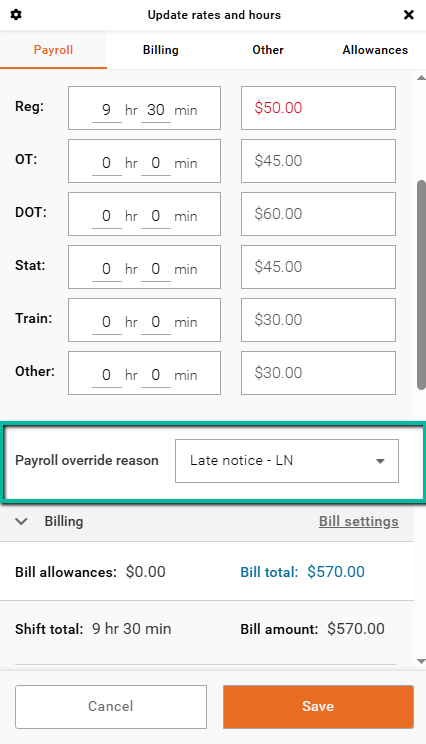
In the Payroll or Billing tab, enter new values in the Rates column to adjust pay or billing rates as needed.
The example below shows a change to the Regular pay rate from $30.00 to $50.00.
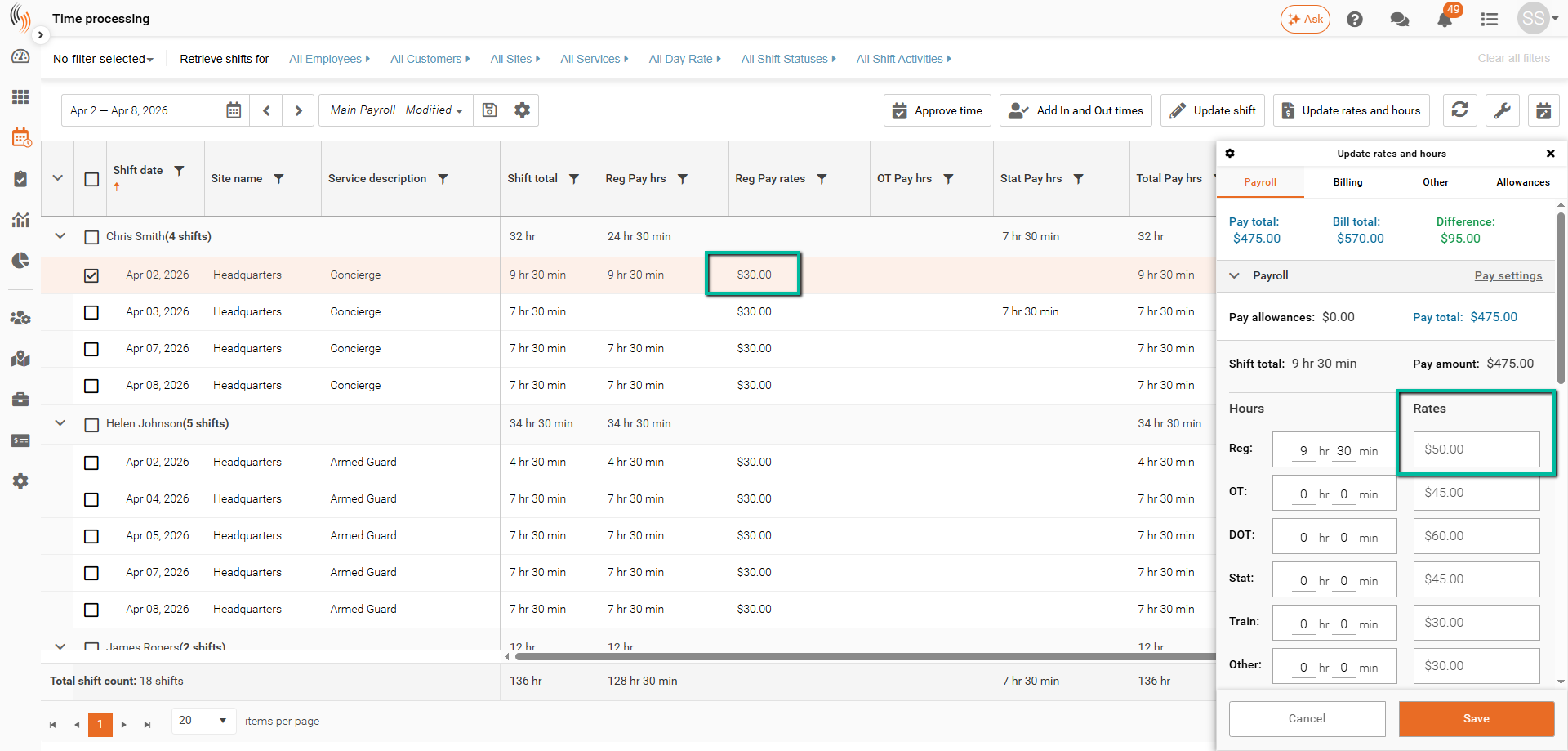
Prior to the saving the update, you can give a Payroll or Billing overridge reason.
Select Save to apply the changes. The updated values appear in red in the grid.
Bulk Update Pay or Bill Rates
You can update pay or bill rates for multiple shifts at once.
Select the shifts → click Update # Shifts Rates and Hours → choose Pay Rates or Bill Rates in Select fields to update.
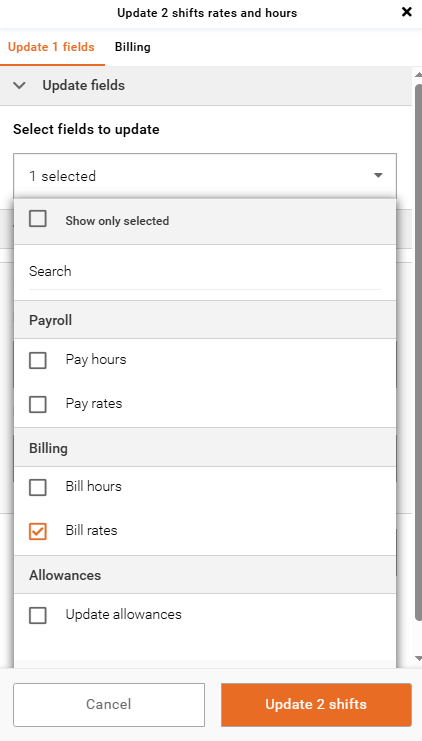
In the Payroll or Billing section, select the hours type (for example, Regular, Overtime, or Standard), then enter the new rate you want to apply.
Next, choose how the rate should be applied from the available options:
- Override (default) – Replaces the existing rate with the new value
- Increase by amount – Adds a fixed amount to the current rate
- Decrease by amount – Subtracts a fixed amount from the current rate
- Increase by percentage – Increases the current rate by a percentage
- Decrease by percentage – Decreases the current rate by a percentage
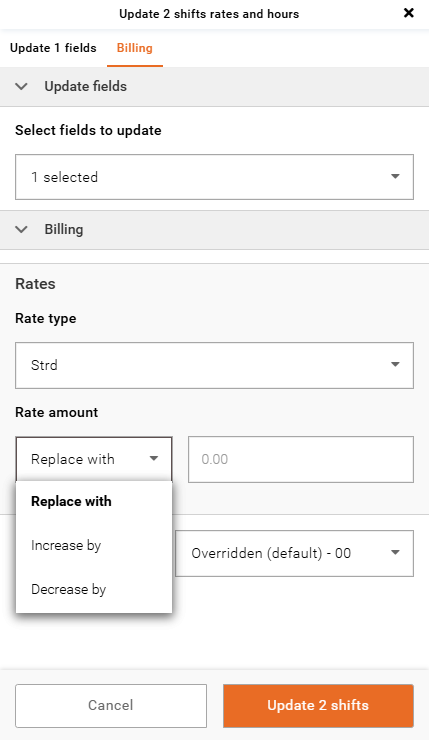
Choose an Override Reason and click Update # Shifts to apply the changes.