Assign Shift Tasks
As an admin in Schedule Xpress, shift tasks help ensure each shift runs smoothly by clearly outlining what needs to be completed. They allow you to build task lists, assign responsibilities, and monitor completion in real time.
Shift tasks improve operational consistency by giving employees clear expectations, reducing confusion, and increasing accountability. Employees can mark tasks as complete as they work and add new tasks when needed. Real-time tracking and end-of-shift reporting provide visibility into performance and help identify opportunities for improvement.
Find Shift Tasks
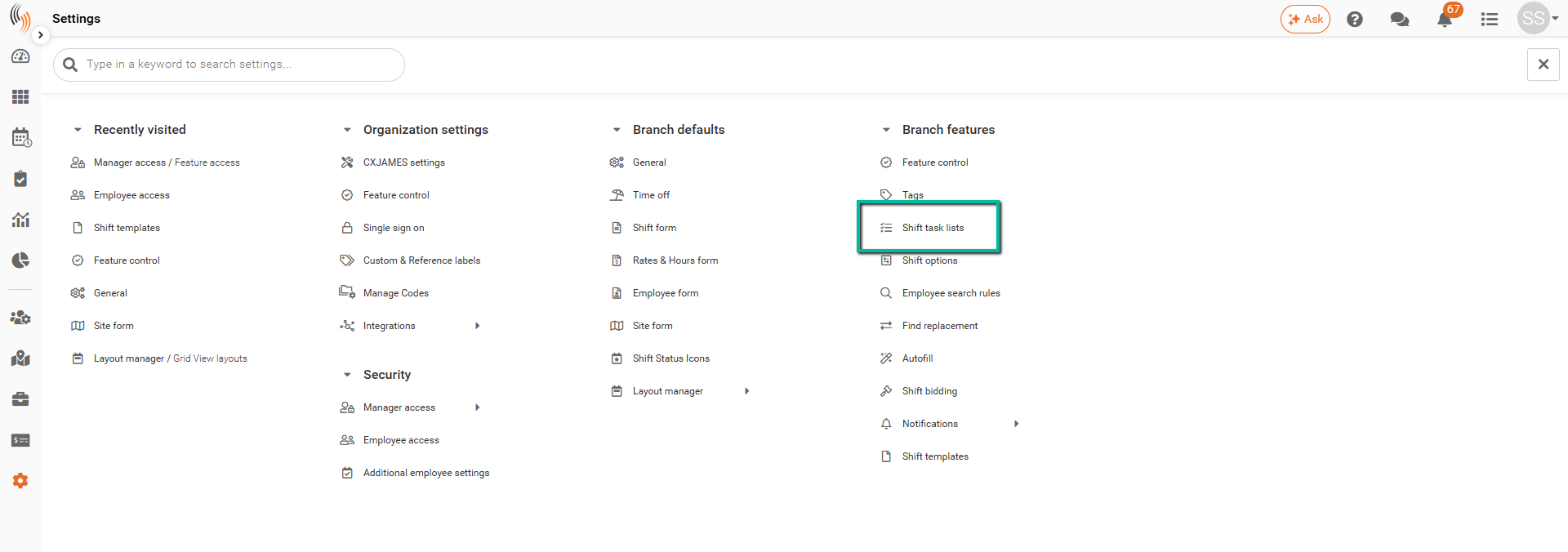
To find your Shift Tasks, go to Settings → Branch Features → Shift Task Lists. This section displays all available task lists in Schedule Xpress.
Create a Shift Task List
Before creating Shift Tasks, you must first create at least one task list. Task Lists help organize tasks by category, such as opening procedures or cleaning tasks, or can be used as a general list.
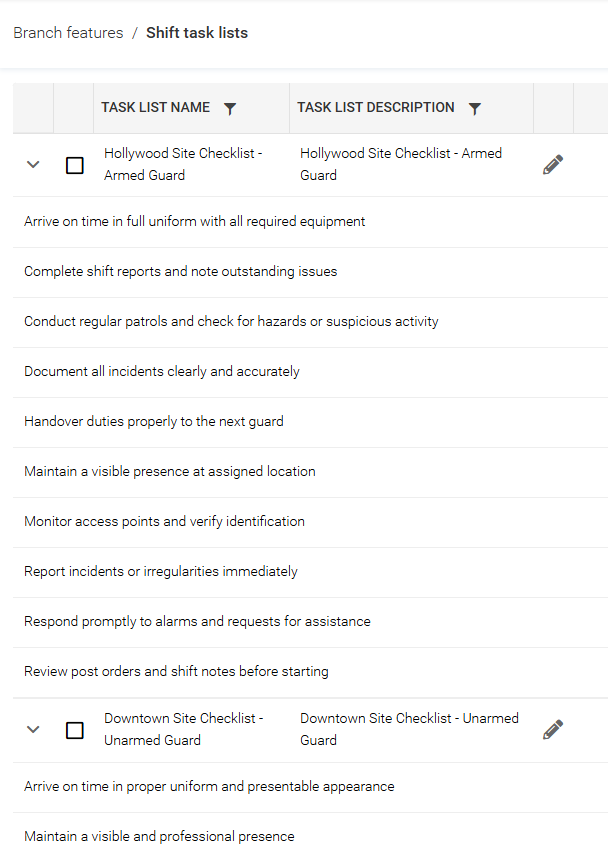
To create a task list, navigate to the Shift Task Lists section in Settings and click Create Task List.
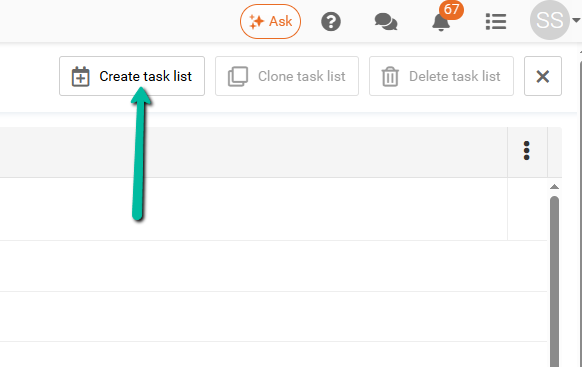
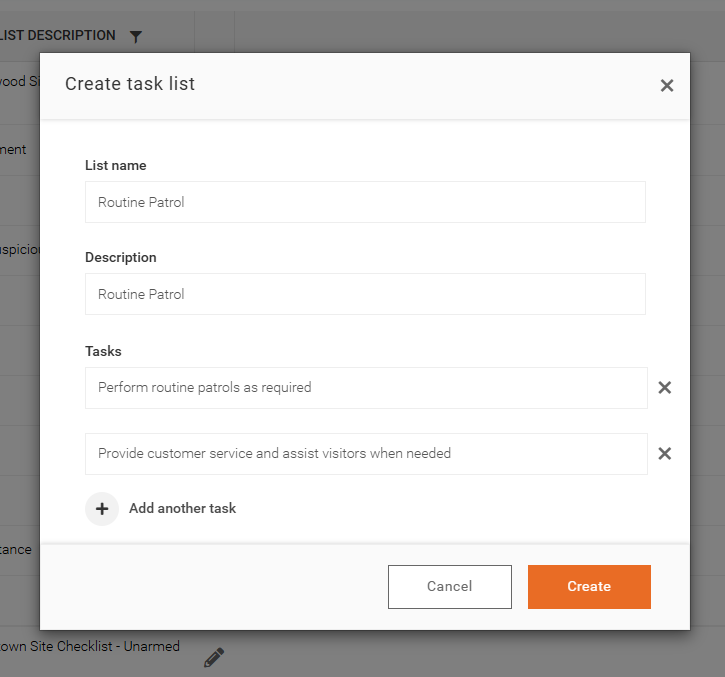
Enter a List Name, Description, and the tasks you want to include. To add more tasks, click Add Another Task. When you are finished, click Create. The new task list will then appear in Shift Task Lists.
Edit a Shift Task List
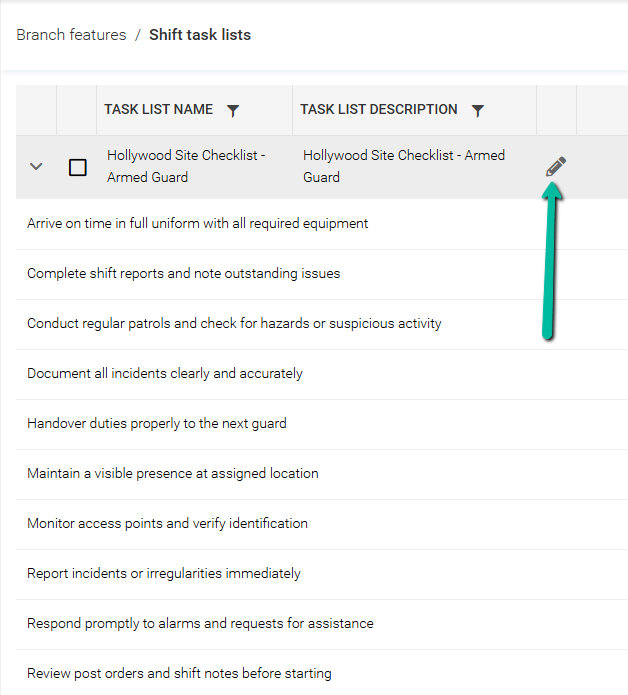
To edit an existing task list, select the Pencil icon next to the Task List Name. You can update the Name, Description, or modify the tasks within the list. After making changes, click Save to apply them.
Clone or Delete a Shift Task List
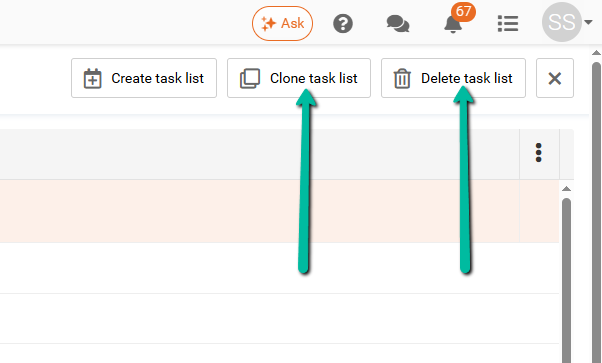
To clone or delete a task list, select the Task List you want to manage, then click Clone Task List to create a copy or Delete Task List to remove it.
Add Shift Tasks to a Shift
Once task lists are created, you can assign tasks to shifts through the Schedule or Time Processing.
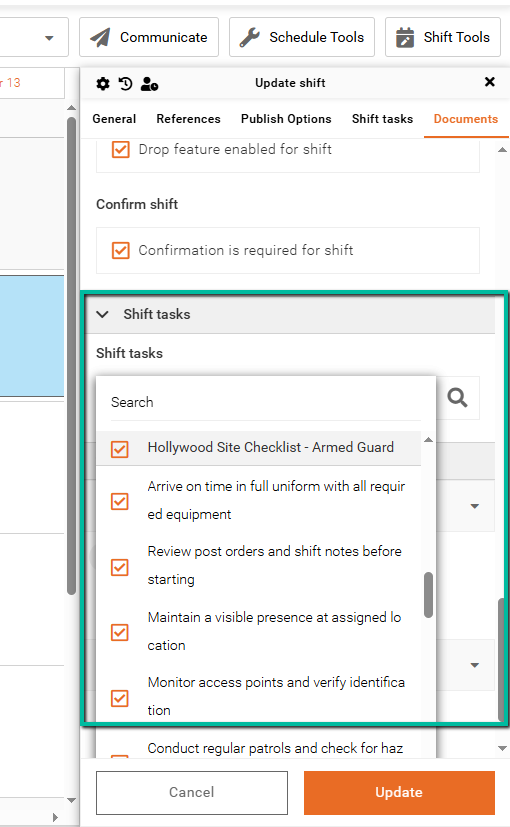
Open a new or existing shift to access the shift panel, then locate the Shift Tasks section. From there, select individual tasks or choose an entire task list to add all associated tasks at once. After selecting the desired tasks, click Update to save the shift. The assigned tasks will then appear in the Activities section of the Team Xpress app.
Give Employees Access to Shift Tasks
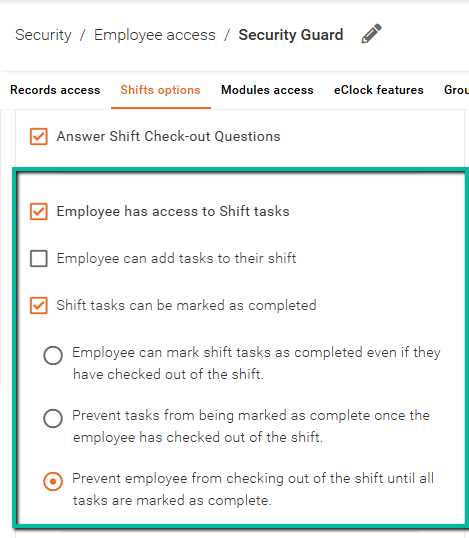
To allow employees to interact with shift tasks in the Team Xpress app, enable the appropriate permissions in their employee access group.
Access Permissions
- Employee Has Access to Shift Tasks – Allows employees to view assigned Shift Tasks in Team Xpress.
- Employee Can Add Tasks to Their Shift – Allows employees to create and add additional Shift Tasks during their shift.
Task Completion Settings
- Shift Tasks Can Be Marked as Completed – Allows employees to mark assigned Shift Tasks as complete.
- Employee Can Mark Shift Tasks as Completed Even After Checkout – Allows employees to continue marking Shift Tasks as complete after checking out of their shift.
- Prevent Tasks from Being Marked as Complete After Checkout – Prevents employees from marking Shift Tasks as complete once they have checked out.
- Prevent Employee from Checking Out Until All Tasks Are Marked as Complete – Requires all assigned Shift Tasks to be marked as complete before the employee can check out of their shift.
Filter Shifts by Task Activity
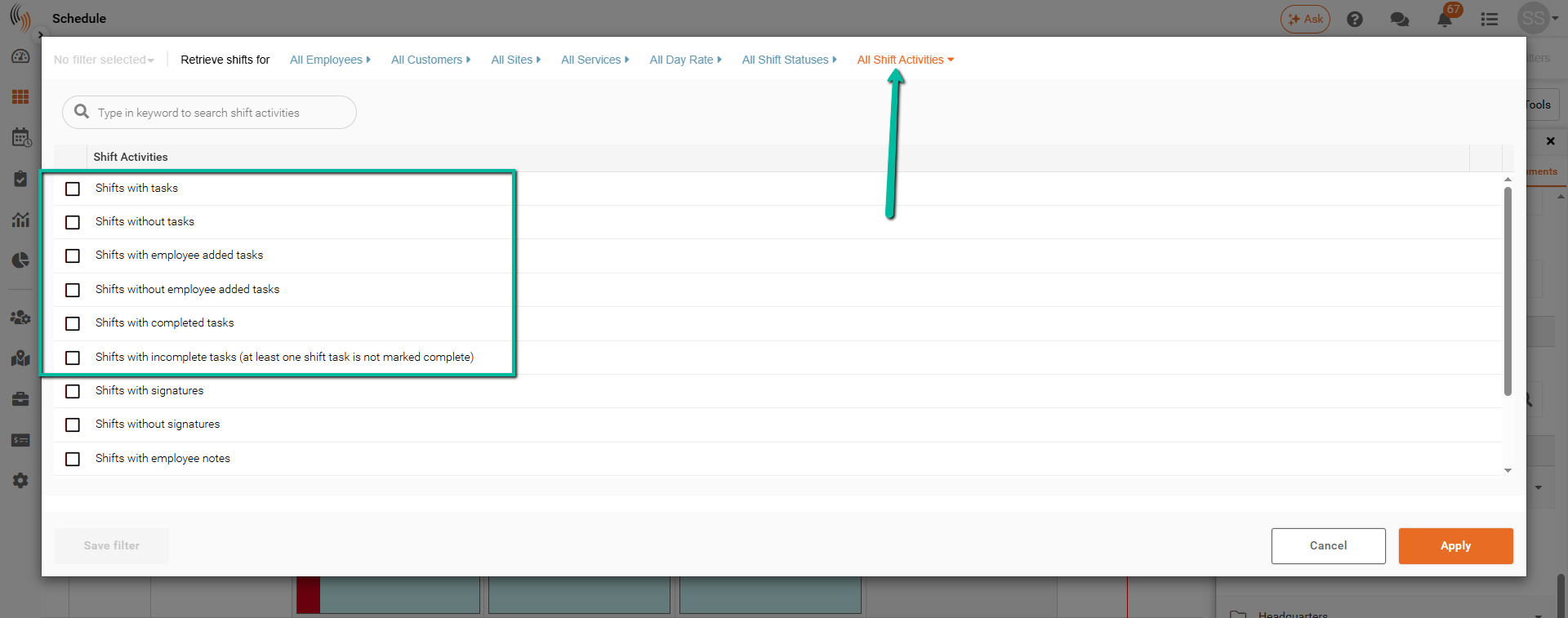
To find shifts with assigned tasks, use the Advanced Filters at the top of the Schedule screen and select All Shift Activities.
- Shifts with Tasks – Displays shifts that have one or more assigned Shift Tasks.
- Shifts without Tasks – Displays shifts that do not have any assigned Shift Tasks.
- Shifts with Employee Added Tasks – Displays shifts where employees have added their own Shift Tasks.
- Shifts without Employee Added Tasks – Displays shifts that only contain system-assigned Shift Tasks.
- Shifts with Completed Tasks – Displays shifts where one or more Shift Tasks have been marked as complete.
- Shifts with Incomplete Tasks – Displays shifts where one or more Shift Tasks have not been completed.
Review Shift Tasks in the Employee Shift Log
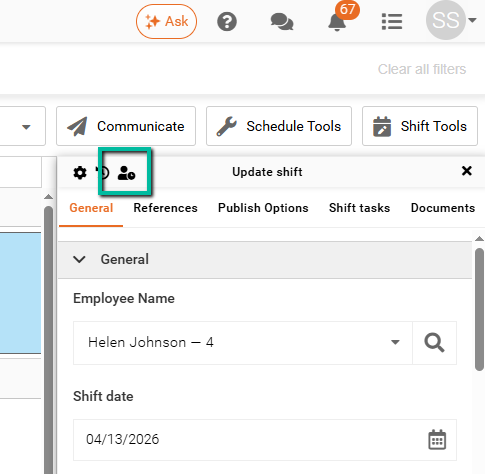
You can review assigned and completed tasks in the Employee shift log. Open a shift and select Employee Shift Log to access it.
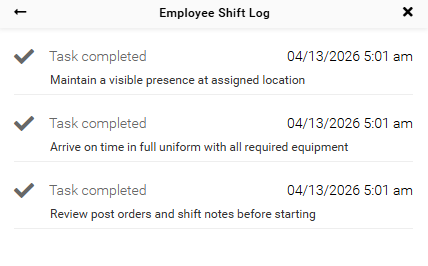
The shift log includes task activity along with other shift details such as check-in and check-out times, notes, attachments, and timestamps. This provides a complete record of what occurred during the shift.
Export Shift Tasks to Excel
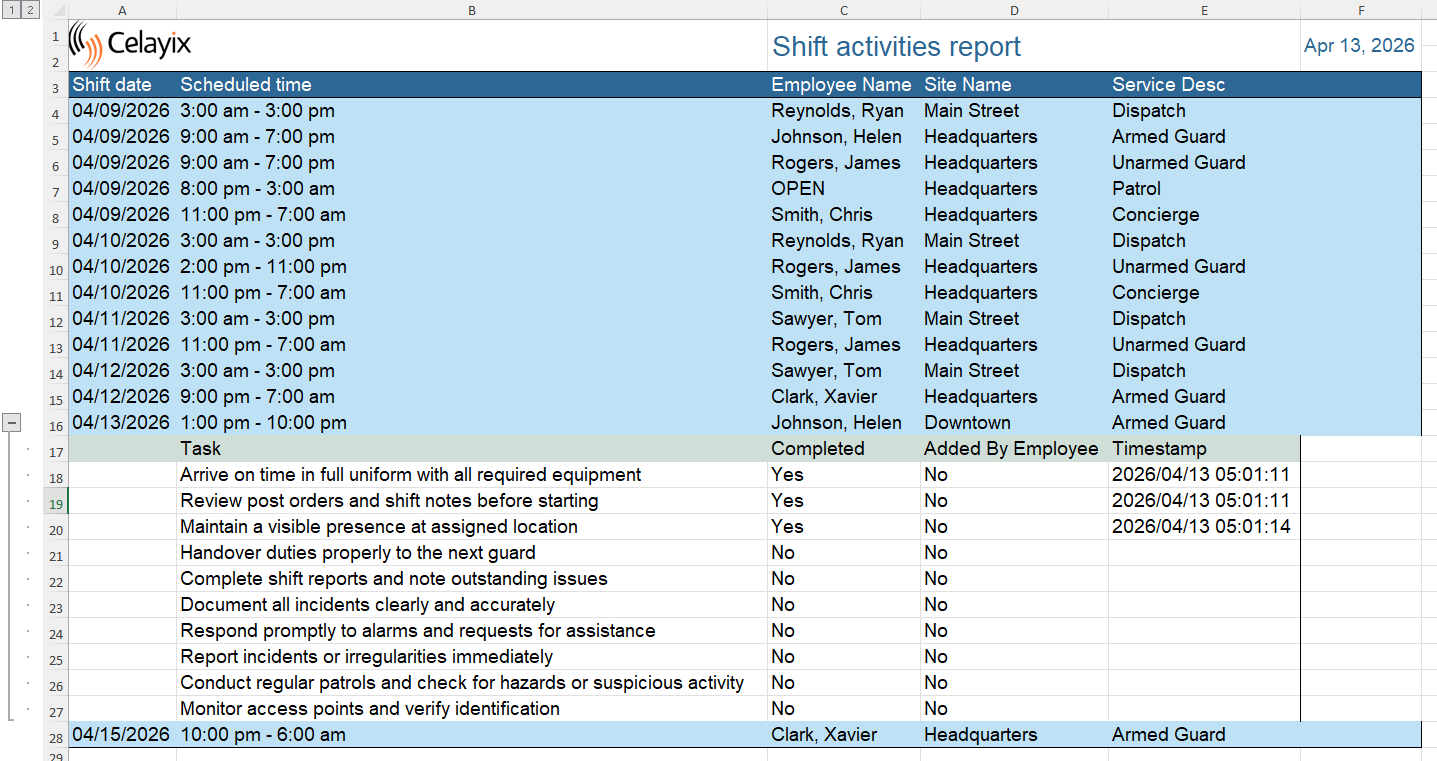
To analyze Shift Task activity in Excel, navigate to Schedule Tools → Export → Excel Export with Shift Activities.
The exported file includes task status, whether the task was added by an employee, and completion timestamps, providing a detailed view of Shift Task activity across scheduled shifts.