Send Team Xpress Invitations
Employees must receive an invitation to activate their Team Xpress account in the app. This guide explains how to send invitations efficiently, ensuring each employee can join without delays. Following these steps keeps your team connected and ready to access the platform.
Identify Employees Who Need an Invitation
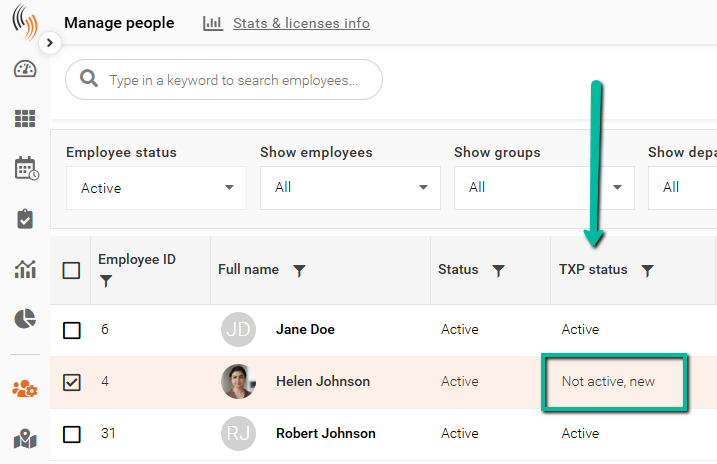
You can quickly see if an employee needs an invitation by checking the TXP Status column in the Manage People grid.
If the employee’s status is Active but they haven’t received an invitation yet, this column will display Not Active, New. This helps you identify which employees still need to be invited to join the app.
Filtering Employees Who Need an Invitation
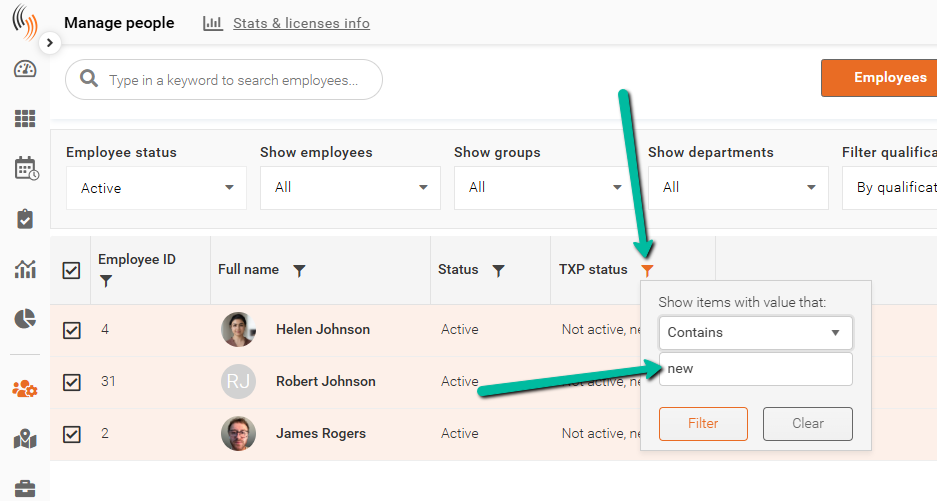
You can click the filter funnel next to the column name to filter the word 'New' and locate all the employees who need to be sent an invitation.
Click Filter to activate the search.
Ways to Send Team Xpress Invitations
You can send a Team Xpress invitation to an employee in a few different ways:
- From the Manage People grid: Click Send New Invite in the top-right corner and choose to send via Email, SMS, or both.
- From the Employee Profile: Go to the Accounts section and open Update Team Xpress Account to send the invitation via Email, SMS, or both.
Important Note: To send invitations via SMS, you must first purchase an SMS package from Celayix.
Let's take a look at these methods individually.
From the Manage People Grid
First, check the box next to the employee's name, then click Send New Invite in the top right corner.
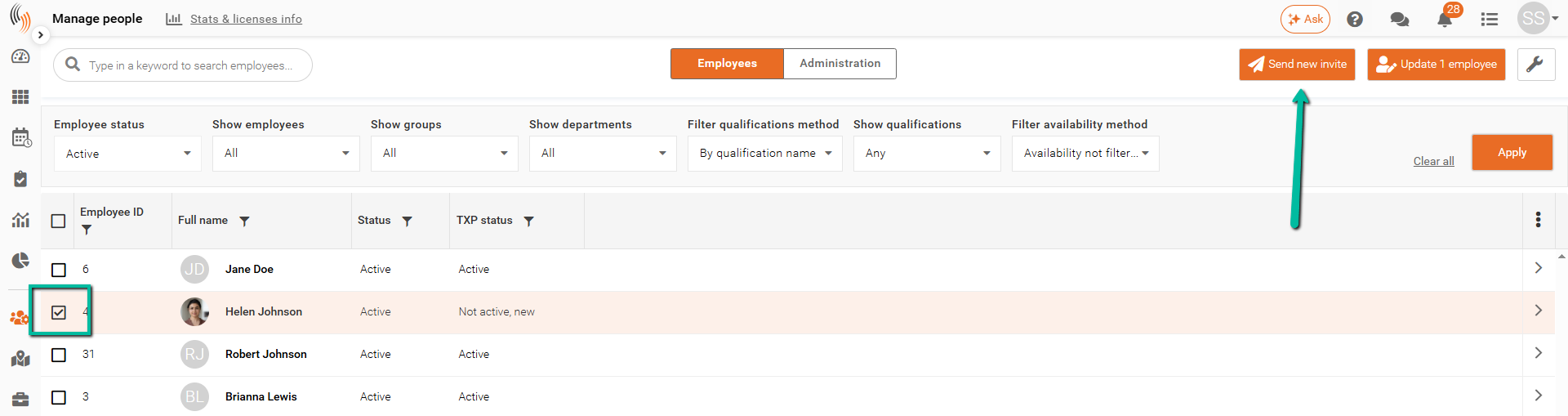
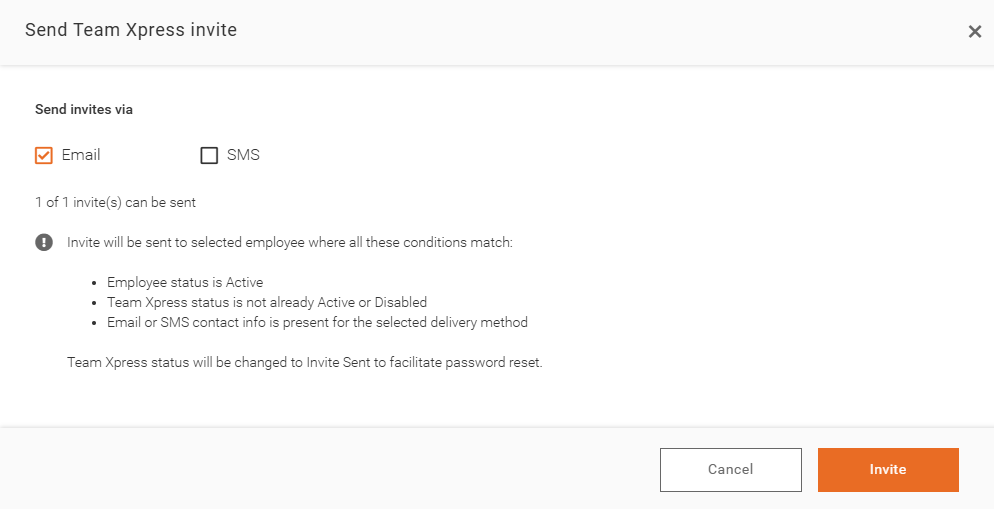
To finish, select whether you want to send the invitation by Email, SMS, or both. Then, click Invite to send it.
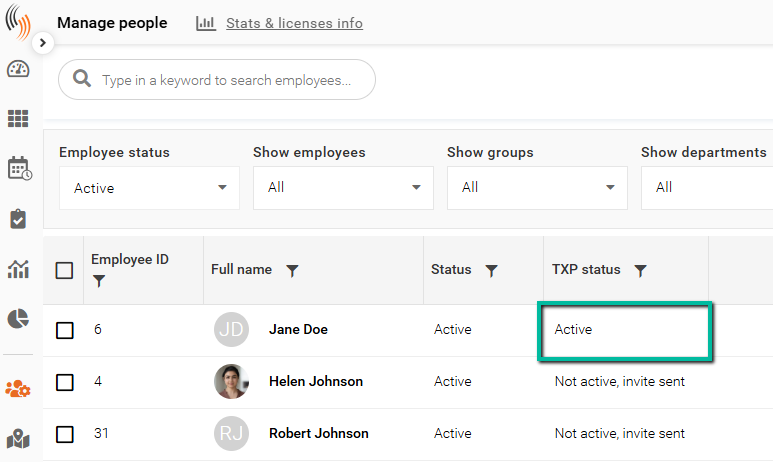
When an employee is invited, their TXP Status is changes to Not Active, Invite Sent.
From the Accounts Section of the Employee Profile
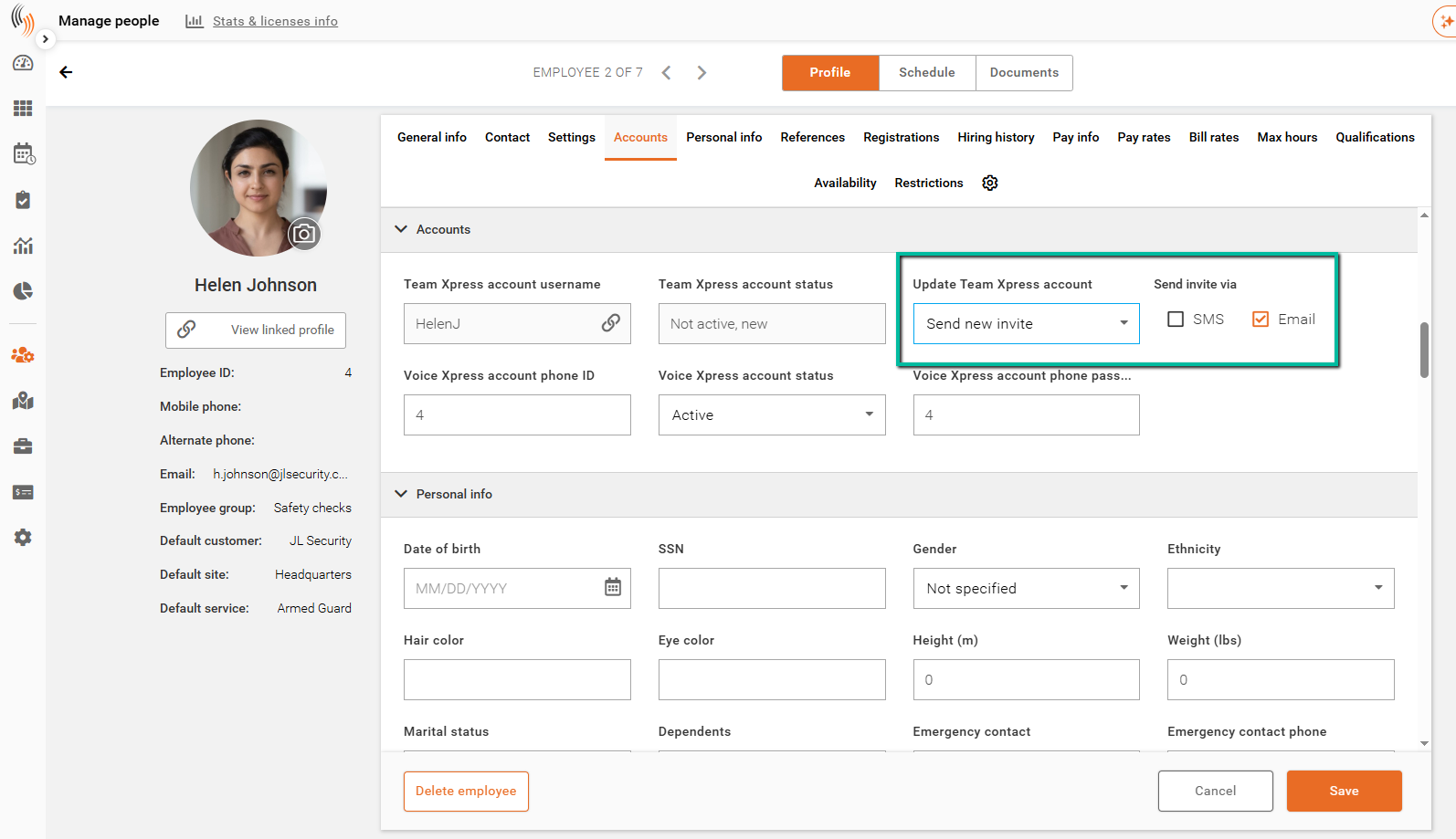
From the Accounts section of the employee profile, open Update Team Xpress Account and select Send New Invite. You can then choose to send the invitation via Email, SMS, or both, ensuring the employee receives the invite through their preferred method.
Send Team Xpress Invitations in Bulk
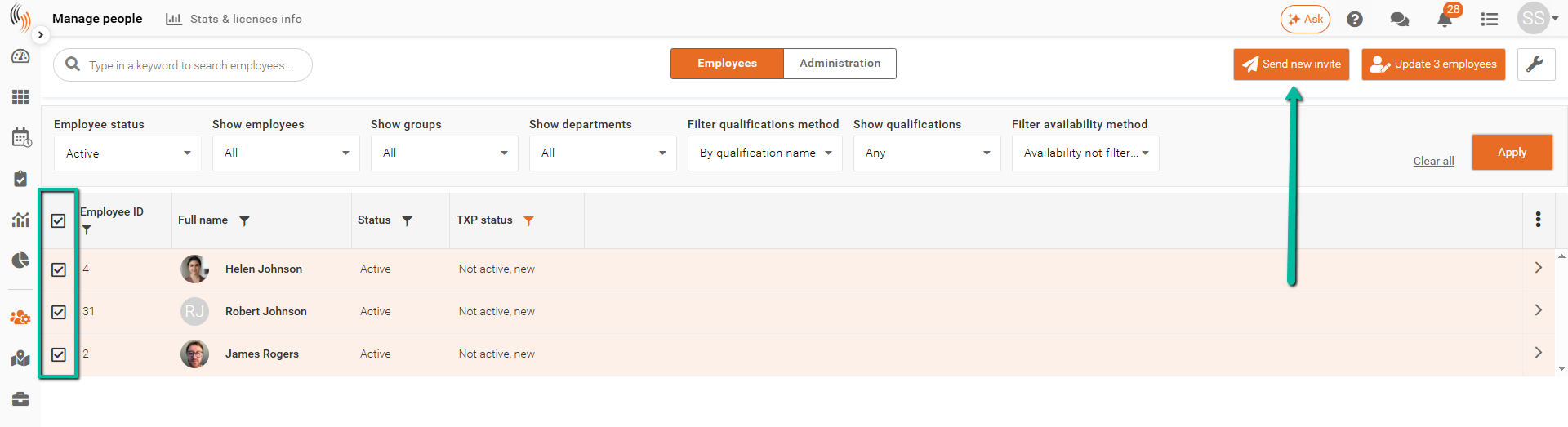
Begin by running your filter to identify employees who need an invitation. Then, check the boxes next to the employees’ names you want to invite.
Then, click Send New Invite in the top-right corner.
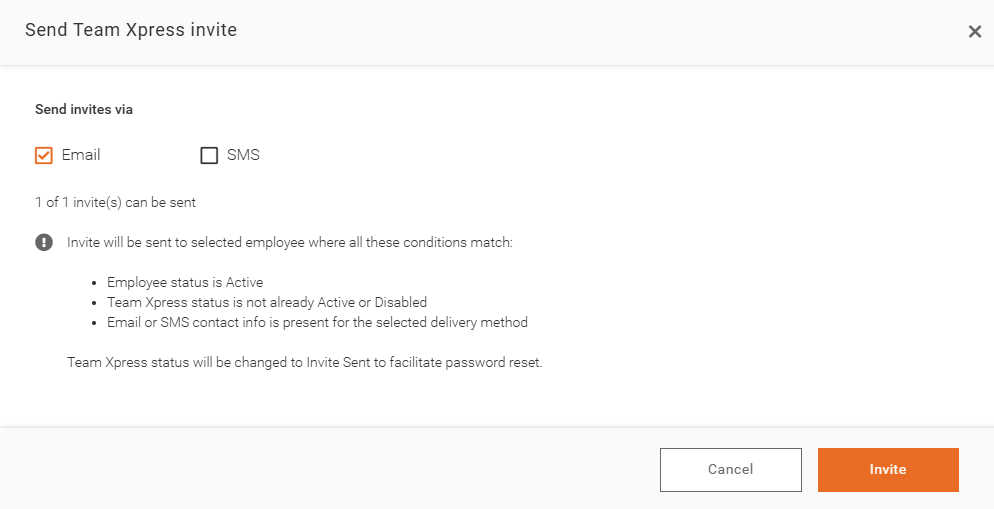
To finish, select whether you want to send the invitations by Email, SMS, or both, and then click Invite to send them.
When an employee is invited, their TXP Status is changes to Not Active, Invite Sent.
Has the Employee Accepted Their Invitation?
Once an employee accepts their invitation, their TXP Status will update to Active. This replaces the previous status of Not Active, Invite sent, making it easy to see which employees have successfully joined the app.