Bulk Update Shifts
Quickly update multiple shifts at once to save time and streamline schedule management.
Bulk updating in Schedule Xpress allows you to make changes to multiple shifts in a single action, reducing manual work and improving efficiency.
Step 1: Select Shifts
Begin by selecting the shifts you want to update.
You can select shifts in the following ways:
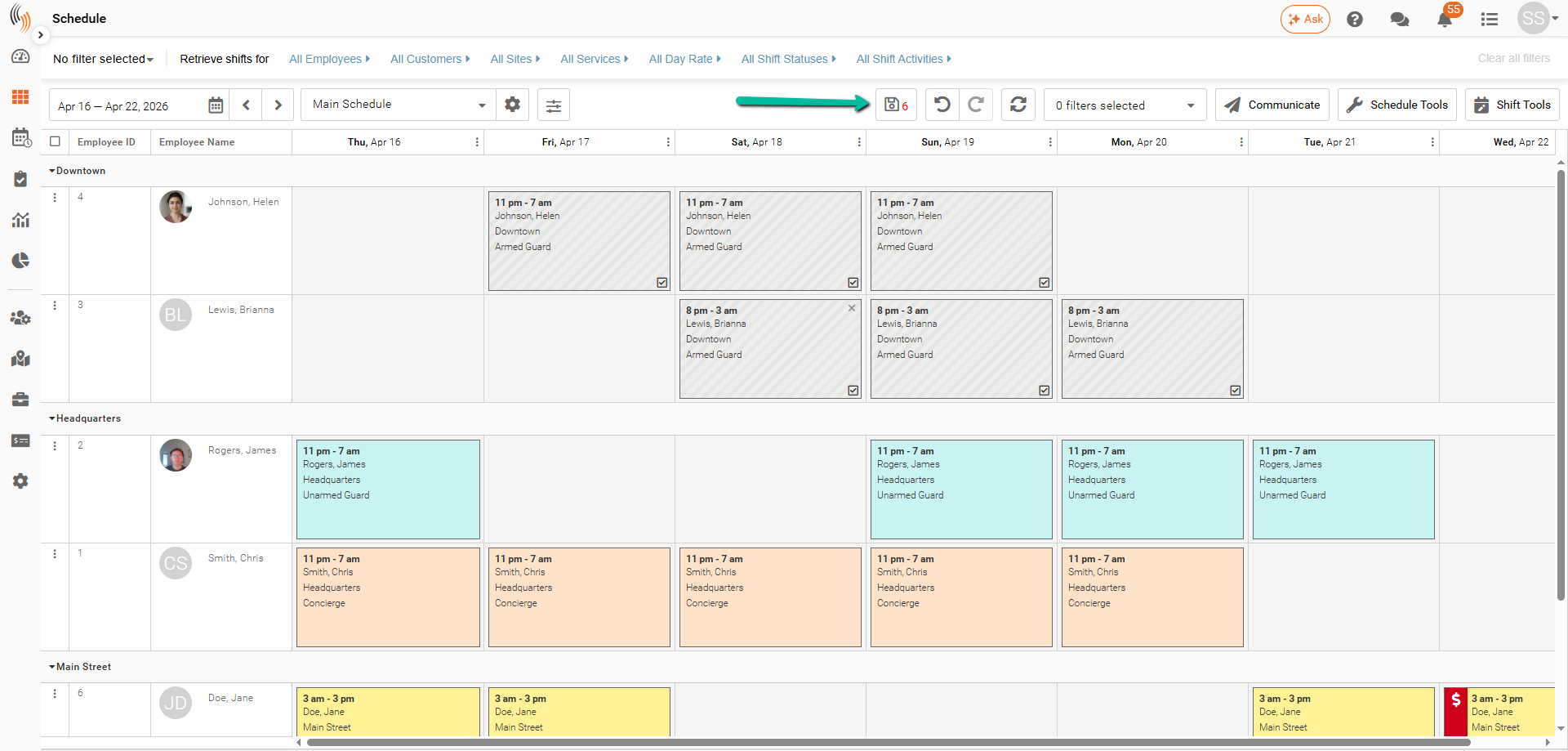
- Use the checkbox in the bottom-right corner of each shift
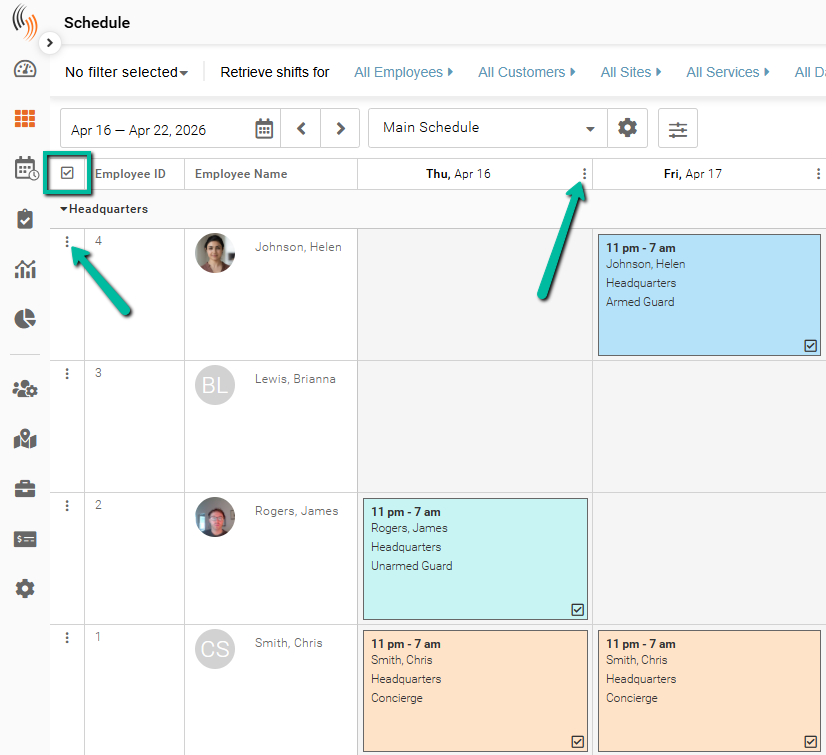
- Use the checkbox in the top-left corner of the schedule grid to select all shifts
- Use the three-dot menu (⋮) on a column to select all shifts downward, or on a row to select all shifts across
- Click and drag your mouse to highlight and select the shifts you want
You can select multiple shifts across your schedule before applying updates.
Step 2: Open Update Shifts
Once your shifts are selected:
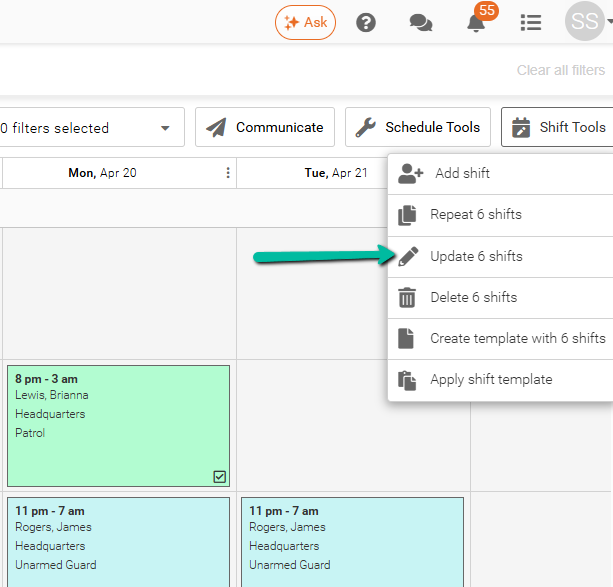
- Click Shift Tools
- Select Update # shifts
Step 3: Select Fields to Update
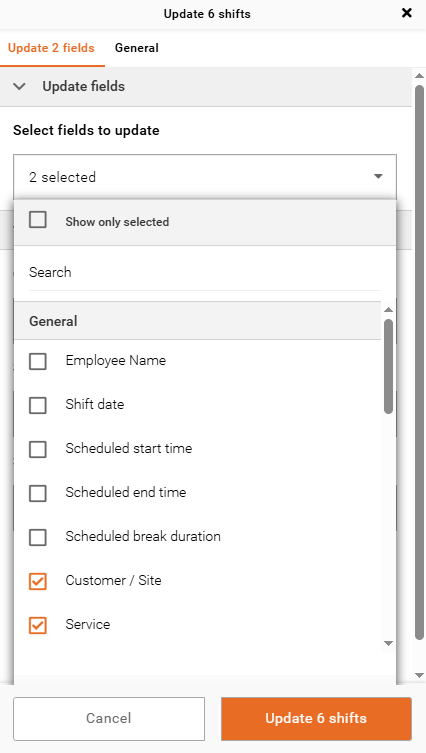
- Click Select Fields to Update
- Choose one or more fields you want to modify
- Click anywhere outside the dropdown to confirm
Note: Multiple fields can be updated at the same time.
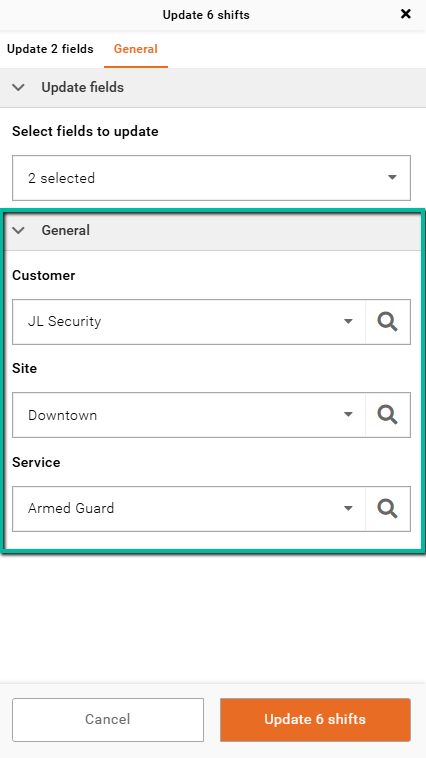
Step 4: Enter New Values
- Enter the new values for each selected field
- Review your changes
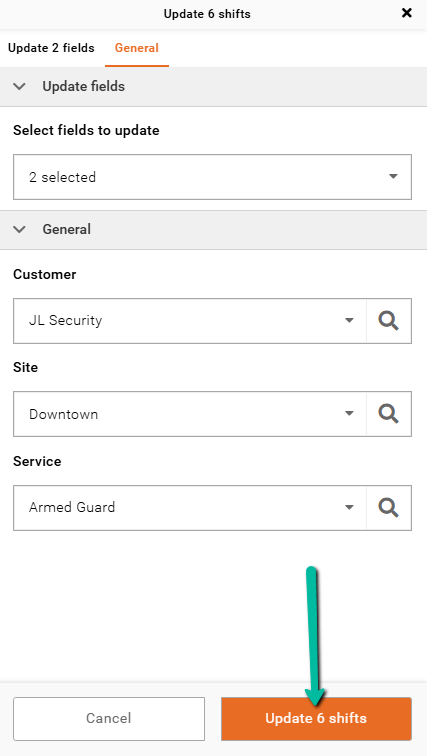
Step 5: Apply Updates
- Click Update to save your changes
After Updating
- Changes appear in your schedule immediately
- Click the save disk to confirm them