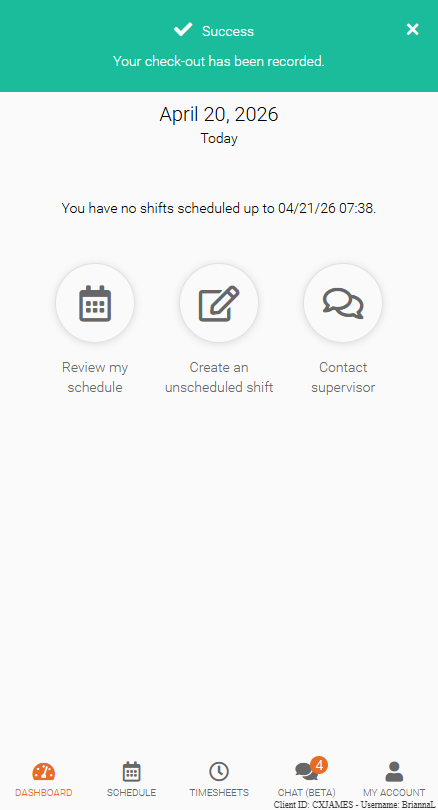
Slide to Check-In and Out
Sliding to check in and check out allows you to record your attendance quickly in Team Xpress. Each shift includes a slider beneath it so you can log the start and end of your shift.
Slide to Check in
When your check-in window opens, you can swipe to check in to your shift.
Check-in availability and timing are determined by your company’s configured parameters. If you are unsure when check-in becomes available, contact your supervisor or scheduler for clarification.
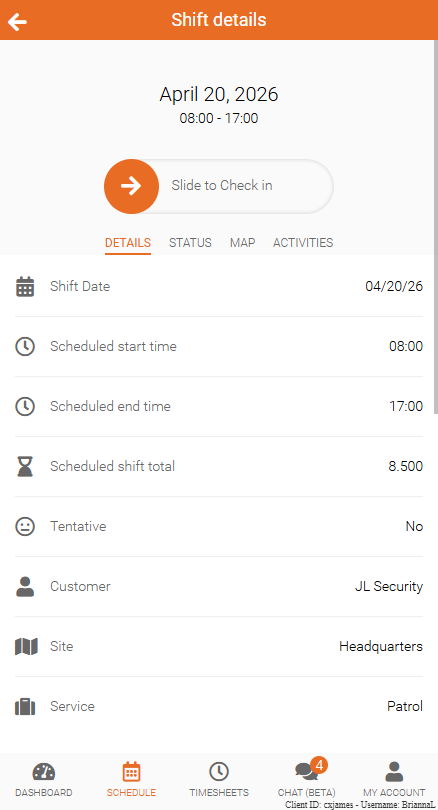
Completed check-in
Once your check-in is successful, a green banner appears saying, Your check-in has been recorded.
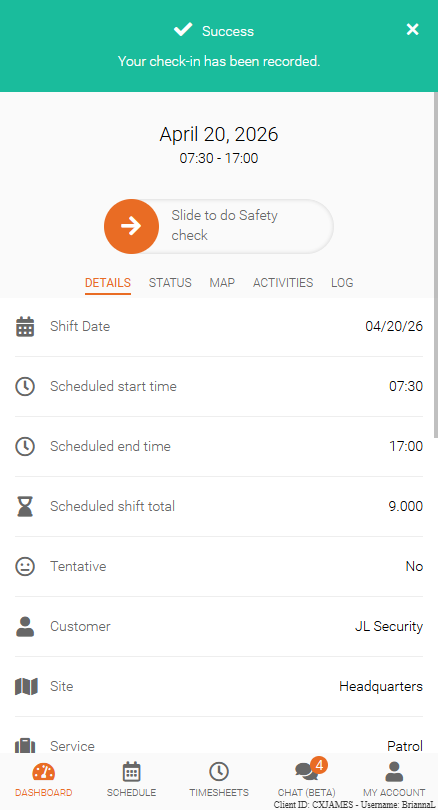
Geofence for check-ins and check-outs
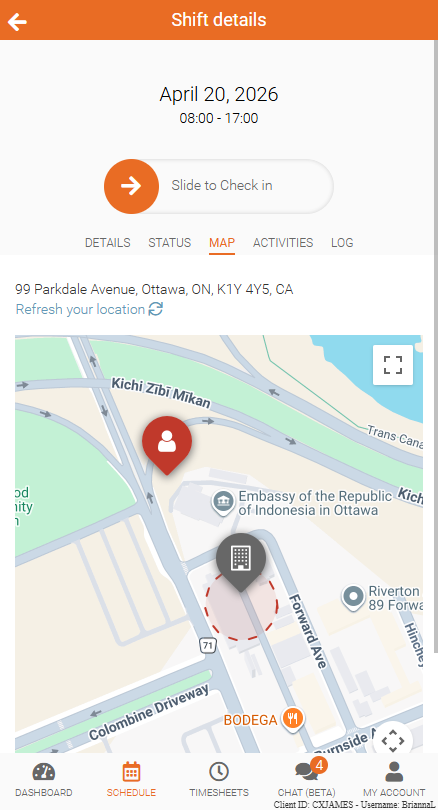
To check in or check out, you must usually be within the geofence radius assigned to your site. If your check-in does not go through, open the Map to confirm your location.
On the map, your location marker changes color based on your position.
Inside the geofence radius
A green marker means you are inside the geofence.
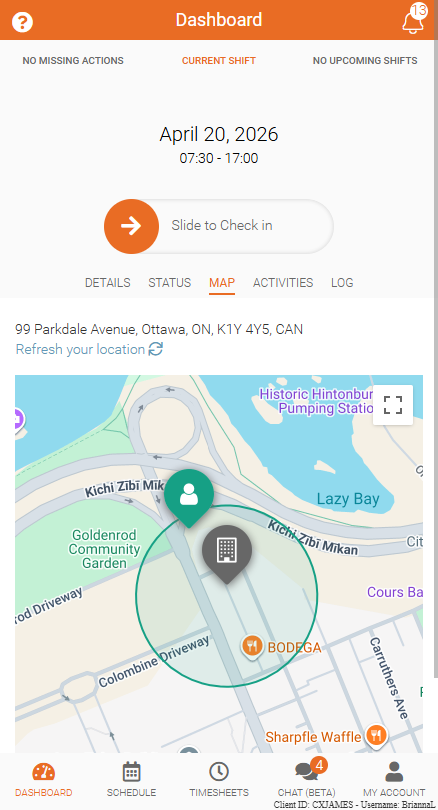
Outside the geofence radius
A red marker means you are outside the allowed area.
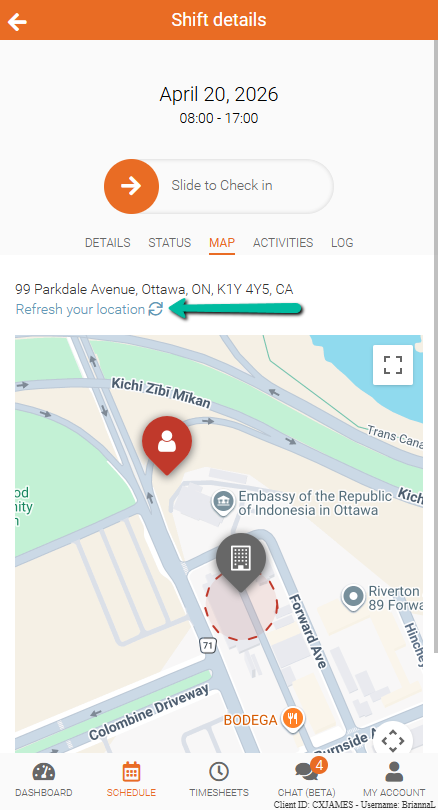
Refresh your location
To update your position on the map, tap Refresh your location.
Location accuracy insufficient
Your device’s location accuracy must meet the required threshold before check-in can be completed. What happens next depends on your account settings.
In some cases, check-in is blocked until your location accuracy improves. In other cases, you may still be allowed to continue by confirming that your supervisor has approved an exception.
These options are controlled by your supervisor’s settings.
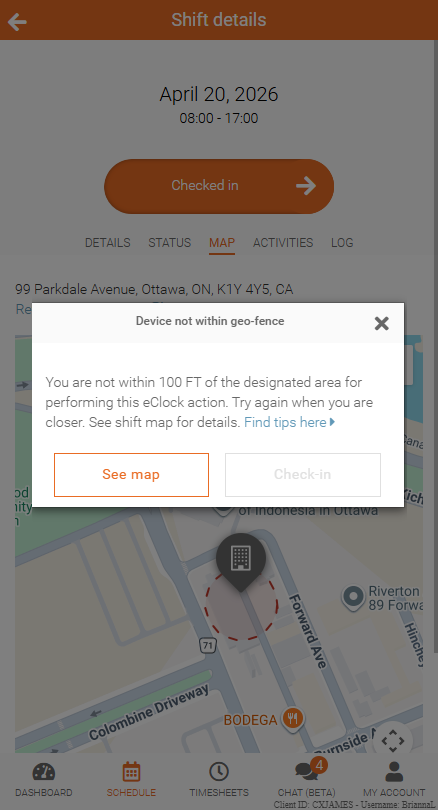
Device not within geo-fence
If your device is outside the designated geofence, you may see a message stating that the device is not within the geofence. In this case, you must move into the approved area before checking in.
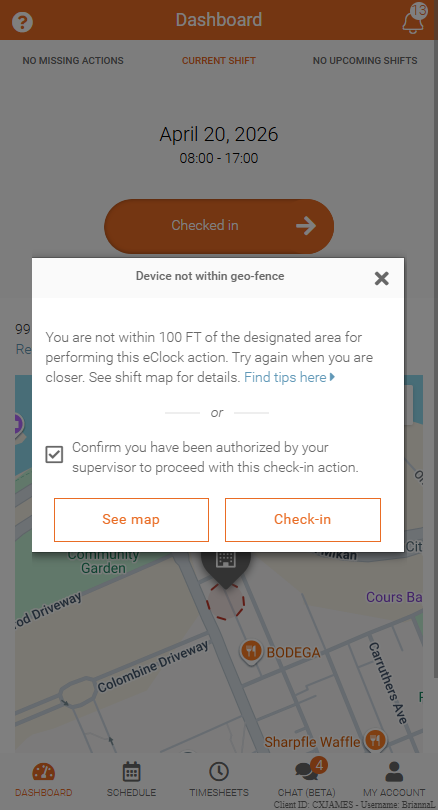
Check In Outside of Geofence
If you are outside of the required geofence, you may still be able to check in if your supervisor has granted authorization.
To proceed:
- Select the checkbox confirming you have received supervisor authorization
- Complete your check-in as usual
This allows you to check in even if your device is not within the required location, provided approval has been given.
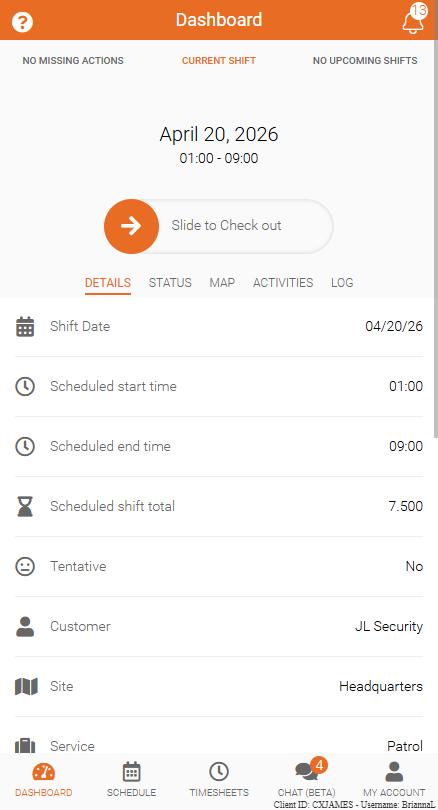
Slide to Check out
After you have checked in and completed any required tasks, you can swipe to check out.
Like check-in, check-out is only available during the time window set by your supervisor or scheduler. This window may open before or after your scheduled shift end time. If you are unsure when check-out becomes available, contact your supervisor or scheduler.
To complete check-out, you must also be within the designated geofence unless your account settings allow otherwise.
Completed check-out
Once your check-out is successful, a green banner appears confirming that your check-out has been recorded.