Payroll Settings for Sites
Within the Pay Rates section of the site profile, administrators can configure key Payroll settings that control how employees are paid for shifts worked at that site. This includes defining overtime eligibility through Pay Overtime, applying statutory holiday pay using Pay Stat, and setting limits with the Maximum Pay Rate.
These options allow organizations to tailor compensation rules, support compliance requirements, and maintain control over labor costs at the site level.
Admin Access to Site Payroll Settings
To ensure an administrator has access to site payroll settings, they must be one of the following:
- A Full Admin, who has access to all features.
- A Manager with access to Site Pay Rates.
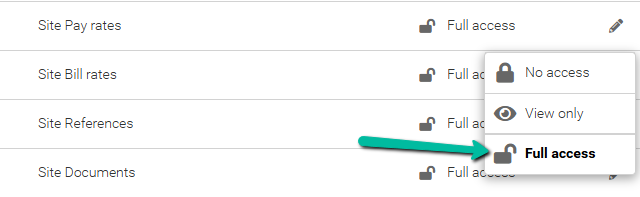
To grant a manager access, navigate to Settings → Security → Manager Access → Feature Access, then locate the Feature Access Group assigned to the user. Under the Manage Sites module, ensure Full Access is selected for Site Pay Rates.
Configuring Payroll Settings at Site Level
Payroll settings can be configured at the site level, providing flexibility to establish custom rules and pay rates directly within Manage Sites in Schedule Xpress.
To configure these settings, navigate to the Pay Rates section of the site profile.
Note: If this section is not visible, enable it within the Site Form.
Let's explore the options available within the Pay Rates section.

Pay Rate Rules for Shifts at This Site
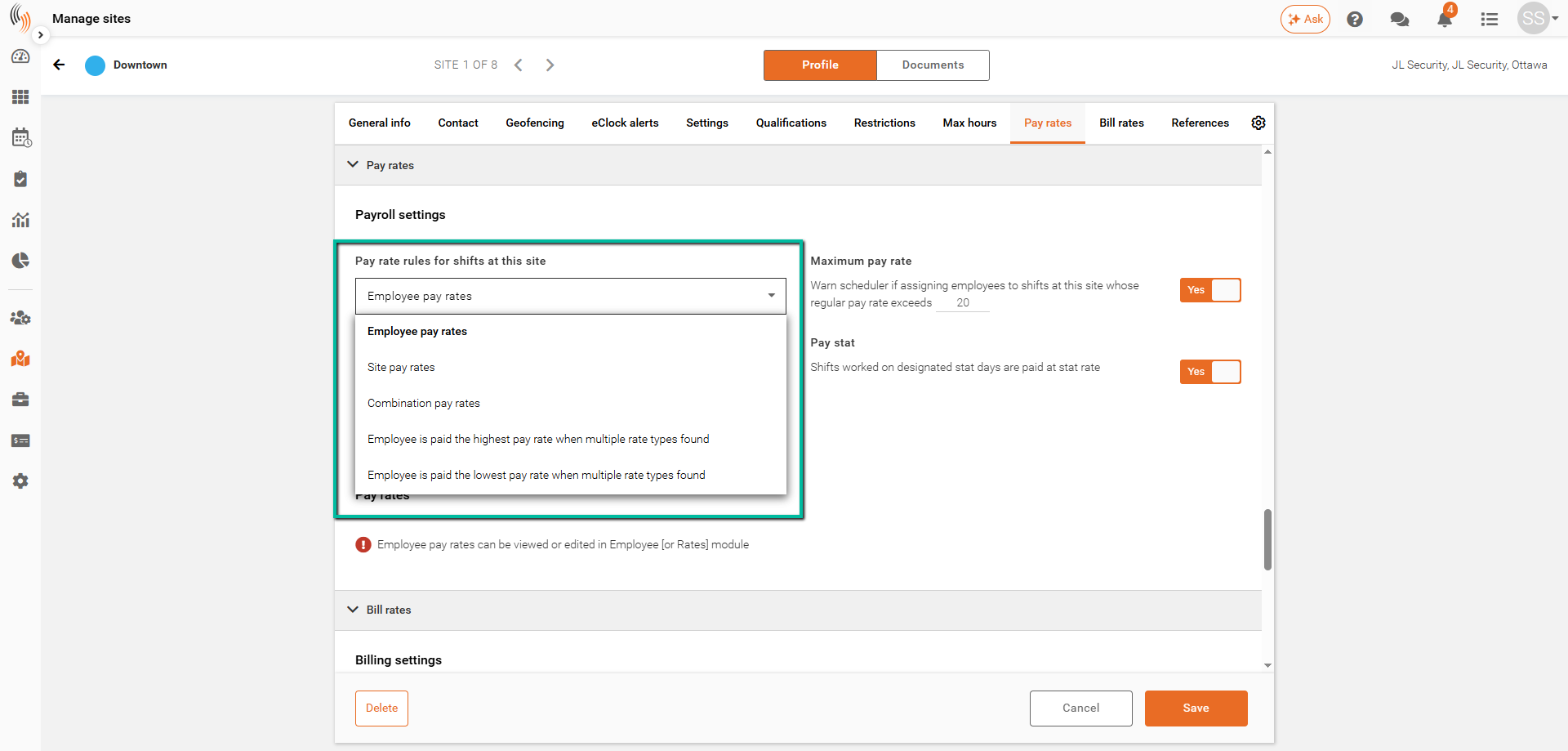
The Pay Rate Rules option allows you to determine which pay rate type is applied to shifts worked at this site.
These rules include:
- Employee Pay Rates Take Priority — The system searches for and applies employee-specific pay rates.
- Site Pay Rates Take Priority — The system searches for and applies site-level pay rates.
- Combination Pay Rates Take Priority — The system searches for and applies combination pay rates.
- Higher Rate Applied — When multiple pay rates are found, the system selects the highest rate.
- Lower Rate Applied — When multiple pay rates are found, the system selects the lowest rate.
Example: If Employee Pay Rates Take Priority is selected, the system will use employee pay rates for shifts worked at this site and will not apply site pay rates.
Important Note: Your system configuration is established by an Implementation Specialist and determines whether Pay Rate Rules are fixed or can be customized by site. If you are unsure of your configuration, please contact Celayix Support.
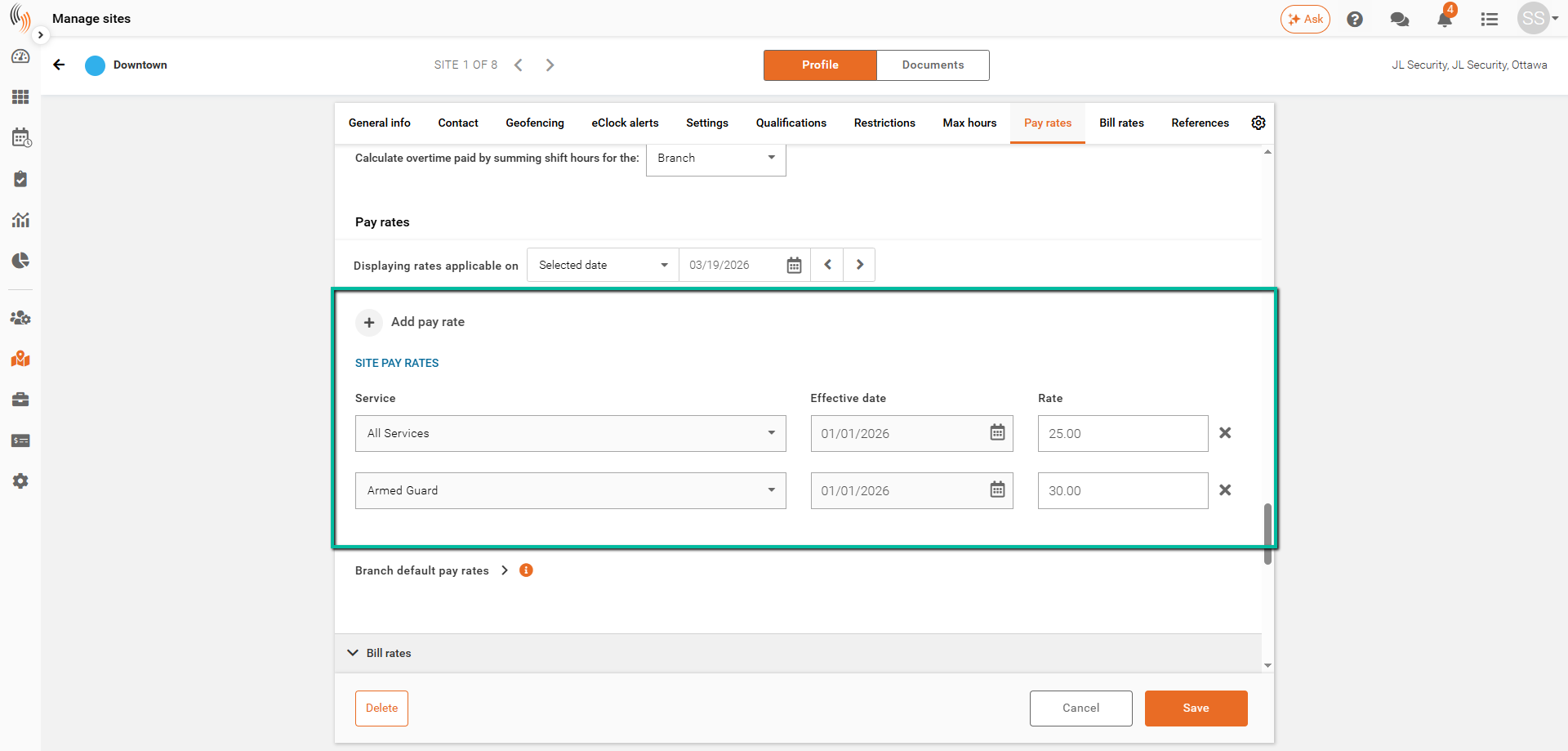
The selected pay rate rule determines which pay rates are displayed and available to add in the site form. For example, if you select Site Pay Rates Take Priority, only site pay rates will be available and displayed.
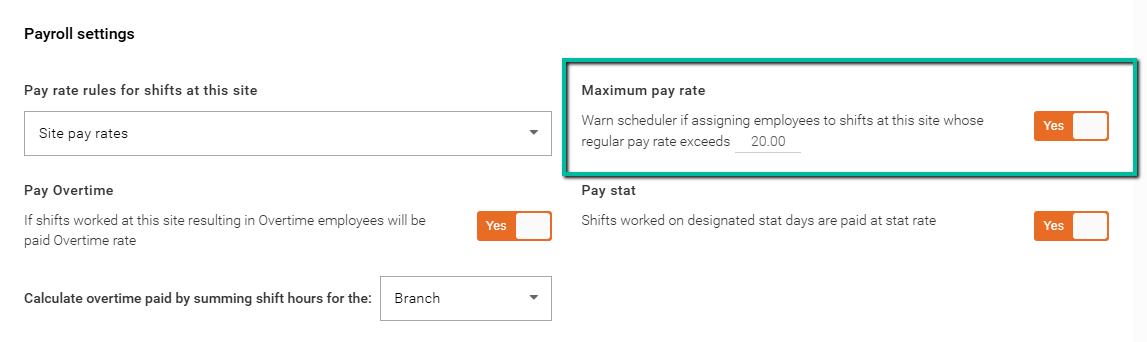
Maximum Pay Rate at Site
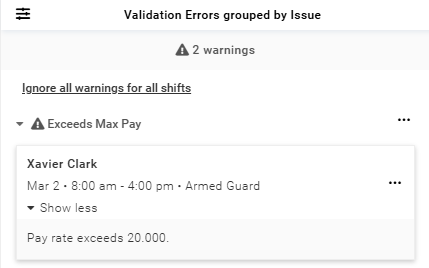
When a site has a Maximum Pay Rate defined, the system validates shift pay rates before saving. If a shift's pay rate exceeds the site maximum, a validation will be generated and the shift cannot be saved.
Note: The pay rate compared against the maximum is determined by the site's configured Pay Rate Rule.
Below is an example of a validation triggered when a shift exceeds the Maximum Pay Rate. This validation can be configured as either a warning or an error.
Pay Overtime at Site
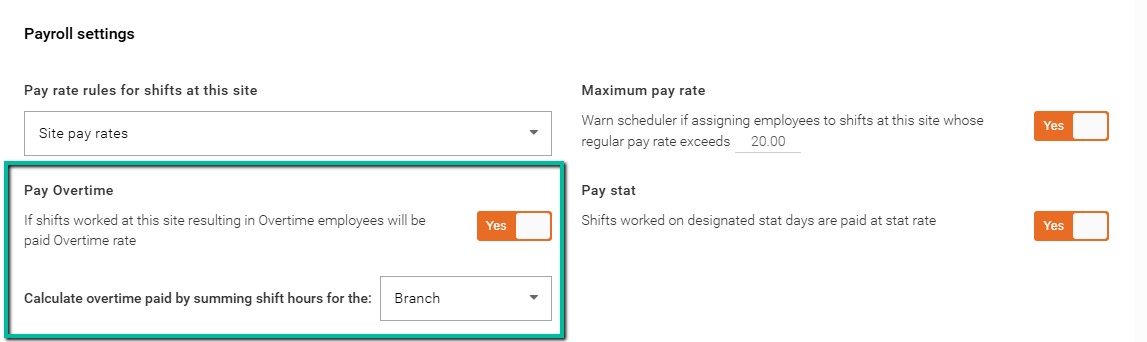
Enable overtime calculations by setting Pay Overtime to Yes.
Under Calculate Overtime Paid by Summing Shift Hours For The, choose how overtime hours are calculated:
- Branch Level — Totals employee hours across all sites within a branch.
- Customer Level — Totals employee hours across all sites for a customer.
- Site Level — Totals employee hours separately for each site.
Default Settings: Pay Overtime is set to Yes and overtime is calculated at the Branch Level.
Pay Stat at Site
If Pay Stat is set to Yes (default), any shift that falls on a statutory holiday at this site will be paid at the applicable Stat Rate.
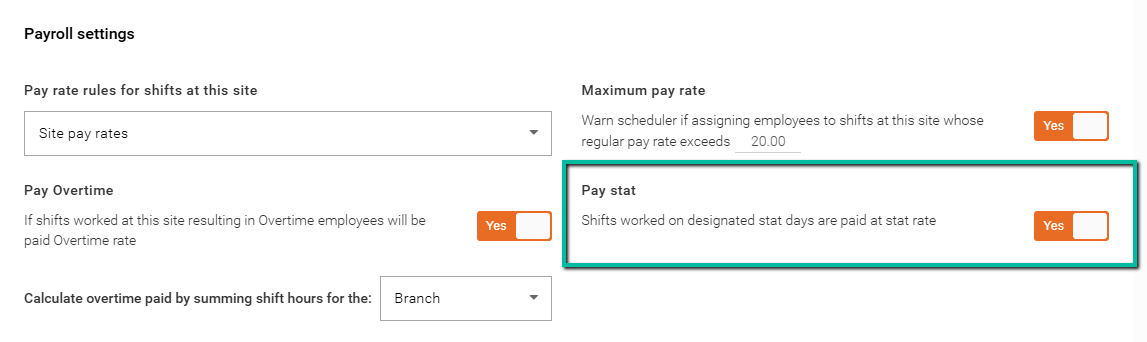
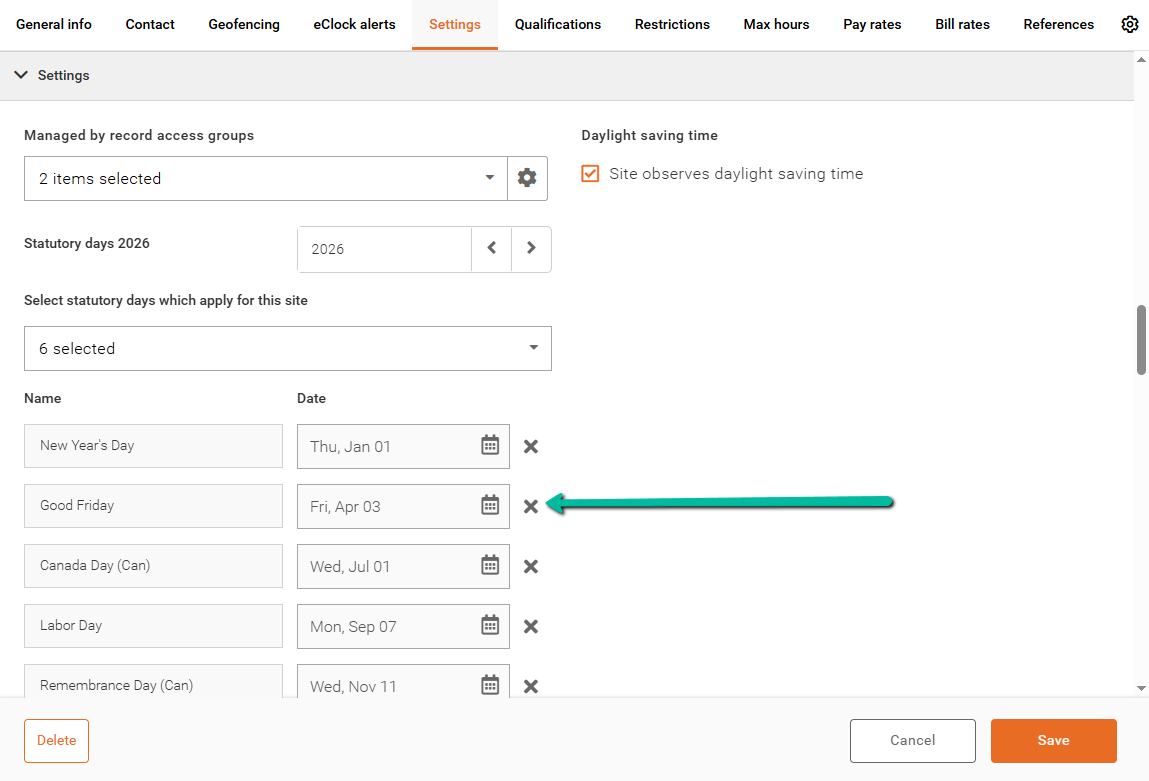
By default, the statutory holidays assigned to a site are based on the holidays configured under Statutory Days in General Settings. These can be customized at the site level from the Settings tab.
If a statutory holiday does not apply to a site, it can be removed by clicking the X.