Approve or Decline Time Off
Efficient time off management helps ensure your team gets the rest they need while maintaining smooth operations.
Admins can approve or decline time off requests directly in Schedule Xpress. Whether it's vacation, sick leave, or personal time, managing multiple requests—especially during busy periods—can be handled quickly and efficiently.
The Requests section consolidates all pending requests in one place, allowing you to review and respond with ease. This streamlined approach saves time and helps keep your team running smoothly.
Access the Requests Section
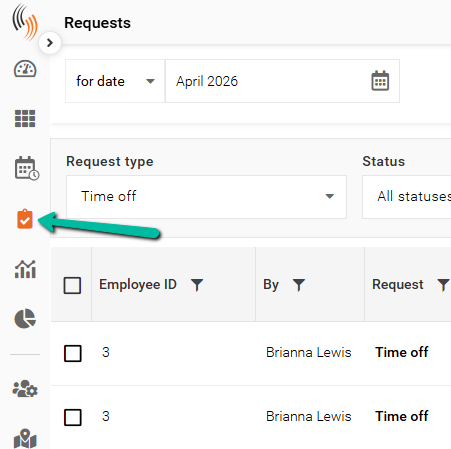
The Requests section is located on the command strip along the left side of Schedule Xpress. It is identified by a suitcase icon with a check mark inside.
Navigate the Requests Section
This section will help you understand how to navigate the Requests section efficiently.
Toggle Between Approval Required and All Requests
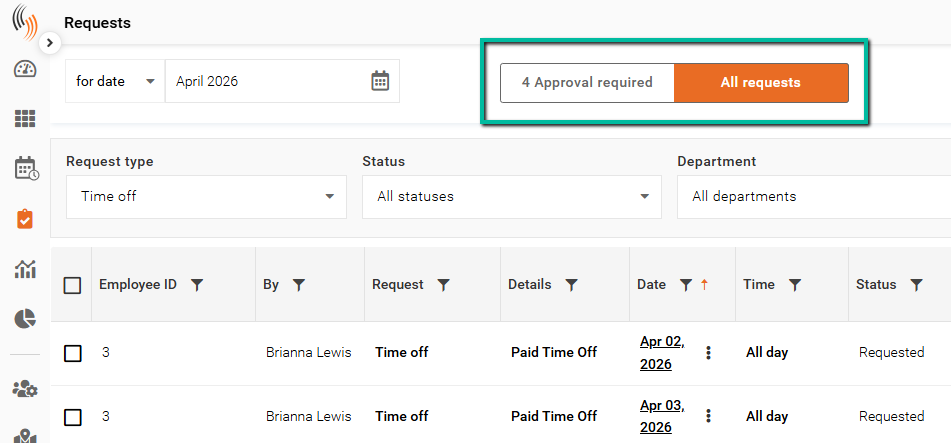
When you enter Requests, you can switch between two views: Approval Required and All Requests. Here’s what each one means:
- Approval Required: Displays all requests that require your approval or decline
- All Requests: Displays all requests, including approved, declined, pending, and canceled
The orange toggle at the top of the screen shows how many requests are waiting for your review.
Choose Date Range in All Requests
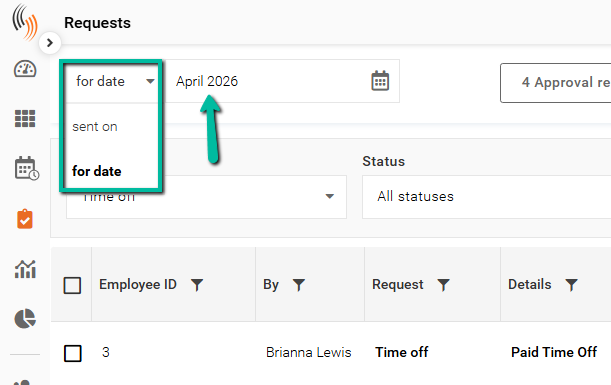
When in the All requests section, select the appropriate date range to view the time off request data you need. There are two options:
- Sent On: Filters requests based on when they were submitted
- For Date: Filters requests based on the actual dates requested
Filter for Specific Request Types and Employees
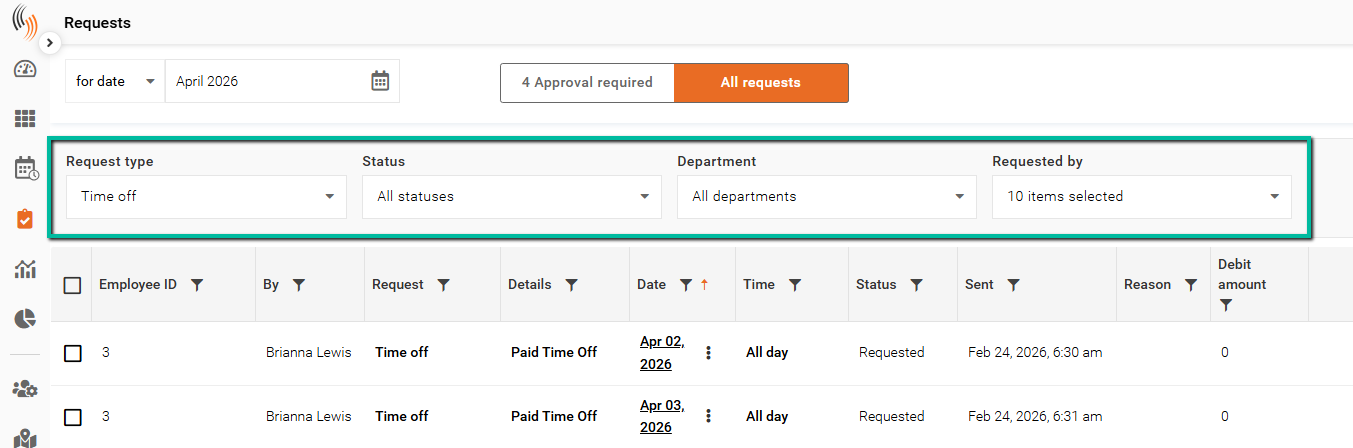
Use filters to display the relevant employees and request data. Available filter options include:
- Request type: View all requests, time off, or shift drop
- Status: Filter by request status, such as Requested, Approved, Declined, or Cancelled
- Department: Select specific departments (if applicable)
- Requested by: Filter by individual employees or groups
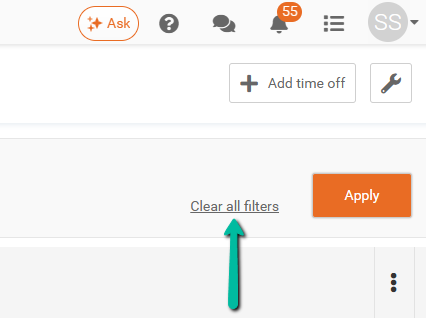
If filters are applied, click the orange Apply button on the right to activate them.
Click Clear all filters to remove all applied filters.
Approve or Decline Time Off Requests
In the Approval required section, you’ll see all time off requests that need a decision.
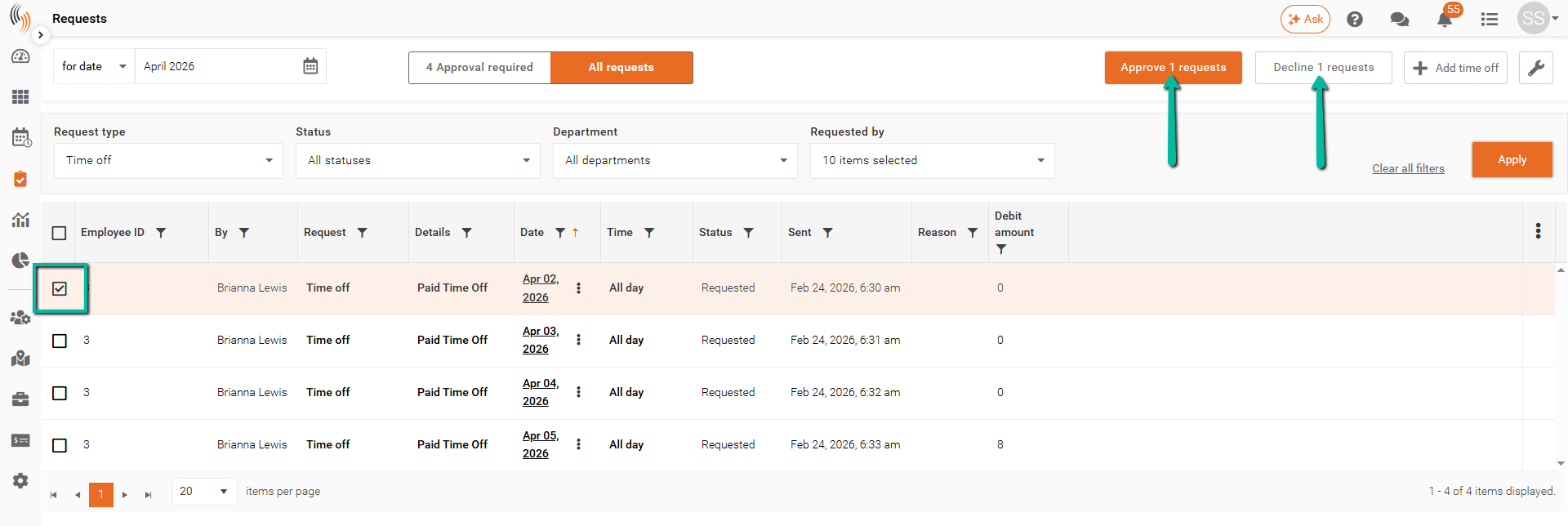
To approve or decline a request:
- Select the request using the checkbox on the left
- Click Approve or Decline in the top-right corner
You can approve or decline multiple requests at once by selecting multiple entries.
For details on notifications, refer to the Time Off Request Notifications article.
Add Manager Comments
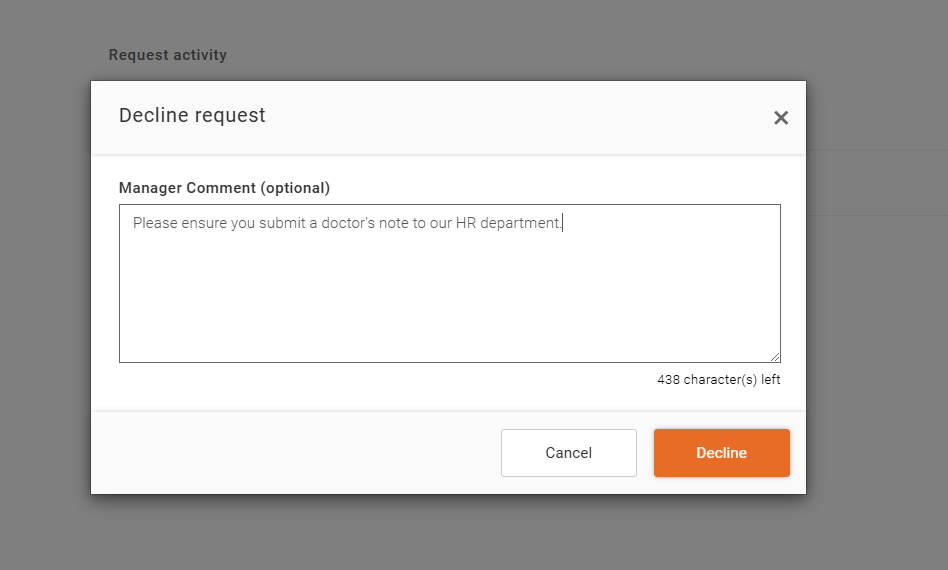
When approving or declining a request, you can leave a comment for the employee.
This comment will be visible to the employee within their request in the Team Xpress app.
Learn how to enable this feature in our Enable Manager Comment for Time Off article.