Add Shifts in Schedule Xpress Mobile
This guide explains how to add a shift using the Schedule Xpress Mobile app.
Managing schedules on the go is simple with Schedule Xpress Mobile. Whether you need to quickly assign work or fill a gap in coverage, the app allows you to create new shifts in just a few taps. This guide walks you through how to add a shift directly from your mobile device.
Step 1: Open the Add Shift Option
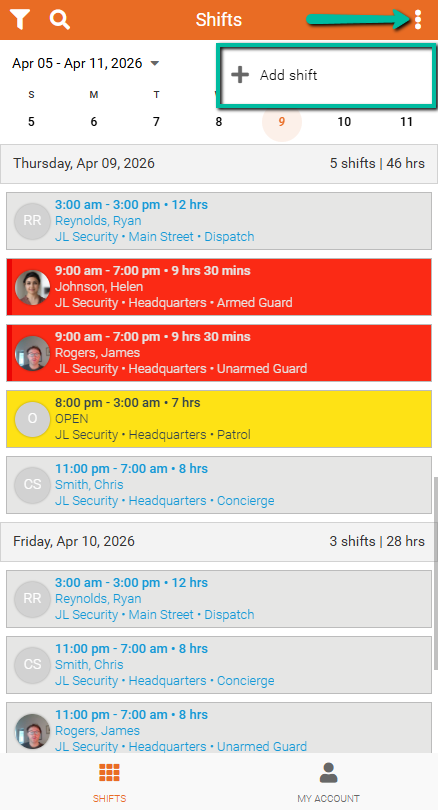
From the Shifts screen:
- Tap the three dots (⋮) in the top-right corner
- Select Add shift
Step 2: Enter Shift Details
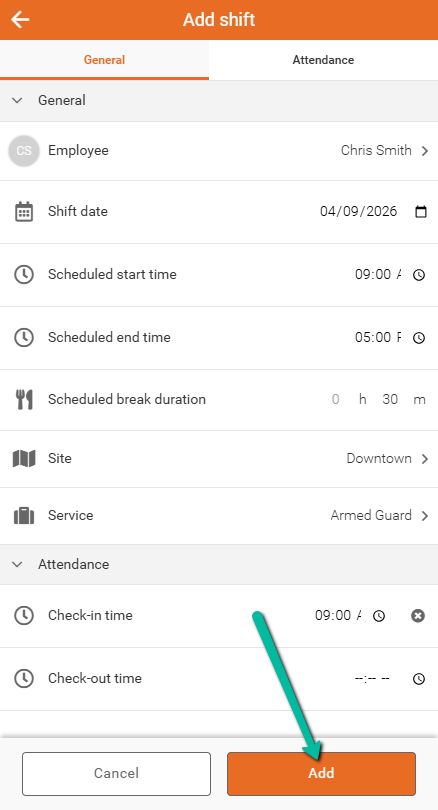
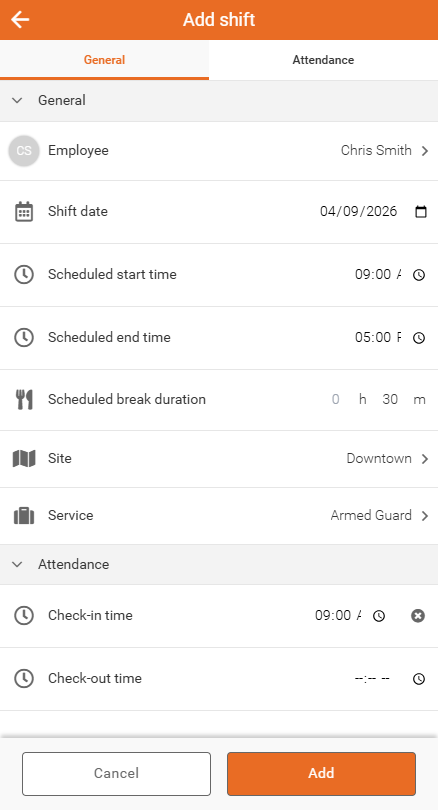
You will be taken to the Add shift screen. Complete the required fields:
General Section
- Employee – Select the employee for the shift
- Shift date – Choose the date
- Scheduled start time – Enter the start time
- Scheduled end time – Enter the end time
- Scheduled break duration – Add break time if needed
- Site – Select the work location
- Service – Choose the service or job type
Attendance Section (Optional)
- Check-in time – Enter if applicable
Step 3: Save the Shift
- Tap Add to create the shift
- Tap Cancel to discard changes